


Overview
Part 1 of 3: Rage Click Detection with LaunchDarkly The holidays are around the corner and with it comes the expected uptick in traffic, and as traffic increases the need to preserve user experience becomes that much more imperative. You can ship out a new feature, everything seems to be going as planned, and then all of a sudden you start to see a spike in support tickets. The error logs aren’t helpful or show nothing and the metrics look fine. So, what happened? Wouldn’t you like to literally put yourself in the user’s shoes by seeing exactly what happened in a user session? Enter session replay and more specifically rage clicks as a barometer for user experience. In this three-part series, we’ll explore how LaunchDarkly’s session replay and observability features help you detect, diagnose, and fix user experience issues in real-time. Part 1 covers the fundamentals: what rage clicks are, how to detect them, and how to get started with session replay.What is a rage click?
A rage click occurs when a user rapidly clicks the same element multiple times in frustration, usually because the element appears clickable but isn’t responding as expected. It’s one of the strongest behavioral signals that something is wrong with your user experience.Why rage clicks matter:
- Silent failures: Many bugs don’t throw errors or trigger alerts.
- Real user impact: Unlike synthetic monitoring or load tests, rage clicks show you exactly what real users experienced in production conditions.
- Early warning system: Rage click spikes often appear before users start filing support tickets or abandoning your app entirely.
- Actionable insights: Unlike vague complaints like ‘the site is slow,’ rage clicks point to specific UI elements that need attention.
The Anatomy of a rage click
Not every series of rapid clicks qualifies as rage clicks. LaunchDarkly uses three criteria to distinguish genuine frustration from normal user behavior:
The Anatomy of a Rage Click, which includes minimum clicks, click radius, and time window.
Beyond rage clicks: Other Frustration Signals
While rage clicks are the most obvious indicator of user frustration, LaunchDarkly’s session replay automatically captures several other behavioral patterns: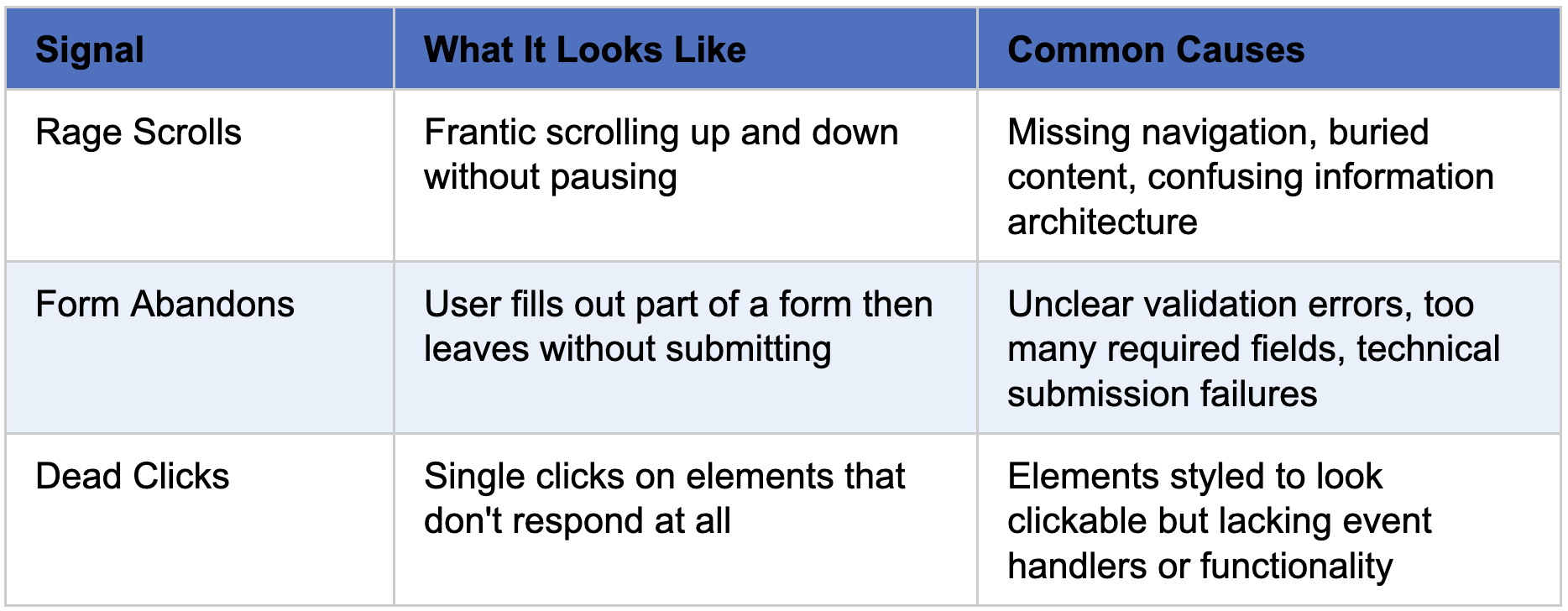
Other frustration signals that can be used to measure user experience.
Getting Started with Launch
Darkly session replayHolistic
Self App This health tracking app, written in Javascript, demonstrates LaunchDarkly session replay implementation for detecting user frustration through rage click monitoring. Find all the code for this demo here, with the LaunchDarkly integration instructions in this .md file.Implementation Architecture
File Structure:- Automatic initialization on app load.
- Anonymous user tracking (no login required).
- Strict privacy mode for health data protection.
- Network recording for API debugging.
- Zero custom rage click code needed.

Grab Client ID from UI.
src/services/launchdarkly.js:
src/main.jsx for:
Configuring Rage Click Detection
Rage click detection is configured in the LaunchDarkly UI, not in code. This makes it easy to adjust thresholds without redeploying. Access Settings:- Log in to LaunchDarkly.
- Navigate to Project Settings > Observability > Session settings.
- Find the Rage clicks section.
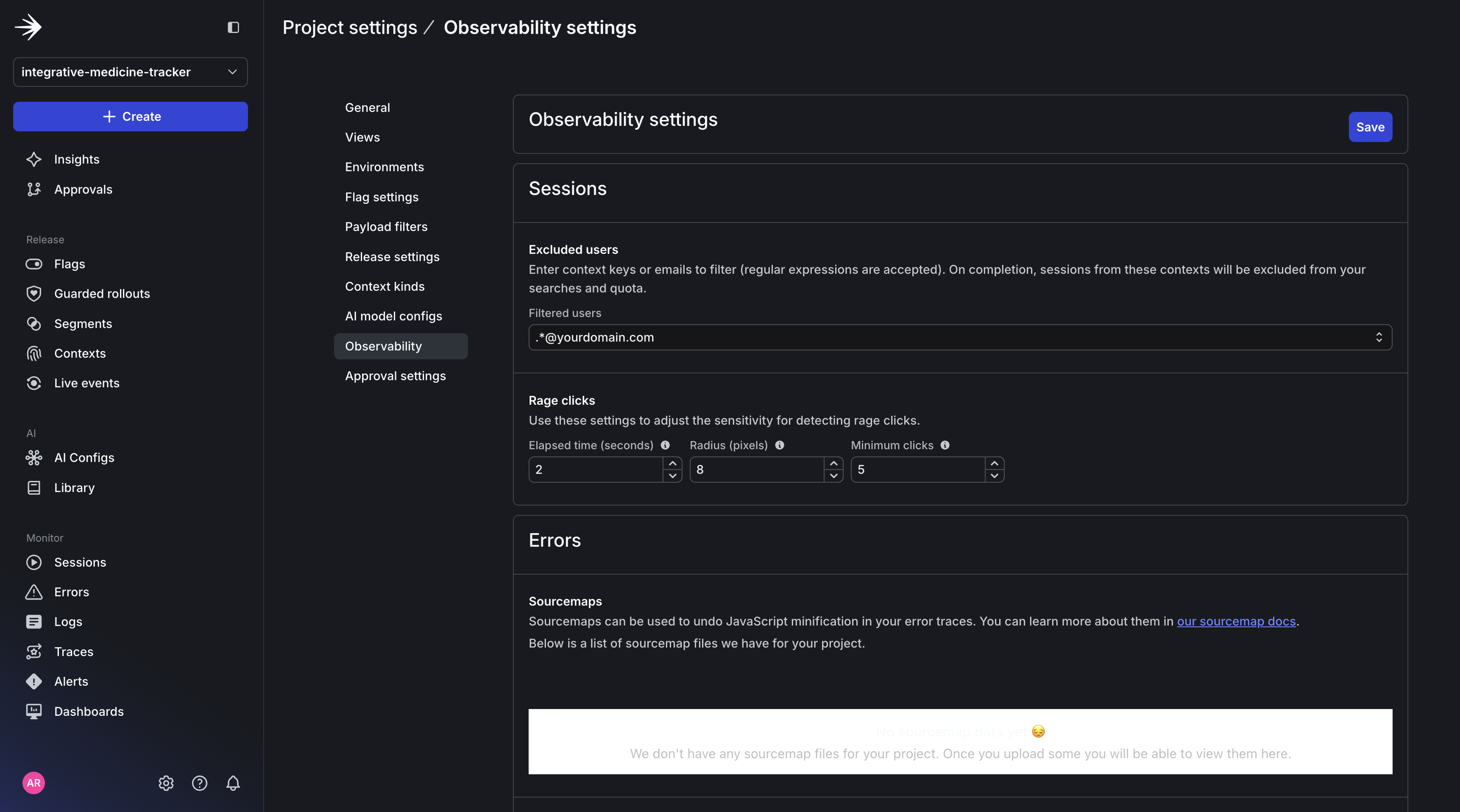
Enable session replay in LaunchDarkly UI.
- Minimum clicks -> Set number of clicks required to trigger to 5 clicks.
- Click radius -> Set the pixel radius for click proximity to 8 pixels.
- Elapsed time -> Set the time window for detecting rage clicks to 2 seconds.
How it works:
Session recording When the session replay plugin is initialized, LaunchDarkly automatically:- Records all DOM changes.
- Captures every click with precise coordinates and timestamps.
- Tracks scroll events, form inputs, and navigation.
- Sends data to LaunchDarkly servers in the background.
- Identifies rapid click patterns.
- Applies your configured thresholds.
- Marks sessions with has_rage_clicks=true attribute.
- Associates rage clicks with specific elements and pages.
Viewing session replay Results
In order to test this integration, you can do the following:- Create a test button that intentionally does nothing:
- Rapidly click the button 5+ times within 2 seconds in the same spot.
- Wait a few minutes for LaunchDarkly to process the session
- Check LaunchDarkly dashboard by navigating to Monitor > Sessions with the option to Filter by has_rage_clicks=true.
Preview of HolisticSelf App.
Session replay of creating a new ailment card in HolisticSelf App.
AilmentsListScreen.jsx file within the header div.
Testing the rage click integration in real time using a test button.
Session replay in LaunchDarkly UI showing rage clicks.
- Filter sessions by has_rage_clicks=true to find frustrated users.
- Replay sessions to see exactly what caused frustration.
- Identify specific UI elements that trigger rage clicks.
- View correlated errors and network requests in the timeline.
- Prioritize fixes based on real user frustration data.
Advanced Search Queries
Troubleshooting
Rage clicks Not detected- Verify rage click detection is enabled in Project Settings > Observability > Session settings.
- Check that your click pattern meets the configured thresholds (default: 5 clicks within 8 pixels in 2 seconds).
- Ensure the LaunchDarkly client initialized successfully (check browser console).
- Wait a few minutes for LaunchDarkly to process sessions.
- Verify LaunchDarkly account has observability features enabled.
- Check that both plugins are properly initialized.
- Ensure Content Security Policy allows connections to LaunchDarkly.
- Check browser console for initialization errors.
- Verify the client-side ID is correct.
Privacy and Security Considerations
Session replay is powerful, but it comes with important privacy responsibilities. LaunchDarkly provides several layers of protection to ensure you’re capturing useful debugging data without exposing sensitive user information. Default Privacy Mode: Strict Protection By default, LaunchDarkly operates in strict privacy mode, which provides the safest option:- All text inputs are obfuscated: Form fields, text areas, and input boxes show as masked characters.
- PII regex matching: Text matching patterns for emails, phone numbers, social security numbers, addresses, and credit cards are automatically masked.
- Images and media preserved: Visual elements remain visible for UX debugging.
Key Takeaways
Implementing rage click detection with LaunchDarkly session replay is a pretty straightforward process and involves installing the observability sdk with specific plugins. The real power comes from LaunchDarkly’s automatic detection and the ability to replay sessions with full context (errors, logs, network requests) to understand exactly what frustrated users. By detecting rage clicks, we can:- Identify broken or confusing UI elements.
- Understand user frustration patterns.
- Prioritize fixes based on real user data.
- Improve user experience proactively.
What’s Next: From Detection to Action
You now have the foundation for detecting user frustration with LaunchDarkly’s session replay. You can:- Automatically capture rage clicks, rage scrolls, and form abandons.
- Search for sessions with specific frustration patterns.
- Watch full session replays with correlated errors and logs.