

 If you’re a builder, you understand that it’s crucial to observe how users respond to new features, interface changes, and experimental variations.
Feedback is an essential part of the product development lifecycle, helping teams validate decisions and iterate faster. The new user feedback tool makes it convenient and possible for you and your team to enable metric tracking for specific feature flags within minutes.
This tutorial will guide you to enable and view valuable user feedback metrics directly from the LaunchDarkly dashboard. A sample app will be provided for you to clone and follow along on your own machine, but you can skip over to the “Install the SDK and implement user feedback function” if you prefer to use your own app.
This features is available for JavaScript & TypeScript client-side SDKs. React components are also provided for convenient integration.
If you’re a builder, you understand that it’s crucial to observe how users respond to new features, interface changes, and experimental variations.
Feedback is an essential part of the product development lifecycle, helping teams validate decisions and iterate faster. The new user feedback tool makes it convenient and possible for you and your team to enable metric tracking for specific feature flags within minutes.
This tutorial will guide you to enable and view valuable user feedback metrics directly from the LaunchDarkly dashboard. A sample app will be provided for you to clone and follow along on your own machine, but you can skip over to the “Install the SDK and implement user feedback function” if you prefer to use your own app.
This features is available for JavaScript & TypeScript client-side SDKs. React components are also provided for convenient integration.
Why you should think about this today
Learning how to track important metrics such as user feedback is often overlooked. It can also be a struggle to connect user sentiment directly to a feature flag or existing experimentation. Perhaps your problem might be relying on generic feedback tools that lack context about which features users are experiencing. Ideally you would want to see a list of feedback tied to a feature that has been shipped behind a flag. Don’t spend more time guessing where a user dropped off when this new LaunchDarkly feature can provide more contextual feedback and live session replay. The qualitative feedback helps narrow down the decision making process so that your team can ship features faster, catch issues early, or roll back a variation and adjust a specific prompt. It is also a great way to understand how different users behave - whether you’re working with gamers, beta testers, premium users, or internal users.Requirements
- LaunchDarkly account. If you haven’t done so already, create a free account
- An app that uses client side flags. A sample app will be provided below
- Modern node version. I would recommend the node version manager (nvm) if you don’t have node installed already
- Bonus: LaunchDarkly feature flags set up and enabled already
Create the feature flag
If you and your team do not have an existing feature flag already, go to the LaunchDarkly dashboard and create your first feature flag. Give it a name such as “feedback demo”.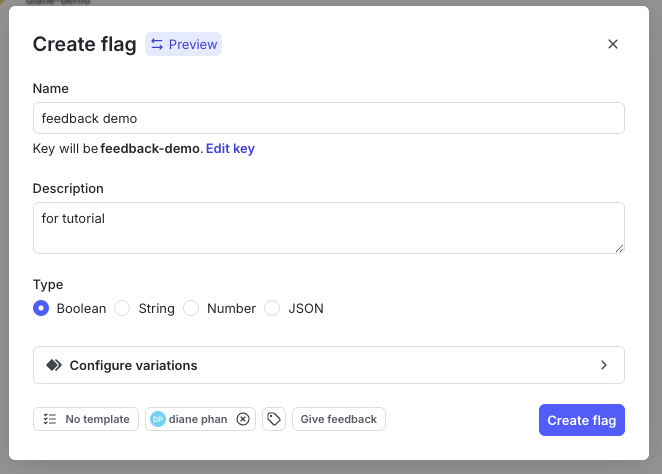
Create a new flag named feedback demo.
cp .env.example .env and add the following lines:
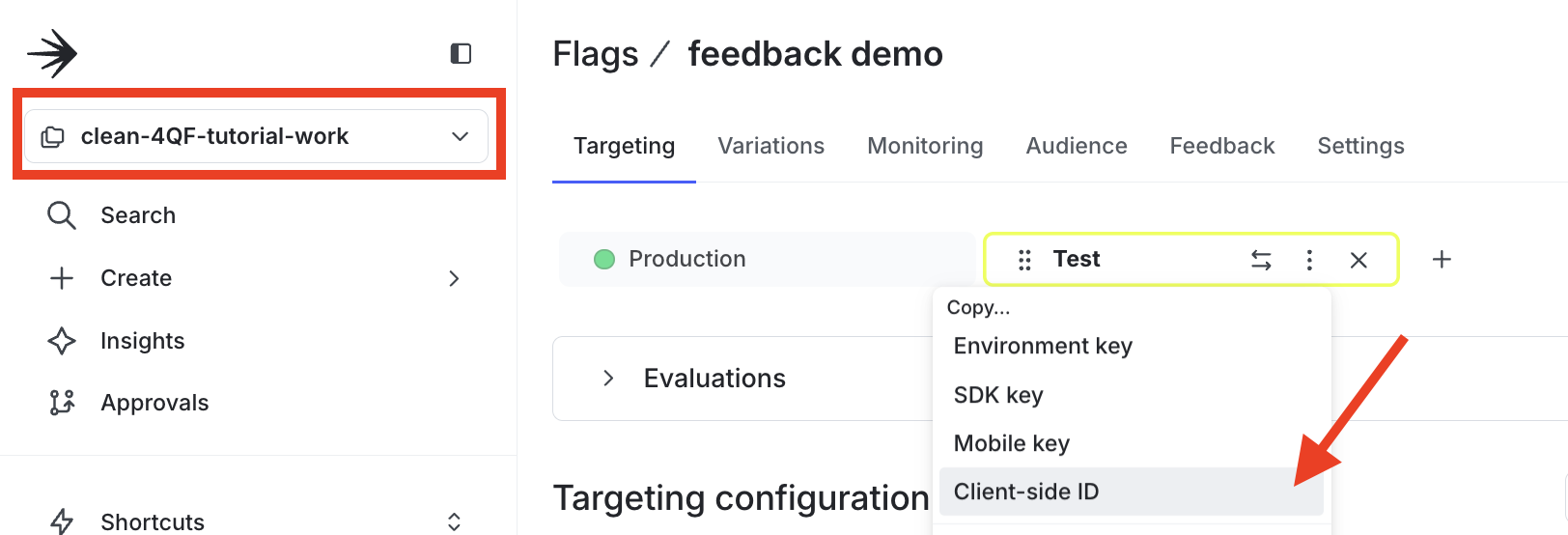
Locate values for the .env file.
Install the SDK and implement user feedback function
Click on the Feedback section at the top of the page.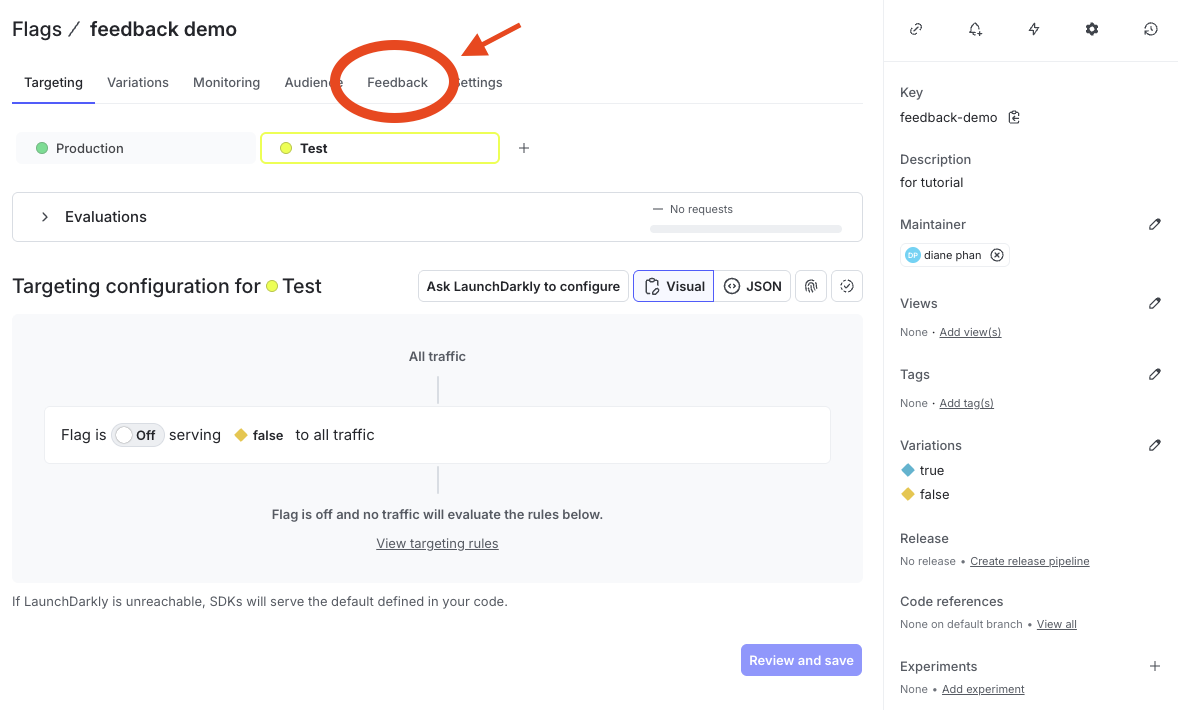
Click on the Feedback tab at the top.
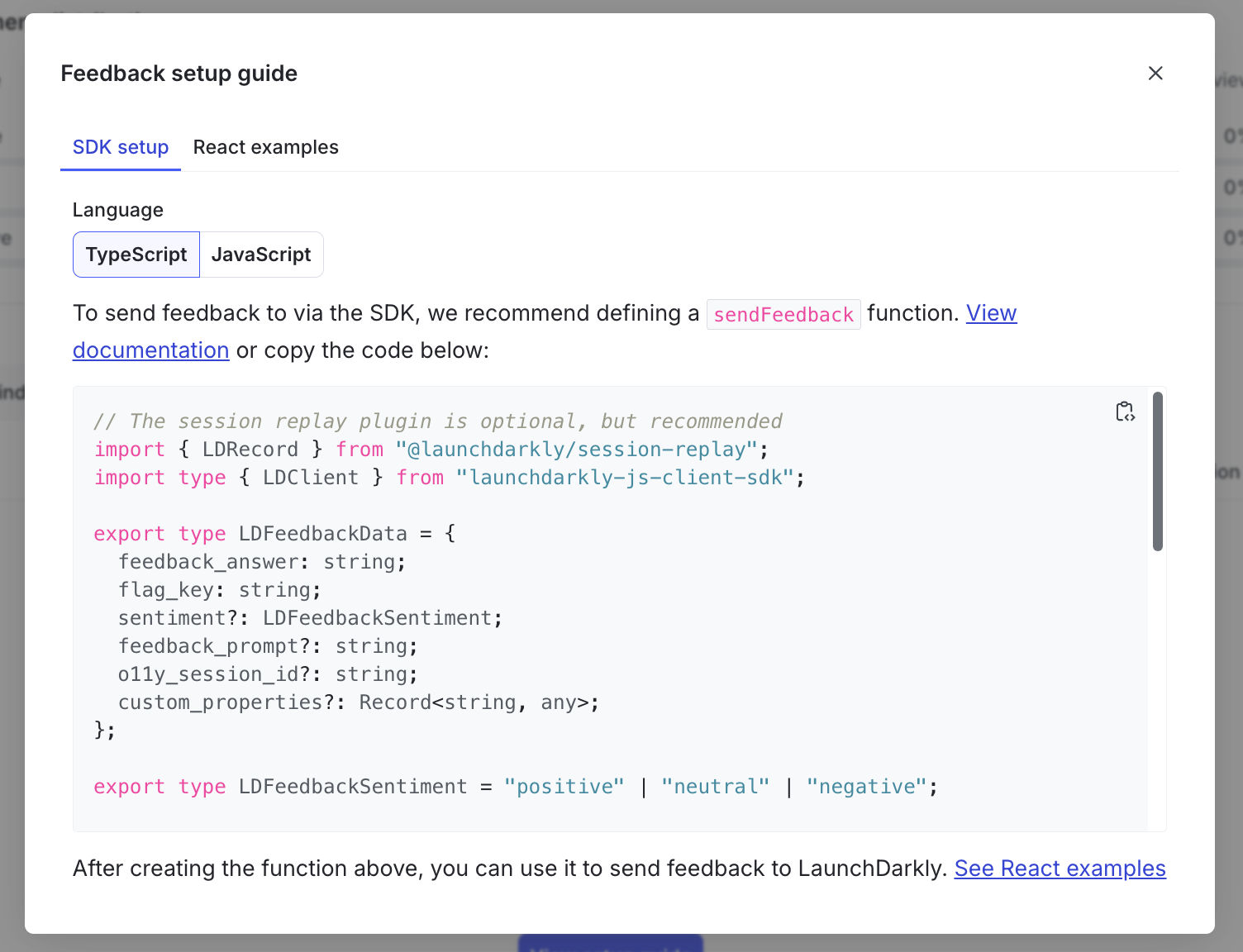
Screenshot of the feedback setup guide SDK.
Create the feedback modal file
Here’s the fun part - implementing the buttons and functions necessary to collect feedback from users. Create a new file within the src subdirectory and name it feedbackPopover.tsx. Click on the React examples tab of the setup guide to access the code snippet. This tutorial will implement a feedback popover that allows users to type in a message and provide a thumbs up or thumbs down to describe their experience. Let’s alter the FeedbackPopover function a bit. Scroll down to function and add an export keyword in the beginning so that function can be executed in the main application.ldClient.
Copy the <FeedbackPopover ldClient={ldClient} /> line and scroll down to the bottom of the page where the code returns JSX. Replace the placeholder comment {/* Add the feedback here */} with the FeedbackPopover class so it looks like the code snippet below:
Enable the client SDK in production environments
If you are working in the Production environment, you might be prompted to enable the JavaScript Client SDK to access the flag’s key. You can toggle this on and off in the flag’s dashboard in the bottom right hand corner under the Advanced controls section.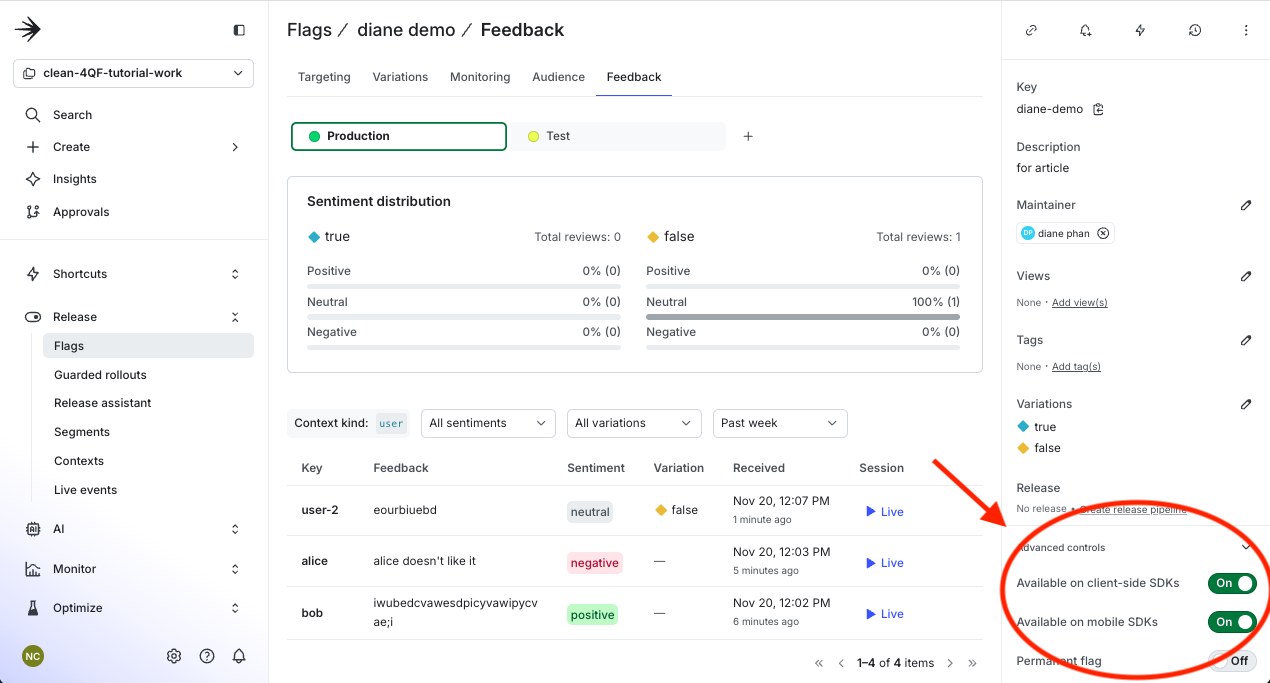
Advanced controls on the bottom right hand side to enable client-side SDKs.
Test out the user feedback function
Open up a terminal window and install the dependencies in the working directory withnpm i. Run the dev server with npm run dev.
You should get output like this:
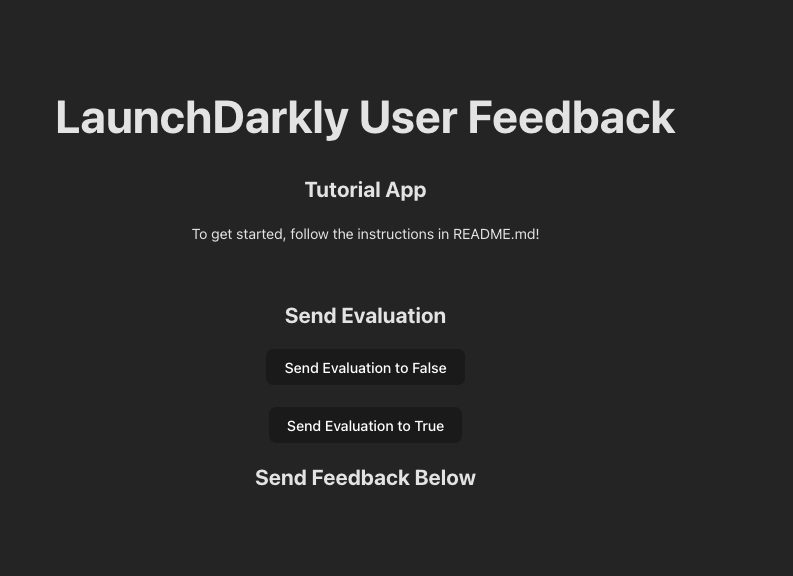
Demo page for tutorial.
Run flag evaluations
The starter code is presented to you so all you have to do is try it out! If you named your flag “feedback demo”, the flag key here should already be set. If not, you’ll want to change this code to reflect your flag key name. Click the Feedback button and add some sample data to make sure the app is working. I’ll make 3 evaluations to populate the flag with data to examine. Wait a minute before you can see your evaluation and feedback results in the dashboard.Assess the user feedback on dashboard
Confirm that the feedback went through. Go back to the Feedback dashboard and refresh the page. See the latest comment that was created and how the sentiment was analyzed.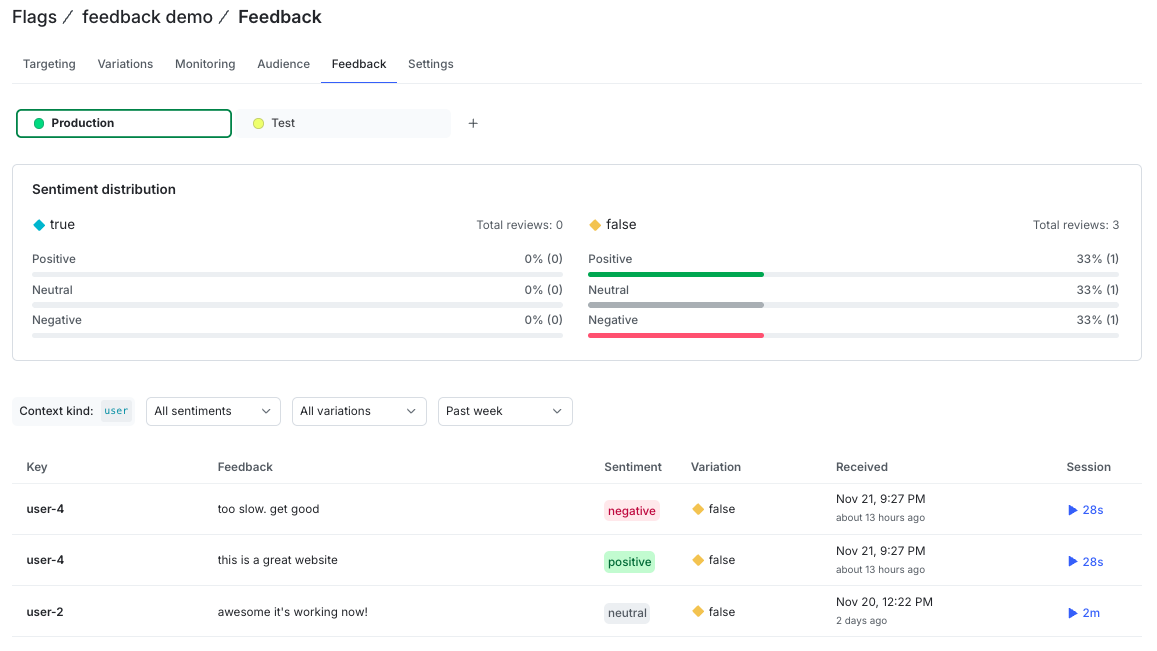
Assess the feedback on the dashboard.
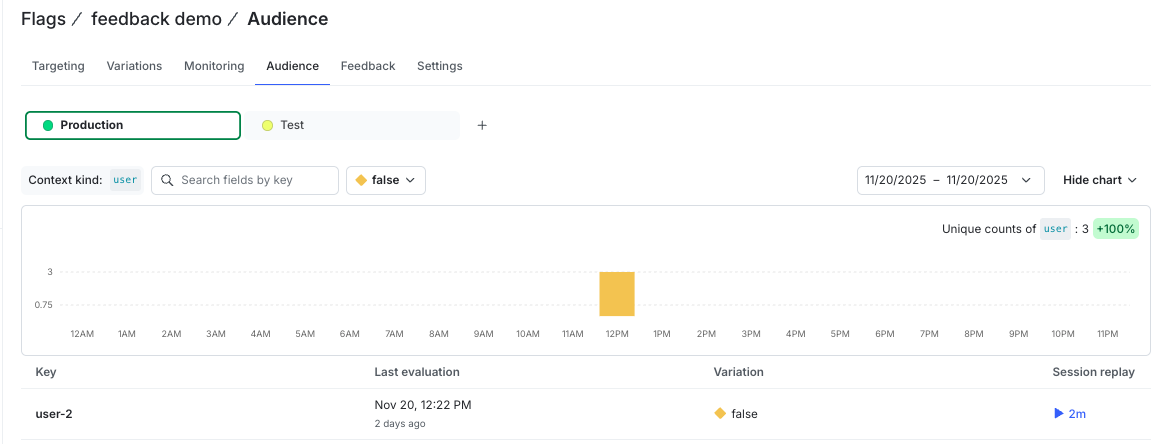
View the audience dashboard in the feedback demo.
Create different sessions and customize user behavior
Every project has a different use case - perhaps your audience plays video games, or they are a subscribing member. You can create different contexts and customize them specifically for your use case. LaunchDarkly also allows you to create different sessions to observe the user’s behavior. Click on a user key and see the user context.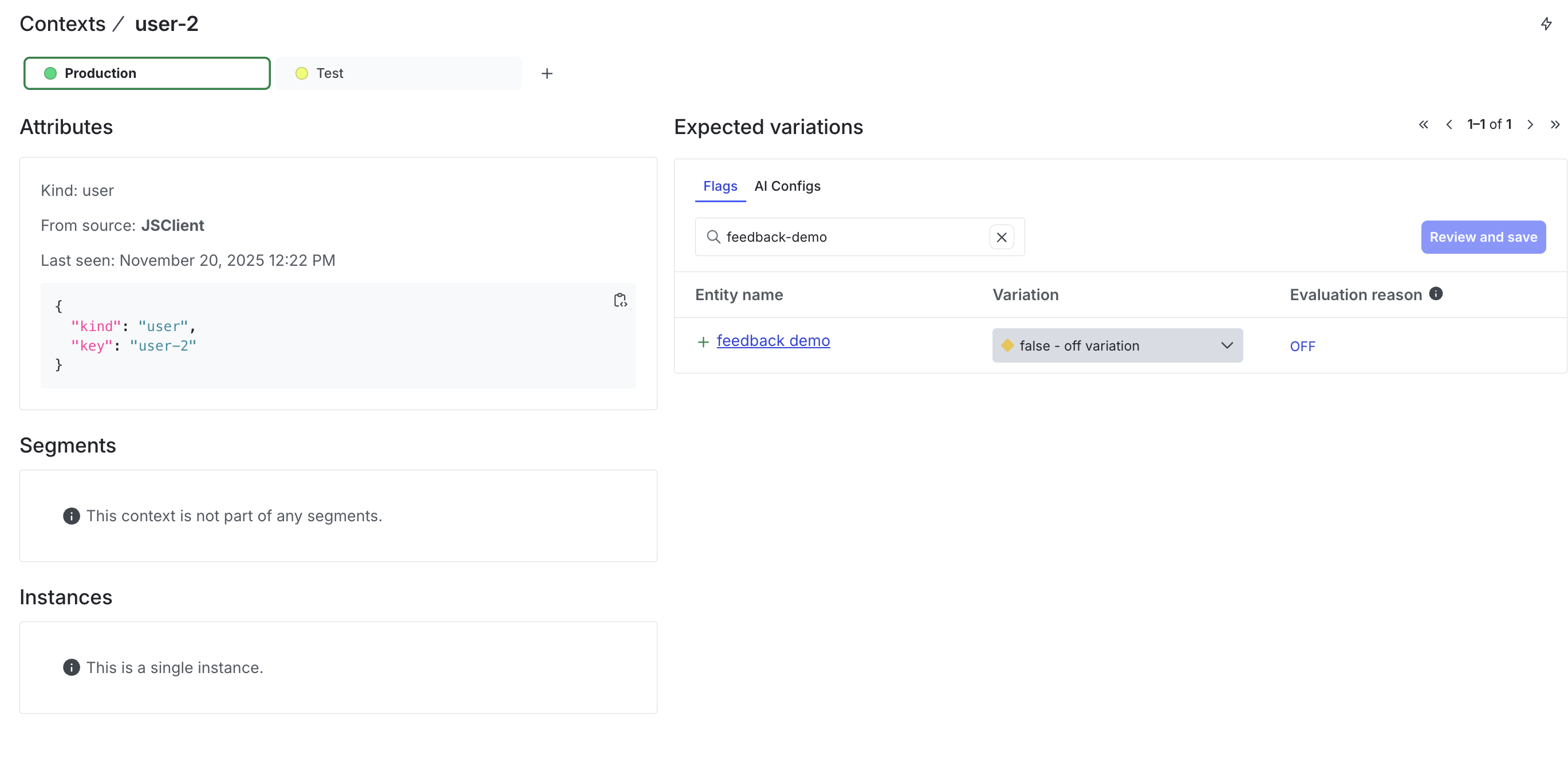
View the details for the user-2 context on the feedback demo.