Documentation Index
Fetch the complete documentation index at: https://launchdarkly-preview.mintlify.app/llms.txt
Use this file to discover all available pages before exploring further.
by Scarlett Attensil
Overview
Build a working multi-agent system with dynamic configuration in 20 minutes using LangGraph multi-agent workflows, RAG search, and LaunchDarkly AI Configs.
Part 1 of 3 of the series: Chaos to Clarity: Defensible AI Systems That Deliver on Your Goals
You’ve been there: your AI chatbot works great in testing, then production hits and GPT-4 costs spiral out of control. You switch to Claude, but now European users need different privacy rules. Every change means another deploy, more testing, and crossed fingers that nothing breaks.
The teams shipping faster? They control AI behavior dynamically instead of hardcoding everything.
This series shows you how to build LangGraph multi-agent workflows that get their intelligence from RAG search through your business documents. These workflows are enhanced with MCP tools for live external data and controlled through LaunchDarkly AI Configs—all without needing to deploy code changes.
What This Series Covers
- Part 1 (this post): Build a working multi-agent system with dynamic configuration in 20 minutes
- Part 2: Add advanced features like segment targeting, MCP tool integration, and cost optimization
- Part 3: Run production A/B experiments to prove what actually works
By the end, you’ll have a system that measures its own performance and adapts based on user data instead of guesswork.
What You’ll Build Today
In the next 20 minutes, you’ll have a LangGraph multi-agent system with:
- Supervisor Agent: Orchestrates workflow between specialized agents
- Security Agent: Detects PII and sensitive information
- Support Agent: Answers questions using your business documents
- Dynamic Control: Change models, tools, and behavior through LaunchDarkly without code changes
Prerequisites
You’ll need:
- Python 3.9+ with
uv package manager (install uv)
- LaunchDarkly account (sign up for free)
- OpenAI API key (required for RAG architecture embeddings)
- Anthropic API key (required for Claude models) or OpenAI API key (for GPT models)
First, let’s get everything running locally. We’ll explain what each piece does as we build.
# Get the code
git clone https://github.com/launchdarkly-labs/devrel-agents-tutorial
cd devrel-agents-tutorial
# Note: For the latest Agent Graphs implementation, use: git checkout tutorial/agent-graphs
# Install dependencies (LangGraph, LaunchDarkly SDK, etc.)
uv sync
# Configure your environment
cp .env.example .env
First, you need to get your LaunchDarkly SDK key by creating a project:
- Sign up for LaunchDarkly at app.launchdarkly.com (free account).
If you’re a brand new user, after signing up for an account, you’ll need to verify your email address. You can skip through the new user onboarding flow after that.
- Find projects on the side bar:
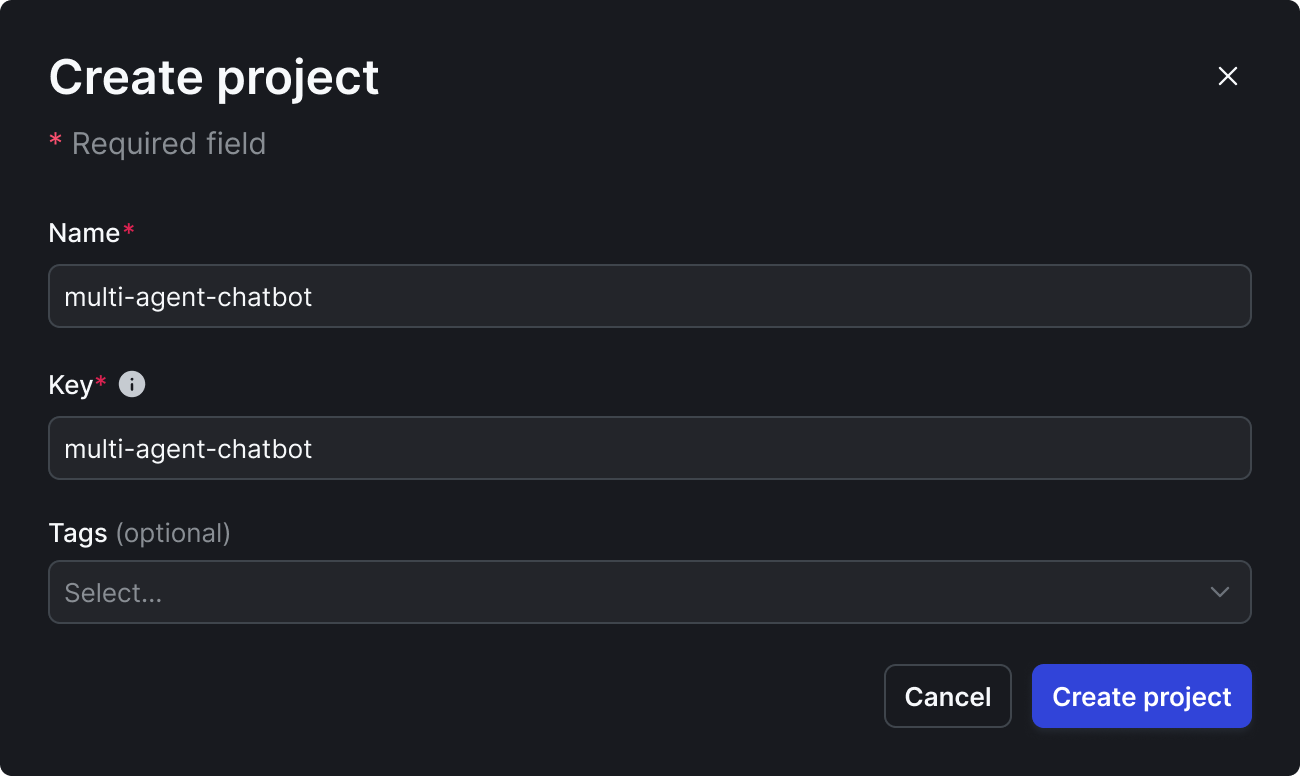
- Create a new project called “multi-agent-chatbot”
🎯 Use exact names for Part 2 compatibility:
- Project:
multi-agent-chatbot
- AI Configs:
supervisor-agent, security-agent, support-agent
- Tools:
search_v2, reranking
- Variations:
supervisor-basic, pii-detector, rag-search-enhanced
-
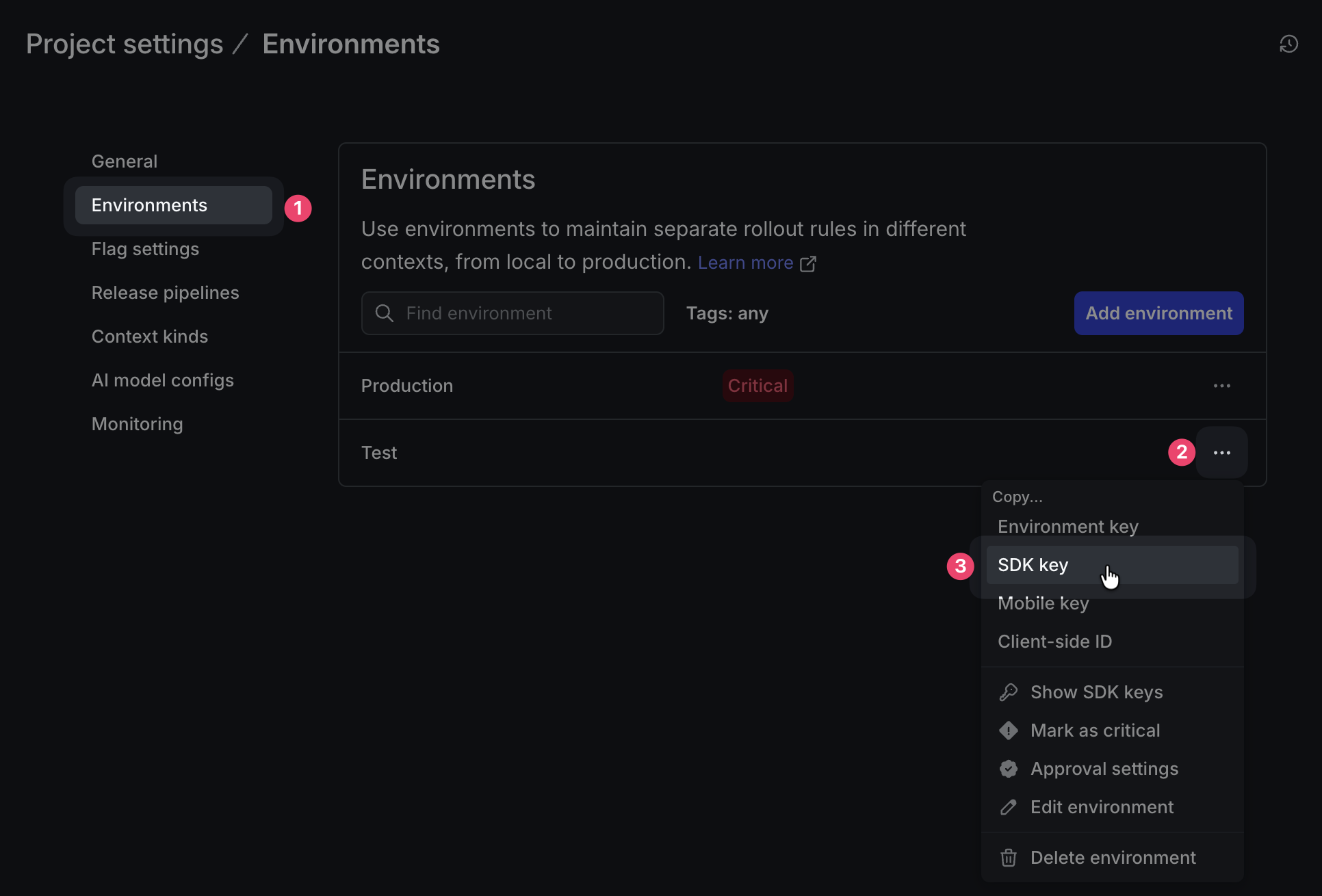
Get your SDK key:
⚙️ (bottom of sidebar) → Projects → multi-agent-chatbot → ⚙️ (to the right)
→ Environments → Production → SDK key
this is your
LD_SDK_KEY
Now edit .env with your keys:
LD_SDK_KEY=your-launchdarkly-sdk-key # From step above
OPENAI_API_KEY=your-openai-key # Required for RAG embeddings
ANTHROPIC_API_KEY=your-anthropic-key # Required for Claude models
This sets up a LangGraph application that uses LaunchDarkly to control AI behavior. Think of it like swapping actors, directors, even props mid-performance without stopping the show.
Do not check the .env into your source control. Keep those secrets safe!
Step 2: Add Your Business Knowledge (2 minutes)
The system includes a sample reinforcement learning textbook. Replace it with your own documents for your specific domain.
# Option A: Use the sample (AI/ML knowledge)
# Already included: kb/SuttonBarto-IPRL-Book2ndEd.pdf
# Option B: Add your documents
rm kb/*.pdf # Clear sample
cp /path/to/your-docs/*.pdf kb/
Document types that work well:
- Legal: Contracts, case law, compliance guidelines
- Healthcare: Protocols, research papers, care guidelines
- SaaS: API docs, user guides, troubleshooting manuals
- E-commerce: Product catalogs, policies, FAQs
These documents will serve as the knowledge base for your RAG search, providing business-specific context to your agents.
Step 3: Initialize Your Knowledge Base (2 minutes)
Turn your documents into searchable RAG knowledge:
# Create vector embeddings for semantic search
uv run python initialize_embeddings.py --force
This builds your RAG (Retrieval-Augmented Generation) foundation using OpenAI’s text-embedding model and FAISS vector database. RAG converts documents into vector embeddings that capture semantic meaning rather than just keywords, making search actually understand context.
Define the search tools your agents will use.
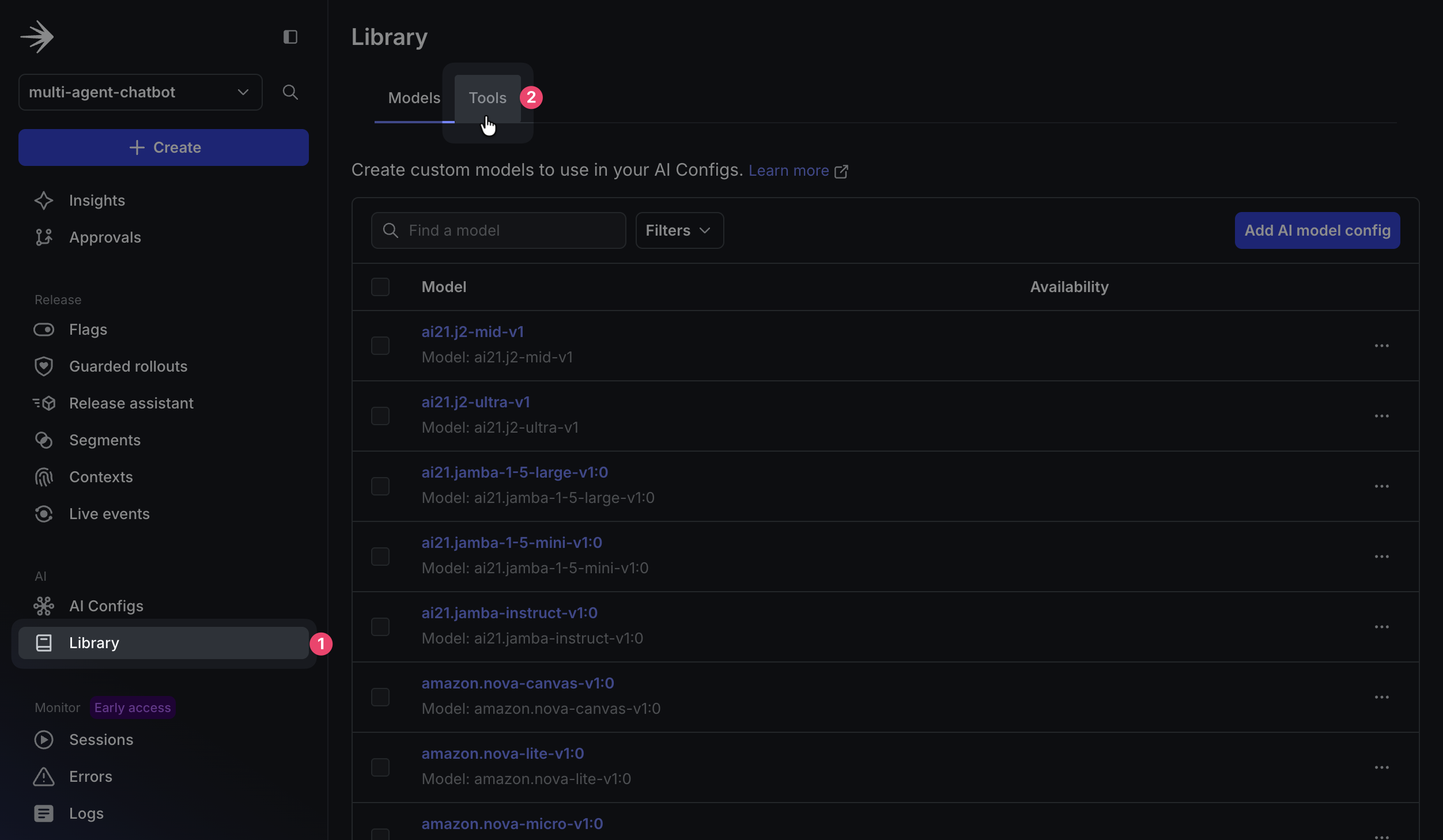
In the LaunchDarkly app sidebar, click Library in the AI section. On the following screen, click the Tools tab, then Create tool.
Note: we will be creating a simple search_v1 during part 3 when we learn about experimentation.
Create a tool using the following configuration:
Key:
> search_v2
> ```
>
> **Description:**
>
>
Semantic search using vector embeddings
> {
> "properties": {
> "query": {
> "description": "Search query for semantic matching",
> "type": "string"
> },
> "top_k": {
> "description": "Number of results to return",
> "type": "number"
> }
> },
> "additionalProperties": false,
> "required": [
> "query"
> ]
> }
> ```
When you're done, click **Save**.
### Create the reranking tool:
Back on the Tools section, click **Add tool** to create a new tool. Add the following properties:
> **Key:**
>
>
reranking
> Reorders results by relevance using BM25 algorithm
> ```
>
> **Schema:**
>
>
```json
> {
> "properties": {
> "query": {
> "description": "Original query for scoring",
> "type": "string"
> },
> "results": {
> "description": "Results to rerank",
> "type": "array"
> }
> },
> "additionalProperties": false,
> "required": [
> "query",
> "results"
> ]
> }
> ```
When you're done, click **Save**.
The `reranking` tool takes search results from `search_v2` and reorders them using the BM25 algorithm to improve relevance. This hybrid approach combines semantic search (vector embeddings) with lexical matching (keyword-based scoring), making it especially useful for technical terms, product names, and error codes where exact term matching matters more than conceptual similarity.
> **🔍 How Your RAG Architecture Works**
>
> Your **RAG** system works in two stages: `search_v2` performs semantic similarity search using FAISS by converting queries into the same vector space as your documents (via **OpenAI** embeddings), while `reranking` reorders results for maximum relevance. This **RAG** approach significantly outperforms keyword search by understanding context, so asking "My app is broken" can find troubleshooting guides that mention "application errors" or "system failures."
## Step 5: Create Your AI Agents in Launch
Darkly (5 minutes)
Now that you've created the tools your agents will use, it's time to configure the agents themselves. Each agent will have its own AI Config that defines its behavior, model selection, and specific instructions.
Create LaunchDarkly AI Configs to control your **LangGraph** multi-agent system dynamically. **LangGraph** is LangChain's framework for building stateful, multi-**agent** applications that maintain conversation state across **agent** interactions. Your **LangGraph** architecture enables sophisticated workflows where **agents** collaborate and pass context between each other.
### Create the Supervisor Agent
1. In the LaunchDarkly dashboard sidebar, navigate to **AI Configs** and click **Create AI Config**
2. Select `🤖 Agent-based`
<br />
<Frame caption="Selecting the Agent-based configuration type.">

</Frame>
3. Name your AI Config `supervisor-agent`. This will be the key you reference in your code.
4. Configure the following fields in the AI Config form:
> **variation:**
>
>
supervisor-basic
claude-3-7-sonnet-latest
> You are an intelligent routing supervisor for a multi-agent system. Your primary job is to assess whether user input likely contains PII (personally identifiable information) to determine the most efficient processing route.
> PII Assessment:
>
> Analyze the user input and provide:
> - likely_contains_pii: boolean assessment
> - confidence: confidence score (0.0 to 1.0)
> - reasoning: clear explanation of your decision
> - recommended_route: either 'security_agent' or 'support_agent'
>
> Route to SECURITY_AGENT** if the text likely contains:
> - Email addresses, phone numbers, addresses
> - Names (first/last names, usernames)
> - Financial information (credit cards, SSNs, account numbers)
> - Sensitive personal data
>
> Route to SUPPORT_AGENT** if the text appears to be:
> - General questions without personal details
> - Technical queries
> - Search requests
> - Educational content requests
>
> Analyze this user input and recommend the optimal route:
> ```
Click **Review and save**. Now enable your AI Config by switching to the **Targeting** tab and editing the default rule to serve the variation you just created:
<br />
<Frame caption="Targeting tab showing the default rule configuration for AI agents.">

</Frame>
Click **Edit** on the Default rule, change it to serve your `supervisor-basic` variation, and save with a note like "Enabling new agent config". Then type "Production" to confirm.
The supervisor **agent** demonstrates **LangGraph** orchestration by routing requests based on content analysis rather than rigid rules. **LangGraph** enables this **agent** to maintain conversation context and make intelligent routing decisions that adapt to user needs and LaunchDarkly AI Config parameters.
### Create the Security Agent
Similarly, create another AI Config called `security-agent`
> **variation:**
>
>
pii-detector
claude-3-7-sonnet-latest
> You are a privacy agent that REMOVES PII and formats the input for another process. Analyze the input text and identify any personally identifiable information including: Email addresses, Phone numbers, Social Security Numbers, Names (first, last, full names), Physical addresses, Credit card numbers, Driver's license numbers, Any other sensitive personal data. Respond with: detected: true if any PII was found, false otherwise,types: array of PII types found (e.g., ['email', 'name', 'phone']), redacted: the input text with PII replaced by [REDACTED], keeping the text readable and natural. Examples: Input: 'My email is john@company.com and I need help', Output: detected=true, types=['email'], redacted='My email is [REDACTED] and I need help'. Input: 'I need help with my account',Output: detected=false, types=[], redacted='I need help with my account'. Input: 'My name is Sarah Johnson and my phone is 555-1234', Output: detected=true, types=['name', 'phone'], redacted='My name is [REDACTED] and my phone is [REDACTED]'. Be thorough in your analysis and err on the side of caution when identifying potential PII. ```
>
This agent detects PII and provides detailed redaction information, showing exactly what sensitive data was found and how it would be handled for compliance and transparency.
Remember to switch to the Targeting tab and enable this agent the same way we did for the supervisor - edit the default rule to serve your pii-detector variation and save it.
Create the Support Agent
Finally, create support-agent
variation:
>
> **Model configuration:**
>
> ```
> Anthropic
>
>
> → **Add parameters**
> → **Click Custom parameters**
>
> ```
json
> {"max_tool_calls":5}
>
Click Attach tools.
select: ✅ reranking ✅ search_v2
Goal or task:
You are a helpful assistant that can search documentation and research papers. When search results are available, prioritize information from those results over your general knowledge to provide the most accurate and up-to-date responses. Use available tools to search the knowledge base and external research databases to answer questions accurately and comprehensively.
This **agent** combines **LangGraph** workflow management with your **RAG** tools. **LangGraph** enables the **agent** to chain multiple tool calls together: first using **RAG** for document retrieval, then semantic reranking, all while maintaining conversation state and handling error recovery gracefully.
**Remember to switch to the Targeting tab and enable this agent the same way - edit the default rule to serve your `rag-search-enhanced` variation and save it.**
When you are done, you should have three enabled AI Config Agents as shown below.
<br />
<div align="center">
<Frame caption="Overview of all three configured AI agents in LaunchDarkly.">

</Frame>
## Step 6: Launch Your System (2 minutes)
Start the system:
bash
Terminal 1: Start the backend
uv run uvicorn api.main:app —reload —port 8000
bash
Terminal 2: Launch the UI
uv run streamlit run ui/chat_interface.py —server.port 8501
Open [http://localhost:8501](http://localhost:8501) in your browser. You should see a clean chat interface.
> **Note:** If prompted for authentication, you can leave the email field blank and simply click "Continue" to proceed to the chat interface.
## Step 7: Test Your Multi-Agent System (2 minutes)
Test with these queries:
**Basic Knowledge Test:**
"What is reinforcement learning?" (if using sample docs)
Or ask about your specific domain: "What's our refund policy?"
**PII Detection Test:**
"My email is [john.doe@example.com](mailto:john.doe@example.com) and I need help"
**Workflow Details** show:
* Which agents are activated
* What models and tools are being used
* Text after redaction
<br />
<div align="center">
<Frame caption="Chat interface showing the multi-agent workflow in action.">

</Frame>
Watch LangGraph in action: the supervisor agent first routes to the security agent, which detects PII. It then passes control to the support agent, which uses your RAG system for document search. LangGraph maintains state across this multi-agent workflow so that context flows seamlessly between agents.
## Step 8: Try New Features
Experience the power of dynamic configuration by making real-time changes to your agents without touching any code:
### Feature 1: Switch Models Instantly
1. Navigate to **AI Configs** in the LaunchDarkly sidebar
2. Click on `support-agent`
3. In the **Model configuration** section, change from:
* **Current:** Anthropic → claude-3-7-sonnet-latest
* **New:** OpenAI → gpt-4-turbo
4. Click **Save changes**
5. Return to your chat interface at [http://localhost:8501](http://localhost:8501)
6. Ask the same question again - you'll see the response now comes from GPT-4
7. **What you'll notice:** Different response style, potentially different tool usage patterns, and the model name displayed in the workflow details
### Feature 2: Adjust Tool Usage
Limit how many times your agent can call tools in a single interaction:
1. While still in the `support-agent` config
2. Find the **Custom parameters** section
3. Update the JSON from:
```json
{"max_tool_calls": 5}
To:
- Click Save changes
- In your chat, ask a complex question that would normally trigger multiple searches
- What you’ll notice: The agent now makes at most 2 tool calls, forcing it to be more selective about its searches
Feature 3: Change Agent Behavior
Transform your support agent into a research specialist:
- In the
support-agent config, locate the Goal or task field
- Replace the existing instructions with:
You are a research specialist. Always search multiple times from different angles before answering.
Prioritize accuracy over speed. For any question, perform at least 2 different searches with varied
search terms to ensure comprehensive coverage. Cite your sources and explain your search strategy.
- Click Save changes
- Test with a question like “What are the best practices for feature flags?”
- What you’ll notice: The agent now performs multiple searches, explains its search strategy, and provides more thorough, research-oriented responses
All changes take effect immediately - no deployment, no restart, no downtime. Your users experience the updates in real-time.
Understanding What You Built
Your LangGraph multi-agent system with RAG includes:
**
- LangGraph Orchestration**
The supervisor agent uses LangGraph state management to route requests intelligently based on content analysis.
**
- Privacy Protection**
The supervisor agent uses LangGraph state management to route requests intelligently. This separation allows you to assign a trusted model to the security and supervisor agents and consider on a less-trusted model for the more expensive support agent at a reduced risk of PII exposure.
**
- RAG Knowledge System**
The support agent combines LangGraph tool chaining with your RAG system for semantic document search and reranking.
**
- Runtime Control**
LaunchDarkly controls both LangGraph behavior and RAG parameters without code changes.
What’s Next?
Your multi-agent system is running with dynamic control and ready for optimization.
In Part 2, we’ll add:
- Geographic-based privacy rules (strict for EU, standard for other)
- MCP tools for external data
- Business tier configurations (free, paid)
- Cost optimization strategies
In Part 3, we’ll run A/B experiments to prove which configurations actually work best with real data.
Try This Now
Experiment with:
- Different Instructions: Make agents more helpful, more cautious, or more thorough
- Tool Combinations: Add/remove tools to see impact on quality
- Model Comparisons: Try different models for different agents
- Cost Limits: Find the sweet spot between quality and cost
Every change is instant, measurable, and reversible.
Key Takeaways
- Multi-agent systems work best when each agent has a specific role
- Dynamic configuration handles changing requirements better than hardcoding
- LaunchDarkly AI Configs control and change AI behavior without requiring deployments
- Start simple and add complexity as you learn what works
Ready for more? Continue to Part 2: Smart AI Agent Targeting with MCP Tools →
Explore the LaunchDarkly MCP Server - enable AI agents to access feature flag configurations, user segments, and experimentation data directly through the Model Context Protocol.
Questions? Issues? Reach out at aiproduct@launchdarkly.com or open an issue in the GitHub repo.