

Overview
This topic explains how to control which mobile apps and devices receive a variation of a feature flag.Target mobile apps and devices
If you are using a mobile SDK that supports environment attributes, you can target your mobile applications based on automatically collected details about your application, application version, and device. You can also target mobile applications based on whether the application version is supported or unsupported. To learn more about configuring your mobile SDKs to enable this targeting, read Automatic environment attributes. If you are using other mobile SDKs, you can target your mobile applications using custom targeting rules. With custom targeting rules, you can target your mobile applications based on any attributes that you have manually added to your contexts. To target mobile apps and devices:- Navigate to the Targeting tab for the flag.
- If the flag is off and the rules are hidden, click View targeting rules.
- Click the + button between existing rules, and select “Target mobile”.
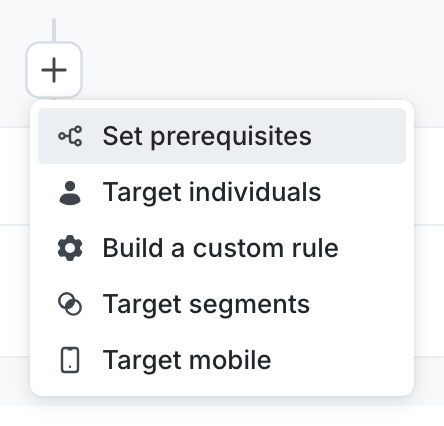
The "+" menu, with targeting options.
- (Optional) Enter a name for the rule.
-
In the Attribute menu, select the application or device attribute that you want to target on. By default, mobile targeting rules include clauses for the application version support status and for device information.
- For a complete list of attributes, read About the automatically added environment attributes.
- The
osattribute includes properties forfamily,name, andversion. To create targeting rules for these, use/as a delimiter to refer to specific fields. For example, you can create a targeting rule based on/os/family.
- In the Operator menu, select the operator for your clause.
- In the Application ID or Values menu, enter the values to check against.
- (Optional) Click + to add additional clauses to your targeting rule, or click - to remove existing clauses from your targeting rule.
-
From the Select… menu, choose a rollout option:
- a single variation to serve
- a manual percentage rollout
- a progressive rollout
- a guarded rollout
- an experiment
- Click Review and save. The “Save changes” dialog appears.
- Review your targeting changes, add comments, or request approval as needed.
- (Optional) Click Test run to preview the percentage of contexts that will receive each flag variation.
- Click Save changes.Here is an example of a targeting rule for mobile apps:
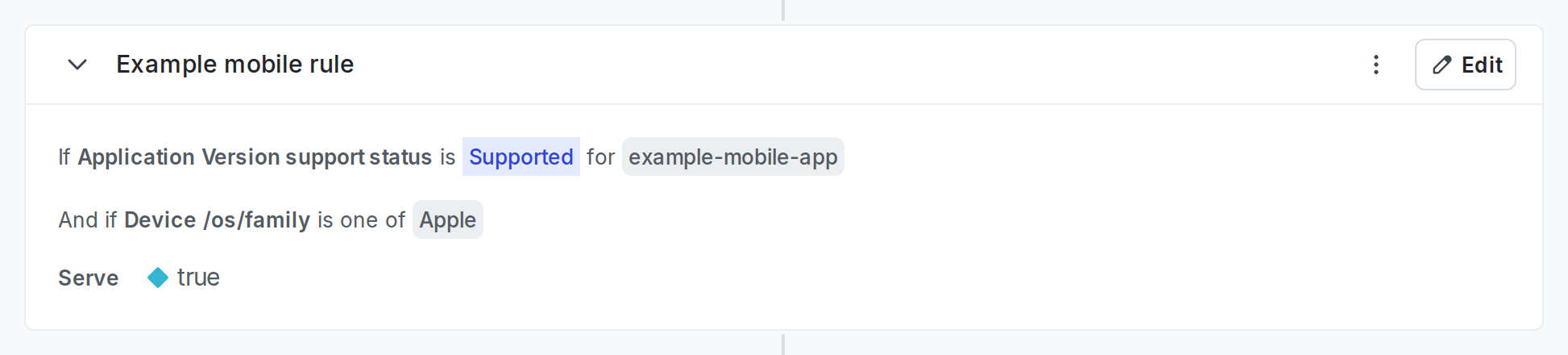
A targeting rule for mobile apps.