

Overview
This category introduces the concept of account members in LaunchDarkly and shows you how to use the Members list. LaunchDarkly supports user object management with OAuth, SAML, and SCIM. To learn more, read Enabling single sign-on.About members in Launch
Darkly Account members are people who work at your organization or have access rights to your organization’s LaunchDarkly environment for another reason, such as contractors or part-time employees.LaunchDarkly users are people who encounter feature flags in your app. In many cases, they are customers or people accessing your product. Users are represented by user “contexts.” Contexts can also represent other entities encountering feature flags, such as devices, organizations, and more. To learn more about contexts, read The Contexts list.

The "Members" tab with filters applied.
- N minutes/hours/days/months/years ago: The amount of time since a member last logged in. If a member logged in using the API, the status also displays the name of the personal access token they used.
- No data: The member has never logged in.
Add members to Launch
DarklyThe Members list is only accessible if you have a LaunchDarkly Admin organization role, or an Admin or Owner base role, or another role that allows a member action. To learn more, read About member roles, below, and Member actions.
- Click the gear icon in the left sidenav to view Organization settings.
- Click Members. The Members list appears.
- Click Invite members.
- Enter one or more email addresses. If you are inviting multiple members, separate email addresses with a comma or new line.
-
Choose an initial Member role from the dropdown.
- Select No access, Reader, Writer, or Admin if you want to use a base role.
- Select Custom to choose another role, either one you’ve created or one provided by LaunchDarkly.
-
(Optional) If the role you selected includes a role attribute, enter a value for the attribute and click Enter. For example, if the role includes a role scope with a role attribute of
developerProjectKey, enter a project key in the Resources field. - (Optional) Select teams to add these members to.
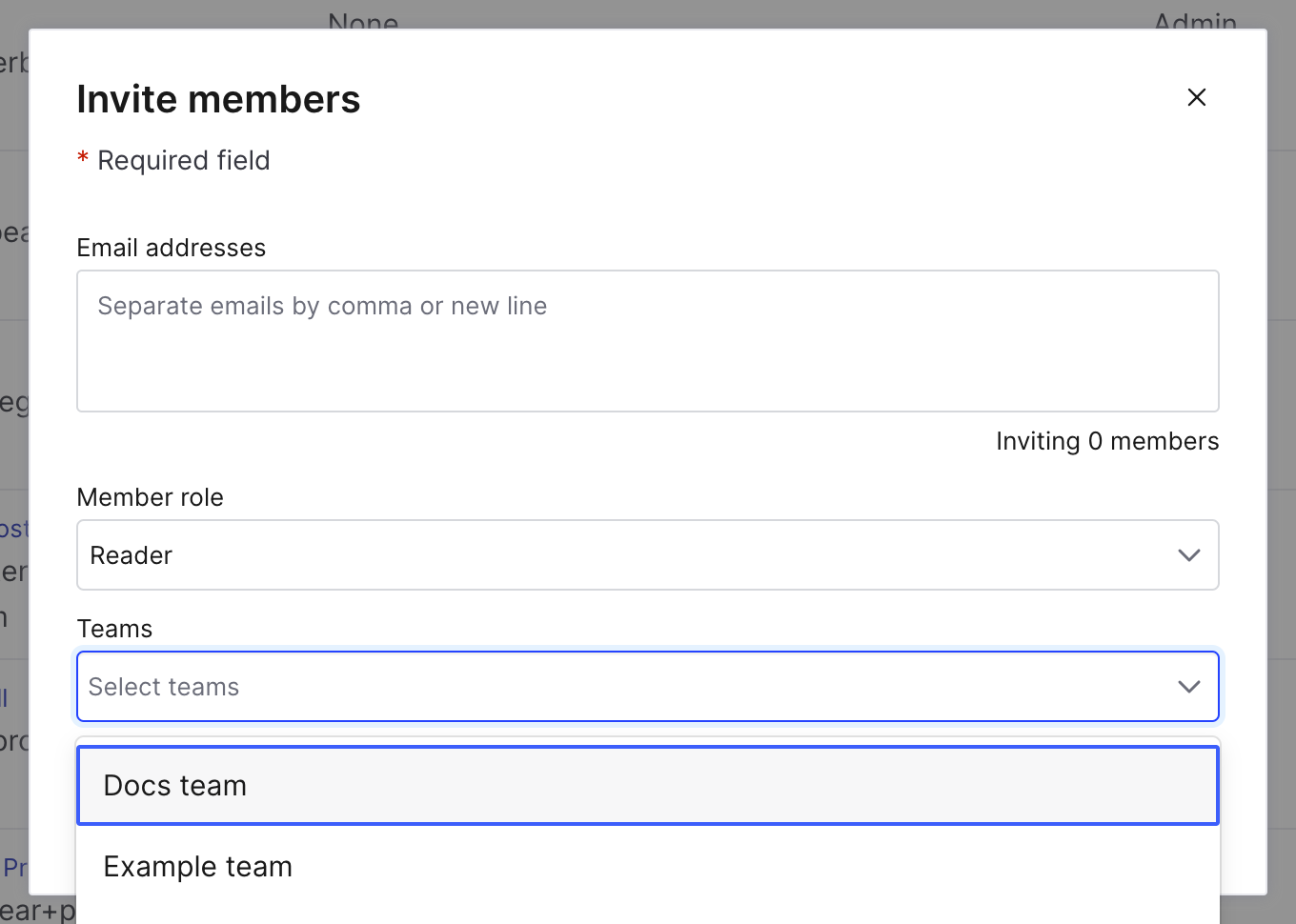
The "Invite members" dialog with the "Teams" menu open.
- Click Invite members.
You can also use the REST API: Invite new members
Accept pending requests
You can also allow people in your organization to find and request to join your LaunchDarkly account themselves. To learn how, read Organization access settings. When someone in your organization requests to join your LaunchDarkly account, the LaunchDarkly Admins and Owner receive the request in an email, and the pending request is available for approval on the Members page. To accept a pending request:- Click the gear icon in the left sidenav to view Organization settings.
- Click Members. The Members list appears.
- Click Pending requests. The “Manage pending requests” dialog appears.
- Check the checkbox next to the members you wish to add to your LaunchDarkly account.
- In the “Role” column, select the role that each member should have.
- In the “Request status” column, click Accept.
Export a list of members
You can export a list of your account members to a CSV file. The file includes their IDs, email addresses, first and last names, and roles. Here’s how:- Click the gear icon in the left sidenav to view Organization settings.
- Click Members. The Members list appears.
- (Optional) Filter by Team, Role, or Last seen if you want to export a subset of your account members.
- Click Export CSV. A CSV file of account members downloads to your machine.
You can also use the REST API: List account members
About member roles
You can assign different roles to LaunchDarkly account members. LaunchDarkly provides several roles which include access to common sets of features. To learn more, read Managing roles and Managing roles assignments. Customers on select plans can create additional roles to more specifically define the actions members can and can’t take. You can give an account member a role you’ve created in two ways: by giving the role to the member, or by giving the role to a team and adding the member to that team. To learn more, read Roles and Managing roles.Enable multi-factor authentication
For additional security, you can require multi-factor authentication (MFA) for your LaunchDarkly account. When MFA is enabled, account members won’t be able to log in to the LaunchDarkly user interface without verifying their identity with a second method. We strongly recommend that all LaunchDarkly members enable MFA for their individual accounts, and that administrators enforce MFA for their entire organization. In the event of a credential leak or device theft, MFA can prevent malicious third parties from accessing a LaunchDarkly account they should not be able to access. To learn more, read Multi-factor authentication.Remove members from Launch
Darkly To remove a member from your account:- Click the gear icon in the left sidenav to view Organization settings.
- Click Members. The Members list appears.
- Find the member in the list of account members.
- Click the member’s name.
- Navigate to the Settings tab for that member.
- Click Delete member.
- They are removed from being a flag maintainer.
- Their personal access tokens are deactivated. Any service tokens that they created remain active.
You can also use the REST API: Delete account member