

Overview
This topic explains how to use tags with LaunchDarkly resources. Tags are customizable labels that help you categorize flags, segments, metrics, projects, environments, and other resources. Tags are useful in the following ways:- Categorizing: You can add the same tag to different kinds of resources. This lets you easily understand which resources are associated with which projects or teams.
- Filtering: You can filter the Flags list, environments list, and projects list by tag.
., underscores _, and dashes -. Tags are not case-sensitive. After you create a tag, you cannot delete it.
The following sections explain how to add tags to existing resources.
Flags
To add tags to a flag:- Navigate to the Flags list.
- Click on the name of the flag you want to add tags to. The flag’s Targeting tab appears.
- Click on the pencil icon in the “Tags” section of the right sidebar. The tags list appears.
- Create a new tag or select a tag from the list.
You can also use the REST API: Update feature flag
Filter the Flags list by tag
You can filter the Flags list by one or more tags. To filter your flags:- Click Filters.
- Select Add tag(s).
- Search for or select a tag from the list.
Segments
To add tags to a segment:- Navigate to the Segments list.
- Click on the name of the segment you want to add tags to. The segment’s Targeting page appears.
- Click on the pencil icon in the “Tags” section of the right sidebar. The “Choose tag(s)” list appears.
- Create a new tag or select a tag from the list.
You can also use the REST API: Patch segment
- Click on the gear icon in the segment’s right sidebar. The “Segment settings” page appears.
- Click on the x for the tag you want to remove.
- Click Save.
Metrics
To add tags to a metric:- Navigate to the Metrics list.
- Click on the name of the metric you want to add tags to. The metric details page appears.
- Click on the pencil icon in the “Tags” section of the right sidebar. The “Choose tag(s)” list appears.
- Create a new tag or select a tag from the list.
You can also use the REST API: Patch metric
Projects
To add tags to a project:- Click the project dropdown. The project menu appears:
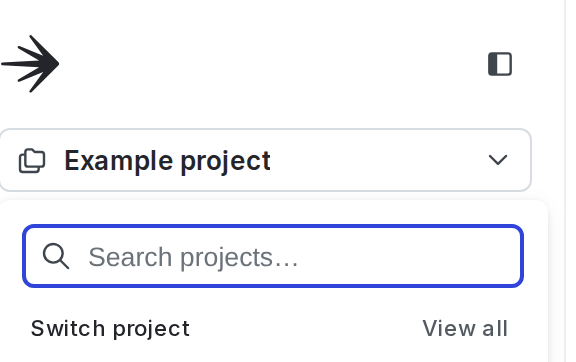
The project menu.
- Select Project settings. The General list appears.
- Under Tags, click Add tags.
- A menu with the list of tags appears.
- To add existing tags to your project, check the checkbox next to one or more tags in the list.
- To add a new tag to your project, type the new tag into the search box. Then check the checkbox next to “Create new tag.”
You can also use the REST API: Update project
- Click the project dropdown. The project menu appears.
- Select Project settings. The General list appears.
- In the “Tags” section, click on the tag’s x.
Filter the projects list by tag
You can filter the projects list by tag. To filter your projects:- Click the gear icon in the left sidenav to view Organization settings.
- Click Projects.
- Select a tag to filter by from the Tags menu.
Environments
To add tags to an environment:- Click the project dropdown. The project menu appears:
The project menu.
- Select Project settings.
- Select Environments. The Environments list appears.
- Next to the environment you want to add tags to, click the three-dot overflow menu.
- Select Edit environment.
- Select or create a new Tag.
- Click Save environment.
You can also use the REST API: Update environment
- Click the project dropdown. The project menu appears.
- Select Project settings.
- Select Environments. The Environments list appears.
- Next to the environment you want to add tags to, click the three-dot overflow menu.
- Select Edit environment.
- In the Tags field, click on the tag’s x.
- Click Save environment.
Filter the environments list by tag
You can filter the environment list by tag. To filter your environments:- Click the project dropdown. The project menu appears:
The project menu.
- Select Project settings.
- Select Environments. The Environments list appears.
- Select a tag to filter by from the Tags menu.
Experiments
To add tags to an experiment or A/A test:- Navigate to the Experiments list.
- Click on the name of the experiment you want to add tags to. Depending on whether or not the experiment is running, the experiment’s Design or Results tab appears.
- Click on the pencil icon in the “Tags” section of the right sidebar. The tags list appears.
- Create a new tag or select a tag from the list.
Filter the Experiments list by tag
You can filter the Experiments list by one or more tags. To filter your experiments:- Click Filters.
- Select Add tag(s).
- Search for or select a tag from the list.
Multi-armed bandits
To add tags to a multi-armed bandit (MAB):- Navigate to the Multi-armed bandits list.
- Click on the name of the MAB you want to add tags to. Depending on if the MAB is running or not, the MAB’s Design or Results tab appears.
- Click on the pencil icon in the “Tags” section of the right sidebar. The tags list appears.
- Create a new tag or select a tag from the list.
Filter the Multi-armed bandits list by tag
You can filter the Multi-armed bandits list by one or more tags. To filter your MABs:- Click Filters.
- Select Add tag(s).
- Search for or select a tag from the list.