

Overview
This topic explains how to enable and disable organization access settings in LaunchDarkly. You must have a LaunchDarkly Admin organization role or Admin base role to manage organization access settings. You can disable organization access settings at any time.About organization access settings
You can configure organization access to allow members of your organization to find and join your LaunchDarkly accounts. Organization access settings include the following options:- Enable domain matching
- Enable matched seat provisioning
Enable domain matching
Domain matching allows new members to discover your account and request access if their verified email domain matches your organization owner’s email domain. You can disable domain matching at any time. To enable domain matching:- Click the gear icon in the left sidenav to view Organization settings.
- Click Security and scroll to the “Organization access settings” section.
- Check “Enable domain matching.”
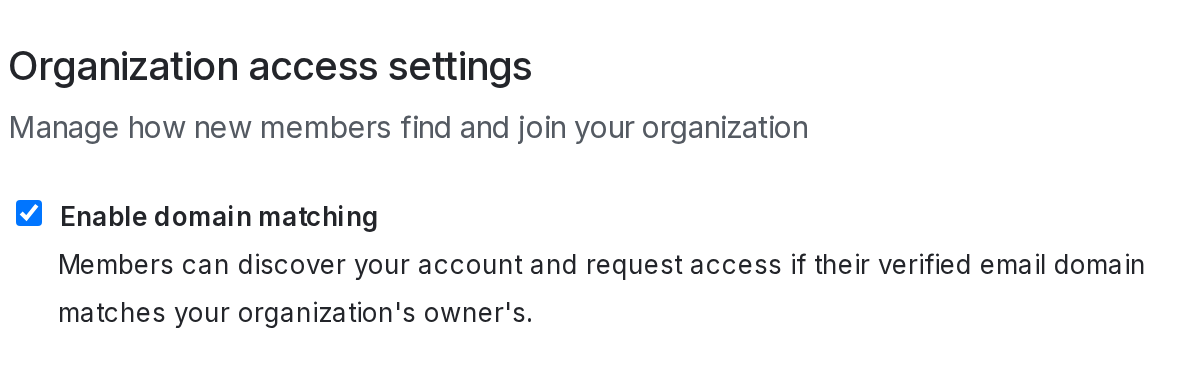
Organization access settings with domain matching enabled.
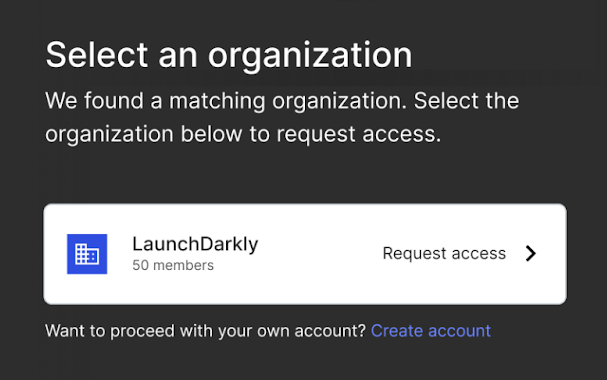
The "Select an organization" screen with domain matched accounts found.
Enable matched seat provisioning
Matched seat provisioning allows new members with verified email domains that match your organization owner’s domain to join your account automatically, if there are available seats. To enable matched seat provisioning you must also enable domain matching. You can disable matched seat provisioning at any time. To enable matched seat provisioning:- Click the gear icon in the left sidenav to view Organization settings.
- Click Security and scroll to the “Organization access settings” section.
- Check “Enable matched seat provisioning.”
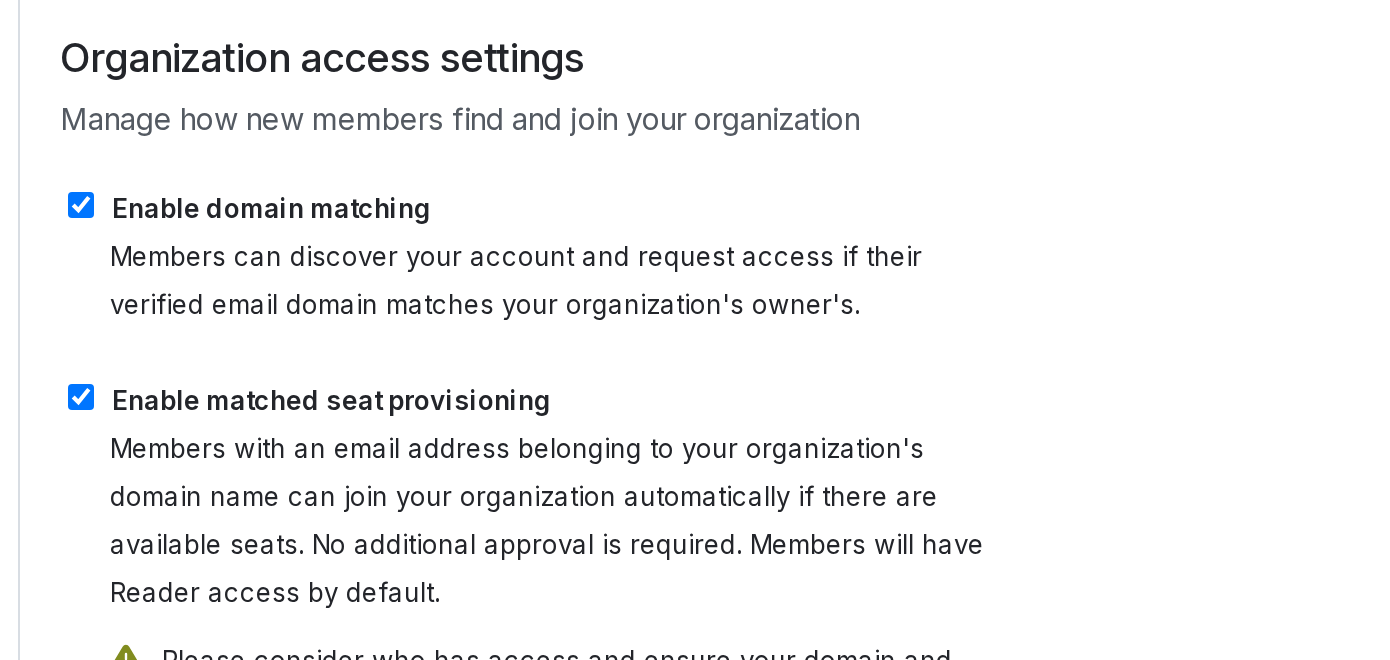
Organization access settings with matched seat provisioning enabled.