

Overview
This topic explains how to control which individual contexts receive a variation of a feature flag, based on the context key.Target individual contexts
The flag’s Targeting tab allows you to assign individual contexts to a particular flag variation, based on the context key. You can target individual users or any custom context kind that exists in your project. To individually target contexts:- In the flags dashboard, scroll or search to find the flag you want.
- Click the flag’s name to open the flag’s Targeting tab.
- If the flag is off and the rules are hidden, click View targeting rules.
- Click the + button beneath the toggle section and select Target individuals.
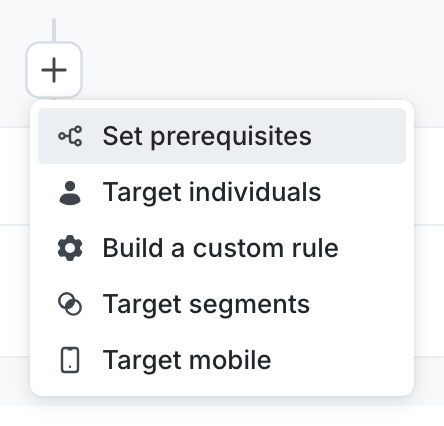
The "+" menu, with targeting options.
- In the “Select or add a context” field, search for and select the context you want to target.
-
Alternatively, you can create a new context from the search menu. To do so:
- Enter the new context key.
- Click Click to target context with the key….
- Select a context kind from the context kind menu.
- Select a variation to Serve.
- To add more contexts, repeat steps 5-7.
- Click Review and save.
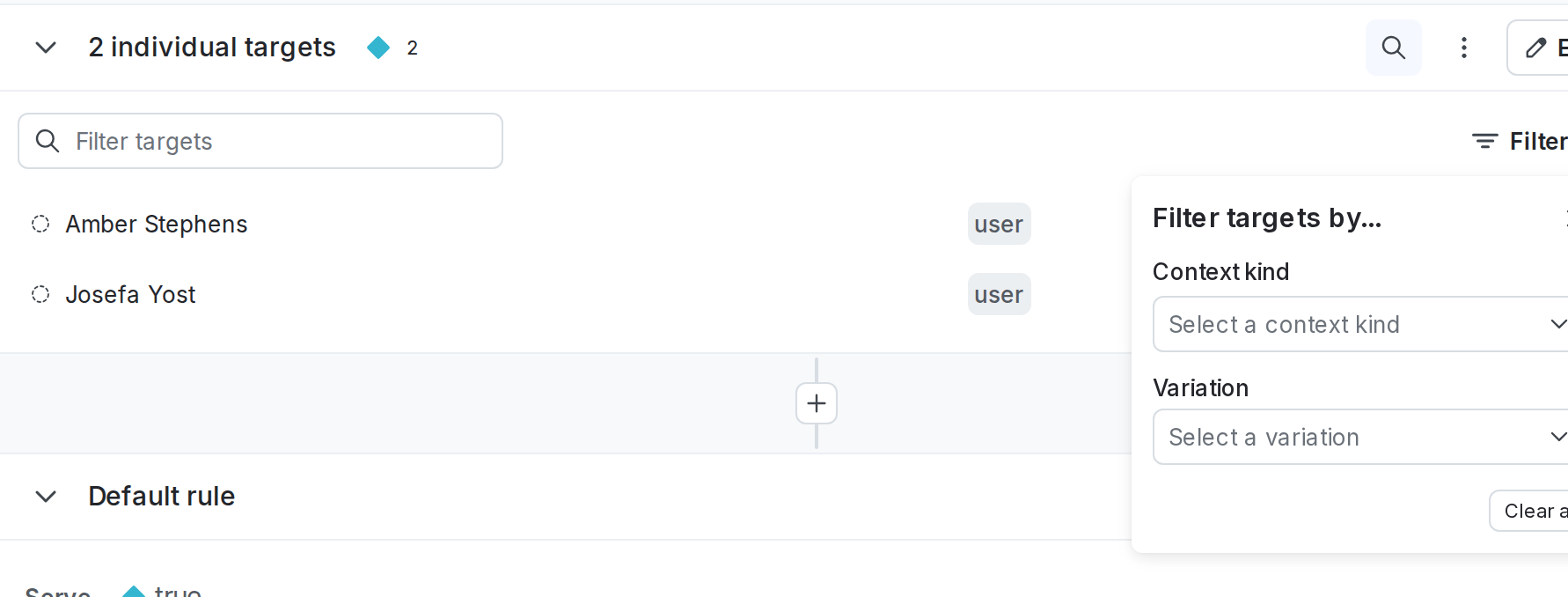
The filter options for individually targeted contexts.

A flag with a user context individually targeted.
You can also use the REST API: Individual context targets
Remove individual targets
You can remove individual targets from a flag:- Navigate to the flag’s Targeting tab.
- If the flag is off and the rules are hidden, click View targeting rules.
- Find the individual targeting rule and click Edit.
- Click the trash icon next to the context you want to remove:
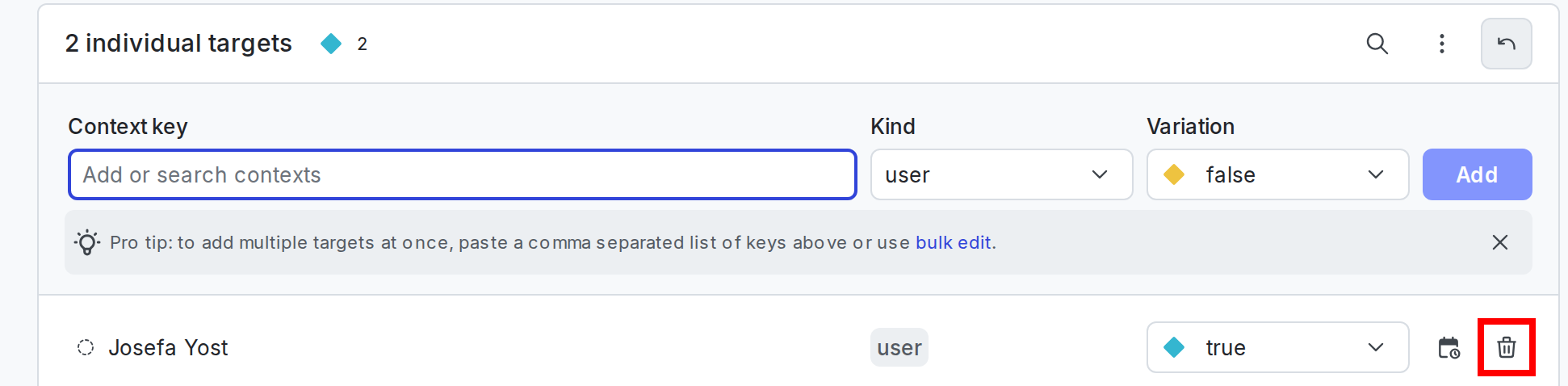
An individually targeted user context with the trash icon called out.
- (Optional) If you need to undo the changes you just made, click the undo arrow icon to discard all changes:
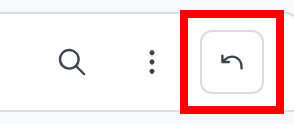
A targeting rule's "undo arrow" button called out.
- A “Discard unsaved changes” dialog appears. Click Discard changes to undo all the changes you have made, or Cancel to return to the details page.
- Click Review and save.
Schedule removal dates for individual targeting
Scheduling removal dates is only available to customers on select plans. To learn more, read about our pricing. To upgrade your plan, contact Sales.
- Navigate to the Flags list and select the flag for which you want to configure a removal date. The flag’s Targeting tab opens.
- If the flag is off and the rules are hidden, click View targeting rules.
- Find the individual targeting rule and click Edit.
- Click the calendar icon next to the context you want to schedule a removal date for:
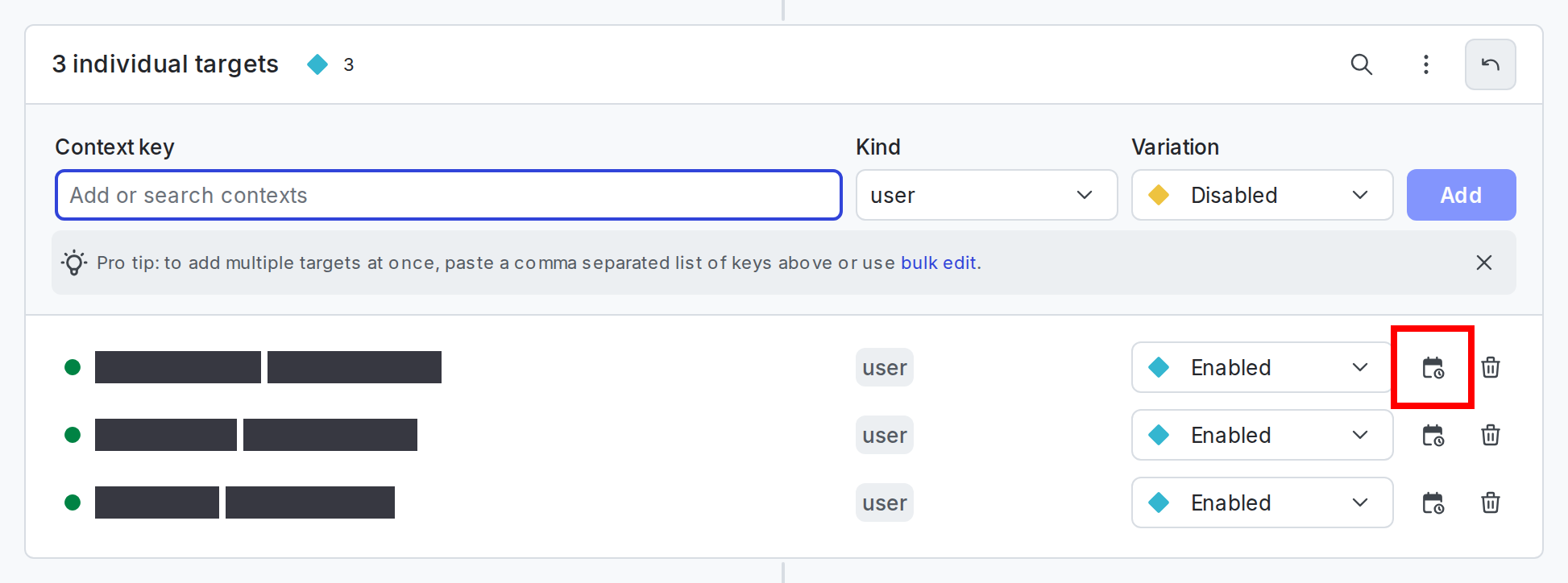
An individual target with the calendar icon called out.
- Set a date and time for the context to be removed from the flag.
- Click Save.
- (Optional) If you need to undo the changes you just made, click the undo arrow icon to discard all changes.
- Click Review and save. The “Save changes” dialog appears.
- Review your targeting changes, add comments, or request approval as needed.
- (Optional) Click Test run to preview the percentage of contexts that will receive each flag variation.
- Click Save changes.
Edit existing scheduled removal dates
Individual targets that already have a removal date scheduled appear with a red calendar icon. To edit a scheduled removal date:- Click Edit next to the individual targeting rule.
- Click the red calendar icon next to the individual context.
- Update the removal date, and click Save. To remove the date completely, click Remove.
You can also use the REST API: Update expiring context targets for feature flag