

Overview
This topic explains how to use the test run feature to find out how changes to your flag targeting will affect contexts and segments. When you make a flag targeting change, you can view:- Which variation a particular context will receive after a targeting change
- What percentage of contexts will receive each variation after a targeting change
Test variations received by individual contexts
To test which variation an individual context will receive after you make a flag targeting change:- From the Flags list, open the flag you want to preview.
- If the flag is off and the rules are hidden, click View targeting rules.
- Make any needed changes to the flag rules.
- Click the fingerprint test run icon. The “Test run a context” section appears.
- Search for and select the context you want to preview, or edit the JSON object to supply the context kind and key.
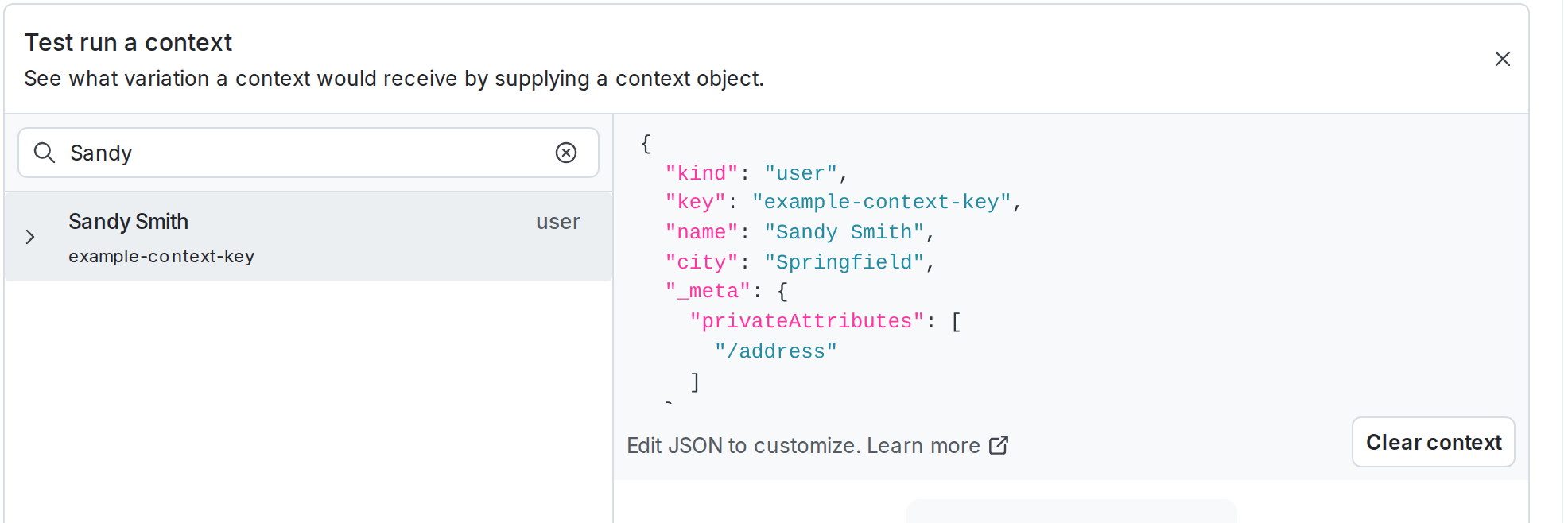
The "Test run a context" section, populated with an example context.
Test what percentage of contexts will receive a variation
To enable this feature, toggle on “Test run” in the feature preview menu. Feature previews are available to certain eligible LaunchDarkly accounts.
- From the Flags list, open the flag you want to modify.
- If the flag is off and the rules are hidden, click View targeting rules.
- Make any needed changes to the flag rules.
- Click Review and save. The “Save changes” dialog appears.
- Review your targeting changes, add comments, or request approval as needed.
- Click Test run. The “Test run” dialog appears.
- Review the percentage of contexts that will receive each variation after you save your changes.
- Click Back to return to the “Save changes” dialog.
- Click Save changes.
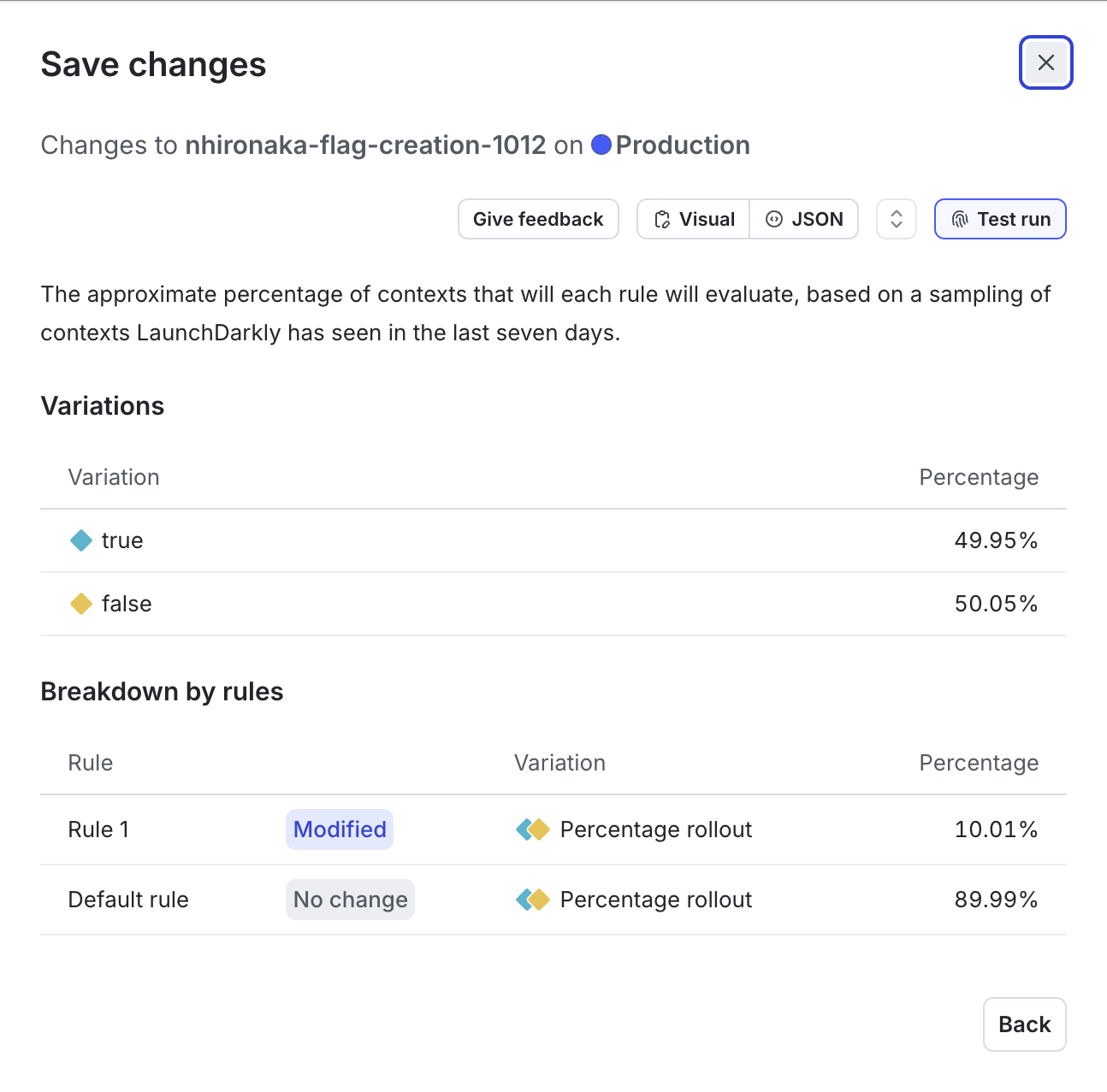
The "Test run" dialog for a flag targeting change.