

Overview
This topic explains how to target a segment in a flag rule. If you have many flags that need to target the same group of users or other contexts, we recommend that you create a single segment for your flags to target. This lets you manage targeting for that group in one place instead of recreating identical rules in each flag.Target segments
To target a segment within a flag rule:- Navigate to the Targeting tab for the flag.
- If the flag is off and the rules are hidden, click View targeting rules.
- Click the + button between existing rules.
- Select “Target segments”:
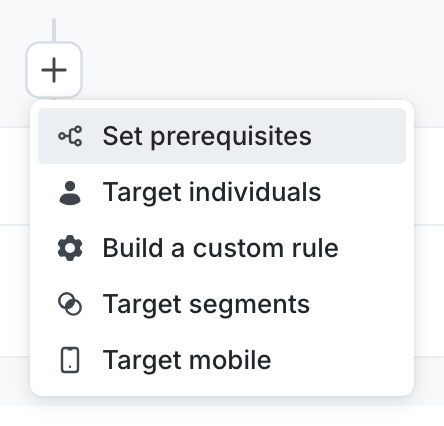
The "+" menu, with targeting options.
- (Optional) Enter a name for the rule.
- In the Operator menu, select whether you want contexts in these segments or not in these segments to match the targeting rule.
- In the Segments menu, enter or select the segments you want to target. Segment conditions use OR logic. If you select more than one segment in a “Context is in Segments” condition, the condition matches if the context is a member of any one of the selected segments.
- (Optional) Click the + to add additional clauses to your targeting rule.
-
From the Select… menu, choose a rollout option:
- a single variation to serve
- a manual percentage rollout
- a progressive rollout
- a guarded rollout
- an experiment
- Click Review and save. The “Save changes” dialog appears.
- Review your targeting changes, add comments, or request approval as needed.
- (Optional) Click Test run to preview the percentage of contexts that will receive each flag variation.
- Click Save changes.
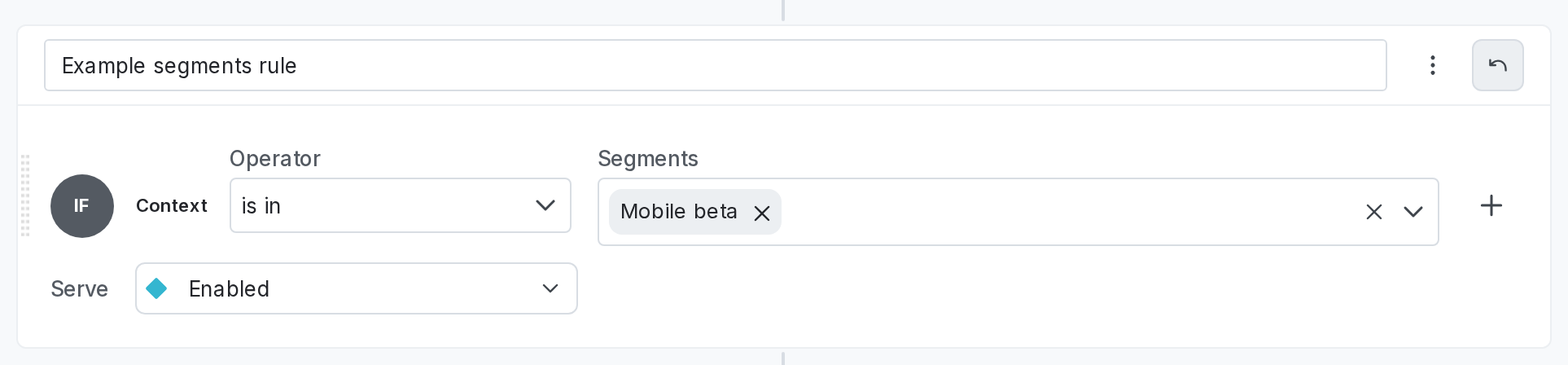
A targeting rule for segments.
Target from within a segment
You can also target a segment starting from the segment itself. Here’s how:- Navigate to the segment you want to target.
- Click Target this segment. A “Target this segment with a flag rule” dialog appears.
- Select the flag where you want to use the segment.
- Click Target this segment.