

Overview
This topic explains how to create a custom conversion count metric in LaunchDarkly. Custom conversion count metrics track how many times an event occurs. You can use this metric with any event you set up in your codebase. For example, you can use custom conversion count metrics to track:- How many times each user submitted a form
- How many times each customer completed the checkout process
- How many errors a new process produced
Metric definition
When you create a custom conversion count metric, you must first select Count for what you want to measure. Then, custom conversion count metric definition options include:- Analysis method:
- Average: “average” is the default analysis method. This method calculates the average number of conversions per context. For metrics you plan to use in funnel metric groups, you must select “Average.”
- Percentile: you can choose between P50-P99, which represent the 50th through the 99th percentile. This method counts the conversions per context, then finds the number of conversions that fall into the chosen percentile.
- [analysis unit]: one or more context kinds, such as “user,” “device,” or “request,” that the metric can measure events from.
- Success criteria:
- Higher is better: choose this option for metrics measuring positive things like cart checkouts or sign-ups.
- Lower is better: choose this option for metrics measuring negative things like errors.
Create custom conversion count metrics
Custom conversion count metrics require an event key from your application’s code to track conversions for any event in your code. To add a custom conversion count metric in LaunchDarkly, you must identify it with a code snippet embedded in your app. This is an example of tracking acustom event:

Try it in your SDK: Sending custom events
- Navigate to the Metrics list.
- Click Create metric. The “Create metric” dialog appears.
-
If you use Snowflake native Experimentation, you have the option to select either LaunchDarkly hosted or Warehouse native.
- Select LaunchDarkly hosted to measure events from LaunchDarkly SDKs.
- Select Warehouse native to measure events from an external warehouse, such as Snowflake.
- Select an existing Metric data source or click + Create to create a new data source. To learn more, read Metric data sources.
- If you chose the LaunchDarkly hosted event source, select an event kind of Custom.
-
Search for or enter an Event key.
- A list of events your environment has recently received appears when you click into the Event key field. Begin typing an event key to view a list of events that match your search. Hover on an event from the list to view which environments the event appears in, which context kinds sent the latest event, and which SDKs the event is coming from.
- Choose Count as what you want to measure.
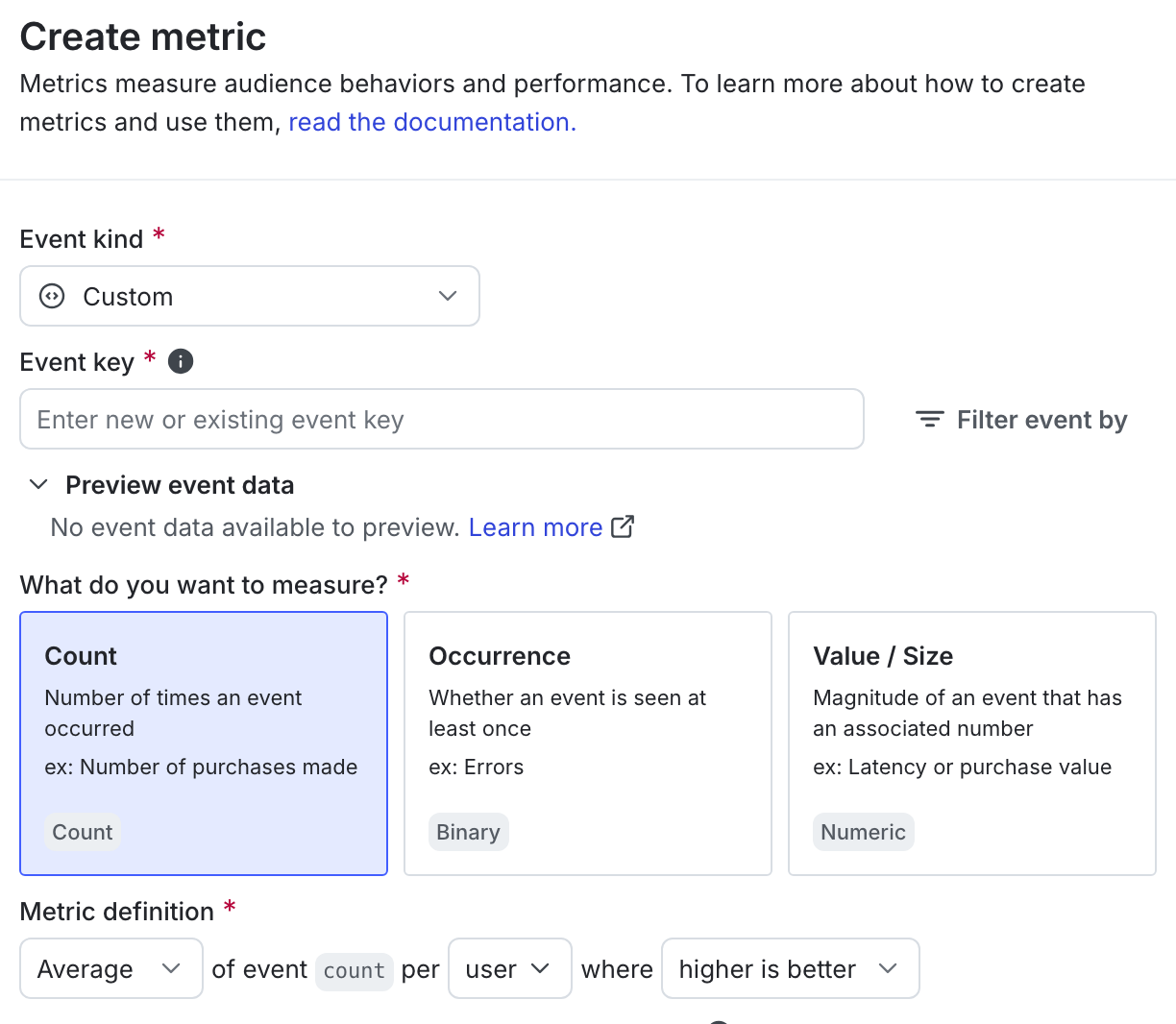
A custom conversion count metric.
-
In the Metric definition section, select the following:
- analysis method for event
count: select Average or a percentile between P50-P99. - per [analysis unit]: select the context kind for the metric to measure events from.
- where higher is better or lower is better: select whether the desired outcome is a higher number or a lower number.
- analysis method for event
- Enter a metric Name.
- (Optional) Add a Description.
- (Optional) Add any Tags.
- (Optional) Update the Maintainer.
- Click Create metric.
You can also use the REST API: Create metric