

Overview
This topic explains how to create a clicked or tapped metric for use in LaunchDarkly experiments, guarded rollouts, or release policies. Clicked or tapped metrics track how often an end user interacts with an element of your product’s UI. For example, you can use clicked or tapped metrics to track:- How often a customer clicks a “Save” button when it is red, versus how often a customer clicks the “Save” button when it is blue
- How often a customer clicks the same “Save” button across different URLs by tracking URLs based on substrings or simple matches
Prerequisites
Clicked or tapped metrics are only compatible with the following JavaScript-based client SDKs:- Electron
- JavaScript
- Node.js (client-side)
- React Web
- Vue
CSS selectors
CSS selectors designate specific areas of your product UI, like buttons or images, that your end users can interact with. You can create a metric that monitors interaction with one or more CSS selectors. For example, some CSS selectors include:#example-element-id.example-classnamebutton.example-button.example-button, .example-button-alt
Metric definition
When you create a clicked or tapped conversion metric, you must first decide:- What do you want to measure:
- Count: the number of times a target was clicked.
- Occurrence: whether or not a target was clicked.
- Analysis method:
- for metrics measuring count, you can analyze by:
- Average: “average” is the default analysis method. This method calculates the average number of clicks or taps per context. For metrics you plan to use in funnel metric groups, you must select “Average.”
- Percentile: you can choose between P50-P99, which represent the 50th through the 99th percentile. This method counts the clicks or taps per context, then finds the number of clicks or taps that fall into the chosen percentile.
- for metrics measuring occurrence, the metric automatically sets the analysis method to “average.”
- for metrics measuring count, you can analyze by:
- [analysis unit]: one or more context kinds, such as “user,” “device,” or “request,” that the metric can measure events from.
Create clicked or tapped metrics
To create a clicked or tapped metric:- Navigate to the Metrics list.
- Click Create metric. The “Create metric” dialog appears.
- If you use Snowflake native Experimentation, you have the option to select either LaunchDarkly hosted or Warehouse native. Select LaunchDarkly hosted.
- Select an event kind of Clicked or tapped.
- Enter one or more CSS selectors in the Click targets field. If you include multiple CSS selectors, separate them with commas.
- Specify the Target type you want to track behavior on. Expand the section below to view the four types of URL matching.
Expand URL matching options
Expand URL matching options
| URL matching schema| Description
You can test your regular expressions using the tool at Regular Expressions 101. | | Substring match| This sends an event when the end user accesses a URL, or clicks on an element hosted at a URL with a specific string of text in it.| If you specify: Then LaunchDarkly sends events from views or clicks at: If you specify:
| ---| --- |
| Simple match| This sends an event when the end user accesses a URL, or clicks on an element hosted at a URL, that matches the string you enter in the Target URL field or a formulation of that URL that included appended parameters. If you want events to record for URLs with substrings, specify each URL individually.| If you specify: Then LaunchDarkly sends events from views or clicks at: If you specify: Then LaunchDarkly sends events from views or clicks at: |
| Exact match| This sends an event when the end user accesses a URL, or clicks on an element hosted at a URL, that exactly matches what you enter in the Target URL field. Identical base URLs with different substrings do not send events.| If you specify: Then LaunchDarkly sends events from views or clicks at: Views and clicks at
https://www.example.com/login and https://www.example.com#signin do not send events. |
| Regular expression| This sends an event based on a regex expression you specify. This lets you designate more precise locations to send click and page view events.| If you specify:-
example.com\/account\/.*\/billing
account/ and /billing, such as http://example.com/account/12345/billing. You can test your regular expressions using the tool at Regular Expressions 101. | | Substring match| This sends an event when the end user accesses a URL, or clicks on an element hosted at a URL with a specific string of text in it.| If you specify: Then LaunchDarkly sends events from views or clicks at: If you specify:
-
your-substring
-
example.com/your-substring -
example.com/username/your-substring/ -
example.com/your-substring/settings
your-substring, clicks on the CSS selectors you specify on each page send events. |- Enter the Target URL.
- (Optional) Click Add target URL to track behavior on more than one URL.
- Select what you want to measure:
- Count: the number of times a target was clicked or tapped.
- Occurrence: whether or not a target was clicked or tapped.
-
In the Metric definition section, select the following:
- Analysis method:
- If you selected Count in step 8, select Average or a percentile between P50-P99 click rate.
- If you selected Occurrence in step 8, the metric automatically sets this to “Average.”
- per or percentage of [analysis unit]: for clicked or tapped metrics, the analysis unit will usually be “user,” “customer,” or similar, representing an individual person.
- Analysis method:
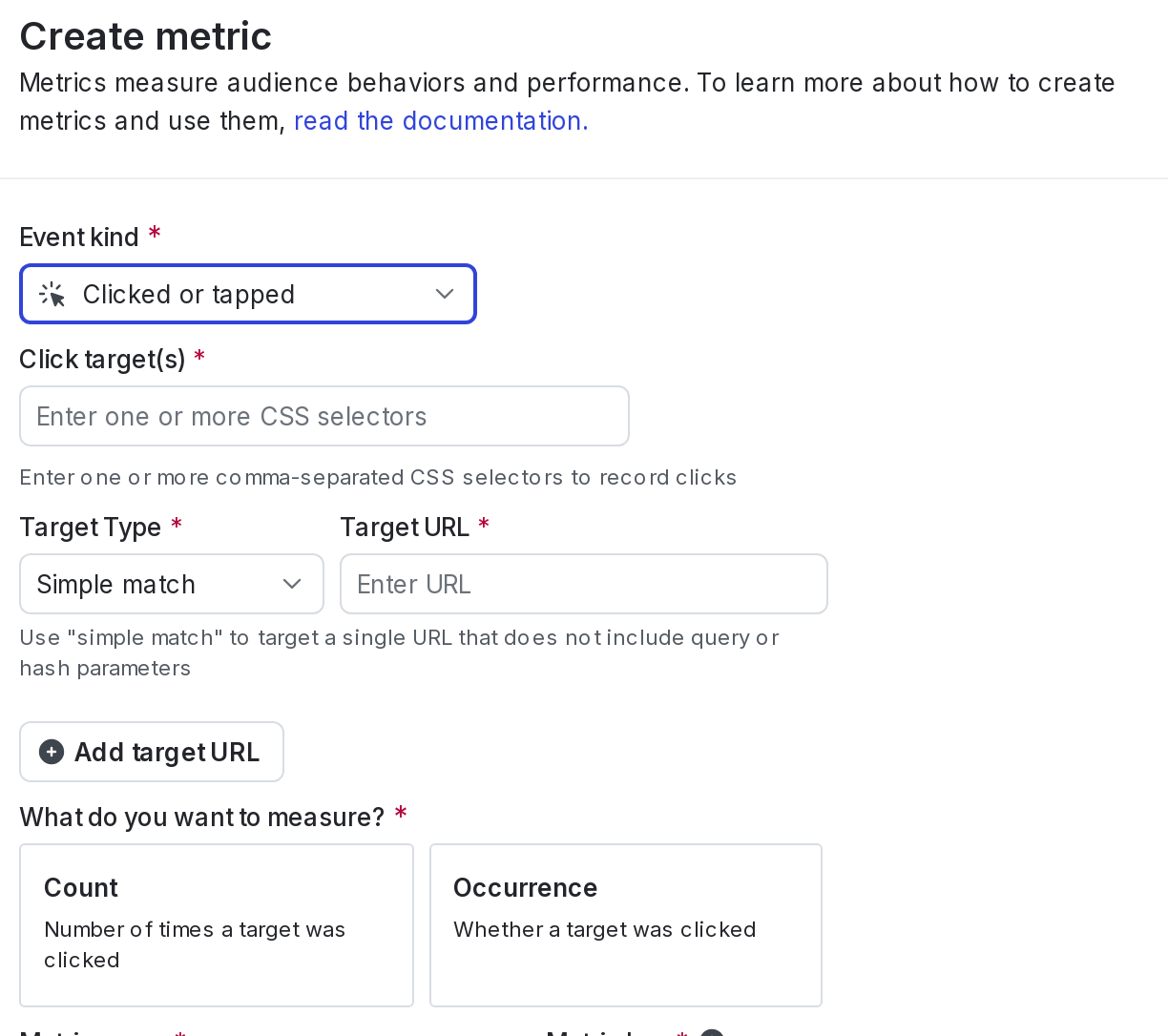
A clicked or tapped conversion metric.
- Enter a metric Name.
- (Optional) Add a Description.
- (Optional) Add any Tags.
- (Optional) Update the Maintainer.
- Click Create metric.
You can also use the REST API: Create metric