

Overview
This topic explains how to view, edit, archive, and delete existing metrics.View metric details
After you create a metric, you can view its configuration, connections, and recent activity from the metric details page. To open a metric:- Navigate to the Metrics list.
- Click the name of the metric you want to view.
Details tab
The Details tab displays configuration fields such as event key, metric type, definition, and success criteria. It also shows the Connections section, which lists any experiments, guarded rollouts, metric groups, multi-armed bandits, or release policies that use the metric. To learn more about metric definition options, read Metric components.Impact tab
The Impact tab lists the experiments that include the metric and shows current effect sizes, variation performance, and experiment status.Activity tab
The Activity tab shows the most recent events associated with the metric, including timestamp, context key, and value. This helps you verify that your SDK instrumentation is working correctly. To learn more, read Events.Sidebar information
The sidebar displays additional metadata about the metric, including:- Description
- Maintainer
- Tags
- Sources
- Metric key
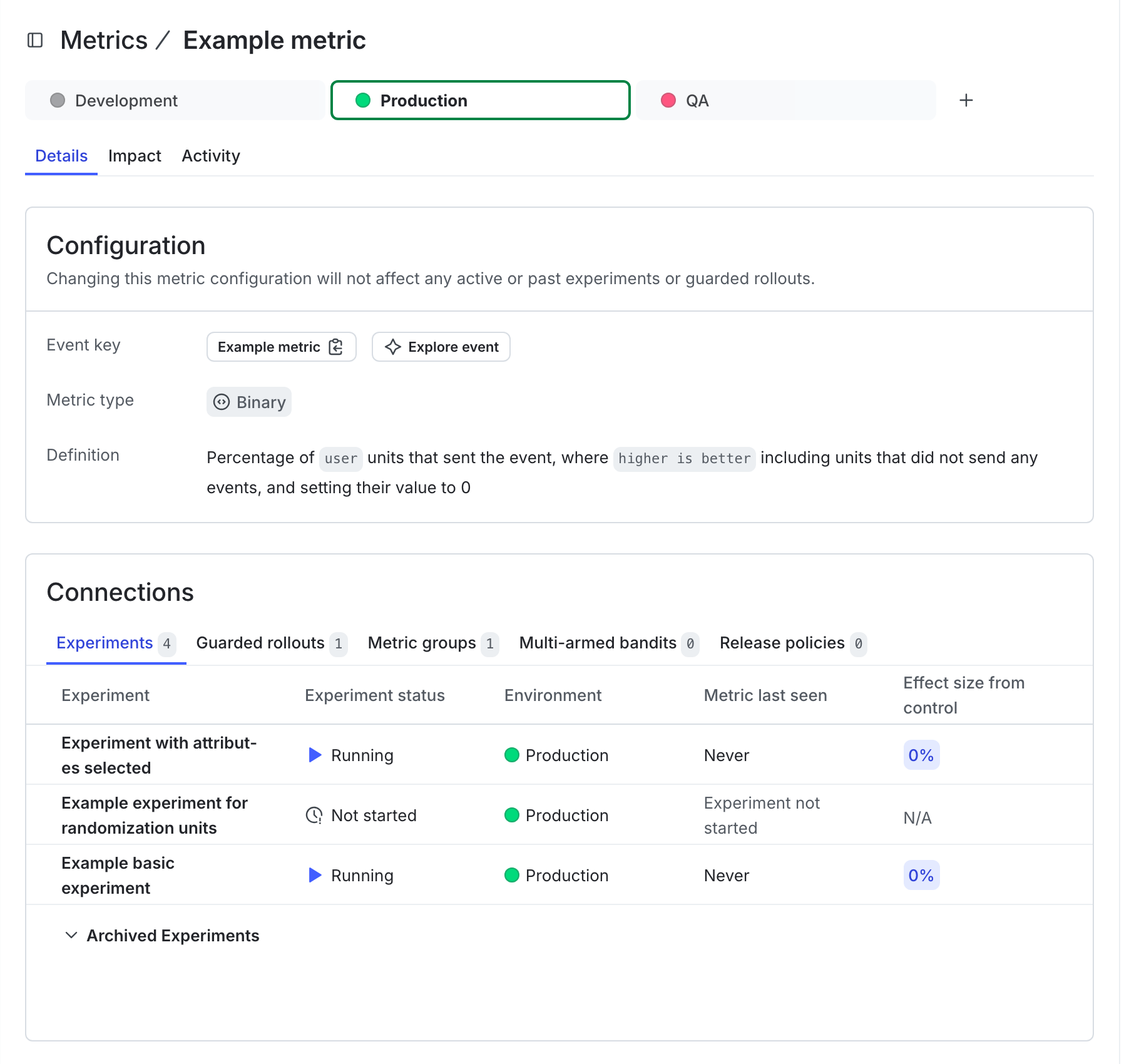
The metric details page with tabs for Details, Impact, and Activity.
Edit metrics
You can edit all of an existing metric’s settings except for its metric kind and metric key. To edit a metric:- Navigate to the Metrics list.
- Click the name of the metric you want to edit. The metric details screen opens.
- Click the pencil icon in the right sidebar next to the field you want to edit. The “Edit metric” dialog appears.
- Make the edits you want and click Save metric.
You can also use the REST API: Update metric
Editing filters
After you create a metric, you can optionally configure metric event filters to control which events are included in its analysis. This lets you focus the metric on specific context attributes or event properties, such as events where thevariationKey is treatment or the country context attribute is CA.
To learn more, read Filtering custom metric events.
Archive metrics
Archiving a metric removes it from the metrics list, dashboards, and metric selectors, while preserving its definition and historical results. Archiving helps reduce clutter and maintain a clean workspace during guarded rollouts and experiments. Archiving a metric creates a new version. This version reflects the archived state and preserves earlier versions for accurate experiment analysis and audit history. You can view a metric’s current and previous versions on its details page, with each version reflecting how the metric was configured when it was used. You cannot archive a metric if you are using it in an active experiment, guarded rollout, metric group, or release policy. If the metric is in use, LaunchDarkly disables the archive option and displays a list of the connections. To archive a metric:- Navigate to the Metrics list.
- Next to the name of the metric you want to archive, click the three-dot overflow menu.
- Click Archive metric. A confirmation dialog appears that lists the number of experiments, guarded rollouts, and metric groups the metric is connected to.
- Click Archive.
- Navigate to the Metrics list.
- Turn on the Show archived filter.
- Next to the name of the metric you want to restore, click the three-dot overflow menu.
- Click Restore. A confirmation dialog appears.
- Click Restore.
You can also use the REST API: Update metric. To archive or restore a metric, replace the
archived field with true or false.LaunchDarkly automatically sets the archivedAt timestamp when you archive a metric and clears it when you restore it. You cannot set or modify this field manually.updateArchived action for the metric resource.
Delete metrics
Deleting a metric is irreversible. You cannot recover a metric after you delete it. LaunchDarkly recommends archiving metrics instead of deleting them. Archiving preserves the metric’s historical data and audit trail, and removes it from selection menus and dashboards by default. You can only delete a metric if:- It is already archived
- It has never been used in any experiments or guarded releases
- Navigate to the Metrics list.
- Turn on the Show archived filter.
- Click the name of the archived metric you want to delete. The metric details screen opens.
- If the metric has never been used in an experiment or guarded release, click Delete metric. A confirmation dialog appears.
- Click Delete metric.
You can also use the REST API: Delete metric