

Overview
LaunchDarkly provides data previews to give you immediate visibility into the events behind your metric so you can confirm that the right data is flowing, that filters are applied correctly, and that your aggregation method produces meaningful results. This reduces risk during metric creation and helps your team configure metrics you can trust more quickly, enabling confident experiments and rollouts.Availability
Previews are available in two places:- In the Create metric dialog for custom metrics. For custom metrics, data previews let you validate your instrumented events by showing recent event samples as you create or edit the metric.
- In the Metric details tab for custom metrics if LaunchDarkly has received recent event data.
- In the Create metric dialog, the preview displays “No event data available to preview” and includes a Learn more link.
- In the Metric details tab, the preview component does not appear.
Preview contents
Previews display a table with up to five of the most recent events LaunchDarkly received for the selected Event key. Each row displays:- Timestamp: when the event occurred
- Value: for custom numeric metrics, the numeric value of the event
- Context kinds: such as user or organization keys
- Event properties: the event JSON, truncated in the table. You can click the truncated version or expand the row to view the full JSON and copy it.
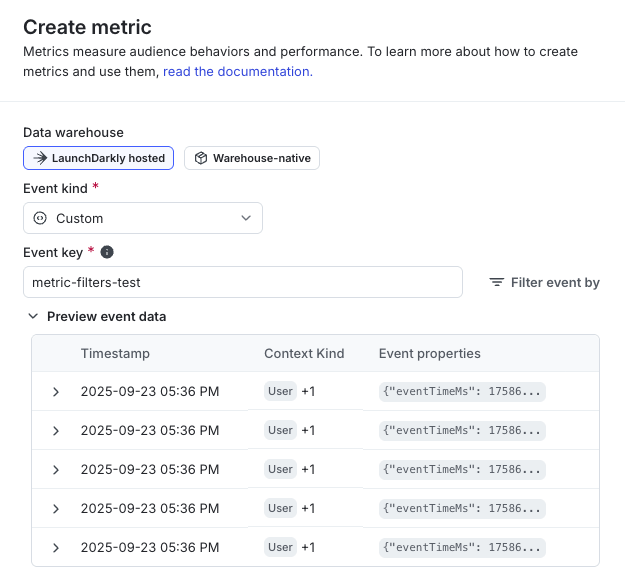
Event data preview with recent events in the Create metric dialog.
Preview states
The data preview can display different states depending on the event data available:- Recent events shown: displays rows from the five most recent records.
- No recent events: displays “No event data available to preview.” You can still create the metric.
- Unable to load data: displays an error message if LaunchDarkly cannot retrieve data.
Example
Consider a custom numeric metric that measures purchase amount:- The preview displays the five most recent purchase events, showing the “Timestamp,” “Context kind,” and “Event properties.”
- Expand a row to view the full event details and copy them if needed.
- The health check confirms that the event has been received recently and that all analysis units have events in the last 14 days.
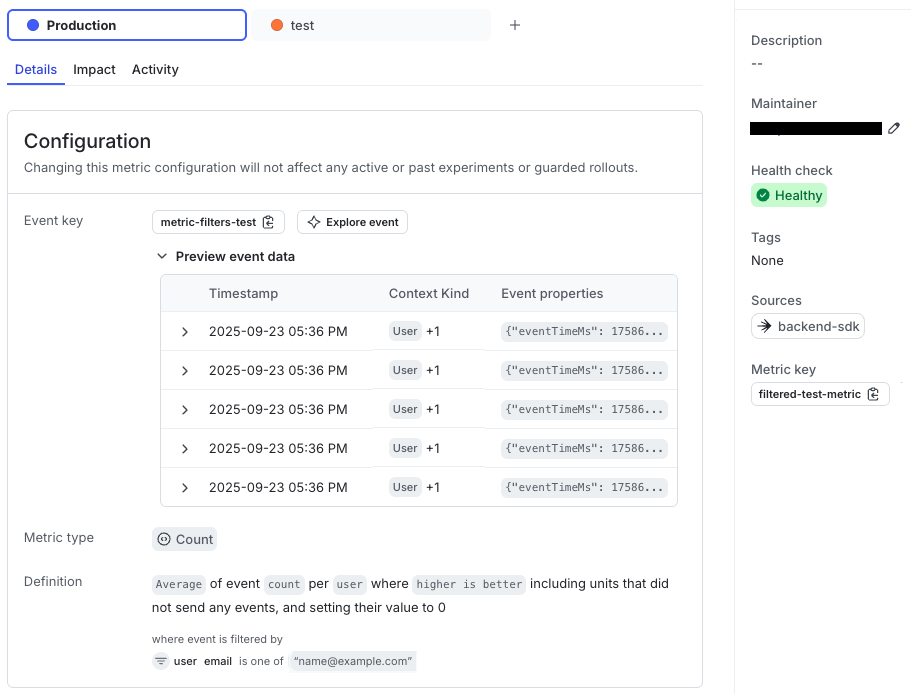
Event data preview with recent events in the Metric details tab.
Data previews use the same event data source as the Event explorer. For a complete view of event history and payloads, use the event explorer.