

Single sign-on is only available to customers on select plans. To learn more, read about our pricing. To upgrade your plan, contact Sales.
Overview
This topic explains what Single Sign-On (SSO) features are available in LaunchDarkly. SSO allows your team to authenticate with LaunchDarkly using the same identity provider (IdP) you use for your other internal and external services. LaunchDarkly implements SSO with the SAML 2.0 protocol. You can use SSO with your IdP to manage access rights in LaunchDarkly. You can use SSO to manage both member login and member roles, or you can use SSO to manage member login only, and continue to manage member roles within LaunchDarkly. As a customer on an Enterprise or Guardian plan, after you enable SSO, System for Cross-domain Identity Management (SCIM) becomes available. SCIM facilitates user provisioning, which means your IdP can use it to create, update, and deactivate members in LaunchDarkly. Administrators can optionally turn on and configure team sync with SCIM, which lets admins sync groups in their IdP with LaunchDarkly teams.Enable SSO in Launch
Darkly To configure SSO in your LaunchDarkly account:- Enable SAML SSO in your account. Configure LaunchDarkly to use your IdP when account members request access. To learn how to do this, read Configure SAML SSO.
- (Enterprise and Guardian - Optional) Configure SCIM to enable the automation of user and group provisioning. To learn how to do this, read Enable SCIM provisioning.
Supported external identity providers
We provide support for the following IdPs:| Identity provider | SAML SSO integration: member and team provisioning | SCIM integration (Enterprise only) | Team sync with SCIM (Enterprise only) |
|---|---|---|---|
| ADFS |  | ||
| Entra ID | | ||
| GitHub OAuth | |||
| Google Workspace | | ||
| Google OAuth | |||
| Okta | | | |
| OneLogin | | |
- PingIdentity
- Centrify
- SecureAuth
- DuoMobile
Default initial role
During account member provisioning, LaunchDarkly sets the default initial role for new members to a role that you specify. To set a default initial role:- Click the gear icon in the left sidenav to view Organization settings.
- Click Security.
- Under “SSO Management,” click Configure SAML. The SAML configuration panel appears.
- Under “Default initial role,” select the default Role for new members.
- Click Save.
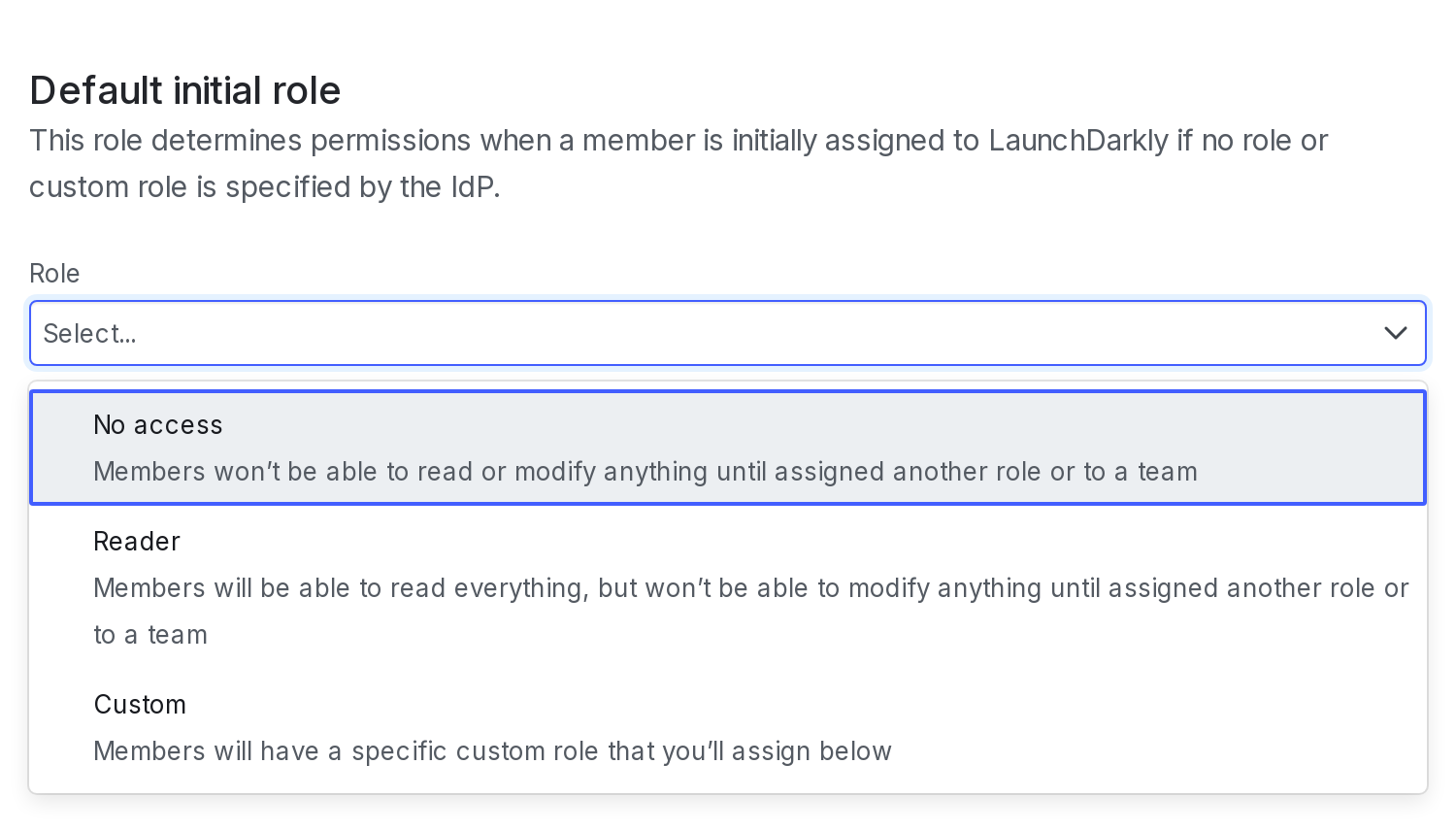
The "Default initial role" section of the SAML configuration panel.
Developer and Foundation customers can only set the default role to the Reader base role.