

Overview
This topic explains how to enable SCIM user provisioning to work with your SSO-enabled LaunchDarkly account. SCIM facilitates user provisioning, which means your IdP can use it to create, update, and deactivate members in LaunchDarkly.Prerequisites
SCIM is only available to customers on an Enterprise plan. To learn more, read about our pricing. To upgrade your plan, contact Sales.
- You must be a LaunchDarkly Admin organization role, or an Admin or Owner base role.
- You must have enabled SSO. To do this, read Configure SAML SSO.
Configure SCIM
LaunchDarkly has a SCIM API available to allow for user provisioning of account members from IdPs. The SCIM API is only supported for the OAuth2 authorization type. Not all supported third-party providers support user provisioning through SCIM. To learn more about how LaunchDarkly treats users imported from the IdP, read Default initial role. We have pre-built integrations with the following providers: You may also manually configure other providers, such as Entra ID (formerly Azure Active Directory). To do this, you need to provide certain information required for authentication. To learn more, read Authentication in the SCIM API reference.Disconnect SCIM
You can disconnect SCIM at any time. To disconnect SCIM:- Log in to LaunchDarkly with a LaunchDarkly Admin organization role, or an Admin or Owner base role.
- Click the gear icon in the left sidenav to view Organization settings.
- Click Security and scroll to the “SSO management” section.
- Click Disconnect SCIM.
Team sync with SCIM
Team sync with SCIM is only available to customers on an Enterprise plan. To learn more, read about our pricing. To upgrade your plan, contact Sales.
Team sync is only available for Okta. Team sync is not available for other IdPs.
- You can only create new teams through Group Push in Okta, and not from the LaunchDarkly UI.
- You can only make changes to your synced teams’ names and memberships through Okta. You can still maintain unsynced teams in the LaunchDarkly UI.
- You will still manage team permissions from within LaunchDarkly. To learn how to add roles to a team, read Assigning roles to teams. Team maintainers and team description will also be managed from the LaunchDarkly UI.
- A member’s individual roles will aggregate with the custom roles that you apply to their teams.
- LaunchDarkly will not delete any existing teams.
- Log in to LaunchDarkly with a LaunchDarkly Admin organization role, or an Admin or Owner base role.
- Click the gear icon in the left sidenav to view Organization settings.
- Click Security and scroll to the “SSO management” section.
- Click Turn on team sync. A confirmation dialog appears.
- Click Turn on team sync.
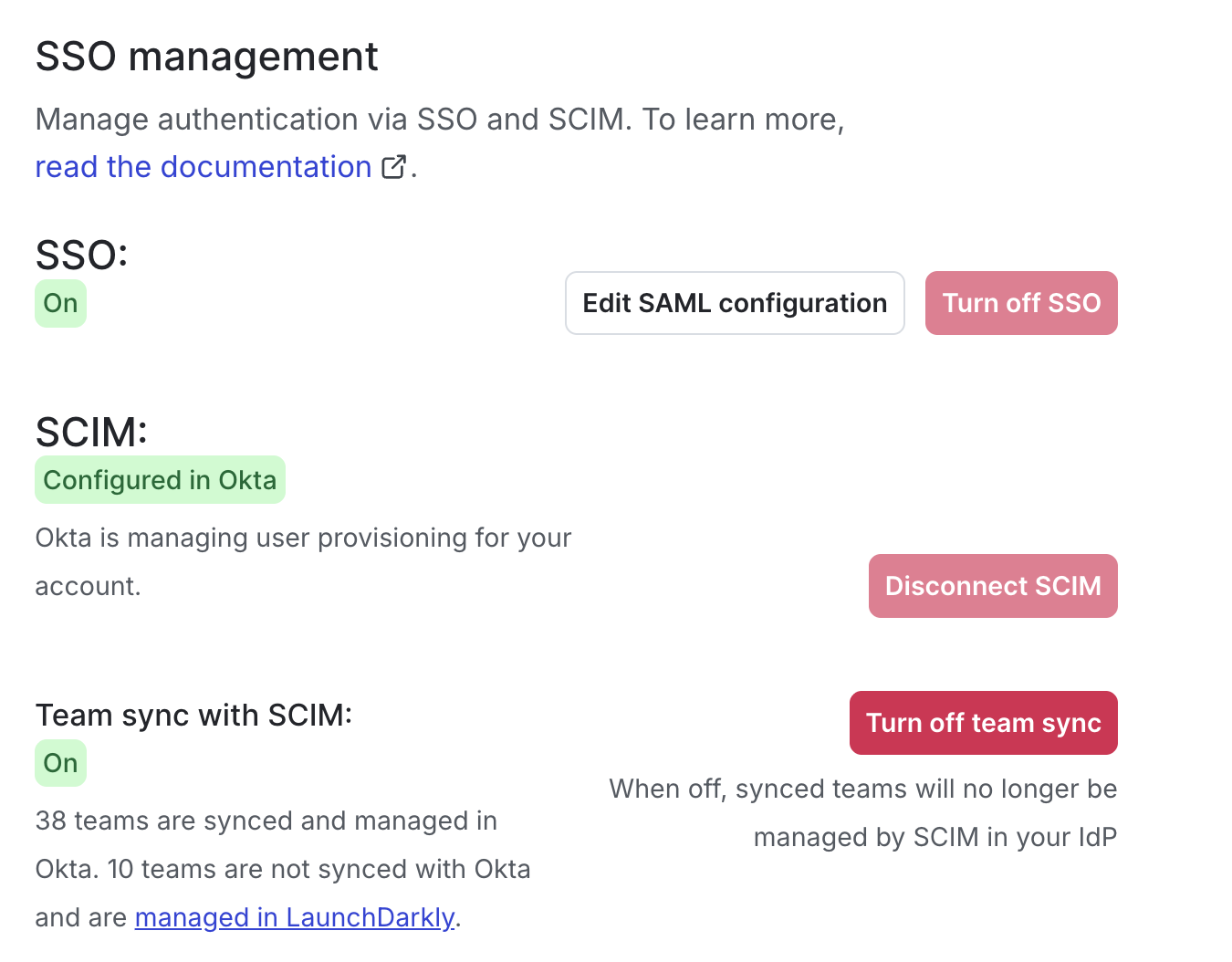
The "Turn on team sync" option within the "SSO management" section of the "Security" tab.
teamKey) will be overridden by SCIM team assignment.