

Overview
This topic explains how to set up SAML-based single sign-on (SSO) with PingIdentity. Setting up SSO with PingIdentity requires the following steps:- Retrieving your Entity ID and ACS URL from LaunchDarkly
- Adding the LaunchDarkly application in PingIdentity
- Updating LaunchDarkly with URL and exchange certificate details
- Defining user attributes in PingIdentity
- Mapping user attributes to LaunchDarkly
- Creating a PingIdentity group for LaunchDarkly access
- Assigning the group to the LaunchDarkly app
Prerequisites
To give your organization access to LaunchDarkly through PingIdentity, you need the following components:- A LaunchDarkly Admin organization role, or an Admin or Owner base role, or another role with permissions to update account SSO settings
- PingIdentity Admin permissions
Retrieve your Entity ID and ACS URL from Launch
Darkly To begin, retrieve your Entity ID and assertion consumer service (ACS) URL from LaunchDarkly:- In LaunchDarkly, click the gear icon in the left sidenav to view Organization settings.
- Click Security.
- Click Edit SAML configuration.
- In the “SAML application details” section, copy the Assertion consumer service URL and the Entity ID, and save them for use in the next section.
Add the Launch
Darkly application in PingIdentity To add the LaunchDarkly application in PingIdentity:- Log in to the PingIdentity admin console.
- Navigate to Applications.
- Click the + icon to add a new application.
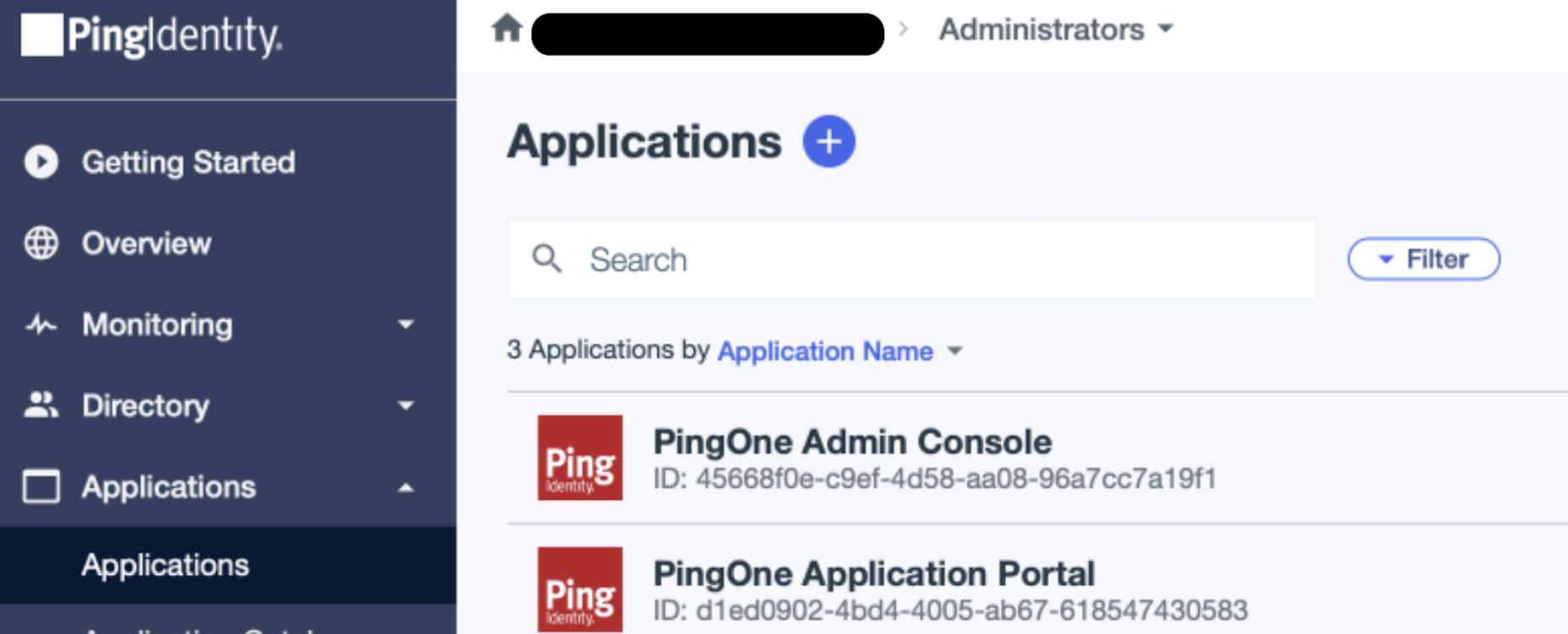
The "Applications" screen in PingIdentity.
- Enter “LaunchDarkly SSO” as the Application Name.
- (Optional) Add a Description and Icon.
- Click SAML Application.
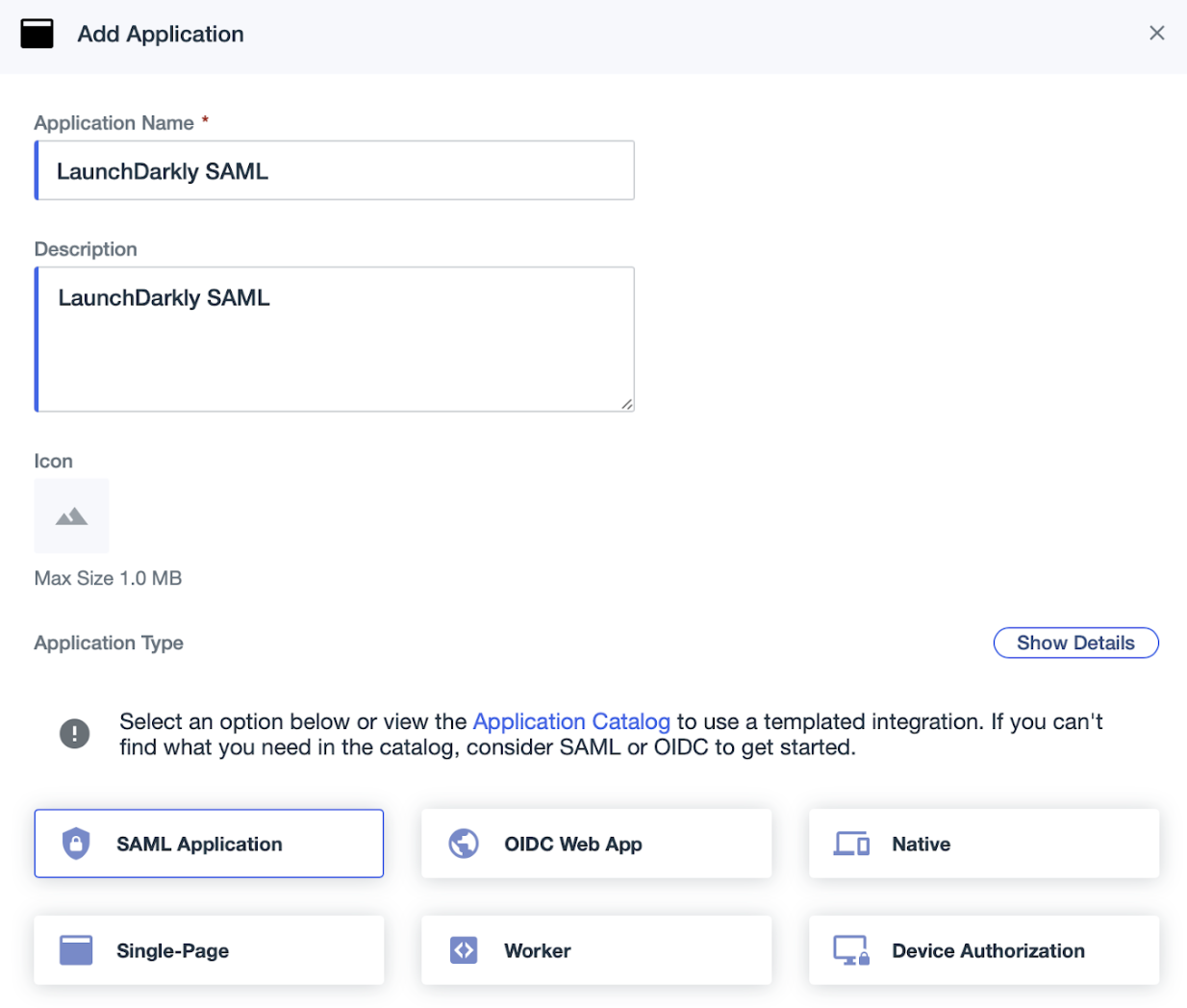
The "Add Application" screen in PingIdentity.
- Select Manually enter.
- Enter the LaunchDarkly ACS URL you copied from the previous section into the ACS URLs field.
- Enter the LaunchDarkly Entity ID you copied from the previous section into the Entity ID field.
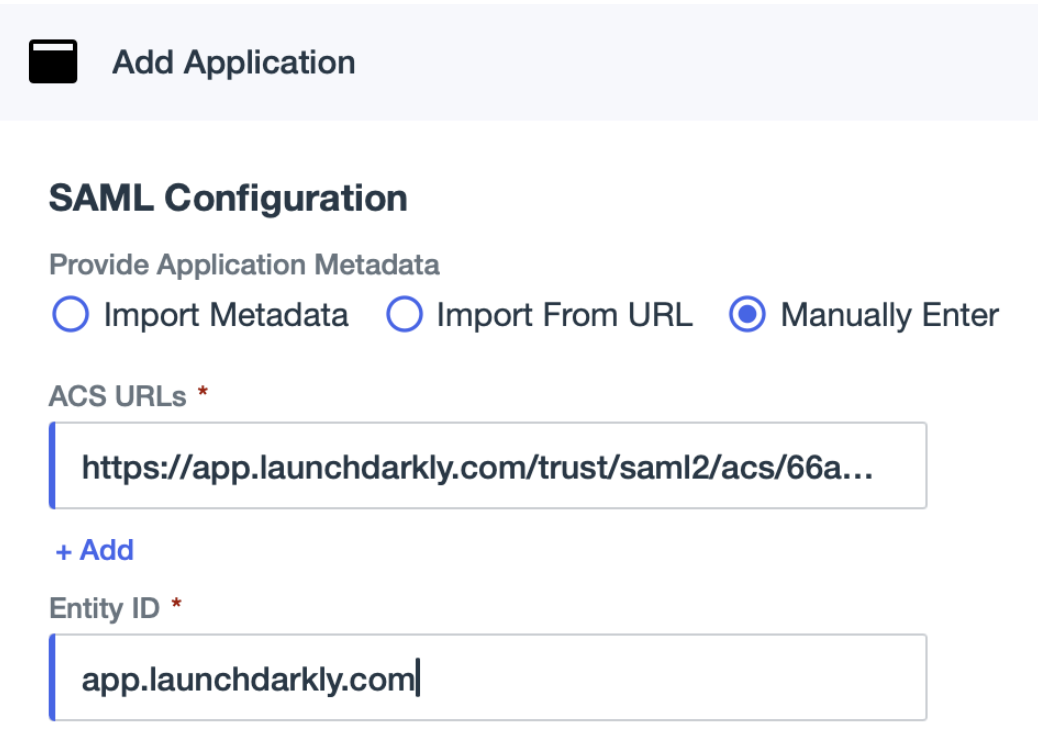
The "Applications" screen in PingIdentity.
- Click Save. The LaunchDarkly application appears in the Applications list.
- Copy the Signon URL and save it for use in the next section.
- Click Download Signing Certificate and select the “X509 PEM (.crt)” format. The X.509 certificate downloads to your machine.
Update Launch
Darkly with URL and exchange certificate details Next, update LaunchDarkly with the SSO URL and the X.509 exchange certificate:- In LaunchDarkly, click the gear icon in the left sidenav to view Organization settings.
- Click Security.
- Click Edit SAML configuration.
- in the “SAML identity provider details” section, enter the Signon URL you copied from PingIdentity into the Sign-on URL field.
- Click Upload one to upload the X.509 certificate you downloaded from PingIdentity. Or, paste the certificate contents into the X.509 certificate field.
- Click Save.
Define user attributes in Ping
Identity You can assign LaunchDarkly roles to account members through PingIdentity. In PingIdentity, your account members are called “users.” First, define user attributes in PingIdentity:- In PingIdentity, navigate to Directory, then User Attributes.
- Click the + icon to add a new attribute.
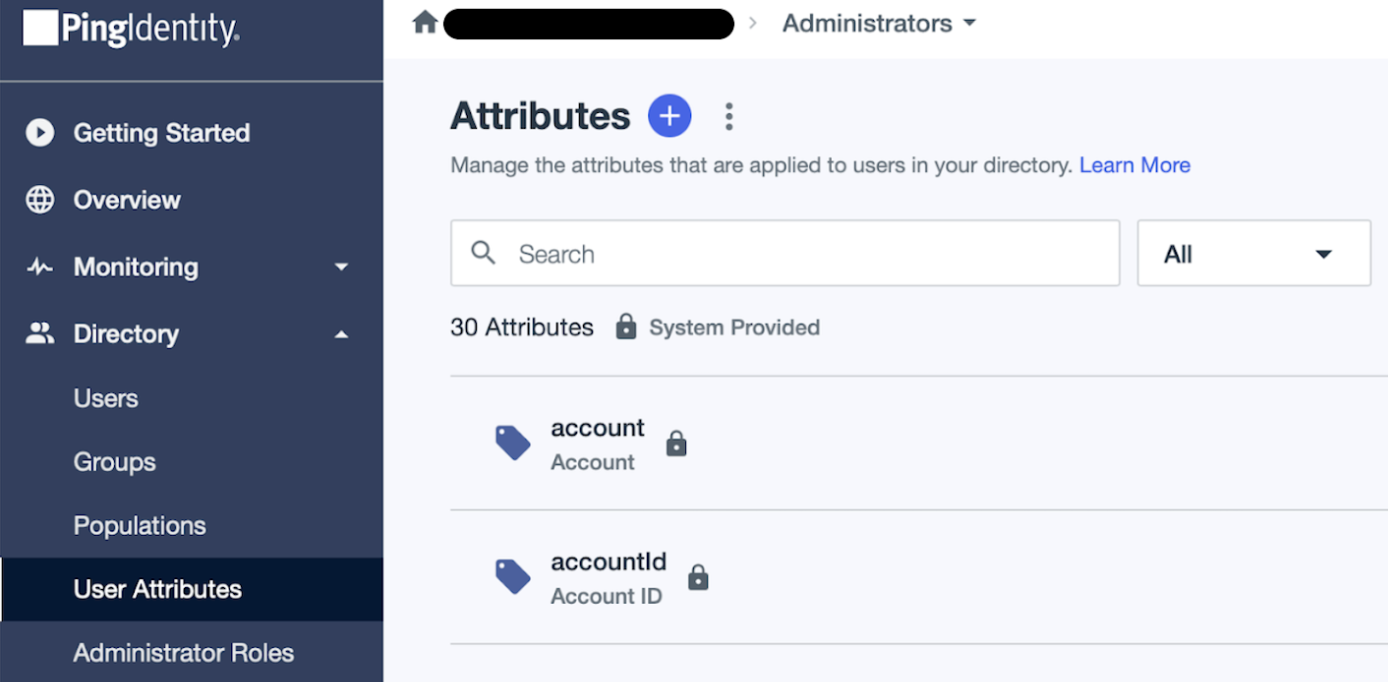
The "User Attributes" screen in PingIdentity.
- Select Declared.
- Enter “role” as the Name.
- Enter “LaunchDarkly Built-in role” as the Display Name.
- (Optional) Enter a Description.
- Select Enumerated values.
- Click + Add Value and enter “admin.”
- Repeat step 8 for “writer” and “reader.”
- Click Save.
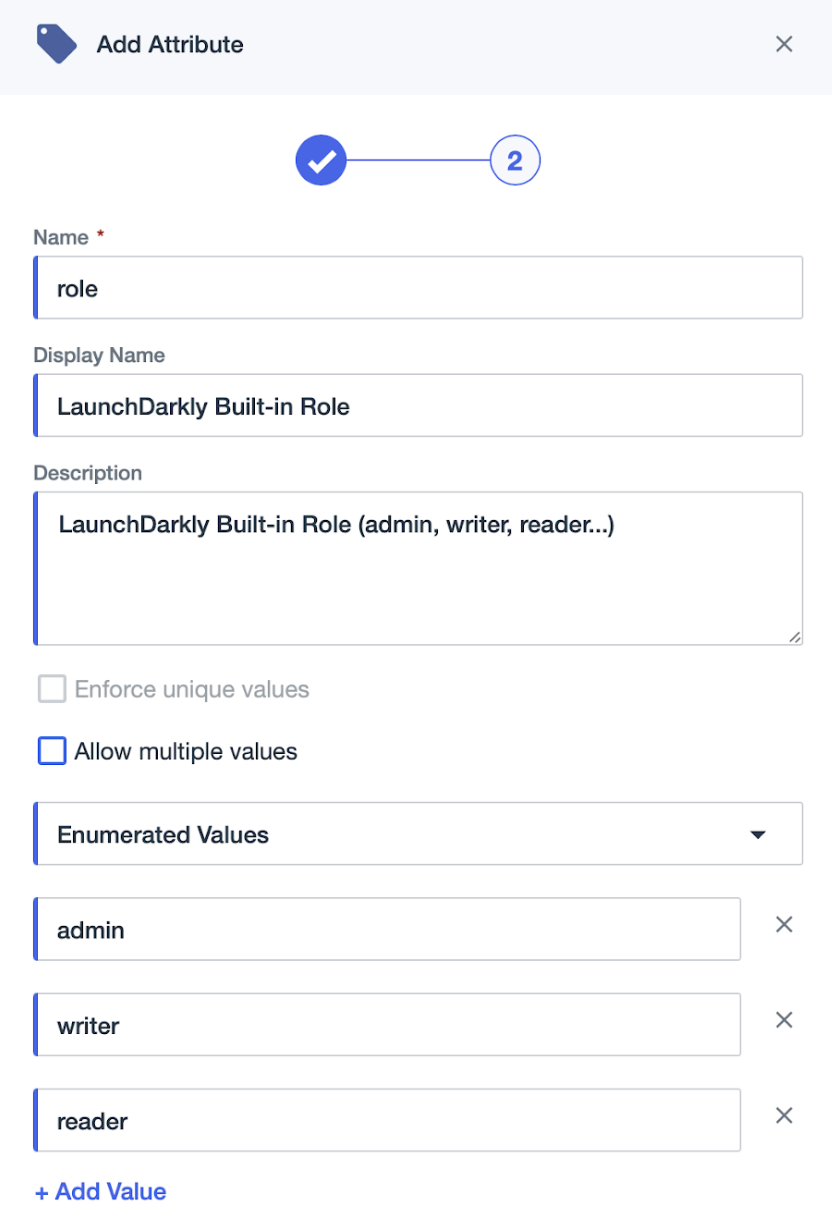
The "Add Attribute" screen in PingIdentity.
- To repeat the process for custom roles, click the + icon to add a new attribute and select Declared.
- Enter “customRole” as the Name.
- Enter “LaunchDarkly Custom Roles” as the Display Name.
- (Optional) Enter a Description.
- Select No Validation.
- Click Save.
Map user attributes to Launch
Darkly Next, map PingIdentity user attributes to LaunchDarkly:- Navigate to Applications.
- Select the “LaunchDarkly SSO” application.
- Click the Attributes Mappings tab.
- Click +Add.
- Enter “role” in the Attributes field.
- Select “LaunchDarkly Built-in role” from the PingOne Mappings menu.
- Click +Add.
- Enter “customRole” in the Attributes field.
- Select “LaunchDarkly Custom Roles” from the PingOne Mappings menu.
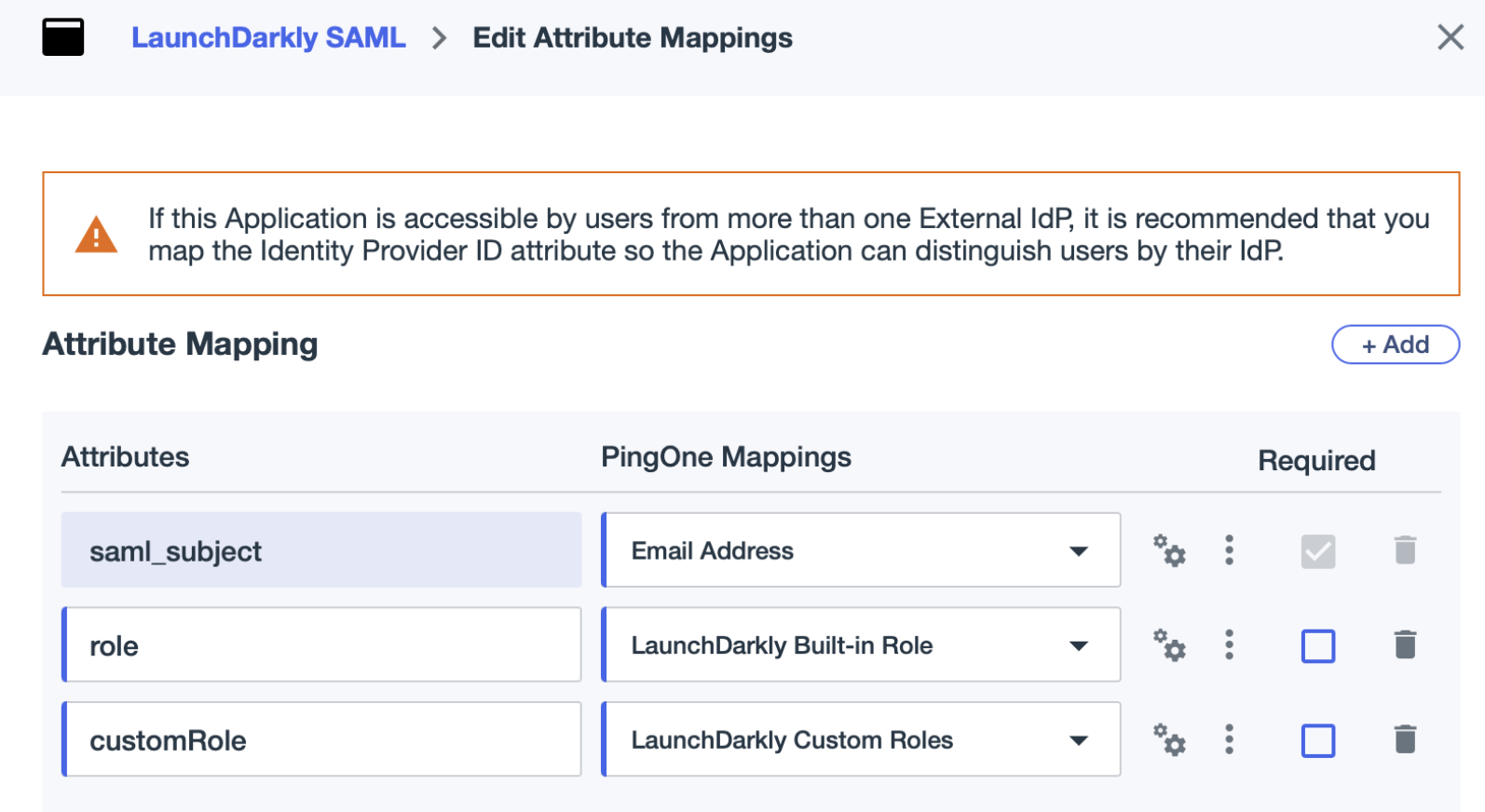
The "Edit Attribute Mappings" screen in PingIdentity.
Create Ping
Identity groups for LaunchDarkly access Next you can allow LaunchDarkly access using PingIdentity groups:- In PingIdentity, navigate to Directory, then Groups.
- Click Add Group.
- Enter “Access to LaunchDarkly App” or similar as the Name.
- (Optional) Add a Description.
- Select a PingIdentity Population that should have access to LaunchDarkly.
- Click Save.
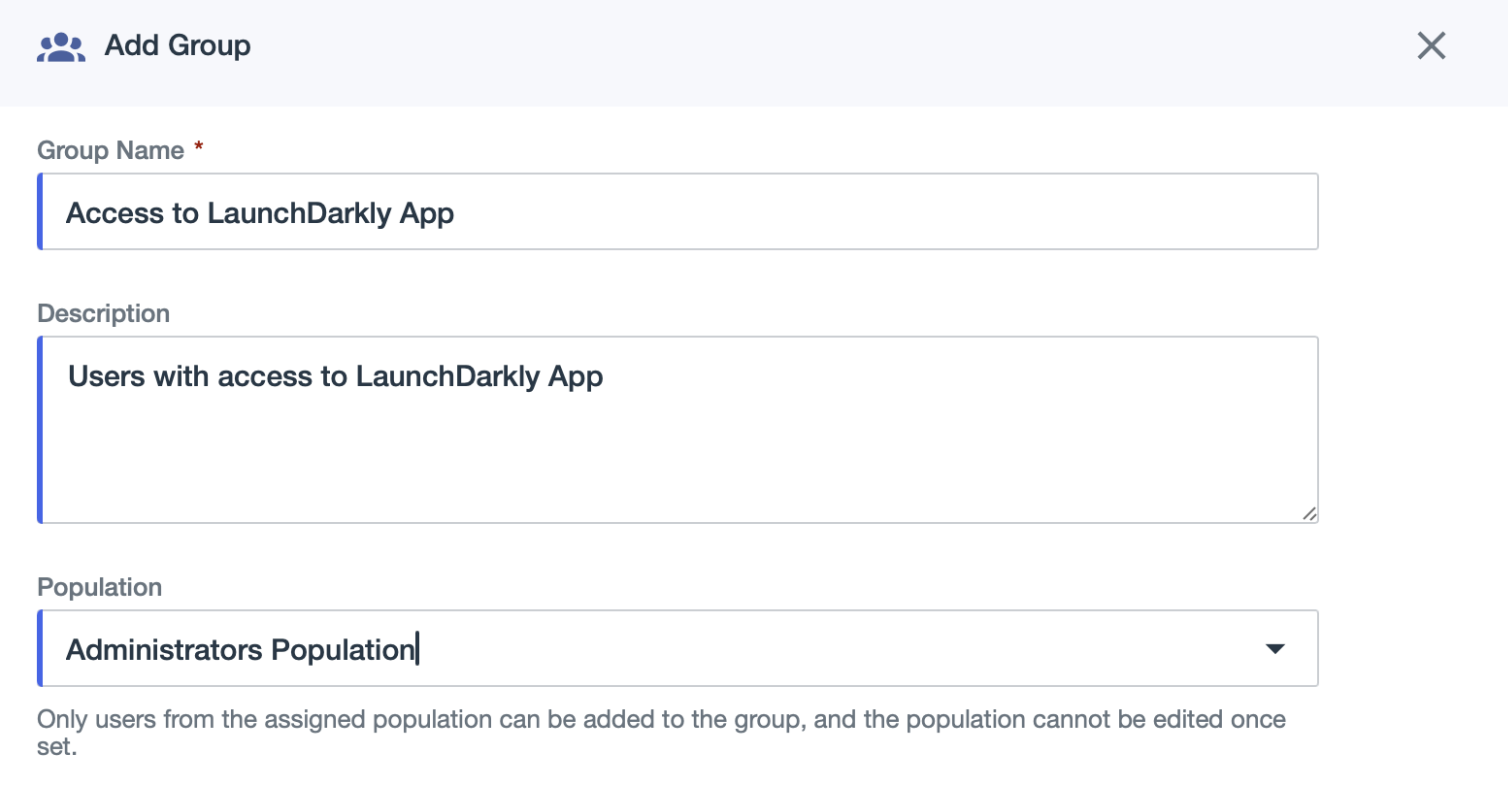
The "Add Group" screen in PingIdentity.
Assign the group to the Launch
Darkly app Next, assign the group to the LaunchDarkly app:- Navigate to Applications.
- Select the “LaunchDarkly SSO” application.
- Click the Access tab.
- Click the pencil icon.
- Search for and select the “Access to LaunchDarkly App” group.
- Click Save.
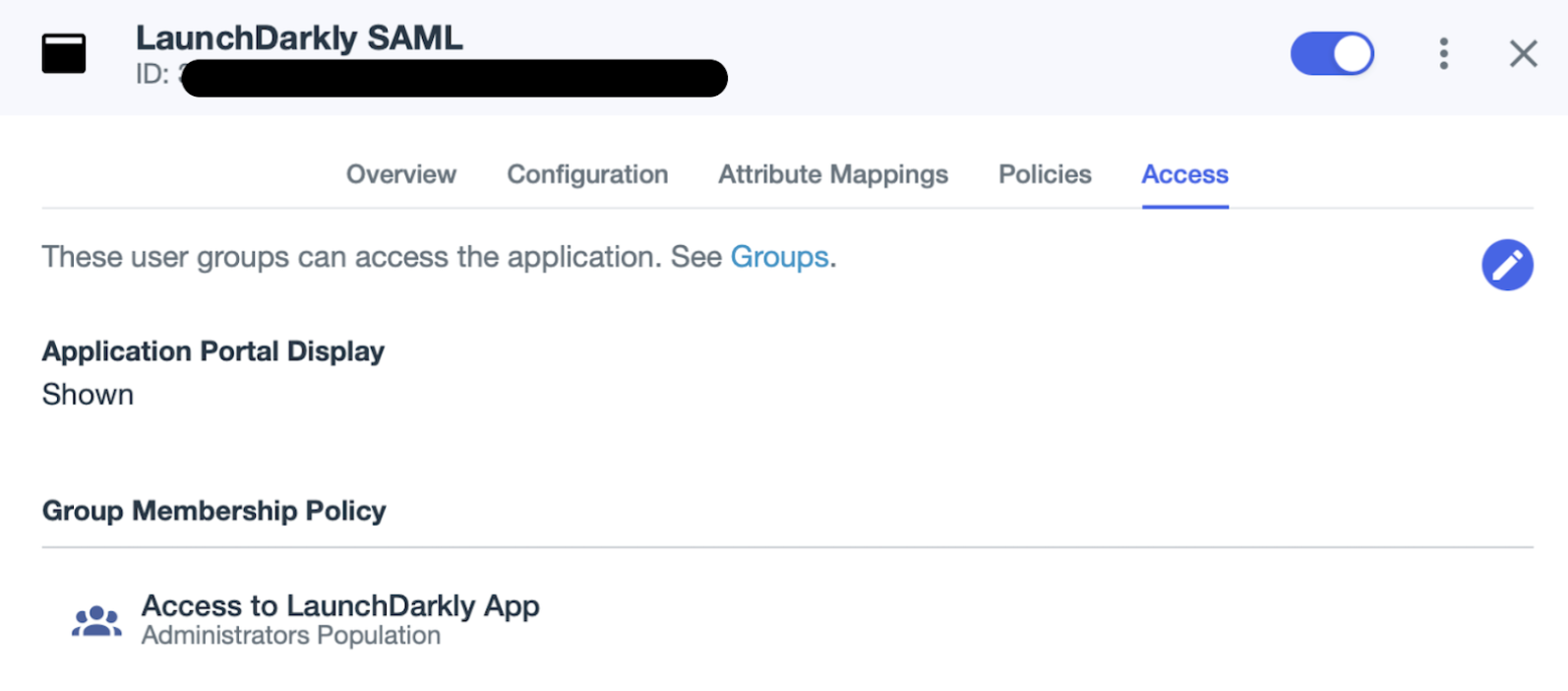
The application "Access" screen in PingIdentity.