

Overview
This topic explains how to integrate LaunchDarkly with Microsoft Entra ID (formerly Azure Active Directory). The Entra ID App Gallery includes LaunchDarkly and provides a LaunchDarkly application template that facilitates configuration. If you want to set up SCIM provisioning with Entra ID, read Configure SCIM.Integrate Launch
Darkly with Entra ID To integrate LaunchDarkly with Entra ID:- Log in to Entra ID.
- Navigate to “Enterprise applications.”
- Click New application:

The "Enterprise applications" page with "New application" called out.
- Search for the LaunchDarkly application.
- After you add it, follow the Microsoft Entra integration with LaunchDarkly tutorial.
During configuration, we recommend using the identifier
user.mail, provided that every user has their email address attribute set. If you haven’t set attributes for every user, use the identifier user.userprincipalname.Configure team-based or role-based access
After you integrate LaunchDarkly with Entra ID, you can configure LaunchDarkly teams or LaunchDarkly roles to map with Entra ID resources. Configuring team-based access is the most common solution, because it enables you to use Just-In-Time (JIT) user provisioning with your LaunchDarkly teams and keeps team members in sync with an Entra ID group. To learn more, read Map LaunchDarkly teams to Entra ID Security Groups. You can optionally configure role-based access to map LaunchDarkly custom roles to Entra ID user attributes or to Entra ID security groups. To learn more, read either Map custom roles to Entra User Attributes or Map custom roles to Entra Security Groups. If you are uncertain about which configuration to choose, contact your LaunchDarkly account team.Map Launch
Darkly teams to Entra ID Security Groups After you integrate LaunchDarkly with Entra ID, you can map LaunchDarkly teams to Entra Security Groups. This keeps the members of your LaunchDarkly teams in sync with your Entra ID groups and enables you to use JIT user provisioning with Entra ID groups to automatically map users to LaunchDarkly teams. There are four steps to this process:- Create Security Groups in Entra ID
- Create teams in LaunchDarkly
- Assign Entra ID Security Groups to the LaunchDarkly Enterprise Application
- Create a new Entra ID claim
Create Security Groups in Entra ID
First, set up a Security Group in Entra ID:- In Entra ID, navigate to “Groups,” then click New group.
- Select the “Security” group type and enter a group name.
- Click Create. You are returned to the groups list.
- Copy the object ID of the group you want to link to a LaunchDarkly team:
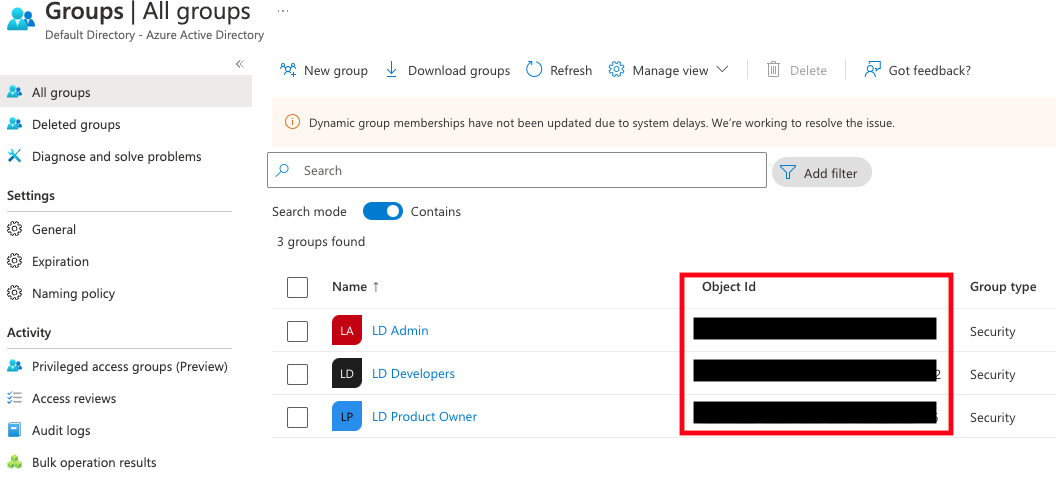
The "Groups" section with the "Object Id" column called out.
Create teams in Launch
DarklyYou must map the Entra ID group name and object ID to a LaunchDarkly team before you continue. Failing to complete this step will prevent you from creating new Entra ID claims later in the procedure.
- Click the gear icon in the left sidenav to view Organization settings.
- Click Teams.
- Click Create team. The “Create team” dialog appears.
- In the Name field, enter the Entra ID group name you created in the previous step.
- In the Key field, paste the Entra ID object ID for the group that you copied the previous section.
- Click Create team.
Assign Entra ID Security Groups to the Launch
Darkly Enterprise Application Then, assign Entra ID Security Groups to the LaunchDarkly Enterprise Application:- In Entra ID, open the LaunchDarkly Enterprise Application.
- Click Users and groups. The “Users and groups” screen appears:
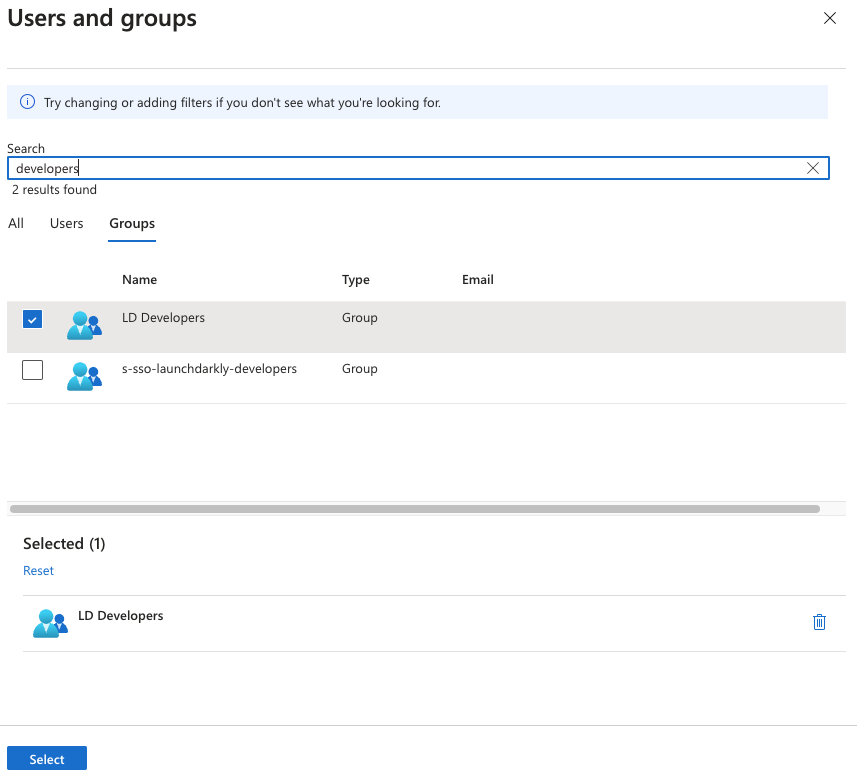
The "Users and groups" screen in Entra ID.
- On the “Groups” tab, choose the group you want to edit and click Select. The “Add Assignment” screen appears.
- Click None Selected under “Users and groups” to add a new group. The “Users and groups” screen appears.
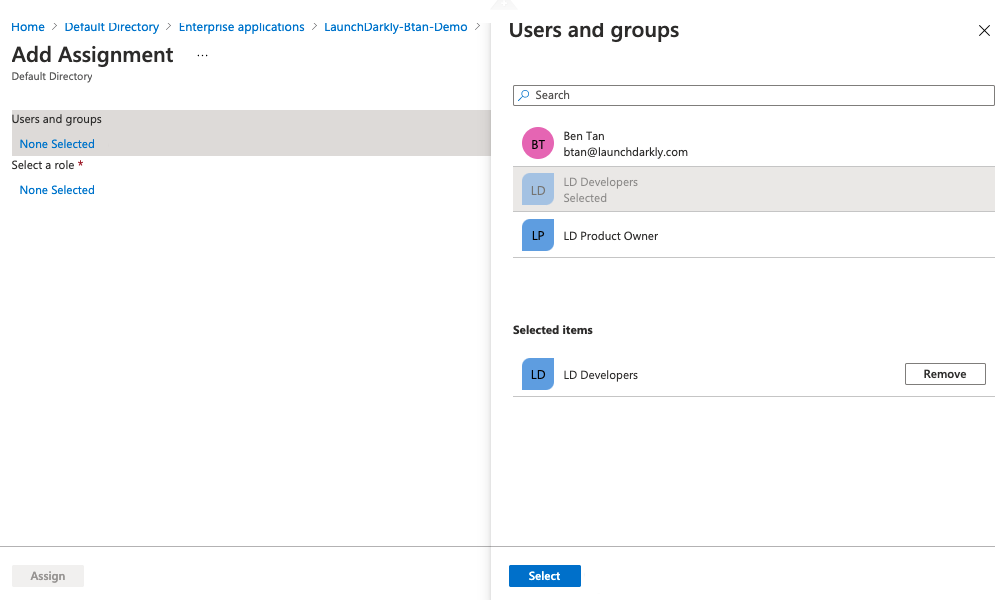
The "Users and groups" screen.
- Choose the group you created in the Create Security Groups in Entra ID step.
- Click Select. You are returned to the “Add Assignment” screen.
- Click Assign.
Create a new Entra ID claim
Finally, create a new Entra ID claim:- In Entra ID, open the LaunchDarkly Enterprise Application.
- Click Single sign-on.
- Scroll to the “Attributes & Claims” section.
- Click Edit. The “Manage claims” form appears.
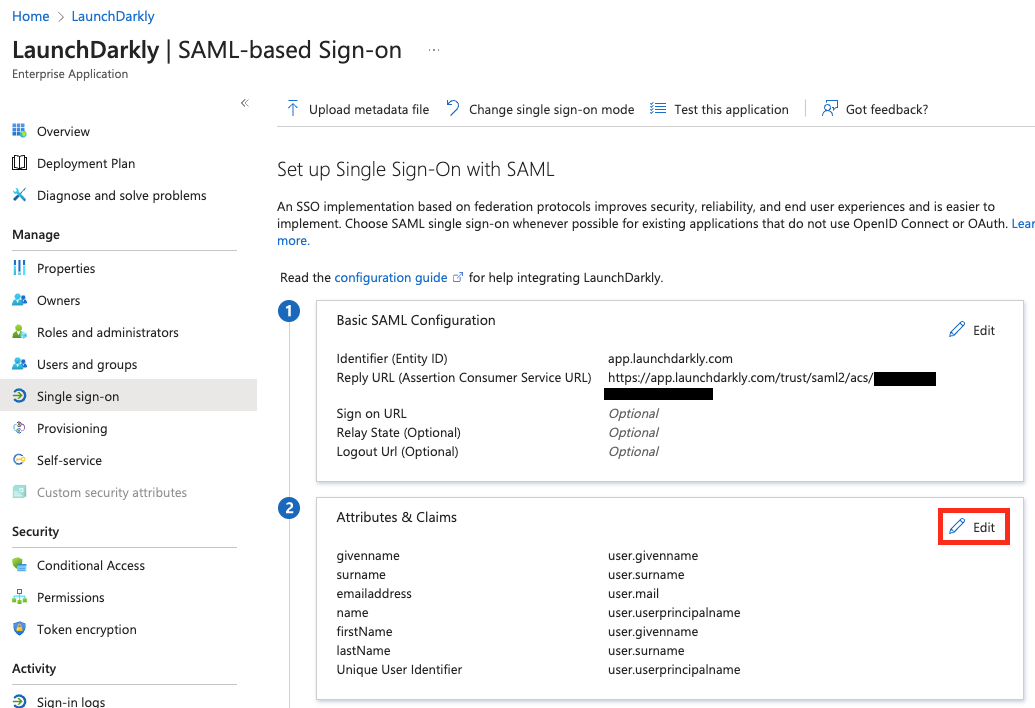
The "Attributes & Claims" section with the "Edit" button called out.
- Click ”+ Add a group claim.” A “Group Claims” dialog appears.
- Select “Groups assigned to the application” under “Which groups associated with the user should be returned in the claim?”
- Select “Group ID” as the source attribute.
- Open the Advanced options section.
- Check the “Customize the name of the group claim” box.
- Enter
teamKeyinto the Name field:
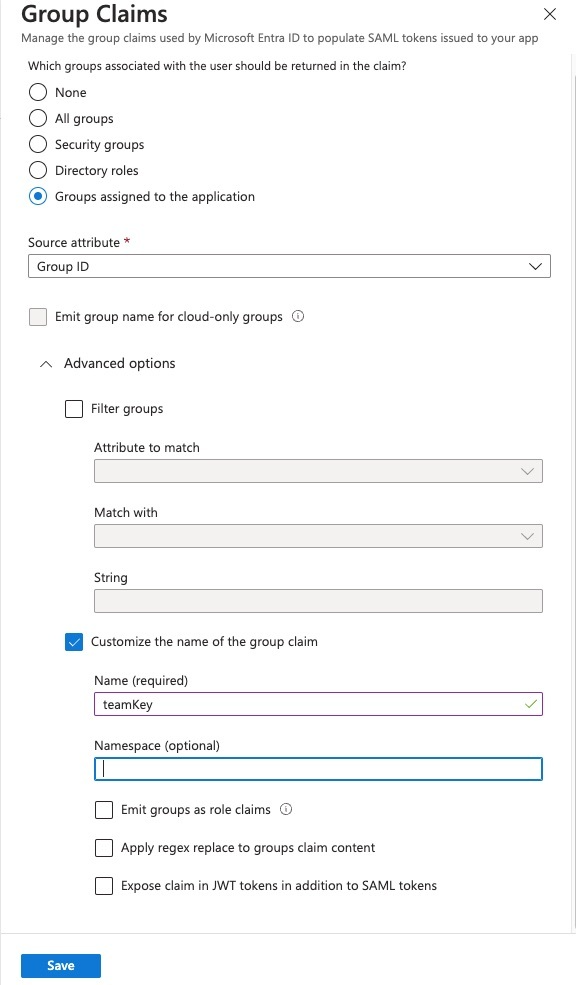
The "Group Claims" dialog.
- Click Save. You are returned to the “Attributes & Claims” screen.
Map custom roles to Entra User Attributes
After you integrate LaunchDarkly with Entra ID, you can map LaunchDarkly role and custom role attributes to Entra User Attributes using Entra claims. The LaunchDarkly Entra SSO integration provides JIT user provisioning for IdP-Initiated SSO. To learn more about SSO provisioning for roles, read Roles. To set uprole and customRole claims in Entra ID:
- In Entra ID, open the LaunchDarkly Enterprise Application.
- Click Single sign-on.
- Scroll to the “Attributes & Claims” section.
- Click Edit.
- Click Add new claim. The “Manage claim” screen appears:
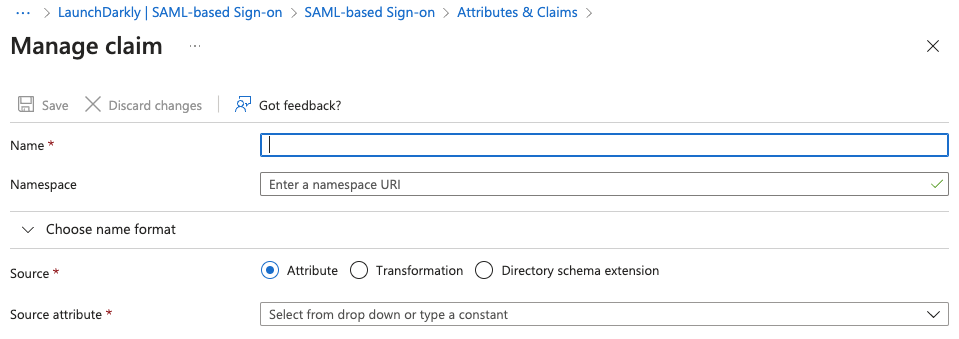
The "Manage claim" screen.
- Enter “role” in the Name field.
- Leave the source as “Attribute.”
- Choose a source attribute from the menu that is not currently mapped, such as
user.country. - Click Save.
- Repeat steps 5-9 with “customRole,” mapping to a different unused source attribute.
SAML ignores empty fields if used in Roles or customRoles. To clear all existing roles, enter an empty string "" into the field.
Map custom roles to Entra Security Groups
In addition to Entra User Attributes, you can also assign LaunchDarkly custom roles to Entra Security Groups. There are five steps to this process:- Create roles in LaunchDarkly
- Create groups in Entra ID
- Create roles for the Entra LaunchDarkly Enterprise Application
- Set up groups and roles in the Entra LaunchDarkly Enterprise Application
- Update the Entra LaunchDarkly Enterprise Application SSO configuration
Create roles in Launch
Darkly To begin, create the roles in LaunchDarkly that you want to use with the Entra LaunchDarkly Enterprise Application. Make note of each role’s key, as you will need the key when you set up your Entra ID app role. To learn how, read Roles.Create groups in Entra ID
After you have created your custom roles in LaunchDarkly, set up your groups in Entra ID:- In Entra ID, navigate to “Groups,” then click New group.
- Select a group type and enter a group name.
- Click “No members selected” to add new members:
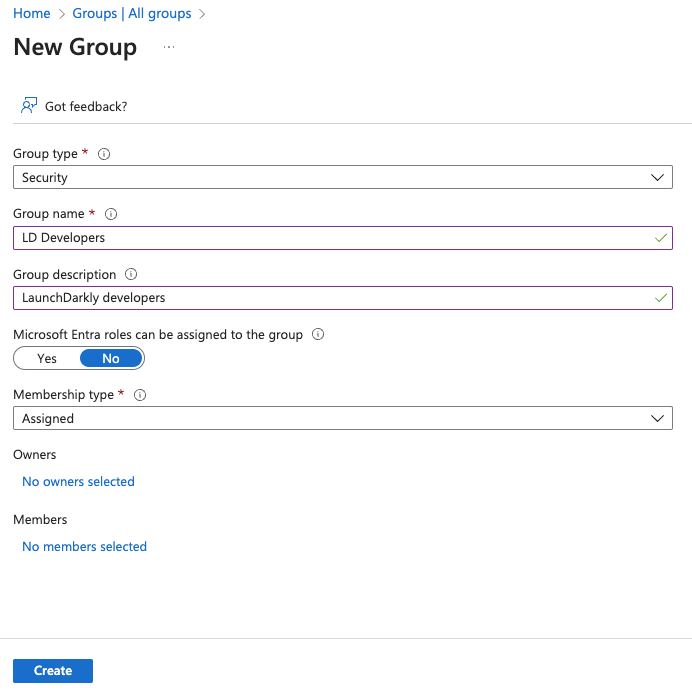
A new Entra ID group.
- Select members from the list to add to the group, then click Select:
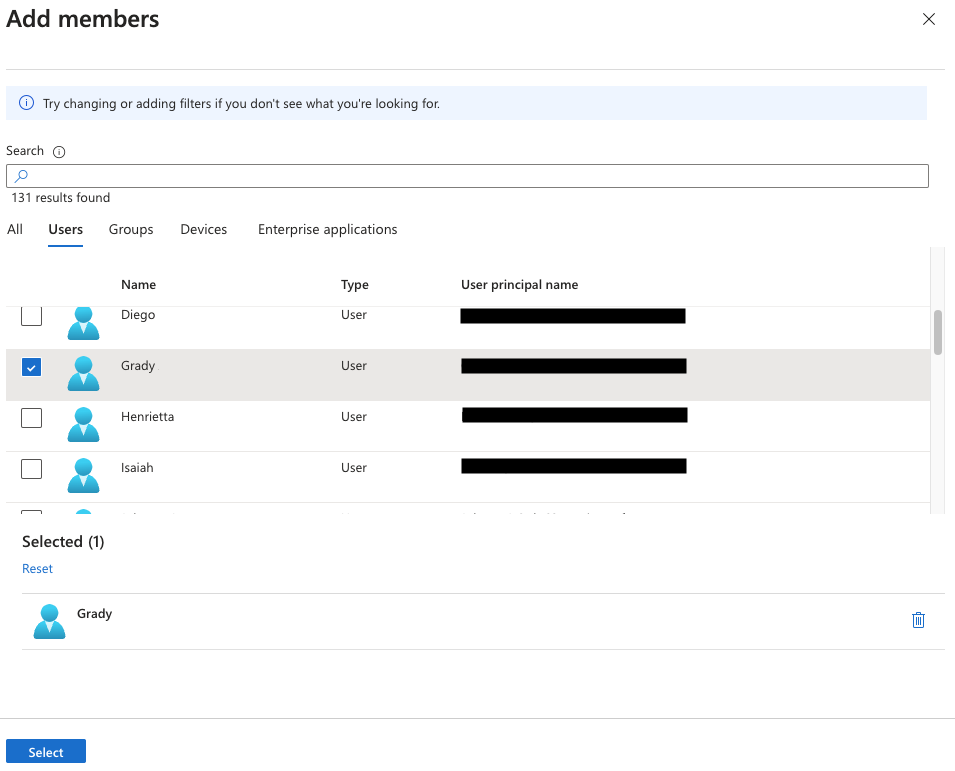
Adding members to a new Entra ID group.
Create roles for the Entra Launch
Darkly Enterprise Application Next, create roles within Entra ID:- In Entra ID, navigate to Applications.
- Click App registrations in the left sidenav.
- Click the All applications tab:

The "All applications" tab on the "App registrations" page in Entra ID.
- Click LaunchDarkly to open the application.
- Navigate to “App roles” and click Create app role.
- Enter the role information. The value must be the key of the custom role you created during the Create custom roles in LaunchDarkly step:
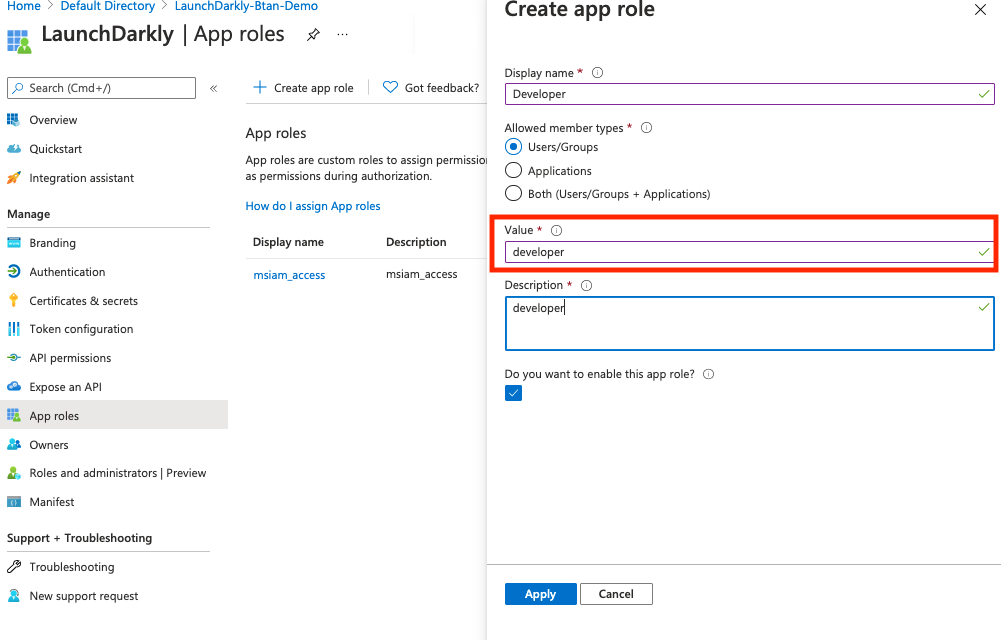
A new role in Entra ID with the "Value" field called out.
- Click Apply.
Set up groups and roles in the Entra Launch
Darkly Enterprise Application Then, set up groups and roles in Entra ID:- In Entra ID, open the LaunchDarkly Enterprise Application.
- Click Users and groups. The “Users and groups” screen appears:
The "Users and groups" screen in Entra ID.
- On the “Groups” tab, choose the group you want to edit and click Select. The “Add Assignment” screen appears.
- Click None Selected under “Users and groups” to add a new group. The “Users and groups” screen appears:
The "Users and groups" screen.
- Choose the group you created in the Create groups in Entra ID step.
- Click Select. You are returned to the “Add Assignment” screen.
- Click None Selected under “Select a new role” to add a new role:
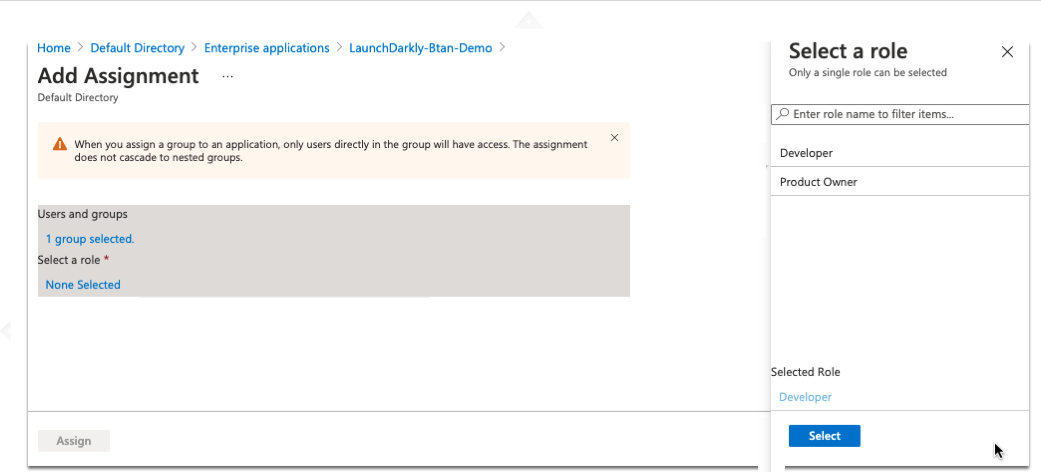
Selecting a role to add to a group.
- Choose the role you created in the Create roles for the Entra LaunchDarkly Enterprise Application step.
- Click Select. You are returned to the “Add Assignment” screen.
- Click Assign.
Update the Entra Launch
Darkly Enterprise Application SSO configuration Finally, update Entra’s SSO configuration:- In Entra ID, open the LaunchDarkly Enterprise Application.
- Click Single sign-on.
- Scroll to the “Attributes & Claims” section.
- Click Edit. The “Manage claims” form appears.
The "Attributes & Claims" section with the "Edit" button called out.
- Enter
customRolein the Name field. - Leave the Namespace field empty.
- Select “Attribute” as the source.
- Enter
user.assignedrolesin the Source attribute field. - Click Save. You are returned to the “Attributes & Claims” screen.