

Required confirmation is only available to customers on select plans. To learn more, read about our pricing. To upgrade your plan, contact Sales.
Overview
This topic explains how to use required confirmation for feature flag and segment changes. Requiring members to confirm that they wish to make changes may help them from changing the wrong flag or segment inadvertently. When you require confirmation in an environment, members must enter the environment name or key when saving any changes to a flag: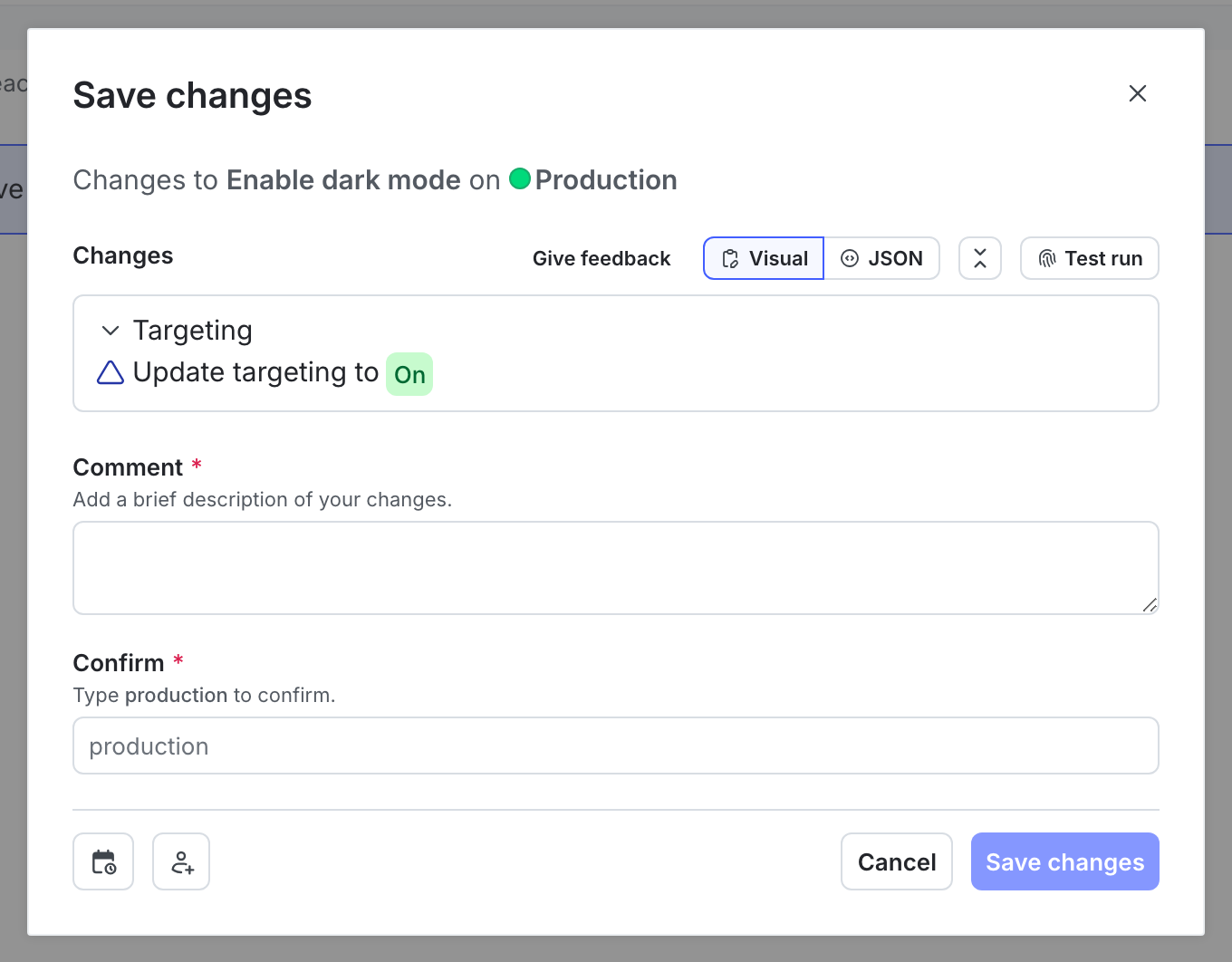
The "Save changes" dialog.
Requiring confirmation
To require confirmation on changes in a new environment:- Click the project dropdown. The project menu appears:
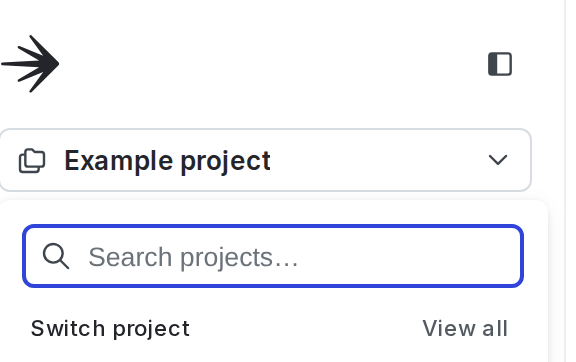
The project menu.
- Select Project settings.
- Select Environments. The Environments list appears.
- Click Add environment. The “Create an environment” panel appears.
- Give your environment a human-readable Name.
- Select the Require confirmation for flag and segment changes checkbox:
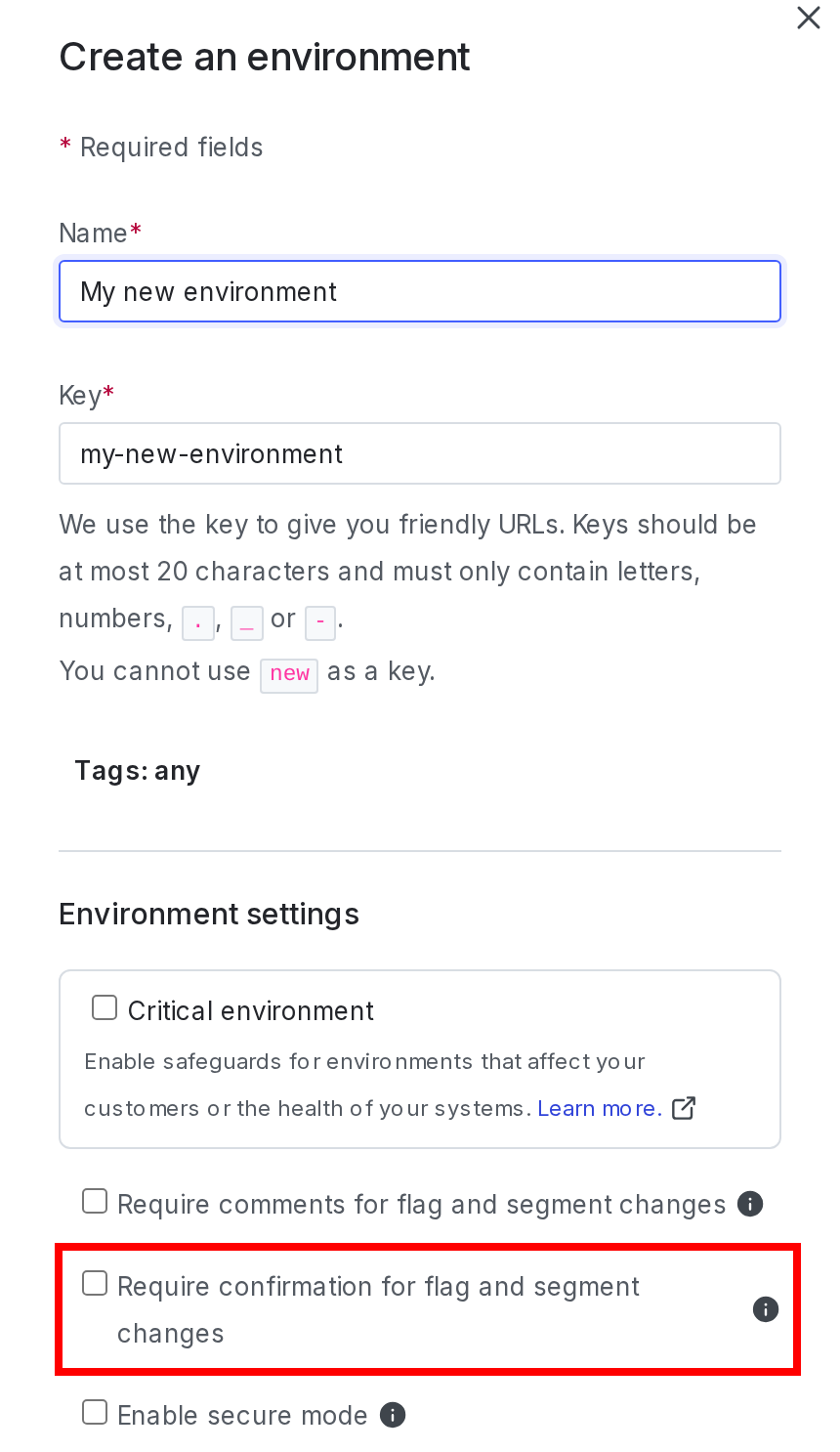
The "Create an environment" panel with the "Require confirmation" checkbox called out.
- Click Create environment.
- Click the project dropdown. The project menu appears:
The project menu.
- Select Project settings.
- Select Environments. The Environments list appears.
- Next to the environment you want to edit, click the overflow menu and choose Edit environment. The Edit environment panel appears.
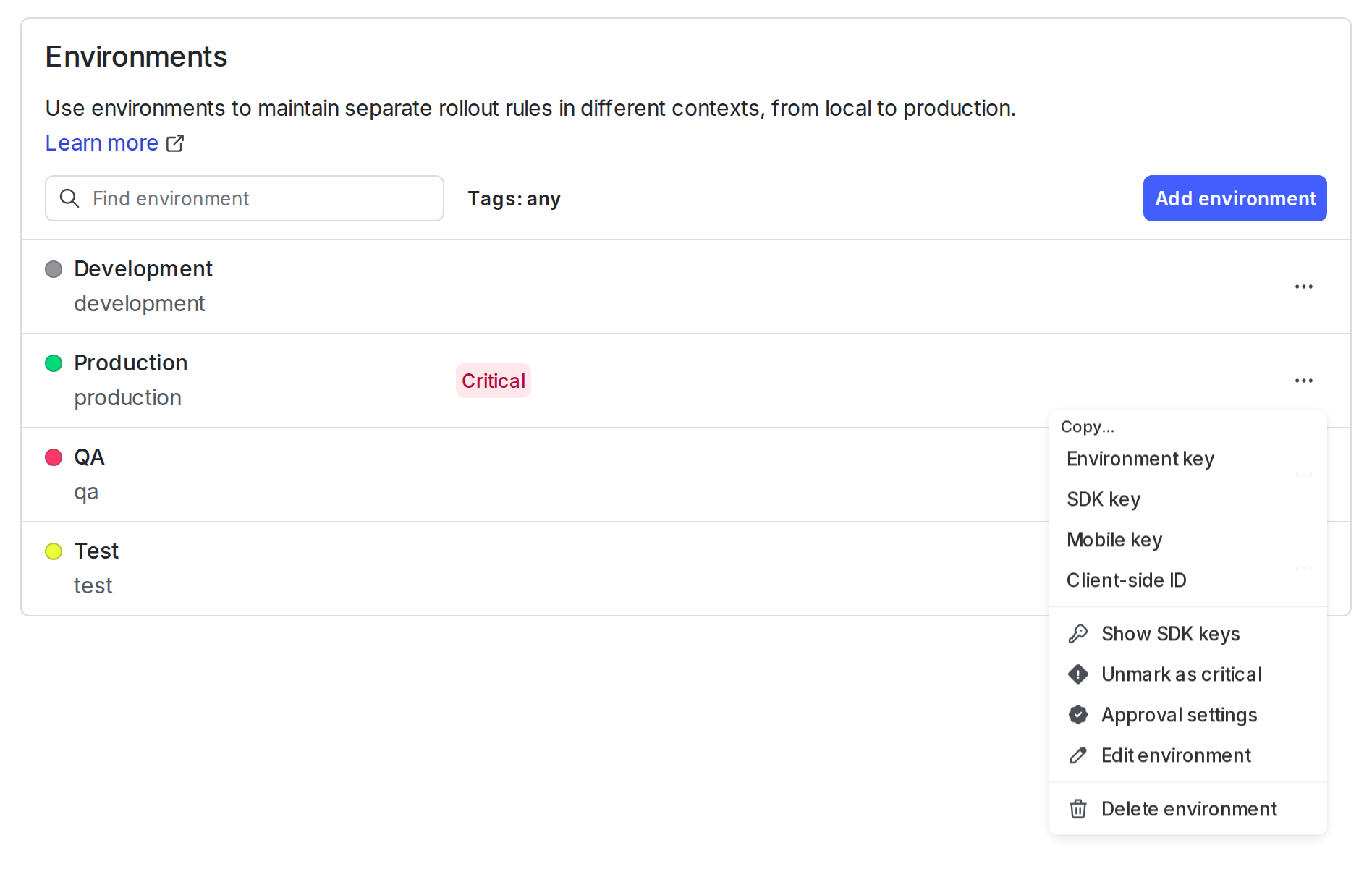
The environment overflow menu, including the "Edit environment" option.
- Select the Require confirmation for flag and segment changes checkbox.
- Click Save environment.