

Overview
This topic explains how to create approval requests.Create approval requests
You can request approval on changes to a flag or AI Config’s targeting or variations, or on a segment’s targeting, from any member or team within your LaunchDarkly organization. You can do this any time after you create the flag, AI Config, or segment. Members that do not have permission to approve requests can still view the request. To request an approval:- Make a change to any flag, AI Config, or segment.
- Click Review and save. The “Save changes” dialog appears.
- Review the changes displayed in the dialog.
- If the Reviewer(s) menu is not visible, select the person icon.
- Choose one or more reviewers from the Reviewer(s) menu.
- Members and teams with permission to approve or decline approval requests appear in the top section of the menu.
- Members and teams that can only view approval requests appear in the bottom section of the menu. If you add a member or team from this list, they will be notified of the approval request, but cannot approve it.
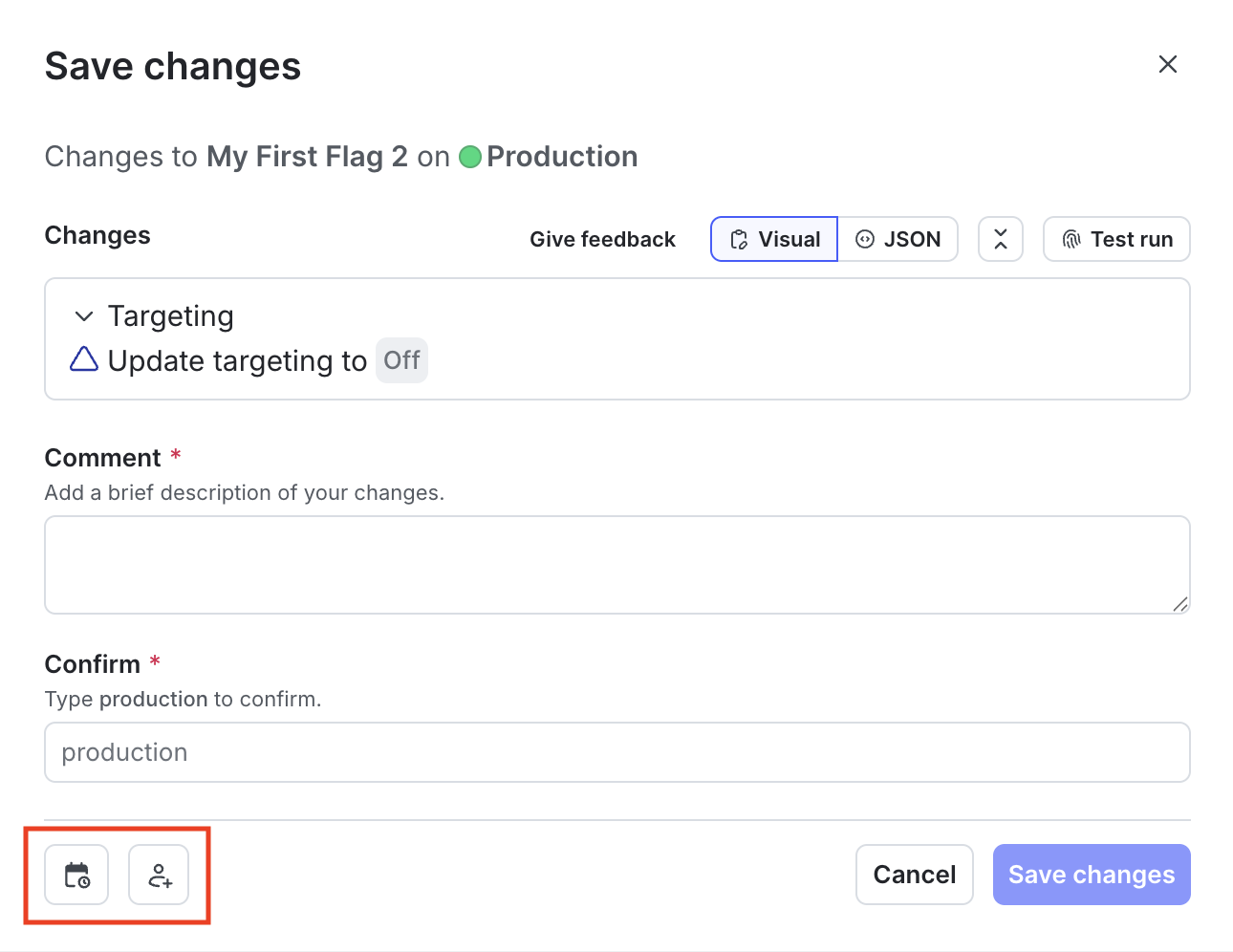
The "Save changes" dialog with the "Schedule changes" and "Add reviewers" icons called out.
-
Enter a Comment to add details that help your reviewers understand the changes you made.
- If your organization uses a third-party workflow management system for approvals, there may be additional fields that you are required to fill out here. To learn more, read Configuring approvals for an environment.
If your environment requires approvals, Review and request approval is the default option. To learn more, read Configuring approvals for an environment.
- Click Request approval.
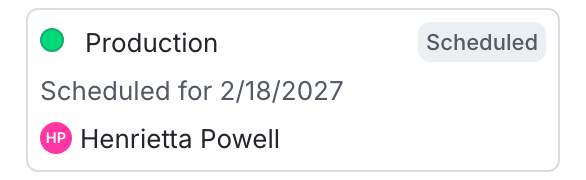
The "Pending changes" section of a flag.
You can also use the REST API: Create approval request for a flag
Required approvals
Enterprise customers can require approval requests for specific environments. If your environment requires approvals, Review and request approval is the default option when you make a flag, AI Config, or segment change. If a team member has thebypassRequiredApproval custom role action, they are not required to request approval. Instead, they have the option to Save changes. The bypassRequiredApproval custom role action only applies to flag approvals. You cannot bypass required approvals for AI Configs or segments.
When you copy flag settings between environments, if the environment you’re copying changes to requires approval, then Review and request approval is the default option. To learn more, read Compare and copy flag settings between two environments and Configuring approvals for an environment.
You can also use the REST API: Create approval request to copy flag configurations across environments