

Overview
This topic explains how to review, approve, and decline approval requests. If someone requests your approval on a flag, AI Config, or segment change, the request appears in the Approvals dashboard, in your email, and in your in-app inbox. Depending on the approval request, it also appears in the following places:- For flags, the approval request appears in the flag’s “Pending changes” panel and, if you use the LaunchDarkly Slack or Microsoft Teams app, in a Slack or Teams notification.
- For AI Configs, the approval request appears in the AI Config’s “Pending changes” panel and, if you use the LaunchDarkly Slack app, in a Slack notification.
- For segments, the approval request appears in the segment’s details page and, if you use the LaunchDarkly Slack app, in a Slack notification. You can click through to view and approve or decline the request from any of these notifications.
You can also use the REST API: List approval requests
View approval requests
You can view approval requests from:- The Approvals dashboard
- The affected flag or AI Config
- The email notification
- Your in-app inbox
- Slack or Microsoft Teams, if you have those integrations configuredWhen viewing approval requests, you can review either a Visual list or a JSON list of the proposed changes:
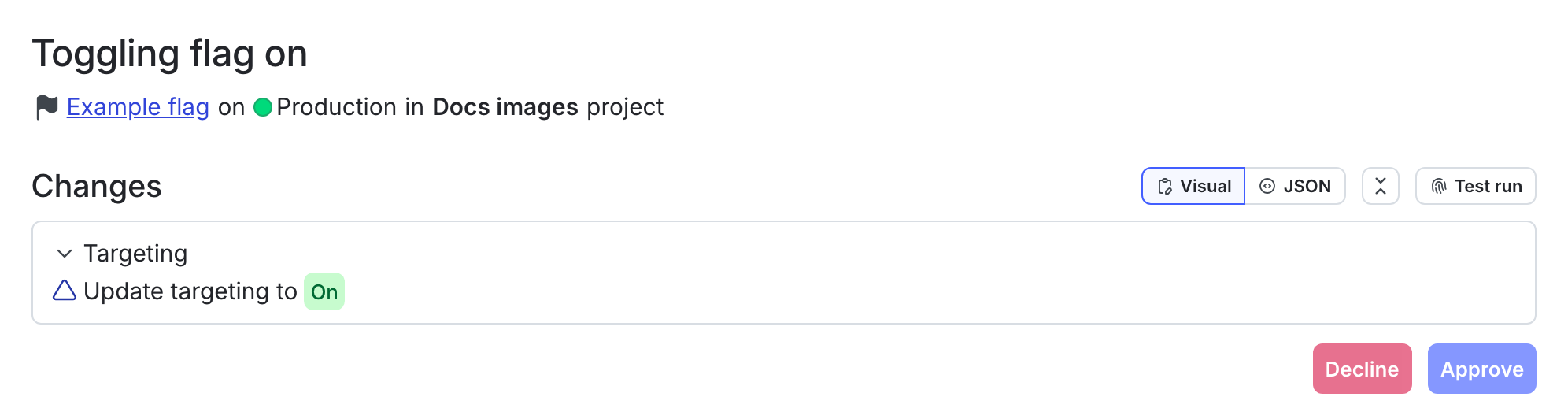
An approval request to toggle on a flag.
View approval requests from the Approvals dashboard
To view approval requests from the Approvals dashboard:- Click Approvals in the left sidenav. The Approvals dashboard opens.
- Click the request name or click the overflow menu and select View details. The Review request screen opens.
You can also use the REST API: Review approval request
View approval requests from the flag or AI Config
To view approval requests from a flag or AI Config:- Navigate to the flag or AI Config where changes were requested.
- Click the “Pending changes” section in the right sidebar, or the checkmark pending changes icon. The “Pending changes” panel opens.
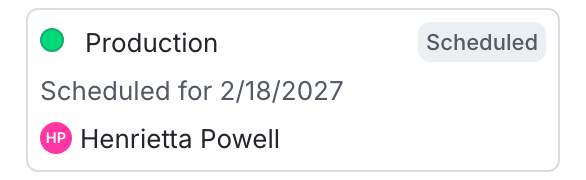
The "Pending changes" section of a flag.
- Click View to open the approval request details screen.
You can also use the REST API: List approval requests
View approval requests from email
To view approval requests from your email:- Find the email from “The Team at LaunchDarkly” in your email client. The email subject includes the name of the project, environment, and flag or AI Config you’re being asked to review and the phrase “Review request.”
- In the message body, click Review request to open the approval request details screen in LaunchDarkly.
View approval requests from your in-app inbox
To view approval notifications from your in-app inbox:- Click the bell icon at the bottom of the left sidenav. The approval notification inbox appears.
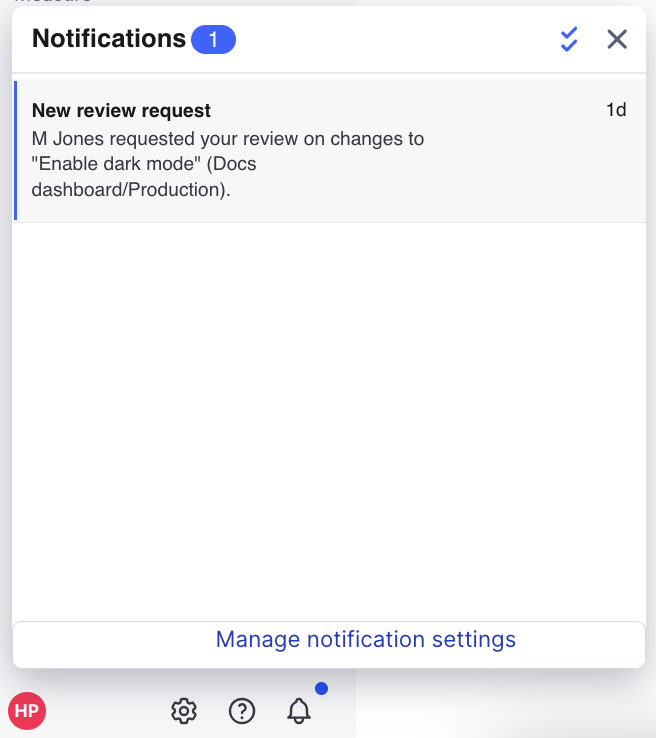
The approval notification inbox with a new approval request.
- Click View details. The approval request details screen opens.
View approval requests from Slack or Microsoft Teams
If you use the LaunchDarkly Slack or Microsoft Teams app, you will receive a notification of each approval request through that app. To learn more, read View approvals in Slack and View approvals in Microsoft Teams. To learn more about these integrations, read Slack and Microsoft Teams.Approve and decline changes
You can comment on, approve, and decline changes from the approval request details screen. You can also add additional reviewers. Here are the actions you can take during your review:- Approve and apply changes: Approve the changes and apply them immediately. The “Review history” section updates to indicate that you reviewed the change request, and the requestor receives an email notification. If scheduled for a future date, the change will apply at the scheduled date and time.
- Approve changes: Approve the changes without applying them. After approval, the original requester, or any account member with an
applyApprovalRequestpermission can apply the changes you approved. The LaunchDarkly Project Admin, Maintainer, Developer, and Contributor project roles, as well as the Writer, Admin, and Owner base roles, all include this ability. - Decline changes: Deny the changes.
- Add approvers: Request an additional reviewer for the changes. Click the + button next to the list of approvers and select additional members or teams. Reviewers receive an email, an in-app inbox notification, and, if they use the LaunchDarkly Slack or Microsoft Teams app, a Slack or Teams notification asking them to approve your changes. Adding approvers does not update how many approvals are required before you can apply the change.
- Comment only: Leave a comment on the requested changes.
Members and service tokens with role access can comment on an approval request, including:
- the requestor
- members with a base role of Writer, Admin, or Owner
- members with any role that can approve or decline approval requests
- requests using service tokens with a role that can approve or decline approval requests
You can also use the REST API: Review approval request