

Overview
This topic explains the settings available for environments in LaunchDarkly.Edit environment settings
To view or update the settings on the “Edit environment” panel:- Click the project dropdown. The project menu appears:
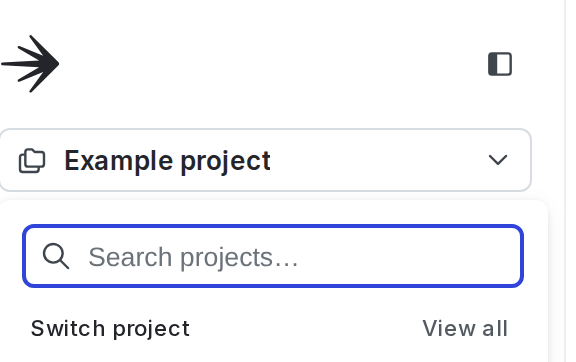
The project menu.
- Select Project settings.
- Select Environments. The Environments list appears.
- Click the overflow menu next to your environment.
- Select Edit environment.
- Update the settings, then click Save environment.
- Click x to close the “Edit environment” panel without saving changes.
| ---
| --- |
| Name
| The environment name |
| Tags
| Customizable labels used for categorization
| Tags |
| Critical environment
| An environment that affects your customers or the health of your systems
| Critical environments |
| Require comments
| Whether to require a comment before saving flag or segment changes
| Required comments |
| Require confirmation
| Whether to require entering the name of the environment before saving flag or segment changes
| Required confirmation |
| Enable secure mode
| Ensures that one end user cannot inspect flag variations for another end user when you use some client-side SDKs
| Secure mode |
| Send detailed events to Data Export destinations
| Whether to export evaluation events for end users that encounter the flag
| Data Export |
| TTL
| Number of minutes that the PHP SDK can cache feature flag rules locally
| TTL settings |
| Environment Color
| The color used to indicate this environment in the LaunchDarkly UI |
| Keys
| Reset the credential required to use a LaunchDarkly SDK to evaluate flags in this environment
| Reset SDK credentials |
Approval settings are managed separately. To learn how to edit approval settings, read Configuring approvals for an environment.
TTL settings
This setting controls how long the PHP SDK can cache feature flag rules locally. You only need to configure this if you are using the PHP SDK.
variation will not make a remote request. The tradeoff is that changes you make to your feature flag rules on your Flags list will not take effect for five minutes.
If your site has relatively low traffic (fewer than one request per minute), you may wish to increase the TTL to five minutes or more to take better advantage of the local cache.
If the TTL is set to zero minutes, the SDK will not use a local cache, and every call to variation will make a remote request to our CDN. You can set your TTL to zero in testing environments so it reflects changes immediately, but we do not recommend a zero minute TTL in production.
In high volume PHP environments, we strongly recommend using our Relay Proxy. To learn more, read The Relay Proxy.
To set the TTL:
- Navigate to the Account settings page.
- Click the Projects tab.
- Click the name of the project. The project page appears.
- Click the overflow menu next to your environment.
- Select Edit environment. The “Edit environment” panel appears.
- Enter a value in the TTL input and click Save environment.
Reset SDK credentials
You can reset the SDK key and mobile key if needed. For example, your organization’s security policy may require you to rotate your SDK keys on a regular basis. To reset an SDK key or mobile key:- Click the project dropdown. The project menu appears.
- Select Project settings.
- Select Environments. The Environments list appears.
- Click the overflow menu for your environment.
- Select Edit environment. The “Edit environment” panel appears.
- In the “Keys” section click Reset SDK key or Reset mobile key.
- (Optional) If you are resetting an SDK key, choose how many hours to keep the current SDK key active for, up to 720 hours (30 days). During this period, both the current SDK key and the new SDK key will work. This option is not available for mobile keys.
- Enter the name or key of your environment:
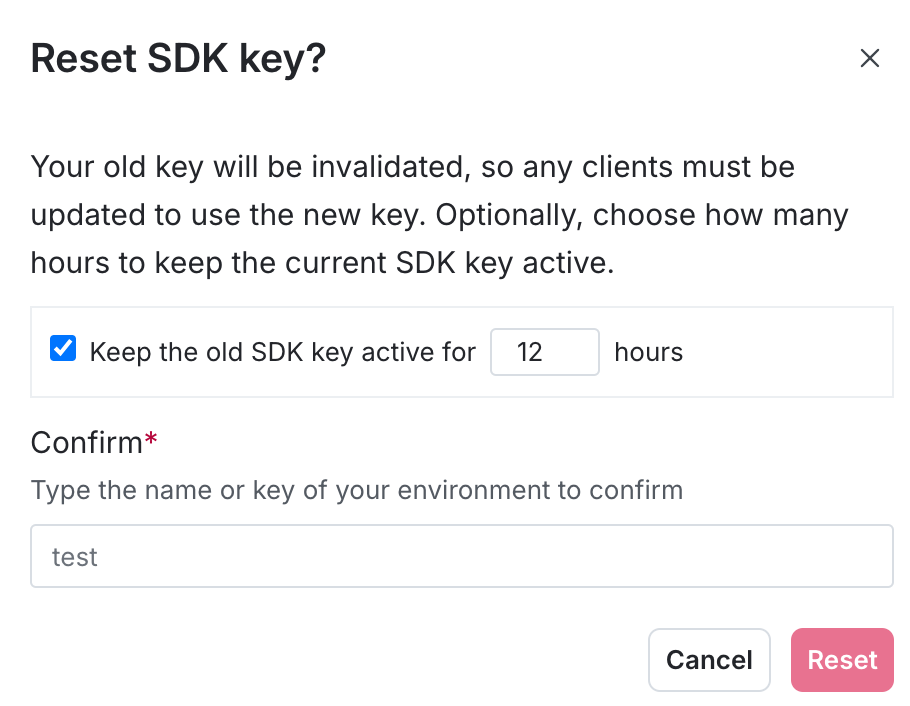
The SDK key reset dialog.
- Click Reset.
You can also use the REST API: Reset environment SDK key, Reset environment mobile SDK key