

Overview
This topic explains how to create environments in LaunchDarkly.Create environments
You can manage your environments from a project’s Environments page. Here, you can add new environments to a project, for example, to give each developer on your team their own environment for local testing. To add a new environment:- Click the project dropdown. The project menu appears:
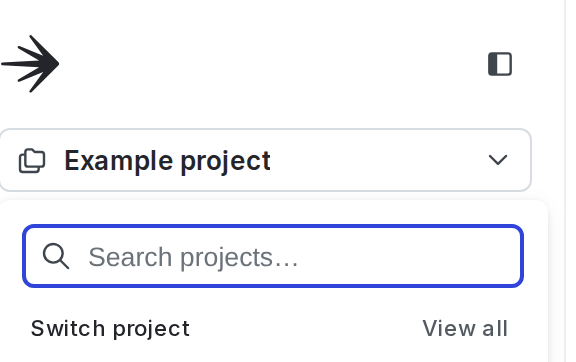
The project menu.
- Select Project settings.
- Select Environments. The Environments list appears.
- Click Add environment. The “Create an environment” panel appears.
- Give your environment a human-readable Name.
- (Optional) Give your environment a unique Key. This field populates automatically based on your name, but you can change it now if you wish.
- (Optional) Add Tags.
- (Optional) Select the Critical environment checkbox to indicate this environment affects your customers or the health of your systems.
- (Optional) Select the Require comments for flag and segment changes checkbox to force members who modify flags and segments to leave a comment to explain their changes.
When Require comments is enabled, members must leave a comment to explain their changes when they make changes from the Flags list in the LaunchDarkly user interface (UI). Comments are not required for changes made with the LaunchDarkly API.Required comments are only available to customers on select plans. To learn more, read Required comments.
- (Optional) Select the Require confirmation for flag and segment changes checkbox to force members who modify flags and segments to verify they wish to make these changes.
- (Optional) Select the Enable secure mode checkbox to ensure an end user of a client-side SDK cannot impersonate another end user.
- (Optional) Select the Send detailed events to data export destinations checkbox to enable Data Export for every flag created in this environment after this checkbox is selected. To learn more, read Data Export.
- (Optional) Specify a TTL between 0 and 60 minutes. TTL, or Time to Live, is a setting in DNS records that dictates how long the record should be cached by nameservers and browsers.
The TTL setting checkbox only applies to environments using the PHP SDK. To learn more, read TTL settings.
- (Optional) Choose a Color to differentiate this environment from other environments.
- Click Create environment:
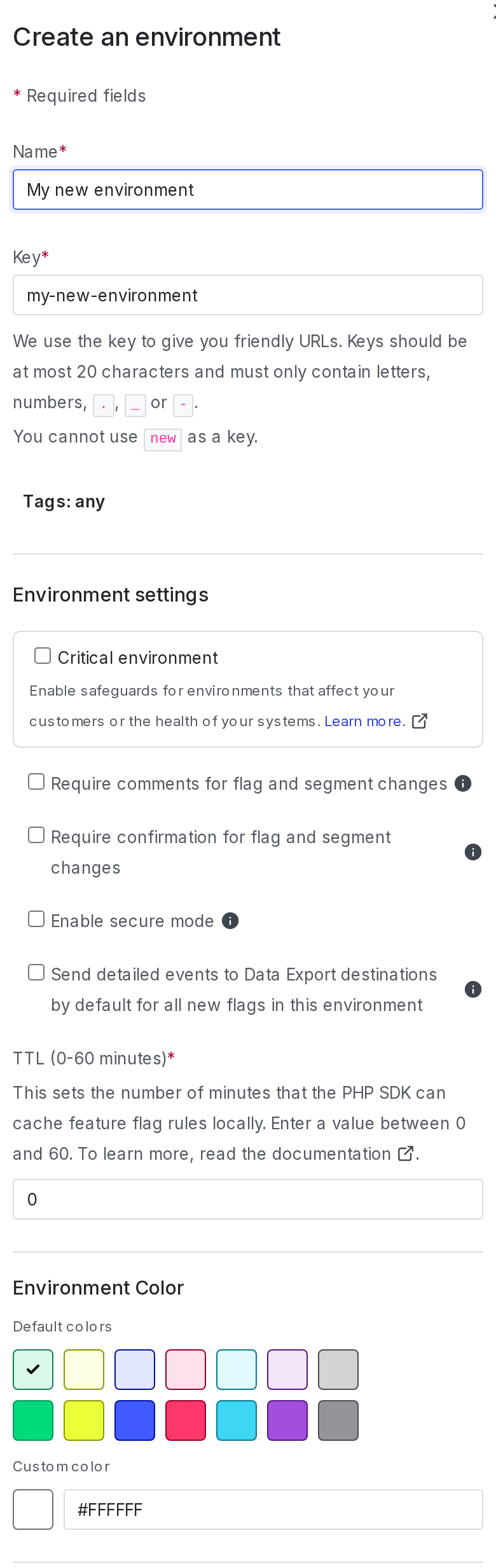
The "Create an environment" panel.
Customers on a Foundation, Enterprise, or Guardian plan may create 300 environments per project, by default. If you are on one of these plans and need more environments, you can request an increase. To learn more, read How to right size when you are over LaunchDarkly system resource count limits.If you are on a Developer plan, your account may be limited to three environments. If you are on a legacy Starter plan, your account may be limited to two environments. These limits cannot be increased.
You can also use the REST API: Create environment