

Overview
This topic explains how to use the Flags list, which shows your feature flags and gives you options to create, modify, and manage them. All of your feature flags within a project appear on the Flags list. Creating a new flag adds it to the list and all environments within your project, and archiving a feature flag removes it from the list and all environments within your project. Here is an image of the feature Flags list: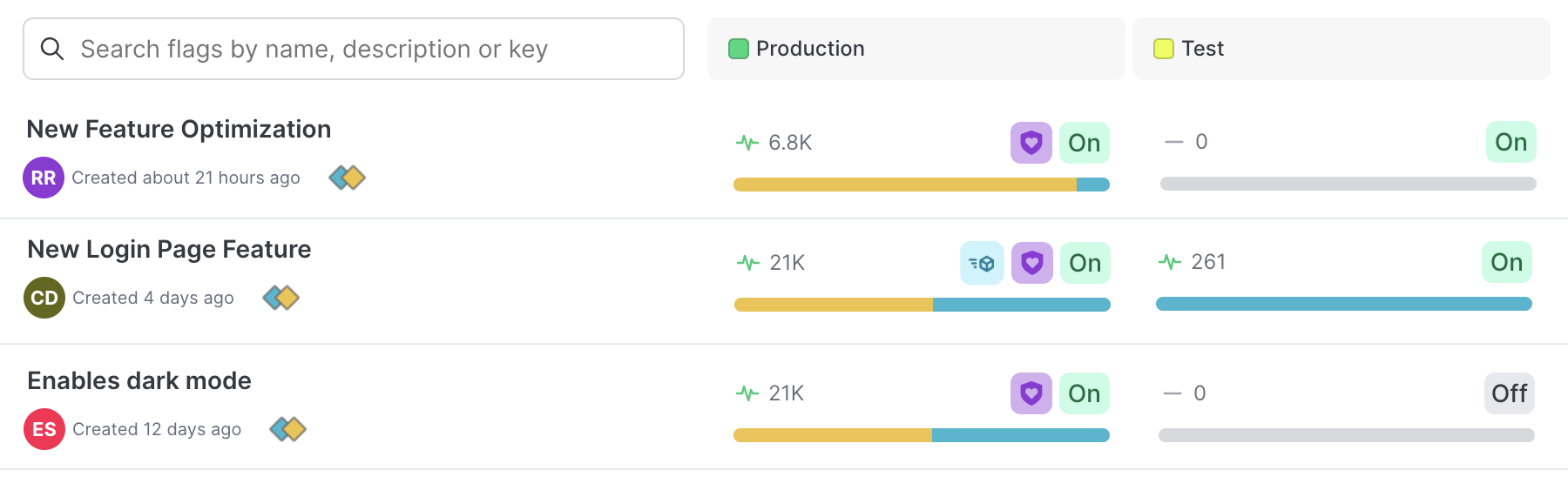
The Flags list.
- How many times the flag has been evaluated.
- Whether the flag is On or Off.
- Whether the flag is included in a release pipeline, indicated by a “shipped” icon. To learn more, read Release pipelines.
- Whether the flag is included in a guarded rollout, indicated by a “shield” icon. To learn more, read Guarded rollouts.
- A bar showing the proportion of contexts that have been served each variation. For boolean flags, the true (“available” or “enabled”) variation is blue and the false (“unavailable” or “disabled”) variation is yellow.
You can also use the REST API: List feature flags
View feature flags
Use the search bar to find a flag by name, key, or description. By default, the most recently created flags appear first. You can view your flags as a list, or in the project’s release pipeline. To view flags in the project’s release pipeline, click Release assistant in the left sidenav. To learn more, read Release pipelines.Filter feature flags
You can filter the list of flags to view only flags that share a particular attribute.Project-level filters
Some flag attributes, such as tag or SDK availability, are the same across all environments in your project. To filter your flags based on project-wide attributes, use the Filters menu at the top of the Flags list: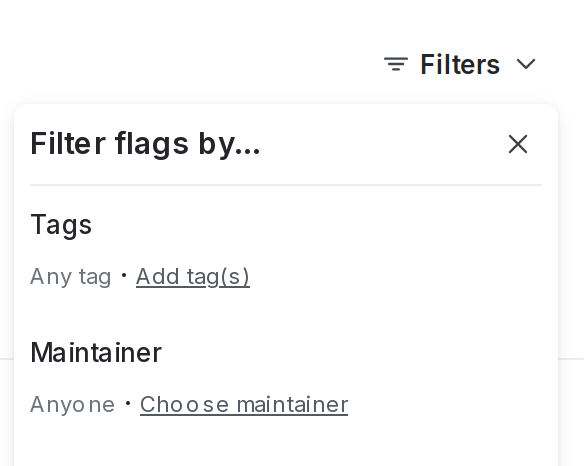
The filter menu for project-wide flag attributes.
- Tags
- Maintainer
- Lifecycle: live, ready for code removal, ready to archive, archived, deprecated
- Type: temporary or permanent
- Evaluated application
- SDK availability
- Creation date
- Click Filters.
- Choose an attribute for a filtering option. The Flags list automatically updates.
- (Optional) Click Filters again and choose an additional attribute. Repeat as many times as needed.
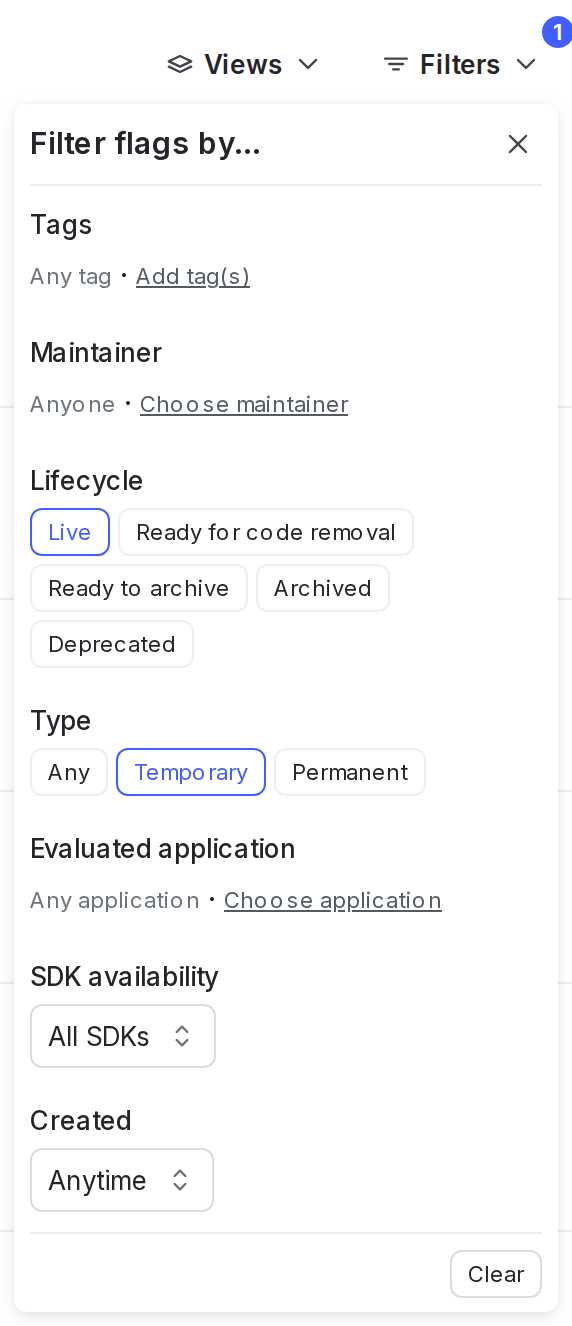
Two filters applied to the Flags list.
If you filter flags by maintainer, you can choose to view flags maintained by an individual member or by a team.
Environment-level filters
Other flag attributes, such as targeting state or status, are different for each environment. To filter your flags based on environment-specific attributes, use the filter icon in any of your open environments. Hover your cursor over the environment name and select the filter icon to access all the available filters.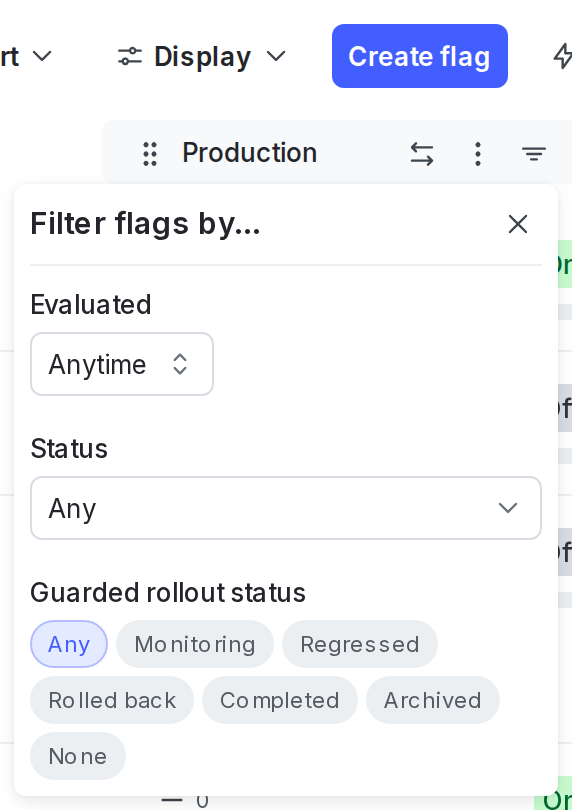
The filter menu for environment-specific flag attributes.
- Last evaluated
- Flag status
- Guarded rollout status
- Click the filter icon at the top of the environment’s flag list.
- Choose an attribute for a filtering option. The Flags list for that environment automatically updates.
- (Optional) Click the filter icon again and choose an additional attribute. Repeat as many times as needed.
Remove filters
To clear project-level filters, click Filters, then click Clear. To clear environment-level filters, click the filter icon at the top of the environment’s flag list, then click Clear.Save shortcuts to filtered Flags lists
You can create shortcuts to filtered Flags lists, and save them in the left sidenav to return to at any time. When you create a shortcut, it is only visible to you. To group flags within a project and have that grouping be visible for everyone in your account, we recommend using views. To create a shortcut to a filtered Flags list:- Navigate to the Flags list.
- Add your desired environments to the Flags list following the instructions in Open environments.
- Add any flag filters you need such as tags, maintainers, or flag statuses, following the instructions in Filter feature flags.
- Click the bolt icon above the Flags list to create a shortcut:
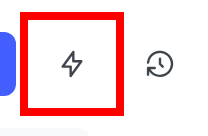
The Flags list with the bolt icon called out.
- Add a Name for your shortcut.
- (Optional) Choose an Icon to represent your shortcut in the left sidenav.
- Click Save.
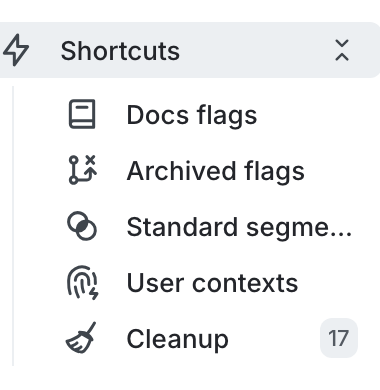
A list of shortcuts in the left sidenav.
Sort feature flags
You can sort the list of visible flags by creation date, by name, or by last modified date. To sort the Flags list, click Sort and choose a sorting option: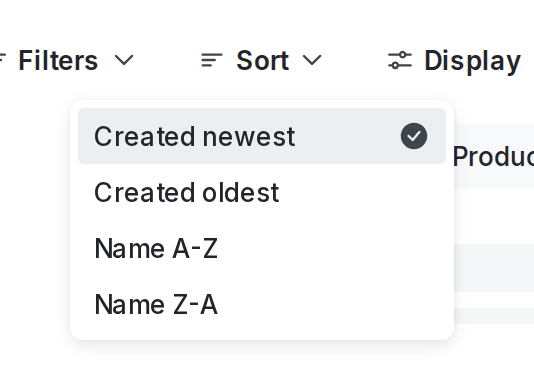
The "Sort" option on the Flags list.
Edit list columns
Using the Display menu, you can display or hide the following flag properties from the Flags list:- Key
- Description
- Maintainer
- Views
- Tags
- Created date
- Archive checks
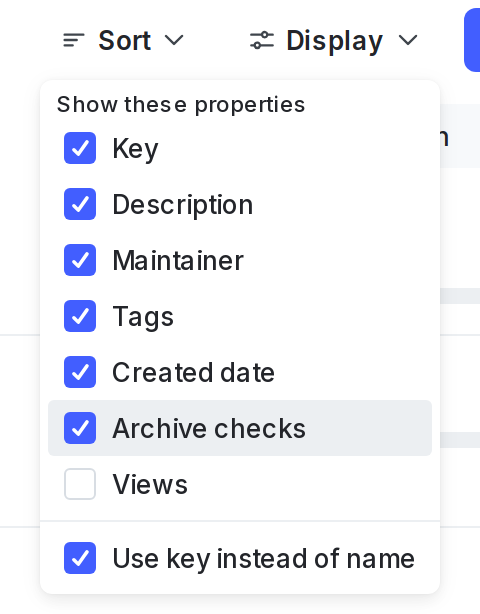
The "Display" option on the Flags list.
Limit to views
Using the View menu, you can show only flags that are linked to selected views. Views are resources to logically group flags within a project. For example, you can create “frontend” and “backend” views to organize flags within your project, and separate access to flags in those views.Follow flags
You can follow a flag to receive an email notification, and, if applicable, a notification in the LaunchDarkly Slack app, when someone makes a targeting change to that flag. Notifications are environment-specific, so you must follow a flag in each environment you want notifications for. If you have the LaunchDarkly Slack app installed, you will automatically receive notifications in Slack about any changes to flags you have followed. To learn more about the Slack app, read Slack. To follow a flag:- From the Flags list, click on the name of the flag you want to follow. The flag’s Targeting tab opens.
-
Click on the name of the environment you want to follow the flag in.
- If the environment you want is not displayed, click the + to display the list of environments, and select the environment you want.
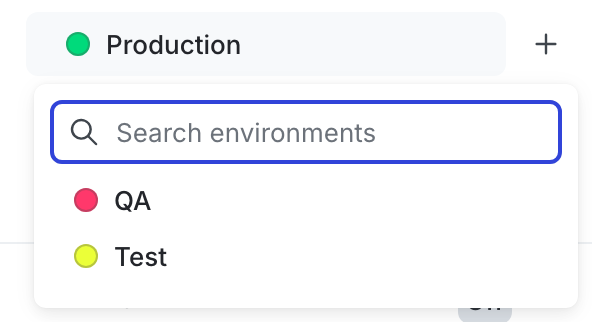
The environment selection menu.
- Click on the Follow flag icon.
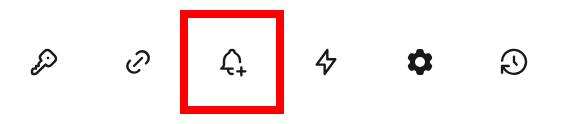
The "follow flag" icon called out on the flag's right sidebar.
You can also use the REST API: Add a member as a follower of a flag, Remove a member as a follower of a flag
Save shortcuts to flag Targeting tabs
You can create shortcuts to a specific environment on a flag’s Targeting tab. This allows you to return to that flag’s environment-specific Targeting tab from a shortcut in the left sidenav. To create a shortcut to a flag’s Targeting tab:- From the Flags list, open a flag’s Targeting tab.
- Open your desired environment following the instructions in Open environments.
- Click the bolt icon in the right sidebar to create a shortcut.
- Add a Name for your shortcut.
- (Optional) Choose an Icon to represent your shortcut in the left sidenav.
- Click Save.