This topic explains how to clean up flags you no longer need. LaunchDarkly helps you identify flags that you can remove from your code, then prompts you to archive these flags. Archiving a flag removes it from your Flags list in LaunchDarkly, without deleting it.Cleaning up your flags is an important part of the flag lifecycle, and critical to helping reduce the technical debt that you may accumulate as you use flags throughout your organization.
LaunchDarkly considers flags ready to archive when they meet all of the criteria specified in the flag lifecycle settings.When you archive a flag in LaunchDarkly, you should also remove the flag from your code. If your application evaluates an archived flag, LaunchDarkly serves the flag’s fallback value. This means it is crucial to remove all references to a flag from your code before you archive the flag. LaunchDarkly’s code references feature can help you quickly identify all the places a flag is referenced in your code. To learn more, read Code references.When you are sure a flag is no longer needed, you can permanently remove it. Delete an archived flag from the Flags list. To learn more, read Deleting flags.
All flags exist in every environment for a project, but often only a few environments matter for your organization’s production processes. LaunchDarkly recommends archiving all flags that are ready to archive in your critical environments. However, archiving a flag will remove it from every environment in the project. Be certain you can archive a flag without any unintended impact.
LaunchDarkly automatically determines if a flag is ready to archive by checking it against the criteria specified in flag lifecycle settings. You can view flags that are ready to archive from the Flags list.Here’s how:
Navigate to your Cleanup shortcut.
A list of flags that are ready to archive appears. Each flag has a “Ready to archive” indicator.
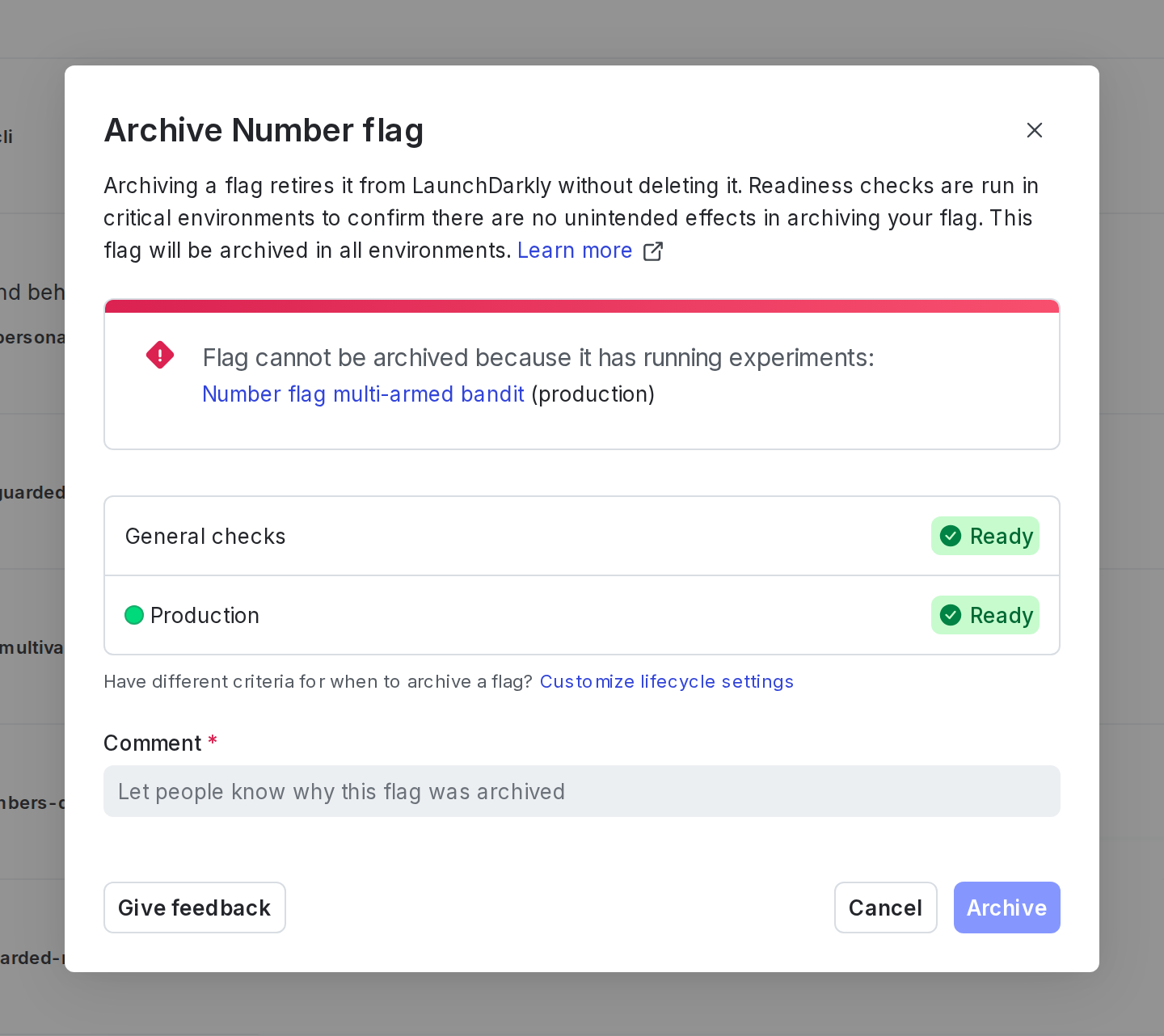
Click the indicator for the flag you want to archive. The “Ready to archive” dialog appears:
The "Ready to archive" dialog.
Review the archive checks to confirm that the flag is ready to archive.
Enter a Comment to let other members in your organization know why you are archiving the flag.
Click Archive.
The flag is archived and removed from the Flags list. You can find it in the archived Flags list. To learn more, read View and restore flags.You can also customize the Cleanup shortcut. For example, you could update it to include only flags that are ready to archive and are also maintained by you or your team. To learn more about shortcuts, read Save shortcuts to filtered flags lists.
To filter for flags that are ready for code removal, navigate to the Flags list, open the Filter menu, and use the Lifecycle filter “Needs code removal.” To learn more about code references, read Code references.
You can also find flags that are ready to archive on the Flags list:
From the Flags list, open the Filters menu.
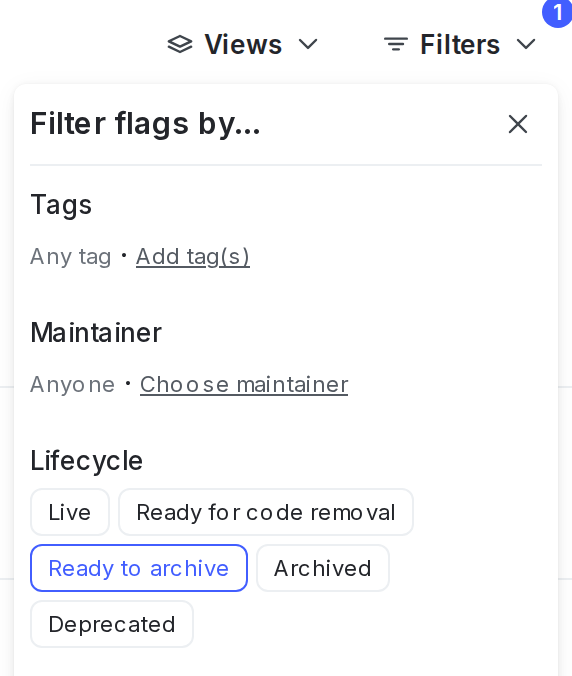
Under Lifecycle, select Ready to archive:
The project-level Filters menu, with "Ready to archive" selected.
You can also archive a flag from its right sidebar.
Expand how to archive a flag from its right sidebar
Here’s how to archive a flag from its right sidebar:
Navigate to the Flags list and open the flag you wish to archive.
Click the three-dot overflow menu in the right sidebar.
Select Archive. The “Archive this flag?” panel appears.
If the flag has dependencies, you cannot archive it. To learn how to resolve flag dependencies, read Resolve dependencies.
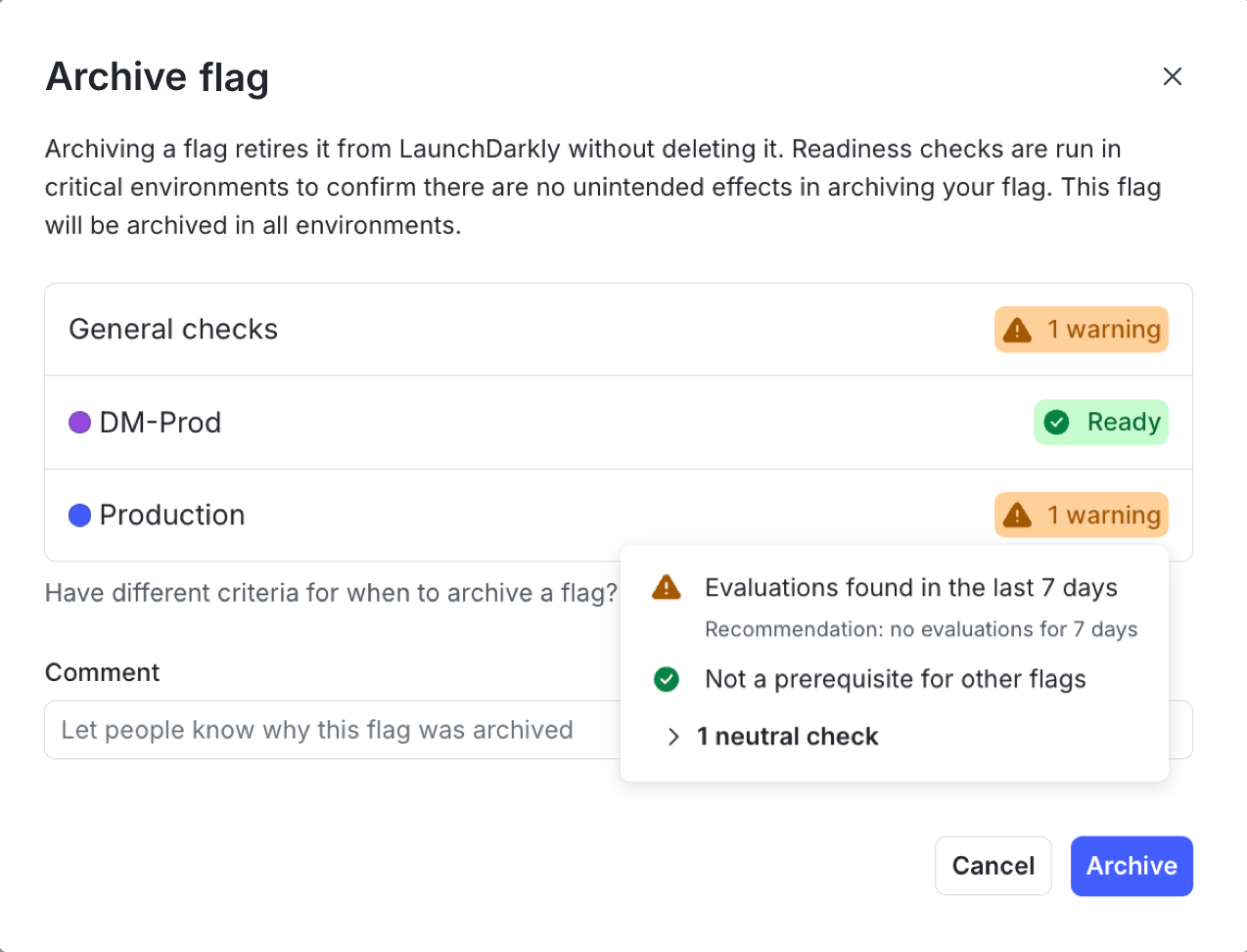
A warning displays for any critical environments in which the flag is not ready to archive. Click on the warning message to view more information about why the flag is not ready to archive:
A flag with dependencies.
Enter the name or key of the flag to confirm.
Click Archive.
The flag is archived and removed from the Flags list. You can find it in the archived Flags list. To learn more, read View and restore flags.
If end users request a flag after you archive it, the flag value that returns is the fallback value you defined in code.
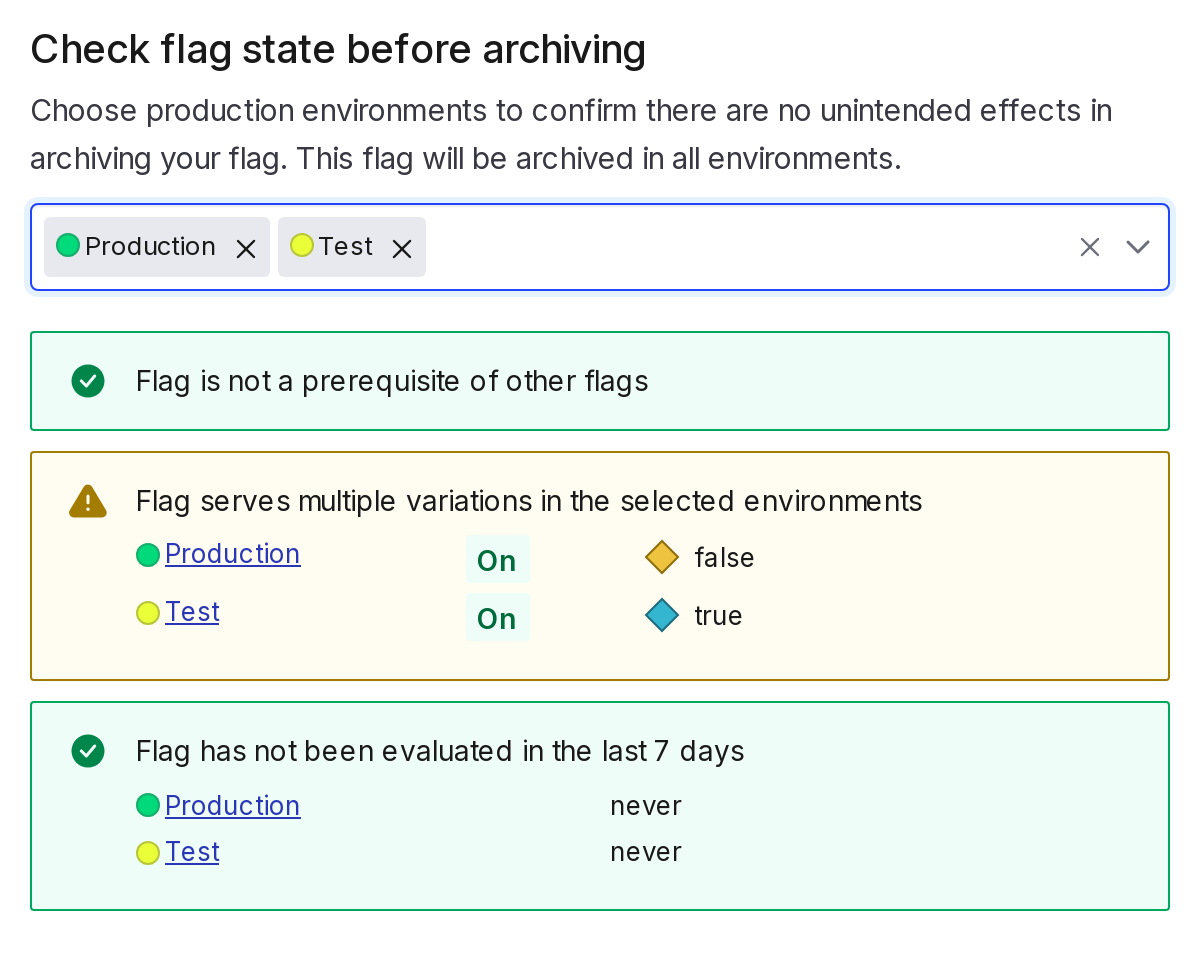
There are three types of flag dependencies. These align with the archive checks LaunchDarkly runs to confirm whether a flag is ready to archive:
The flag is a prerequisite for other dependent flags
The flag is serving multiple variations
The flag has been requested in the last seven days
You cannot archive a flag that is a prerequisite for other flags. You must remove the flag as a prerequisite before you can archive it. Even if the flag’s dependent flags themselves are archived, the dependency will still block you from archiving the prerequisite flag. If you attempt to archive a prerequisite flag, LaunchDarkly prevents you from doing so.The other two dependencies will not stop you from archiving a flag, but we recommend resolving them before you archive it.To learn more about archive checks, read Description of checks.Here is a screenshot of the “Archive this flag?” panel:
A flag with dependencies that do not block it from being archived.
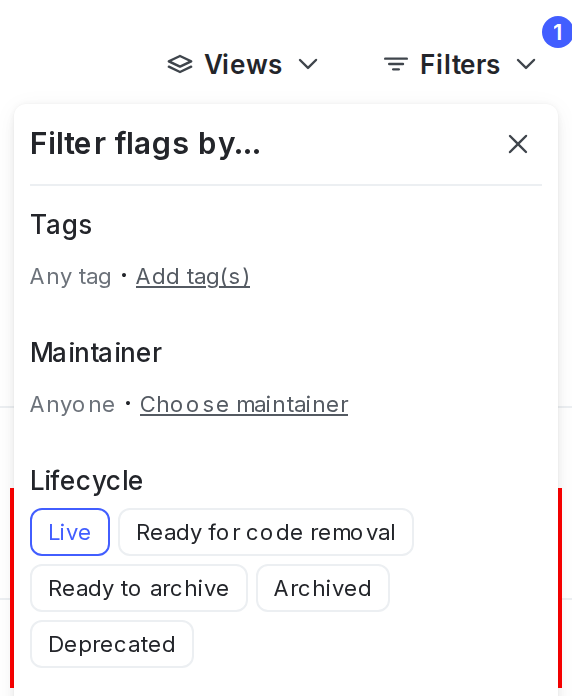
By default, the Flags list shows live flags only.To view archived flags, click Filters from the Flags list and select “Archived” or “Deprecated” under “Lifecycle”:
The Flags list Filters, with the lifecycle options shown.
To restore an archived flag:
Navigate to the Flags list.
Click Filters. In the “Lifecycle” section, click “Archived.” The archived flag list appears.
Click a flag name to open the flag you wish to restore.
Click the three-dot overflow menu in the right sidebar.
Select Restore. The “Restore flag” panel appears.
The panel shows you how the flag has been evaluated recently. Choose the environments your team or customers depend on to confirm that restoring the flag will have no unexpected consequences.
Enter the name or key of the flag to confirm.
Click Restore. The flag appears in the live Flags list.
When you restore a flag, it returns to evaluation like any other flag. Confirm that restoring it will not have any unintended impact.If a flag is archived and no longer in use, you can permanently delete it from the Flags list.Deleting a flag is permanent, so make sure your application no longer references it before you delete it.
⌘I
Assistant
Responses are generated using AI and may contain mistakes.