

Overview
This topic explains how to get started with the LaunchDarkly AI Configs product. You can use AI Configs to customize, test, and roll out new large language models (LLMs) within your generative AI applications. Use AI Configs to:- Manage your model configuration and messages outside of your application code.
- Upgrade your app to the newest model version, then gradually release to your customers.
- Add a new model provider and progressively move your production traffic.
- Compare variations to find the best-performing prompt and model.
- Completion mode: Configure prompts with messages and roles for single-step model responses. Completion mode supports multi-message prompts, including chat-style prompts. In LaunchDarkly, completion mode is a product mode and does not map to a specific provider API.
- Agent mode: Configure structured multi-step workflows using instructions. Agent mode is designed for coordinating structured, multi-step workflows within your application. For agent-based variations, invoke a judge programmatically using the AI SDK. To learn more, read Agents in AI Configs.
This quickstart focuses on AI Configs in completion mode.AI Configs can also be created in agent mode, which uses instructions to define multi-step workflows. Agent mode is documented separately in Agents in AI Configs.You can attach judges to completion-mode AI Config variations in the LaunchDarkly UI. For other variations, invoke a judge programmatically using the AI SDK. To learn more, read Online evaluations in AI Configs.
- Managing AI model configuration outside of code with the Node.js AI SDK
- Using targeting to manage AI model usage by tier with the Python AI SDK
AI Configs is an add-on feature. Access depends on your organization’s LaunchDarkly plan. If AI Configs does not appear in your project, your organization may not have access to it.To enable AI Configs for your organization, contact your LaunchDarkly account team. They can confirm eligibility and assist with activation.For information about pricing, visit the LaunchDarkly pricing page or contact your LaunchDarkly account team.
Step 1, in your app: Install an AI SDK
First, install one of the LaunchDarkly AI SDKs in your app:Step 2, in Launch
Darkly: Create an AI Config Next, create an AI Config in LaunchDarkly:- In the left navigation, select AI Configs, then click Create AI Config.
- In the “Create AI Config” dialog, select Completion. This quickstart covers completion mode only. For agent mode, read Agents in AI Configs.
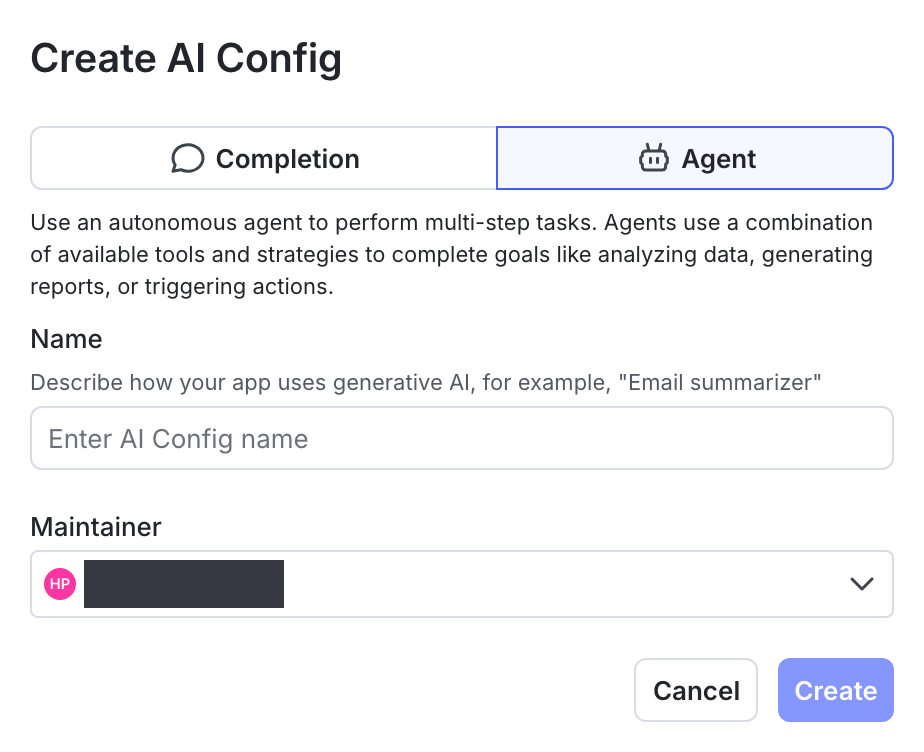
The "Create AI Config" dialog, with the option for a completion-based or agent-based AI Config.
- Enter a name for your AI Config, and optionally assign a maintainer.
- Click Create.
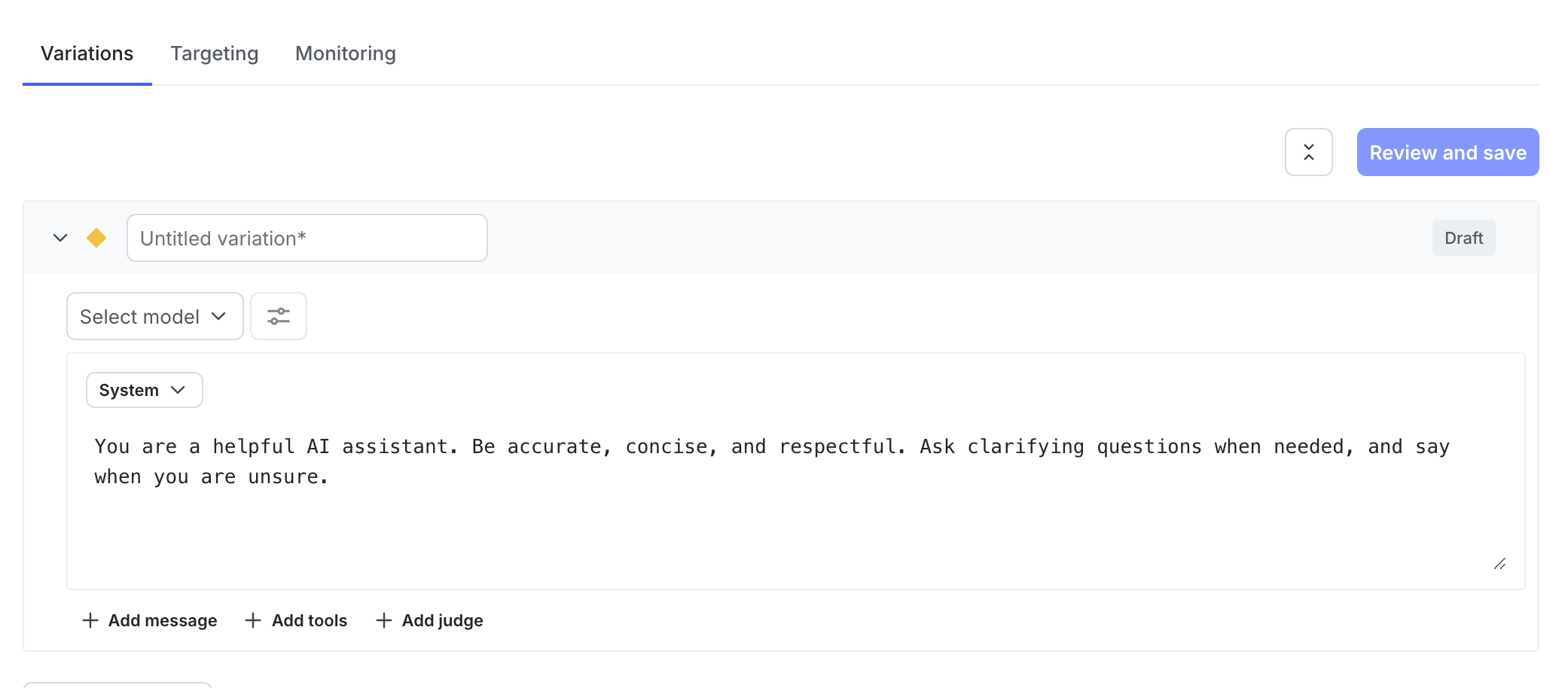
The Variations tab of a newly-created AI Config.
- In the Variations tab, replace “Untitled variation” with a variation Name. You’ll use this to refer to the variations when you set up targeting rules, below.
- Click Select a model and choose the model to use.
- LaunchDarkly provides a list of common models, and updates it regularly.
- You can also choose + Add a model and create your own. To learn more, read Create AI model configurations.
- (Optional) Select a message role and enter the message for the variation. If you’d like to customize the message at runtime, use
{{ example_variable }}or{{ ldctx.example_context_attribute }}within the message. The LaunchDarkly AI SDK will substitute the correct values when you customize the AI Config from within your app.- To learn more about how variables and context attributes are inserted into messages at runtime, read Customizing AI Configs.
- Click Review and save.
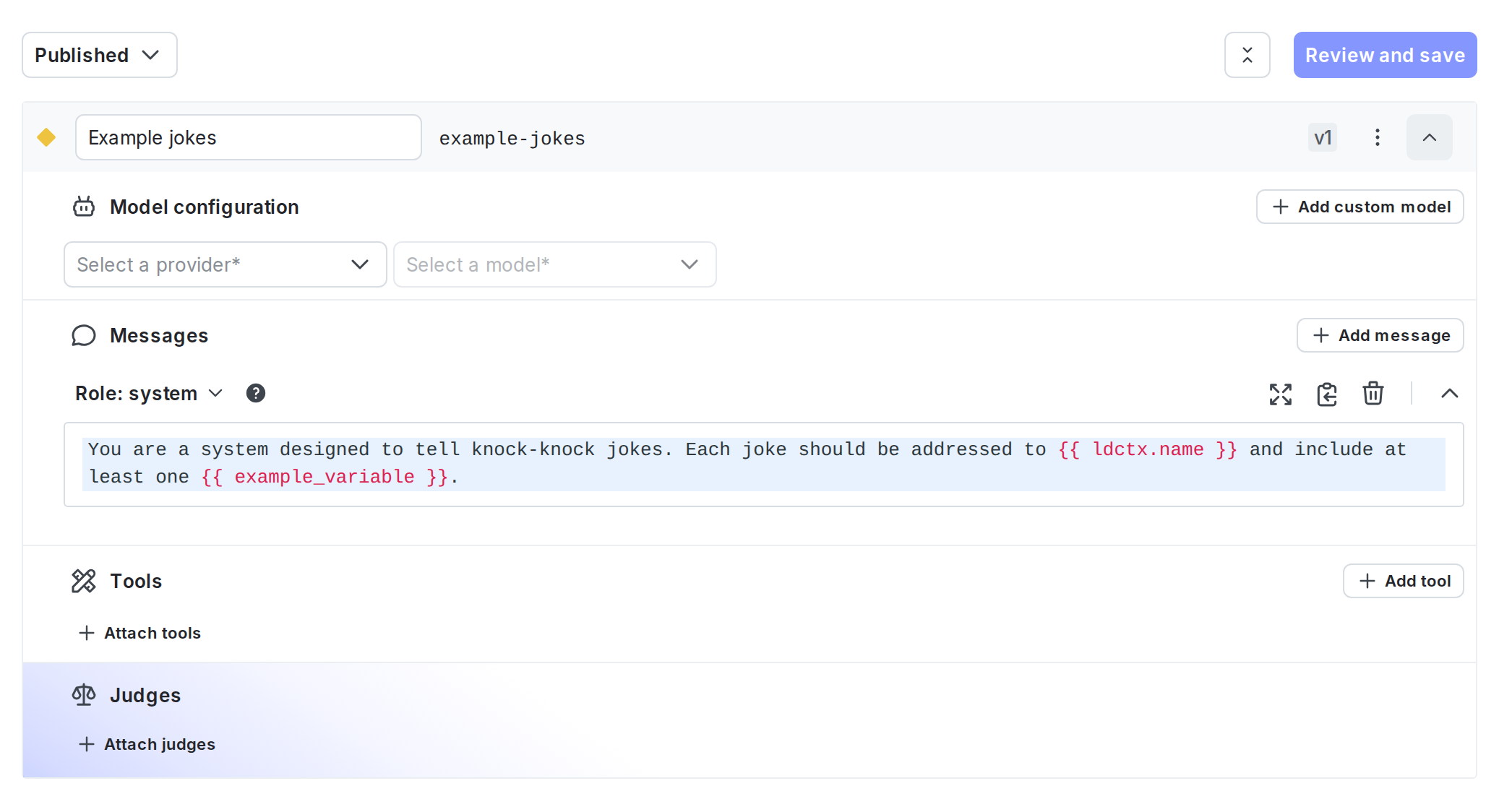
The Variations tab of an AI Config with one variation.
Expand to copy variation message
Expand to copy variation message
Here’s the variation message for this example. You can copy this if you’re working through this quickstart in your own project:
Step 3, in Launch
Darkly: Set up targeting rules Next, set up targeting rules for your AI Config. These rules determine which of your customers receive a particular variation of your AI Config. To specify the AI Config variation to use by default when the AI Config is toggled on:- Select the Targeting tab for your AI Config.
- In the “Default rule” section, click Edit.
- Configure the default rule to serve a specific variation.
- Click Review and save.
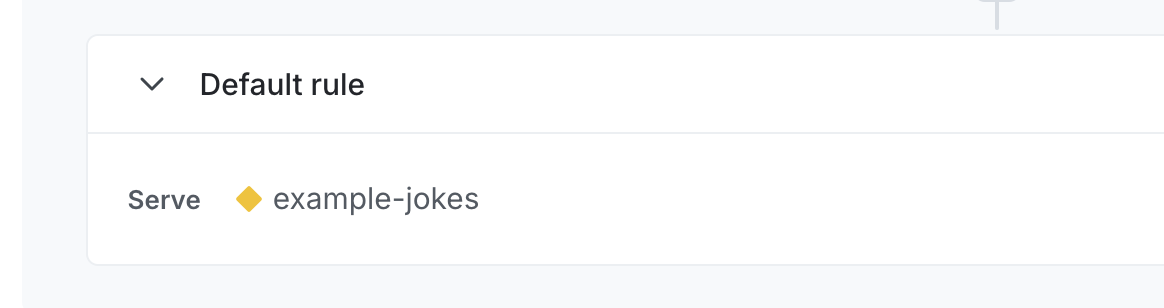
An AI Config's default rule.
Step 4, in your app: Customize the AI Config and track metrics
Now that your AI Config is set up, you can use it in your app:- Customize the AI Config: First, use your SDK’s completion-mode config function to customize the AI Config. This function returns the customized messages and model configuration along with a tracker instance for recording metrics.
- Call your generative AI model, track metrics: Then, call your generative AI model, passing in the result of the config function. In the LaunchDarkly AI SDKs, you use a
track[Model]Metricsfunction to record metrics from your AI model generation. This function takes a completion from your AI model generation.
Customize the AI Config
In your application code, call your SDK’s completion-mode config function each time you generate content. This lets LaunchDarkly evaluate targeting and return the latest messages and model settings. The completion-mode config function returns the customized messages and model configuration along with a tracker instance you can use to record metrics. Customization means that any variables you include in the AI Config variation’s messages have their values set to the context attributes and variables you pass to your SDK’s function. Then, you can pass the customized messages directly to your AI. Set up a fallback value to use in case of an error, and handle the fallback case appropriately in your application. Here’s how:Call your generative AI model, track metrics
Next, make a call to your generative AI model and pass in the result of your SDK’s completion-mode config function. Use one of thetrack[Model]Metrics or TrackRequest functions to record metrics from your AI model generation. These functions take the response from your model provider. Call your SDK’s completion-mode config function each time you generate content so LaunchDarkly can evaluate targeting and return the latest messages and model settings.
LaunchDarkly provides specific functions for completions for several common AI model families, and an option to record this information yourself.
Here’s how to use a provider-specific track[Model]Metrics function to call a supported provider or framework, such as OpenAI, Amazon Bedrock, or LangChain, and record metrics from your AI model generation:
TrackRequest function to call any AI model provider and record metrics from your AI model generation:
track[Model]Metrics or TrackRequest, the SDK automatically flushes these pending analytics events to LaunchDarkly at regular intervals. If you have a short-lived application, such as a script or unit test, you may need to explicitly request that the underlying LaunchDarkly client deliver any pending analytics events to LaunchDarkly, using flush() or close().
Here’s how:
For a complete example application, you can review some of our sample applications:
Use Gemini prompt caching with AI Configs
To use Gemini’s explicit prompt caching with AI Configs, we recommend structuring your variation with two system messages:- Use the first system message (
messages[0]) for static content that should be cached. - Use the second system message (
messages[1]) for dynamic content that changes per request, such as user input or context variables.
aiClient.completionConfig() to evaluate the AI Config. Extract messages[0] and pass it to Gemini’s system_instruction field or use it when creating a cached prompt using the Gemini SDK. Use messages[1] as your dynamic prompt content.
To detect when the cached prompt should be refreshed, access tracker.config.version. This value changes when LaunchDarkly serves a different variation or when the variation’s content is updated. Alternatively, compare the role and content of messages[0] to a previously cached version.
Step 5, in Launch
Darkly: Monitor the AI Config Select the Monitoring tab for your AI Config. When end users use your application, LaunchDarkly monitors AI Config performance. Metrics update approximately every minute. To score response quality in production, you can attach judges to completion-mode AI Config variations in the LaunchDarkly UI. For other variations, invoke a judge programmatically using the AI SDK. Each evaluated response sends an additional request to your model provider, which increases token usage and provider costs. Start with a lower sampling percentage and increase it only if you need more evaluation coverage.Attach judges for online evaluations
You can evaluate the quality of AI Config responses by attaching judges. Judges are AI Configs that evaluate responses generated by other AI Configs. When a response is generated, an attached judge runs automatically and uses its evaluator prompt to generate a numeric score, for example to indicate how accurate or relevant the response is. LaunchDarkly records these judge scores as evaluation metrics. These evaluation metrics appear on the Monitoring tab alongside other AI Config metrics. You can use them to monitor quality over time, compare variations, and assess the impact of changes during guarded rollouts and experiments. Use judges when you want to:- Monitor response quality in production without manual review
- Detect quality regressions after prompt or model changes
- Compare variations using automated quality scores
- Apply consistent quality standards across teams and environments
See how online evaluations run in your application
After you attach judges to a completion-mode AI Config variation in the LaunchDarkly UI, your application continues to use the same invocation flow. You do not need to call judges directly. For sampled requests, attached judges run automatically and record evaluation results.Set up and attach judges
Online evaluations use your existing AI model provider credentials. Before you enable judges, make sure your organization has connected a supported provider, such as OpenAI or Anthropic.
- In LaunchDarkly, click AI Configs.
- Click the name of the Completion AI Config you want to edit.
- Select the Variations tab.
- Open a variation or create a new variation.
- In the “Judges” section, click + Attach judges.
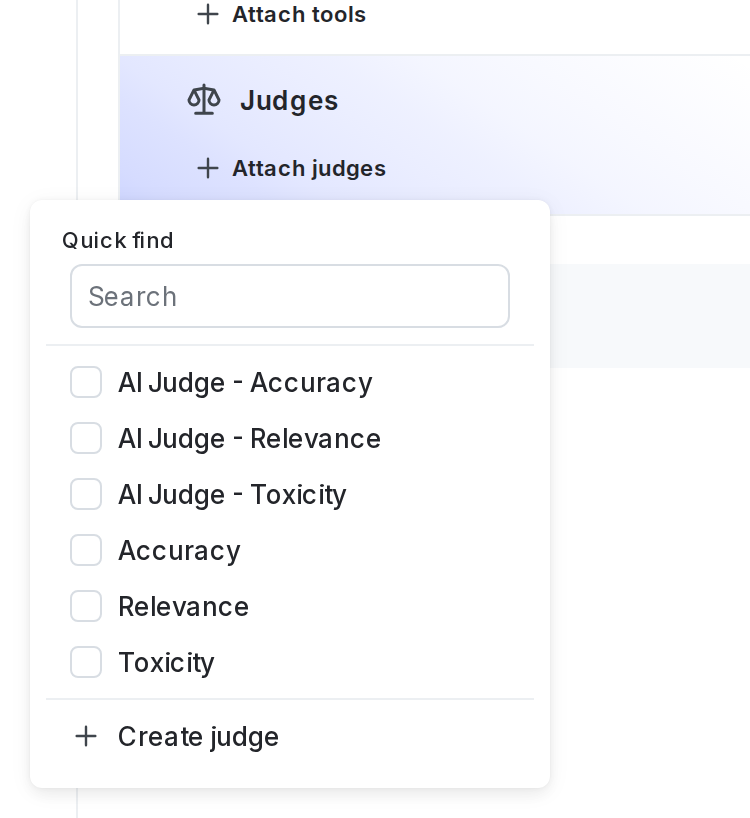
The "Attach judges" panel for an example AI Config variation.
-
Select one or more of the judges. If necessary, enter text in the search bar to search for a judge. By default, LaunchDarkly provides three judges:
- Accuracy
- Relevance
- Toxicity
- (Optional) Set the sampling percentage to control how many model responses are evaluated.
- Click Review and save.
Each evaluated response triggers an additional call to your model provider. Higher sampling percentages can increase token usage and cost. For guidance on choosing a sampling rate, read Online evaluations in AI Configs.