

Overview
This topic describes how to run online evaluations on AI Config variations by attaching judges that score responses for accuracy, relevance, and toxicity. Online evaluations let you measure the quality of AI Config variations in production by attaching built-in judges that score model responses for accuracy, relevance, and toxicity. A judge is a specialized AI Config that uses an evaluation prompt to score responses from another AI Config and return a numeric score. LaunchDarkly provides three built-in judges:- Accuracy
- Relevance
- Toxicity
- Monitor model behavior during production use
- Detect changes in quality after a rollout
- Trigger alerts or rollback actions based on evaluation scores
- Compare variations using live performance data
Online and offline evaluations
Online and offline evaluations serve different purposes. Online evaluations:- Run in production on live user traffic
- Evaluate responses using attached judges
- Score responses continuously
- Help monitor performance after release
- Run before deployment
- Use datasets with known inputs and expected outputs
- Evaluate variations in a controlled environment
- Help validate changes before rollout
How evaluations run in your application
Online evaluations run in your application as part of your model invocation flow. You can use two common patterns depending on how your application generates responses:- Attach judges in the LaunchDarkly UI to run automatically for completion-mode AI Config variations
- Use direct judge evaluation in your code to score specific input and output pairs
Attached judges
Use attached judges when you are using completion-mode AI Config variations. After you attach judges in the LaunchDarkly UI, your application continues to use the normal AI Config invocation flow. You do not need to invoke judges directly. For sampled requests, attached judges run automatically.Direct judge evaluation
Use direct judge evaluation when you need to score specific input and output pairs, such as outputs from external pipelines or custom application workflows such as agents. In this pattern, your application creates a judge and callsevaluate() directly.
How online evals work
Online evaluations add automated quality checks to AI Configs. Each evaluation produces a score between 0.0 and 1.- Higher scores indicate better results from the attached judge.
- The primary AI Config generates a model response.
- The judge evaluates the response using its evaluation prompt.
- The judge returns structured results that include numeric scores and brief explanations such as
"score": 0.9, "reason": "Accurate and relevant answer". - LaunchDarkly records these results as metrics and displays them on the Monitoring tab.
Online evaluations include three built-in judges: Accuracy, Relevance, and Toxicity. If you need to evaluate additional or domain-specific quality signals, you can create custom judges that use the same evaluation framework.To learn more, read Create and manage custom judges for online evals.
Run judge evaluations programmatically
In addition to attaching judges in the UI, you can evaluate arbitrary input and output pairs directly using the AI SDK and a judge key. This approach:- Does not require attaching a judge to a completion-mode variation
- Can be used to evaluate outputs from agent-based workflows
- Lets you evaluate responses from custom pipelines or external pipelines or custom application workflows
direct_judge_example.py on GitHub.
In this example:
create_judge()retrieves the judge configuration for the provided context.evaluate()scores the input and output pair.- The returned result includes structured evaluation data such as scores and reasoning.
tracker. Programmatic judge evaluation does not automatically emit monitoring metrics.
Programmatic judge evaluation does not attach judges to variations in the UI and does not automatically enable Monitoring tab metrics, guarded rollout integration, or experiment metric selection.
Set up and manage judges
Online evaluations use your existing AI model provider credentials. Before you enable the built-in judges, make sure your organization has connected a supported provider, such as OpenAI or Anthropic.
Attach judges to variations
To attach a judge to a variation in the LaunchDarkly UI, the AI Config must use completion mode. Attach the judge as follows:- In LaunchDarkly, click AI Configs.
- Click the name of the Completion AI Config you want to edit.
- Select the Variations tab.
- Open a variation or create a new variation.
- In the “Judges” section, click + Attach judges.
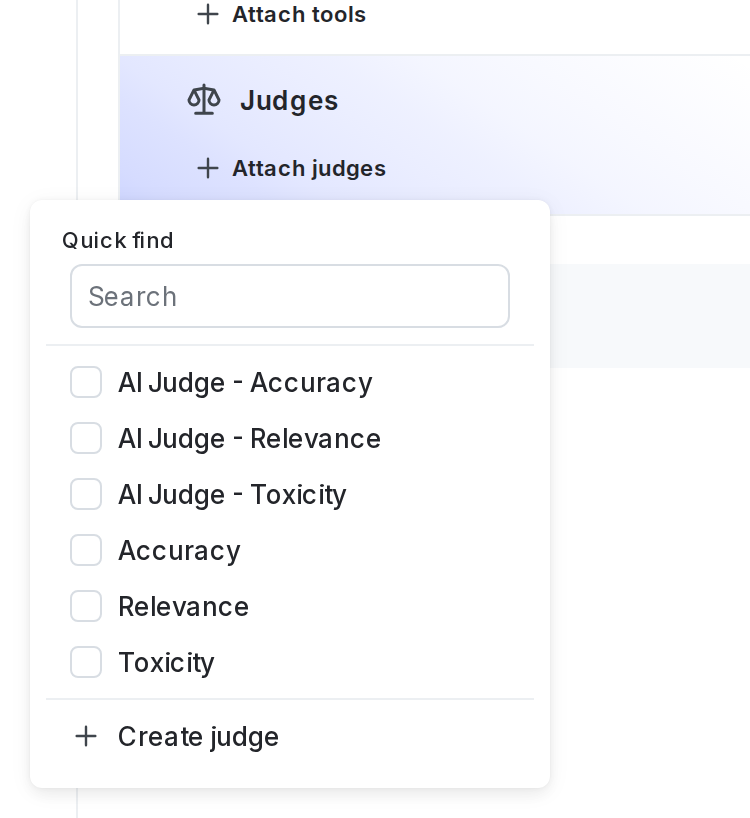
The "Attach judges" panel for an example AI Config variation.
- Select one or more of the judges. If necessary, enter text in the search bar to search for a judge. By default, LaunchDarkly provides three judges: Accuracy, Relevance, and Toxicity.
- (Optional) Set the sampling percentage to control how many model responses are evaluated.
- Click Review and save.
Adjust sampling or detach judges
You can adjust sampling or detach judges at any time from the “Judges” section of a variation.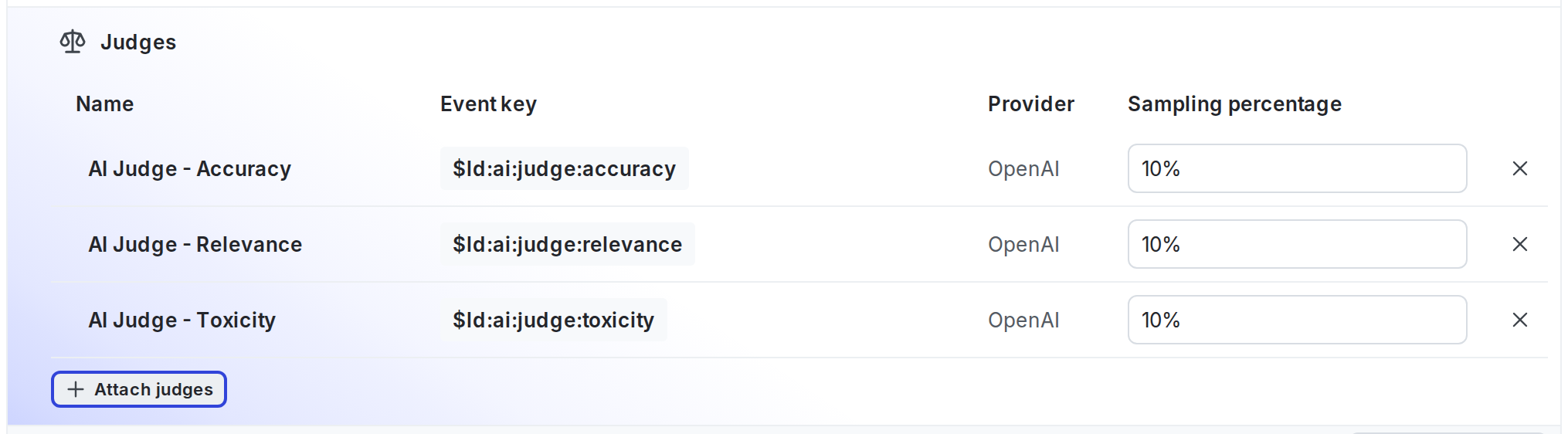
The "Judges" section for an example AI Config variation.
- Raise or lower the sampling percentage
- Disable a judge by setting its sampling percentage to 0 percent
- Remove a judge by clicking its X icon
If the Monitoring tab displays a message prompting you to connect your SDK, LaunchDarkly is waiting for evaluation traffic. Connect an SDK or application integration that uses your AI Config to send model responses. Evaluation metrics appear automatically after responses are received.
Run the SDK example
You can use the LaunchDarkly Node.js (server-side) AI SDK example to confirm that online evaluations run as expected. The SDK evaluates chat responses using attached judges. To set up the SDK example:- Clone the LaunchDarkly JavaScript SDK repository.
- From the repository root, follow the setup instructions in the judge evaluation example README.
- Configure your environment with your LaunchDarkly project key, environment key, and model provider credentials.
- Start the example.
View results from the Monitoring tab
Open the Monitoring tab for your AI Config to view evaluation results. When you attach one or more of the built-in judges, LaunchDarkly records an evaluation metric for each judge you attach: | Metric name | Event key
| ---
| --- |
| Accuracy
|
$ld:ai:judge:accuracy
| How correct and grounded the model response is. |
| Relevance
| $ld:ai:judge:relevance
| How well the response addresses the user request or task. |
| Toxicity
| $ld:ai:judge:toxicity
| Whether the response includes harmful or unsafe phrasing. |
For each attached judge, the Monitoring tab displays charts with recent and average scores over the selected time range. You can view individual results and reasoning details for each data point. Metrics update as evaluations run.
These metrics appear both on the Monitoring tab and in the Metrics list for your project.
Use evaluation metrics in guardrails and experiments
Evaluation metrics appear as selectable metrics in guarded rollouts and experiments for AI Configs in completion mode.- In guarded rollouts, you can pause or revert a rollout when evaluation scores fall below a threshold.
- In experiments, you can use evaluation metrics as experiment goals to compare variations.