

Overview
This topic explains how to delete environments in LaunchDarkly.Delete environments
You can delete an environment when you are no longer using it. Delete with caution, as deleting an environment is permanent. To delete an environment:- Click the project dropdown. The project menu appears:
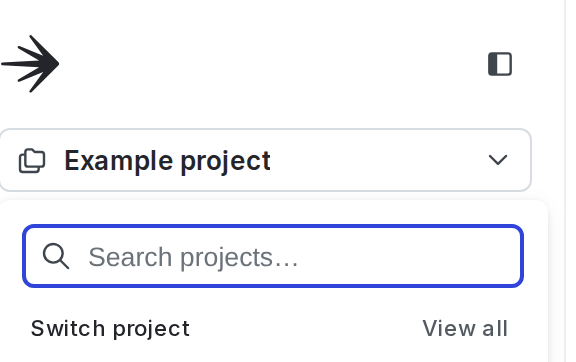
The project menu.
- Select Project settings.
- Select Environments. The Environments list appears.
- Click the overflow menu for the environment.
- Select Delete environment. A “Delete environment?” dialog appears.
- Enter the name or key of your environment in the confirmation field.
- Click Delete.
You can also use the REST API: Delete environment