

Overview
This topic explains how to view context kinds in LaunchDarkly.View context kinds
You can view and manage the context kinds list by navigating to the Contexts list and clicking the gear icon on the right. The context kinds list includes all of the built-in and manually created context kinds within your project.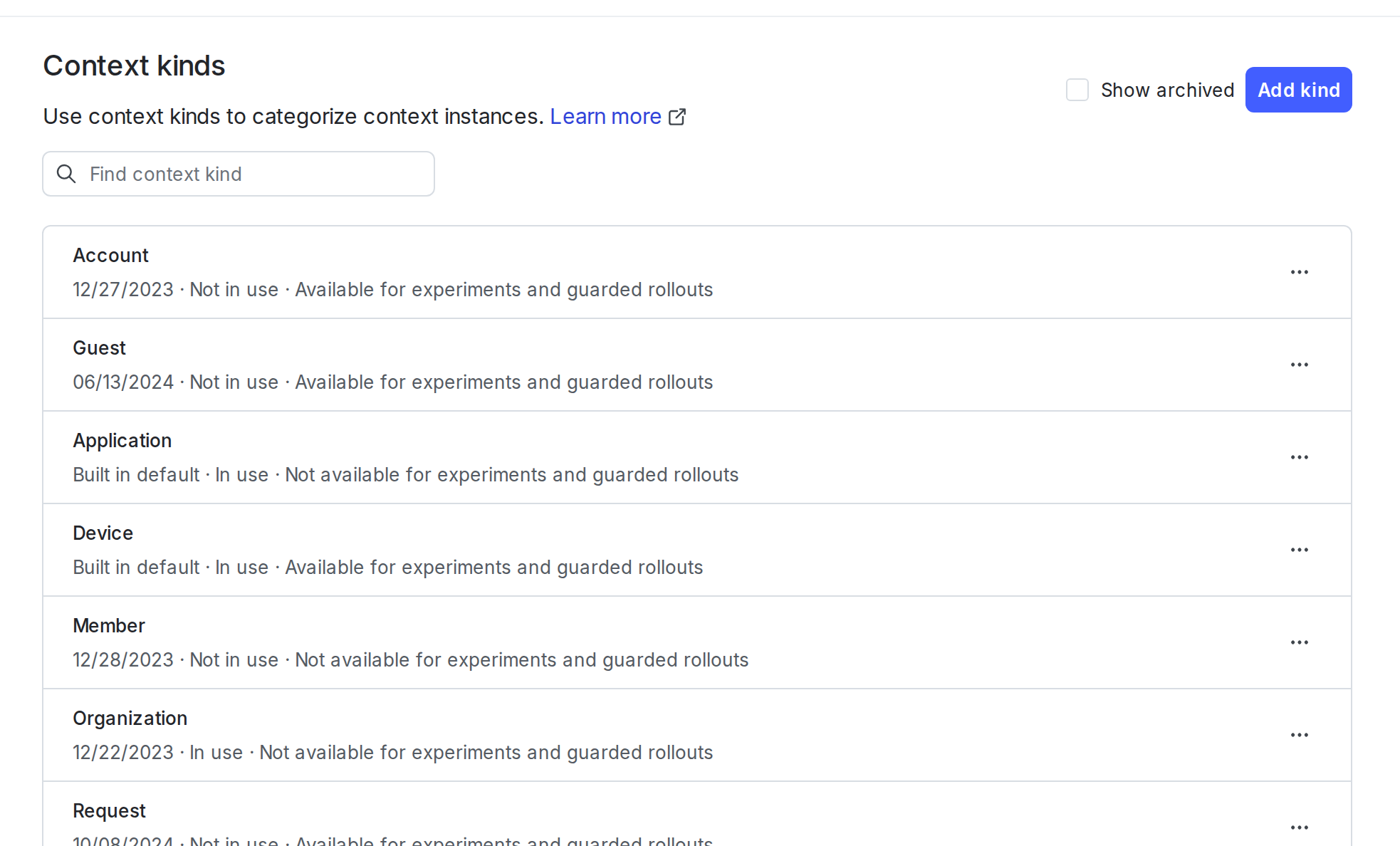
The context kinds list.
- The kind’s name.
- The kind’s creation date.
- Whether or not the kind is in use. A context kind is considered in use if an SDK has ever sent a context with this kind to LaunchDarkly.
- Whether or not the kind is available for experiments /home/releases/guarded-rollouts. “Available” means you can use this context kind as a randomization unit. To learn more, read Randomization units.
Your application may evaluate a feature flag using a multi-context. A multi-context includes multiple context kinds in a single evaluation. For example, your application may send a single multi-context with “user,” “organization,” and “device” context kinds, all in one evaluation call in the LaunchDarkly SDK. When you do this, all three individual contexts appear separately in your Contexts list. You can use the context kind filters to search for them separately.
You can also use the REST API: Get context kinds
Archived context kinds
Archived context kinds are automatically hidden from the list. To display them, select the Show archived checkbox.
The context kinds list with the "Show archived" checkbox called out.