

Overview
This guide shows how to connect an OpenAI-powered application to LaunchDarkly AI Configs. OpenAI models are widely adopted for chat completions, function calling, and structured outputs. By the end, you will be able to manage your model configuration and prompts outside of your application code, track metrics automatically, and switch between models or update prompts without redeploying. This guide uses the base SDK withtrack_openai_metrics (Python) / trackOpenAIMetrics (Node.js) tracking helpers. LaunchDarkly also publishes higher-level OpenAI provider packages for Python and Node.js that handle model creation, parameter forwarding, and structured output.AI Configs support two modes:
- Completion mode returns messages and roles (such as “system,” “user,” “assistant”). Use it for chat-style interactions and message-oriented workflows. Completion mode supports online evaluations with judges attached in the LaunchDarkly user interface (UI).
- Agent mode returns a single
instructionsstring. Use it when your runtime or framework expects a goal/instructions input for a structured workflow. Agent mode changes the configuration shape from messages to instructions. Your application maps these instructions into your provider or framework’s native input. Both modes support tool calling. This guide walks through completion mode as the main path, with an optional agent config section and an advanced tool-calling example. To learn more about when to use each mode, read When to use prompt-based vs agent mode. This guide provides examples in both Python and Node.js (TypeScript).
Prerequisites
To complete this guide, you need the following:- A LaunchDarkly account.
- An OpenAI API key.
- A development environment:
- Python: Python 3.10 or higher
- Node.js: Node.js 20 or higher
- Familiarity with LaunchDarkly contexts. To learn more, read Contexts and segments.
Concepts
Before you begin, review these key concepts.AI Configs
An AI Config is a LaunchDarkly resource that controls how your application uses large language models. Each AI Config contains one or more variations. Each variation specifies:- A model configuration, including the model name and parameters
- Messages that define the promptYou can update these settings in LaunchDarkly at any time without changing your application code.
Contexts
A context represents the end user interacting with your application. LaunchDarkly uses context attributes to:- Determine which variation to serve based on targeting rules
- Populate template variables in your prompts
The tracker
When you retrieve an AI Config, the SDK returns a config object with atracker property. The tracker records metrics from your OpenAI calls, including:
- Generation count
- Input and output tokens
- Latency
- Success and error ratesThese metrics appear on the Monitoring tab in LaunchDarkly.
Step 1: Install the SDKInstall the Launch
Darkly AI SDK and the OpenAI SDK in your application. AI Configs are supported by LaunchDarkly server-side SDKs only. The Node.js examples in this guide use the server-side Node.js AI SDK. Here is how to install the required packages:.env file in your project root with your API keys:
Step 2: Initialize the clients
Initialize both the LaunchDarkly client and the OpenAI client. Store your API keys in environment variables. Here is the initialization code:Step 3: Create an AI Config in Launch
DarklyCreate an AI Config in the LaunchDarkly UI to store your OpenAI model settings and prompts. To create the AI Config:- Click Create and select AI Config.
- In the Create AI Config dialog, select Completion.
- Enter a name, such as “OpenAI assistant”.
- Click Create.To create a variation:
- On the Variations tab, replace “Untitled variation” with a name, such as “GPT-4o variation”.
- Click Select a model and choose an OpenAI model, such as “gpt-4o”.
- Add a system message to define your assistant’s behavior. Here is an example:
- Click Review and save.
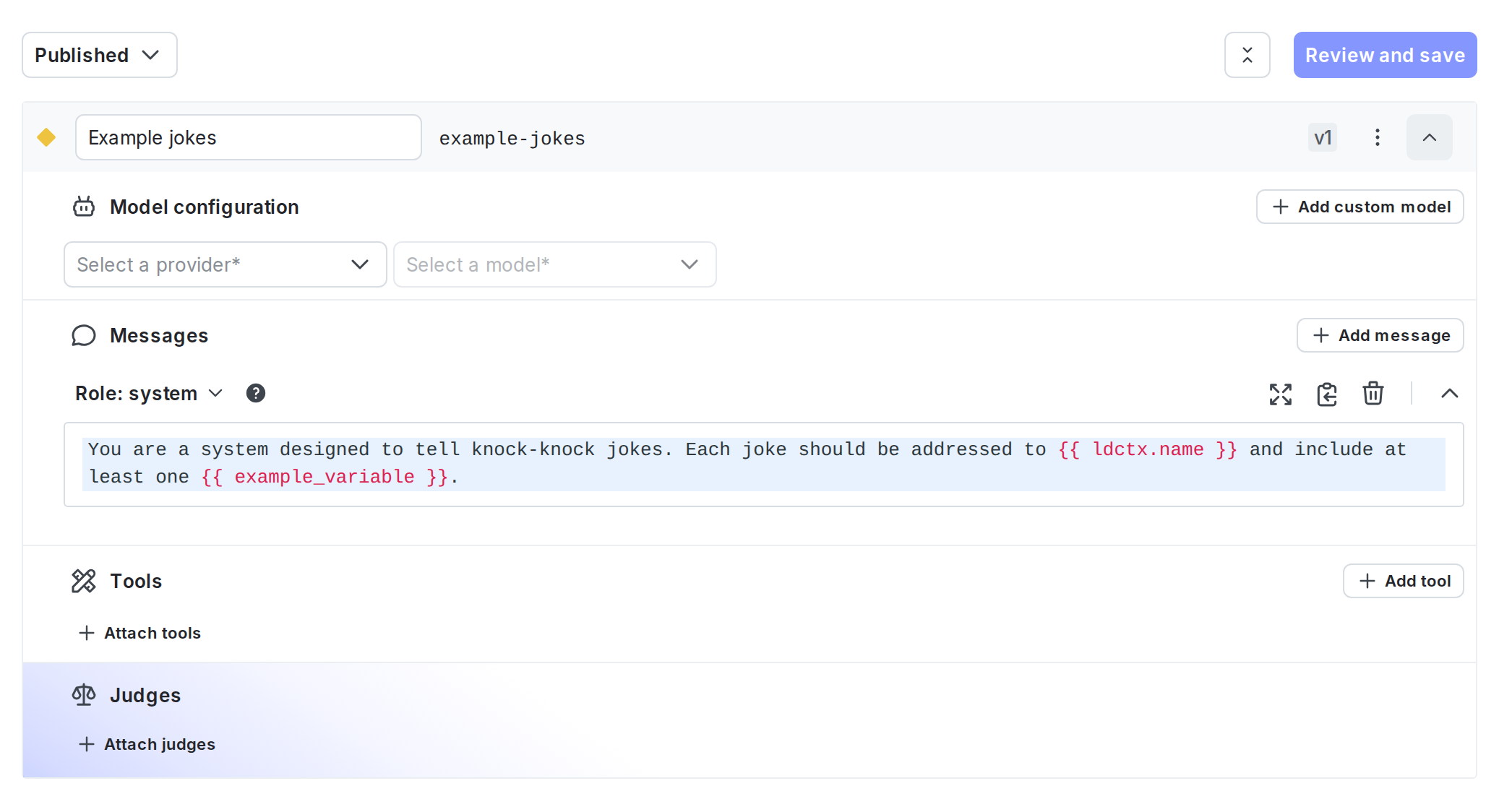
A completed variation with model configuration and system message.
- Select the Targeting tab.
- In the “Default rule” section, click Edit.
- Set the default rule to serve your variation.
- Click Review and save.
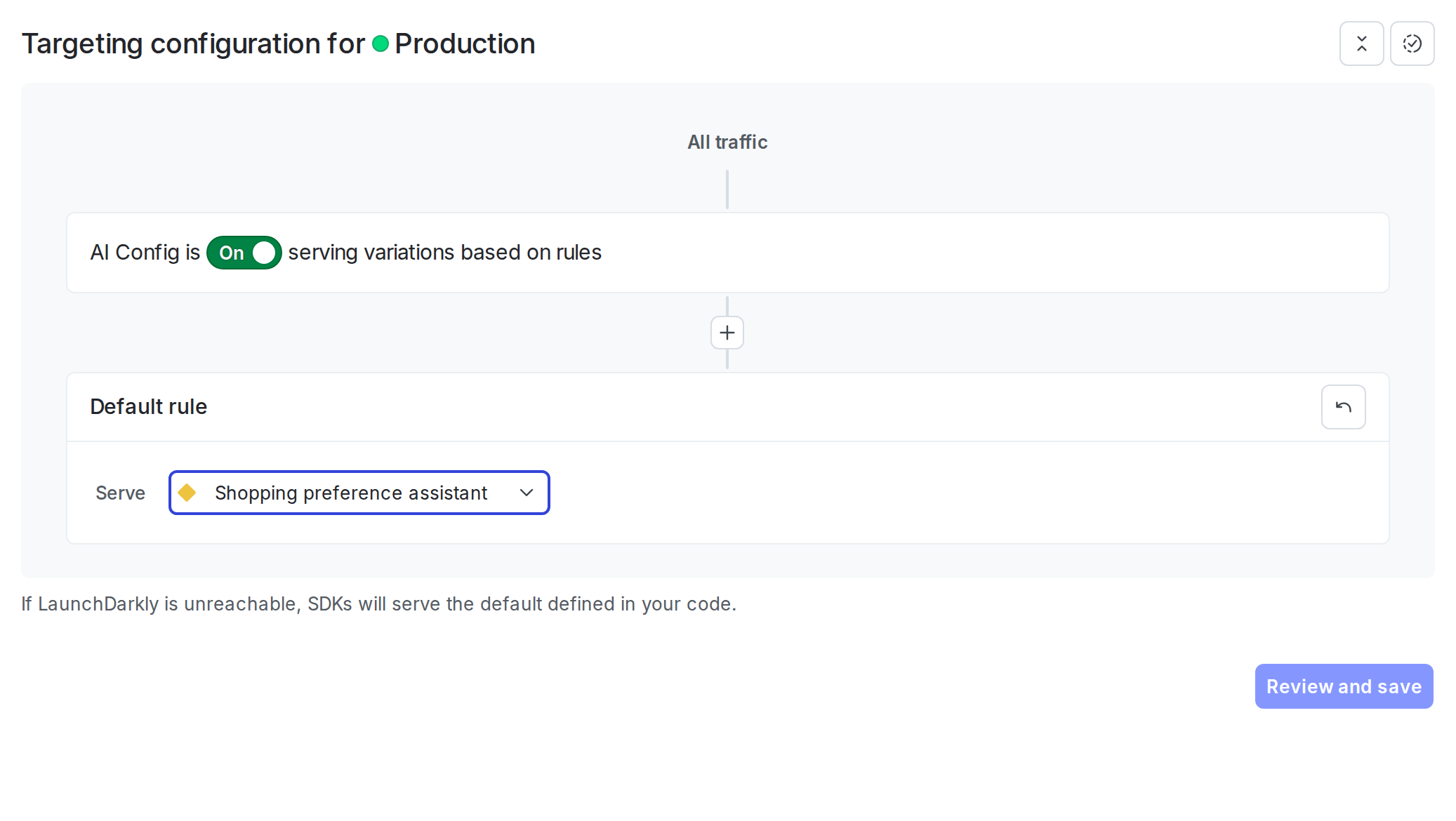
The default targeting rule configured to serve a variation.
Step 4: Get the AI Config in your application
Retrieve the AI Config from LaunchDarkly by calling the completion config function. Pass a context that represents the current user and a fallback configuration. Here is how to get the AI Config:enabled property and handle the disabled case in your application.
For production use:
- Retrieve the AI Config each time you generate content so LaunchDarkly can evaluate the latest targeting rules and prompt changes.
- Provide a fallback configuration when possible so your application can fail gracefully if LaunchDarkly is unavailable.
- Avoid sending personally identifiable information in contexts unless you have a specific need and an approved handling pattern. To learn more, read Privacy in AI Configs.
Step 5: Call Open
AI and track metricsUse the tracker to call OpenAI and record metrics automatically. The SDK provides atrack_openai_metrics function (Python) or trackOpenAIMetrics function (Node.js) that wraps your OpenAI call.
Here is how to make the API call:
The
track_openai_metrics (Python) and trackOpenAIMetrics (Node.js) helpers expect a complete response object. If your application uses streaming responses, use the lower-level track_duration, track_tokens, track_success, and track_error methods to record metrics manually. To learn more, read Monitor AI Configs.Step 6: Add user input to the conversation
Combine the messages from your AI Config with user input to create a complete conversation. Here is how to add a user message:Step 7: Use template variables
Use template variables in your AI Config messages to customize prompts at runtime. Variables use double curly brace syntax:{{ variable_name }}.To use context attributes, prefix with ldctx:
Step 8: Monitor your AI Config
To view aggregated metrics across all your AI Configs, navigate to Insights in the left navigation under the AI section. The Insights overview page displays cost, latency, error rate, invocation counts, and model distribution across your organization. To learn more, read Trends Explorer. To view metrics for a specific AI Config:- Navigate to your AI Config.
- Select the Monitoring tab.
- Generations: Average number of successful generations per variation.
- Token usage: Input and output tokens consumed by each variation.
- Time to generate: The latency of each model call, measured end to end.
- Error rate: The percentage of invocations that returned an error.
- Costs: Estimated costs based on token usage and the model’s pricing. Metrics update approximately every minute. Use these metrics to compare variations and optimize your prompts.
LaunchDarkly provides metrics for AI Config invocations, including latency, token usage, costs, and error rates. If you also want traces associated with an evaluated AI Config, run the model request inside an active OpenTelemetry parent span. To learn more, read Observability and LLM observability.
Optional: Retrieve an agent-based AI Config
Agent mode returns a singleinstructions string instead of a messages array. Use it when your runtime or framework expects a goal/instructions input for a structured workflow. Agent mode changes the configuration shape from messages to instructions. Your application maps these instructions into your provider or framework’s native input.
To use agent mode, create an AI Config with mode set to Agent in the LaunchDarkly UI, then retrieve it with the agent config function. Map the LaunchDarkly instructions field into OpenAI’s top-level instructions parameter.
Step 9: Close the client
Close the LaunchDarkly client when your application shuts down to flush pending events. Here is how to close the client:Complete example
Here is a complete working example that combines all the steps.What to explore next
After you have the basic integration working, you can extend it with:- Tools for calling external functions from your workflows
- Online evaluations to score response quality automatically
- Experiments to compare AI Config variations statistically
- Agents for multi-step workflowsFor more AI Configs guides, read the other guides in the AI Configs guides section.
Advanced: Add tool calling with Open
AIOpenAI’s function calling lets the model request tool executions during a conversation. You can combine this with either completion or agent mode AI Configs. The following example uses an agent config with a tool-calling loop.Always set a maximum iteration limit to prevent runaway loops. You can manage tool definitions in the Tools Library in LaunchDarkly and attach them to your AI Config variations.
Troubleshooting
Some solutions for common problems are outlined below.Metrics not appearing
If metrics do not appear on the Monitoring tab:- Verify that you are calling
tracker.track_openai_metrics()(Python) ortracker.trackOpenAIMetrics()(Node.js). - Ensure you call
flush()before closing the client, especially for short-lived scripts. - Wait at least one minute for metrics to process.
SDK initialization failures
If the LaunchDarkly SDK fails to initialize:- Verify your SDK key is correct and matches the environment you are targeting.
- Check that your network can reach LaunchDarkly servers.
- Review the SDK logs for specific error messages.
Config returns fallback value
If you always receive the fallback configuration:- Verify targeting is enabled for your AI Config.
- Check that the AI Config key in your code matches the key in LaunchDarkly.
- Ensure your context matches the targeting rules.
Conclusion
In this guide, you connected an OpenAI-powered application to LaunchDarkly AI Configs. You can now:- Manage prompts and model settings in LaunchDarkly without code changes
- Track token usage, latency, and success rates automatically
- Use template variables to customize prompts per user