

Overview
This topic explains how to use LaunchDarkly’s observability features to perform session replays. The Sessions view displays a list of recorded sessions. Use this view to perform session replays, which are repeatable explorations of an end user’s session in your application. You can visually replay each recorded session to watch and play back how users interact with a website, digital product, or mobile app. Session replays give your organization visibility into how customers use your application, and can provide insight into why errors occur.Get started
To instrument your application to capture session replay, read the documentation on Observability SDKs. The functionality is available through plugins to the LaunchDarkly JavaScript SDK. LaunchDarkly supports both Shadow DOM and Web Components as part of this instrumentation.View session replays
To view a replay:- Expand Observe in the left navigation.
- Select click Sessions and select a session from the list.
- Click Play.
- Timeline (three vertical bars): Shows or hides the event timeline.
- Dev Tools (
>_): Shows or hides the Dev Tools panel.
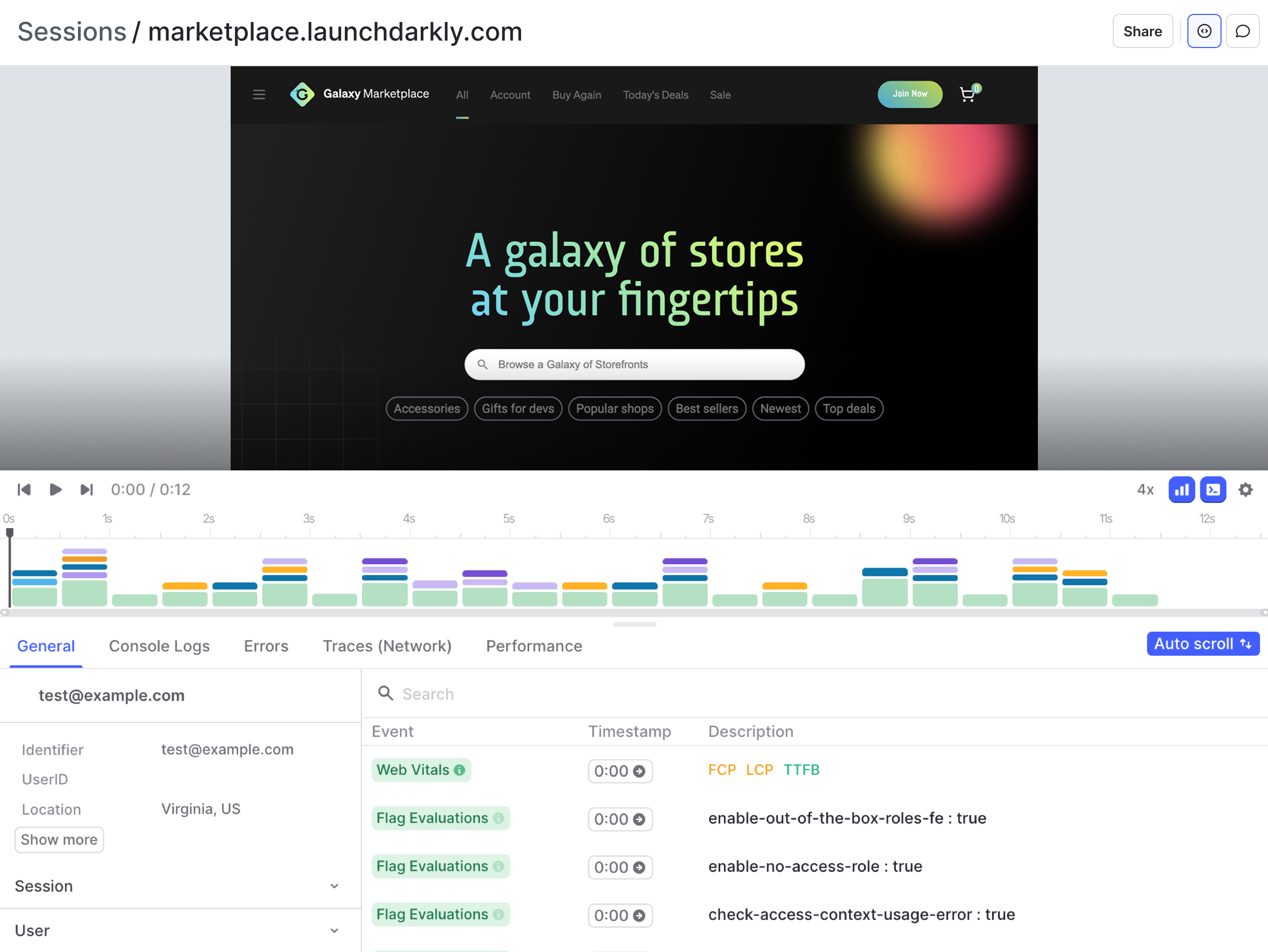
A session replay with event details expanded.
Search
To learn more about the search capabilities, read Search specification. When you search on the Sessions page, the following behaviors apply by default:- The Sessions page displays completed sessions that have been fully processed. This is equivalent to searching by
completed=true. You can usecompleted=falseto find live sessions and sessions that are not yet fully processed. - The default search key is assumed to include the end user’s identifier and location. This could be the end user’s
email,device_id, or givenidentifier, as well as theircityorcountry. For example, if you enter an expression without a key, such assearch-term, then LaunchDarkly automatically expands that toemail=*search-term* OR city=*search-term*.
Search by end-user clicks
When you search on the Sessions page, you can search for sessions where an end user clicked a certain HTML element:clickTargetlooks for clicks on the provided DOM element.clickSelectorlooks clicks on the provided CSS selector, concatenating the element’stag,id, andclassvalues.clickTextContentlooks at the HTML element’s target’stextContentproperty. Only the first 2000 characters are considered.
Search by visited URL
When you search on the Sessions page, you can search for sessions where an end user visited a particular URL, using thevisited-url filter. Use quotations around the value for this search to avoid any errors due to special characters in the URL.
Here’s how:
visited-url. The following example retrieves all sessions where the end user visited the “sessions” page:
Search attribute reference
By default, the session replay SDK plugin automatically injects the following attributes to provide additional help with searching for sessions: | Category | Attribute | Description
| ---
| ---
| --- |
| Click tracking
|
clickSelector
| The CSS selector that was clicked, concatenating the element’s tag , id , and class values.
| svg |
| clickTarget
| The DOM element that was clicked
| #search-field |
| clickTextContent
| The HTML element target’s textContent property that was clicked.
| "Last 30 days" |
| has_rage_clicks
| Whether rage clicks were detected in the session.
| true |
| Device and browser
| browser_name
| Browser the end user was using.
| Chrome |
| browser_version
| Browser version the end user was using.
| 124.0.0.0 |
| device_id
| Fingerprint of the end user’s device.
| 1018613574 |
| os_name
| The end user’s operating system.
| Mac OS X |
| os_version
| The end user’s operating system version.
| 10.15.7 |
| user_agent
| The browser’s user agent string.
| *Firefox* |
| Feature flag
| feature_flag
| Specifies whether the session is associated with a feature flag. Can be modified with the following additional attributes: context.id , contextKeys , key , provider.name , result.reason.inExperiment , result.reason.kind , result.value , and set.id .
| true |
| Location
| city
| City the end user was in.
| San Francisco |
| country
| Country the end user was in.
| Greece |
| ip
| The IP address of the end user.
| 127.0.0.1 |
| state
| The state the end user was in.
| Virginia |
| Navigation
| exit_page
| The page from which the user exited the session.
| https://example.com/logout |
| landing_page
| The first page visited in the session.
| https://example.com/login |
| pages_visited
| The number of pages visited in the session.
| 10 |
| referrer
| The referring URL that led to this page.
| "https://app.example.com/" |
| reload
| Indicates whether the page was reloaded.
| true |
| visited_url
| Sessions that visited the specified URL.
| "https://app.example.com/" *sessions* |
| Service or application
| environment
| The environment key, based on the SDK credentials used in the observability SDKs .
| production |
| sample
| A unique order by which to sample sessions.
| c1c9b1137183cbb1 |
| service_name
| The name of the service specified in the session replay SDK plugin. To learn more, read Versioning sessions and errors .
| v_5 v_1.2 |
| service_version
| The version of the service specified in the session replay SDK plugin. To learn more, read Versioning sessions and errors .
| 5 1.2.3 |
| Session properties
| active_length
| Time the end user was active in the session. Defaults to milliseconds. Use s , m , or h suffixes to designate seconds, minutes, or hours.
| 10m |
| length
| Total length of the user session. Defaults to milliseconds. Use s , m , or h suffixes to designate seconds, minutes, or hours.
| 10m |
| completed
| Whether the session has finished recording.
| true |
| first_time
| Whether this is the end user’s first session.
| false |
| has_comments
| Whether a LaunchDarkly member has commented on the session.
| true |
| has_errors
| Whether the session contains linked errors.
| true |
| identified
| Whether the session successfully identified the end user.
| false |
| viewed_by_anyone
| Whether the session has been viewed by any LaunchDarkly member.
| true |
| viewed_by_me
| Whether you have viewed the session.
| false |
| User identity
| identified
| Indicates whether the session identified the user.
| true |
| identified_email
| Email address of the identified user.
| user1@example.com |
| identifier
| Unique identifier for the tracked user created during initialization.
| 1 |
Deep linking to sessions
You can create deep links to session search results or to specific sessions. This is useful for sharing session data with teammates, integrating with other tools, or creating bookmarks to common queries.Deep linking to search queries
The queries you build when searching for sessions are reflected in the URL parameters. You can share these URLs with others to deep link to search results, or create them programmatically. The URL syntax is:AND and OR, separated by URL-encoded spaces (%20):
AND operator is implicit, so the following queries are equivalent:
| -------------------------------------------------- |
| Sessions for a specific user
|
?query=identifier=alice@example.com |
| Exclude sessions from your organization
| ?query=identifier!=*@yourdomain.com* |
| Sessions visiting a specific page
| ?query=visited-url=*/your/path/name* |
| Multiple properties
| ?query=identifier=Bob%20email!=alice@example.com |
For the list of session properties you can use in queries, read Search attributes.
Linking to a specific session
You can retrieve the URL for a specific session programmatically using the session replay SDK plugin. This is useful for integrating session replay with other tools, such as customer support systems or error tracking services. UseLDRecord.getSession() to get the URL for the current session. The method returns an object with two properties:
url: A link to the session in LaunchDarkly.urlWithTimestamp: A link to the session at the exact time the method was called. Use this to link directly to the moment an event occurred, such as when an error was thrown.
urlWithTimestamp in error logs to link directly to the moment the error occurred.
To learn more about retrieving session URLs, read Retrieve session URLs on the client.
Filter
You can filter out sessions that you do not want to view in LaunchDarkly. This is useful for sessions that you know are not relevant to your application, or that are not actionable. Filtered sessions do not count against your sessions quota.Ingestion filters
You can set up ingestion filters to manage the number of sessions recorded in the following ways:- Filter sessions by configuring rules to match particular session attributes. Each rule can be applied to a percentage of incoming sessions. For example, you may configure a rule to ingest 1% of sessions in the
developmentenvironment. For each session LaunchDarkly receives, it makes a randomized decision that results in storing only 1% of those matching sessions. - Rate limit the maximum number of data points ingested in a one-minute window. For example, you may configure a rate limit of 100 sessions per minute. This lets you limit the number of sessions recorded in case of a significant spike in use of your application.
- Exclude sessions from particular end users, based on their context key or email address.
Custom filters
To use filter logic that is not available in the project settings, use the session replay plugin’s options for starting and stopping sessions at your discretion. To learn how, read Manually control session recording.Privacy
Session replay supports privacy features, including data obfuscation and redaction. This ensures that sensitive data is not captured or displayed in the session replays. All of this functionality happens client-side, which means that no sensitive data is sent to LaunchDarkly servers. To learn more about the privacy options for session replay, read Privacy in the SDK documentation.Session content
For images, videos, and other external assets, LaunchDarkly does not make a copy at record time. Instead, LaunchDarkly makes a request for the asset at replay time. If a request fails, some parts of the session may appear blank. Most commonly this occurs because of an authorization failure, or because the asset no longer exists. For iframes, LaunchDarkly recreates an iframe with the samesrc. To learn more, read Working with iframes.
How is a session defined?
After a session starts, LaunchDarkly continues recording in the same session for up to four hours. Each browser tab or instance will start a distinct session, so if your web app is opened in two tabs at once, LaunchDarkly records two sessions. However, after a session starts, it can be resumed. If your web app is opened in a single tab, closed, and then reopened within 15 minutes of closing, LaunchDarkly resumes the existing session. If more than 15 minutes have passed, LaunchDarkly starts a new session. “Active time” is the time when an end user is interacting with your application with no more than a 10-second gap in activity. For example, if an end user is moving their mouse, typing, or clicking for 30 seconds with no gaps of longer than 10 seconds, that counts as 30 seconds of active time.Identifying sessions
By default, sessions in the Observability session UI are identified by LaunchDarkly context keys. A context may contain multiple different kinds, and each of those kinds has its own key. By default, these context kinds are combined to create the session identifier. Here are some examples of session identifiers comprised of contexts:- A user context with a key of
Sallyhas an identifier ofSally. - An organization context with a key of
org-key-123has an identifier of “organization:org-key-123`. - A multi-context containing both the
Sallyuser and theorg-key-123organization has an identifier oforganization:org-key-123:user:Sally.
Customizing the session identifier
You may want to use a custom identifier, such as an email, screen name, or other attribute, instead of the context keys. To do this, provide acontextFriendlyName function when you configure the Session replay plugin:
contextFriendlyName method whenever you need a session identifier. If your function returns undefined, the system will revert to the default behavior above.