

Overview
You can create new flags by cloning existing flags. When you clone a flag, LaunchDarkly makes a new flag and copies the original flag’s targeting configuration for all environments, including default values and whether the flag is toggled on or off. You can then modify the clone’s configuration if needed. To clone a flag:- Navigate to the Flags list and open the flag you wish to clone.
- Click the three-dot overflow menu in the right sidebar.
- Select Clone this flag.
- The “Clone feature flag” dialog appears:
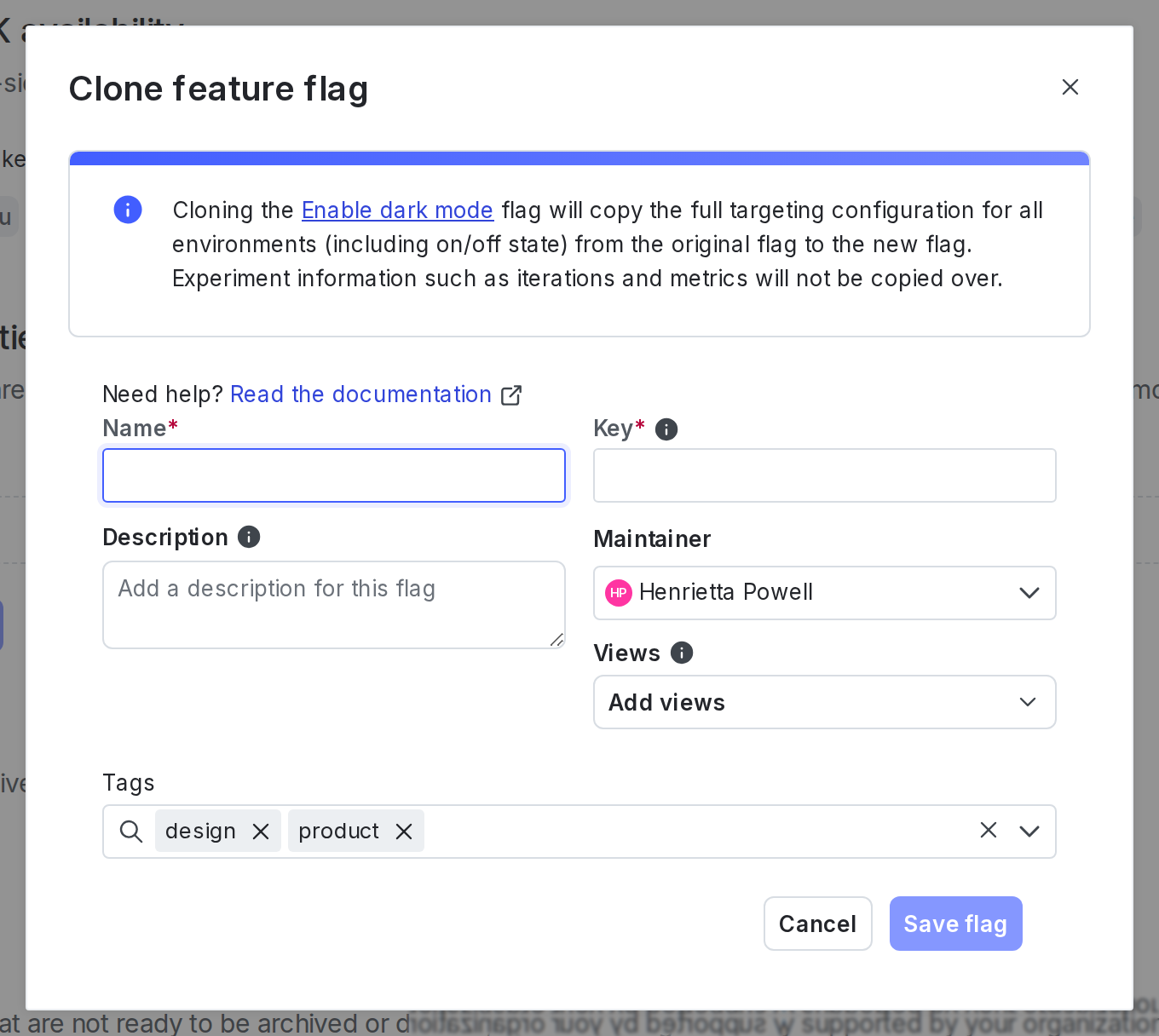
The "Clone feature flag" dialog.
- Enter a unique, human-readable Name.
- (Optional) Update the unique flag Key. You’ll use this key to reference the flag in your code. A suggested key auto-populates from the name you enter, but you can customize it if you wish.
- (Optional) Enter a Description of the new flag. A brief, human-readable description helps your account members understand what the flag is for.
- (Optional) Add the flag to one or more Views.
- (Optional) Click into the Tags menu and choose one or more tags for your flag.
- Click Save flag. You are taken to the new flag’s Targeting tab.
If the flag you are cloning has an active guarded rollout or progressive rollout, the rollout is not cloned.
You can also use the REST API: Copy feature flag