

Overview
This topic explains how to manage scheduled flag changes.Update scheduled flag changes
To update a scheduled flag change:- Follow the steps in View scheduled flag changes to open the list of pending scheduled changes for the flag.
- Find the scheduled change you wish to update.
- Click on the overflow menu in the upper right and choose “Edit”:
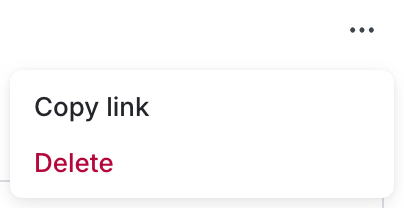
The "Edit" option in a pending change's overflow menu.
- A dialog appears with the list of scheduled flag changes.
- Update the date or time for these changes.
- (Optional) Enter a comment.
- Click Update scheduled change.
You can also use the REST API: Update scheduled changes workflow.
Manage conflicts with scheduled changes
It’s possible that as you schedule a change to a flag, another member introduces a breaking change, or a conflict. Conflicts occur for two reasons:- Another member updated the flag’s targeting that invalidates one or more of your scheduled changes
- Another member scheduled a set of conflicting changes to be executed before your changes
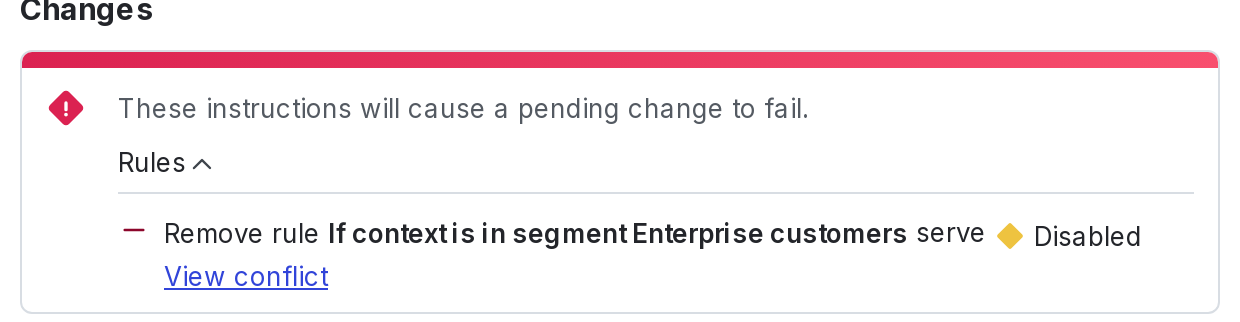
A notification showing a conflicting scheduled change.
Resolve conflicts in scheduled changes
If your scheduled changes conflict with other changes, you receive an email notification. You can resolve the conflict and ensure your scheduled changes don’t fail in one of two ways:- Choose one of the two conflicting changes and delete the other. For example, you may have scheduled three targeting rules to be updated and someone deletes one of those rules, which causes a conflict. If this happens, you can update your scheduled changes to delete the scheduled changes to that rule. This ensures that the conflict is resolved and the remaining rules are updating successfully.
- Update the conflicting changes so they no longer conflict. You can update your changes or the new scheduled changes to resolve the conflict and ensure both scheduled changes execute successfully.
Delete scheduled flag changes
To delete a scheduled flag change:- Follow the steps in View scheduled flag changes to open the list of pending scheduled changes for the flag.
- For the scheduled change you wish to delete, click on the overflow menu in the upper right and choose “Delete”:
The "Edit" and "Delete" options for a pending change.
You can also use the REST API: Delete scheduled changes workflow.