

Overview
This topic explains how to create segments that sync with an Amplitude cohort. Segment syncing lets you import audiences from Amplitude to LaunchDarkly to more efficiently target and deliver feature flags. You manage the membership of these segments in Amplitude. The primary benefit of syncing segments with Amplitude is the automatic syncing between Amplitude and LaunchDarkly. This lets you concentrate more on deploying features and less on managing end users between platforms.Prerequisites
The general prerequisites for synced segments apply to syncing segments with Amplitude cohorts. In order to sync segments with Amplitude cohorts, you must additionally meet the following prerequisites:- You must have an Amplitude account with the LaunchDarkly integration enabled. Contact your Amplitude Customer Success Manager to enable the LaunchDarkly integration.
- You must have a LaunchDarkly access token with write access for the project you want to connect to Amplitude. To learn more, read Configuring your access token.
- You must have a LaunchDarkly client-side ID for the environment you want to connect to Amplitude. To learn more, read View or copy SDK keys and credentials.
- If you are using server-side SDKs, or client-side SDKs with the Relay Proxy, there are additional prerequisites.
Synced segments
With synced segments, you can connect a new or existing Amplitude cohort to LaunchDarkly. LaunchDarkly interprets this cohort as a synced segment, which makes it convenient for you to target flags to specific context groups or demographics. You can configure segments to sync automatically in LaunchDarkly at regular intervals, which keeps them current with the existing cohort. We recommend setting up your segment to sync every hour. The process for doing this is documented below. By syncing segments, you can deliver flags to the right context groups precisely and on time.Create a segment that syncs with Amplitude
To configure a segment that syncs with an Amplitude cohort, you must choose a cohort in Amplitude and tell it to send data to LaunchDarkly. When you do this correctly, the cohort appears as a segment in LaunchDarkly. To do this, first add LaunchDarkly as a destination and then sync the cohort to the LaunchDarkly destination.Add Launch
Darkly as a destination To create a destination in Amplitude, you must have Admin or Manager credentials. To add LaunchDarkly as a destination:- Log in to Amplitude and navigate to Data Destinations:
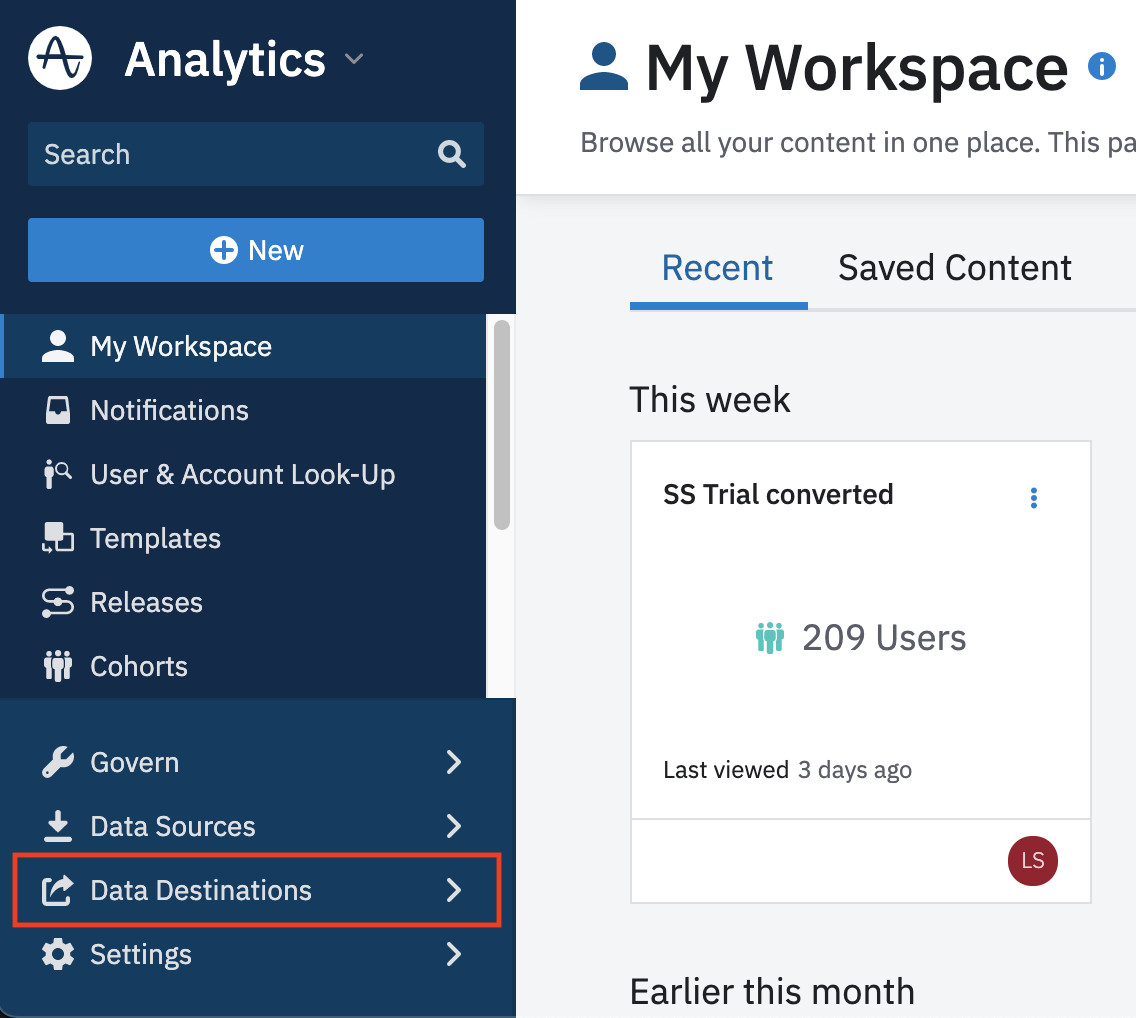
The Amplitude dashboard with the "Data Destinations" button called out.
- Scroll to the “Add More Destinations” section and click View All Destinations:
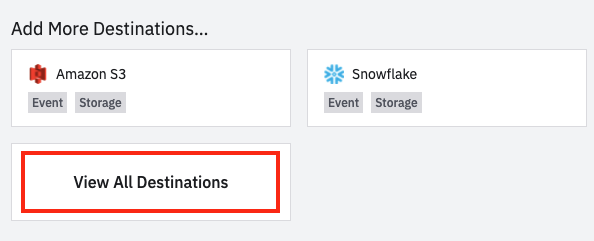
The "Add More Destinations" section with the "View All Destinations" button called out.
- Select the LaunchDarkly Destination:
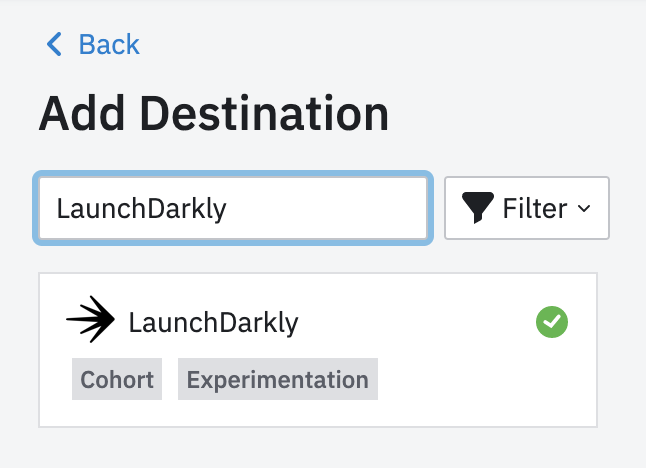
The "Add Destination" list with LaunchDarkly called out.
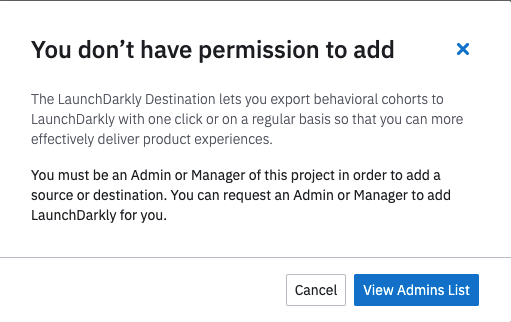
A permission error message in Amplitude.
- Enter a destination name and add the access token and client-side ID for your LaunchDarkly project and environment.
- Select a matching user property in Amplitude to map to LaunchDarkly’s User Key. This will most likely be your Amplitude user ID but it depends on your Amplitude configuration:
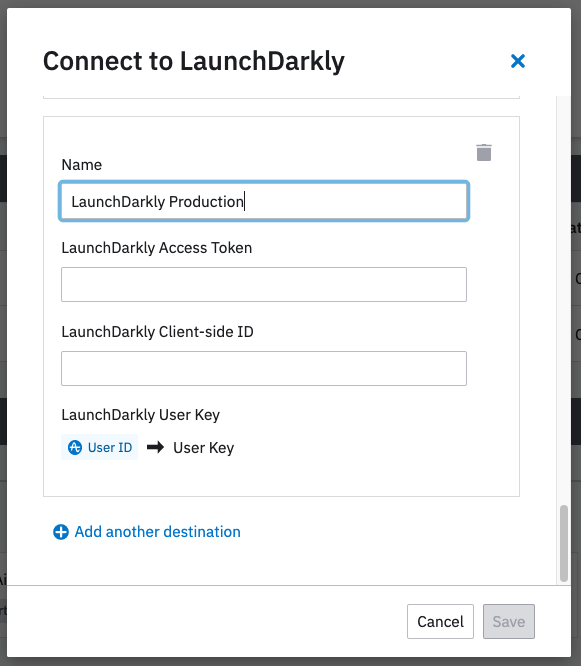
The "Connect to LaunchDarkly" screen.
- Click save.
- Verify that LaunchDarkly shows as “Connected”:

The "Cohort Destinations" screen.
Sync cohort to Launch
Darkly To connect a cohort to LaunchDarkly:- Navigate to the cohort you wish to connect to LaunchDarkly.
- Click Sync to… to open a new tab with a dialog:
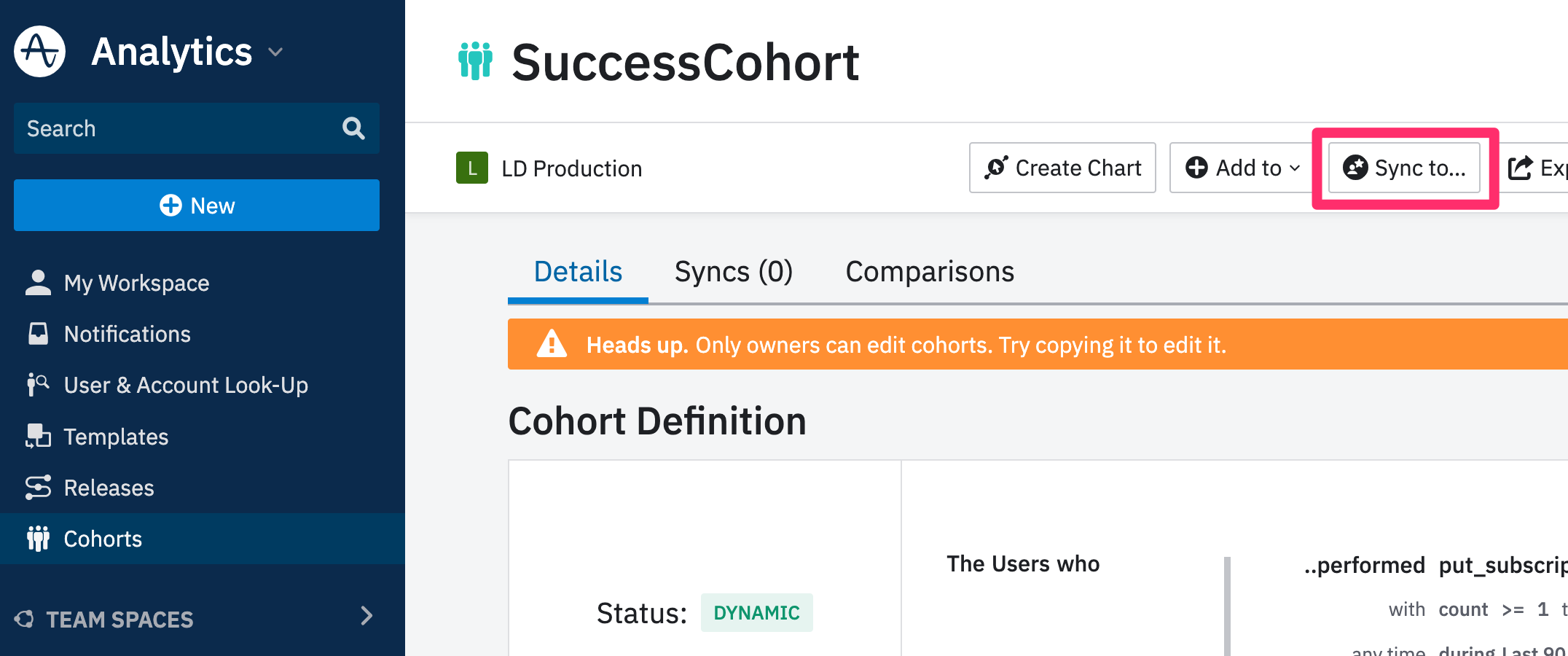
The SuccessCohort screen with the "Sync to..." button called out.
- Select Experiment then LaunchDarkly. If LaunchDarkly is not a destination, make sure you have added LaunchDarkly as a destination:
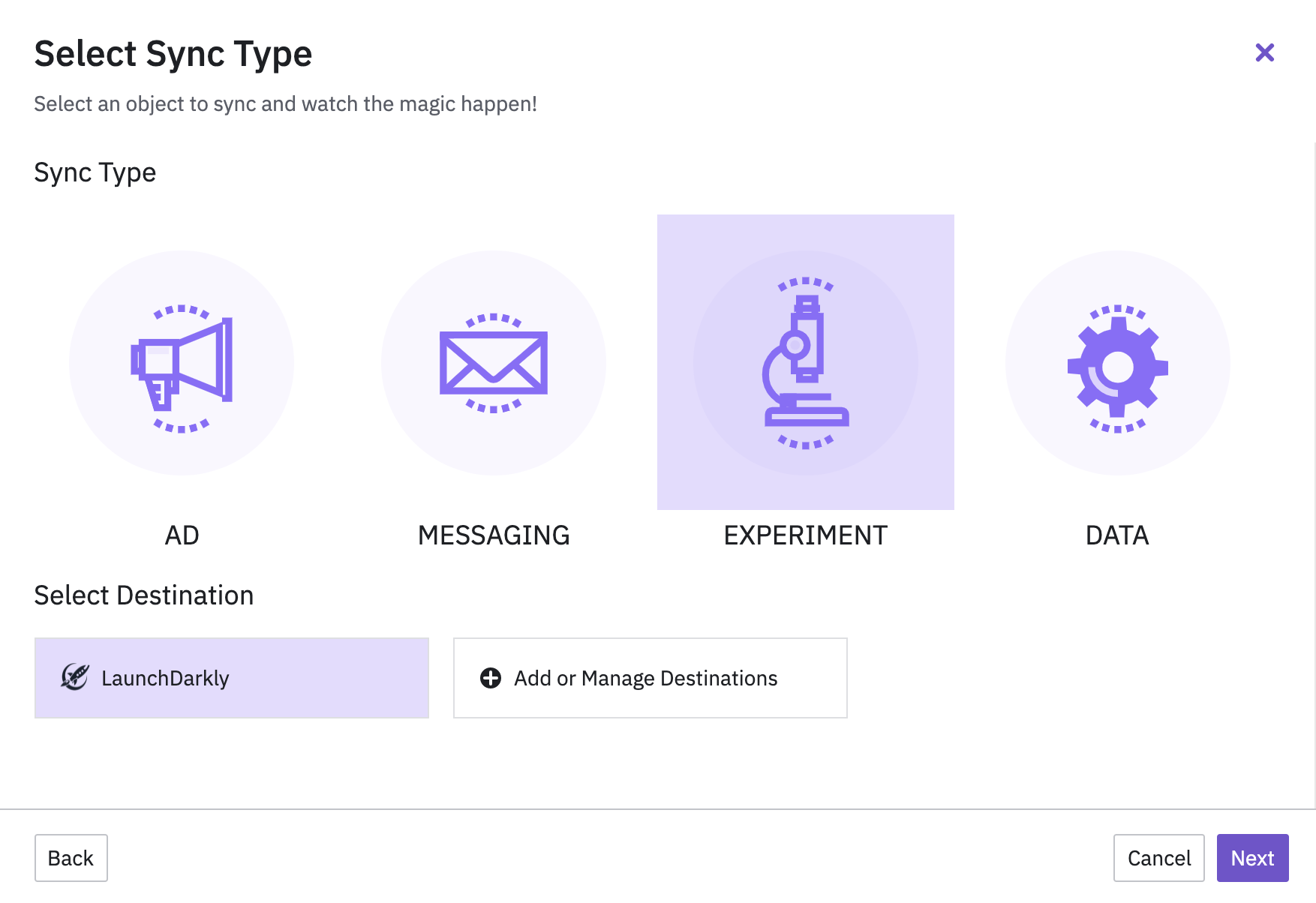
The "Select Sync Type" screen.
- Click next. The destination configuration screen appears.
- Select your LaunchDarkly destination and set the scheduled sync frequency. An hourly sync frequency ensures your segments are kept up to date with your Amplitude cohorts. A one-time sync exports the cohort into a segment once:
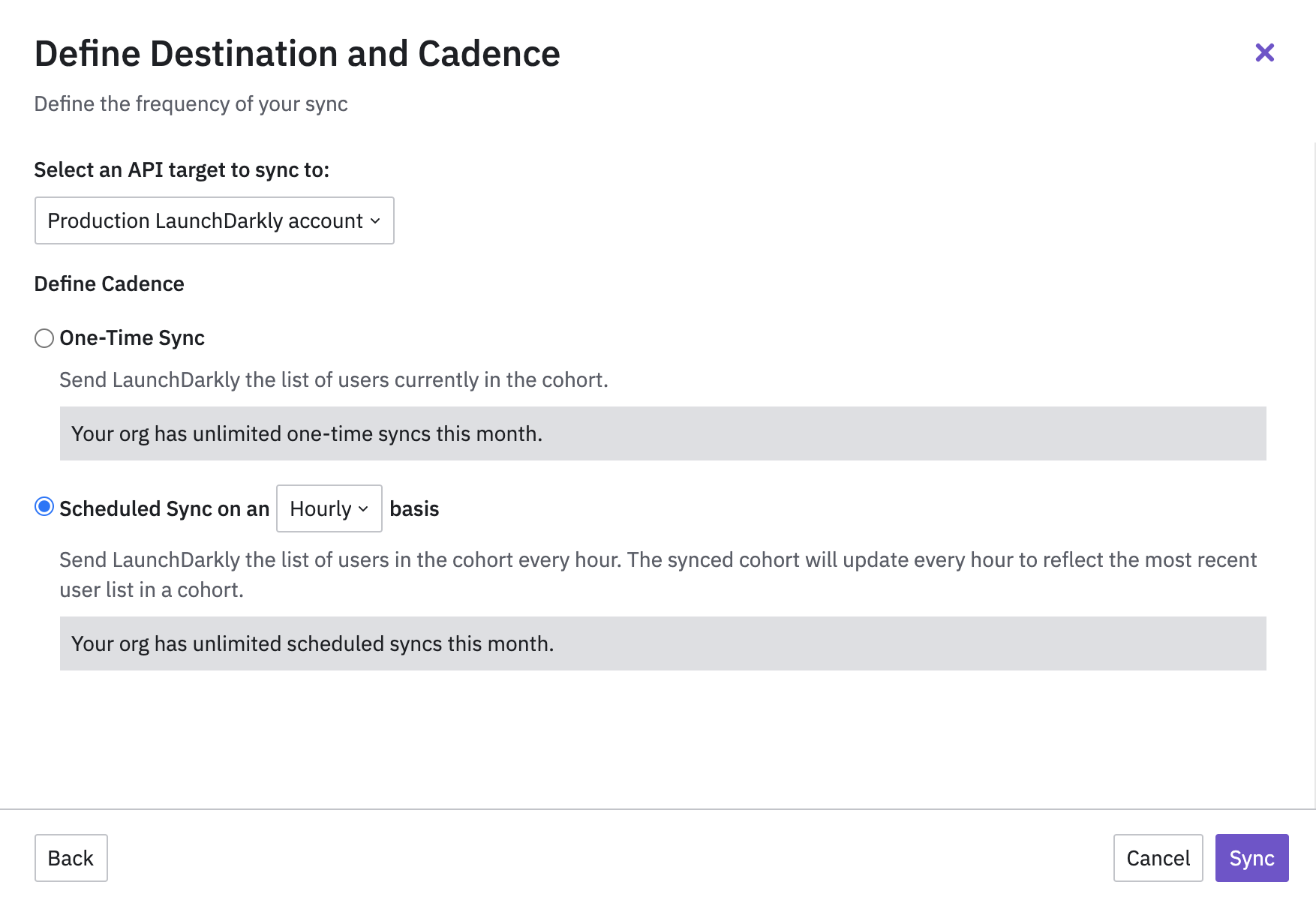
The Amplitude destination configuration screen.
- Click Sync.
- The sync process begins and might take a few minutes to complete:
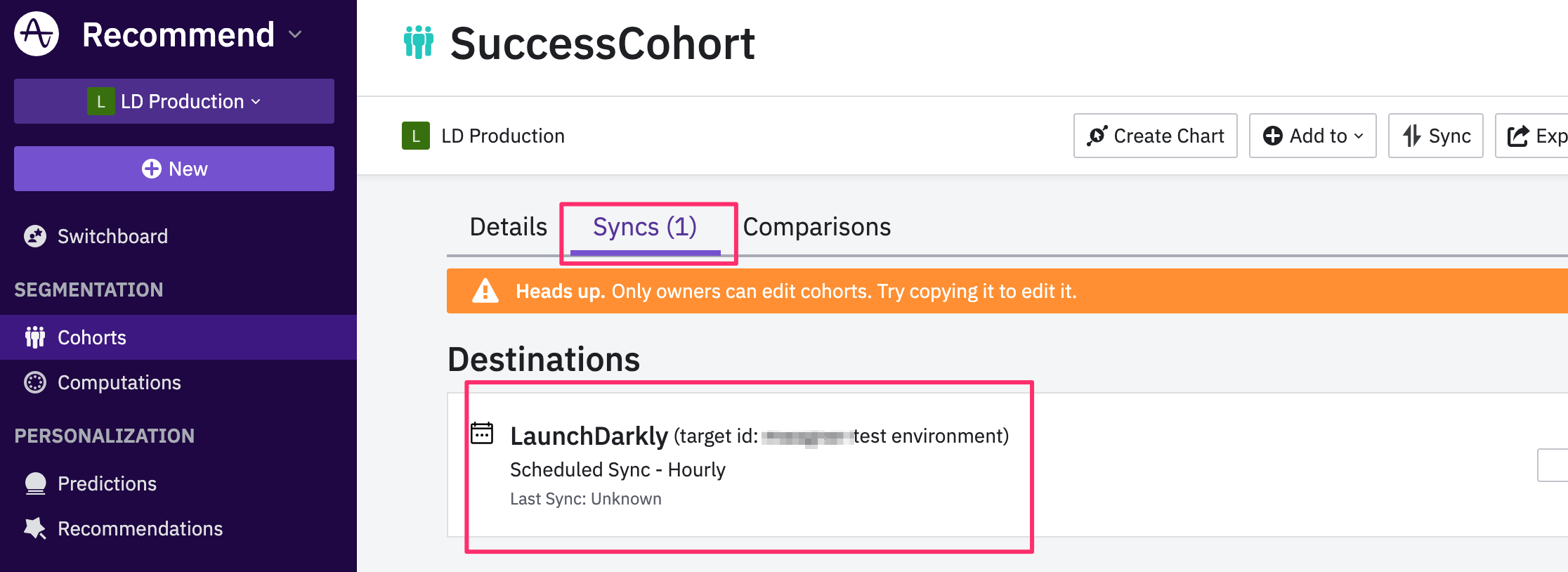
The Amplitude cohort destinations screen.
Check for missing user IDs
To check for users in your Amplitude cohort missing user IDs, you can download a CSV file with user ID information. Here’s how:- While viewing your cohort in Amplitude, click on the export CSV button:

The Amplitude top menu with the export CSV button called out.
- Open the file. The second column is
user_id. If you mappeduser_idto the LaunchDarkly User Key, any user without a value in this column is not included in the LaunchDarkly segment.