

Overview
This topic explains how warehouse health checks help you troubleshoot connection errors with your Snowflake Data Export destination. Warehouse health checks evaluate three conditions:- Whether the Data Export destination for a given project and environment is receiving data
- Whether required fields are present and valid
- Whether authentication to your warehouse is workingLaunchDarkly shows warehouse health warnings at the top of the Integrations page if there are any connection problems, and within the integrations section for individual Snowflake Data Export connections:
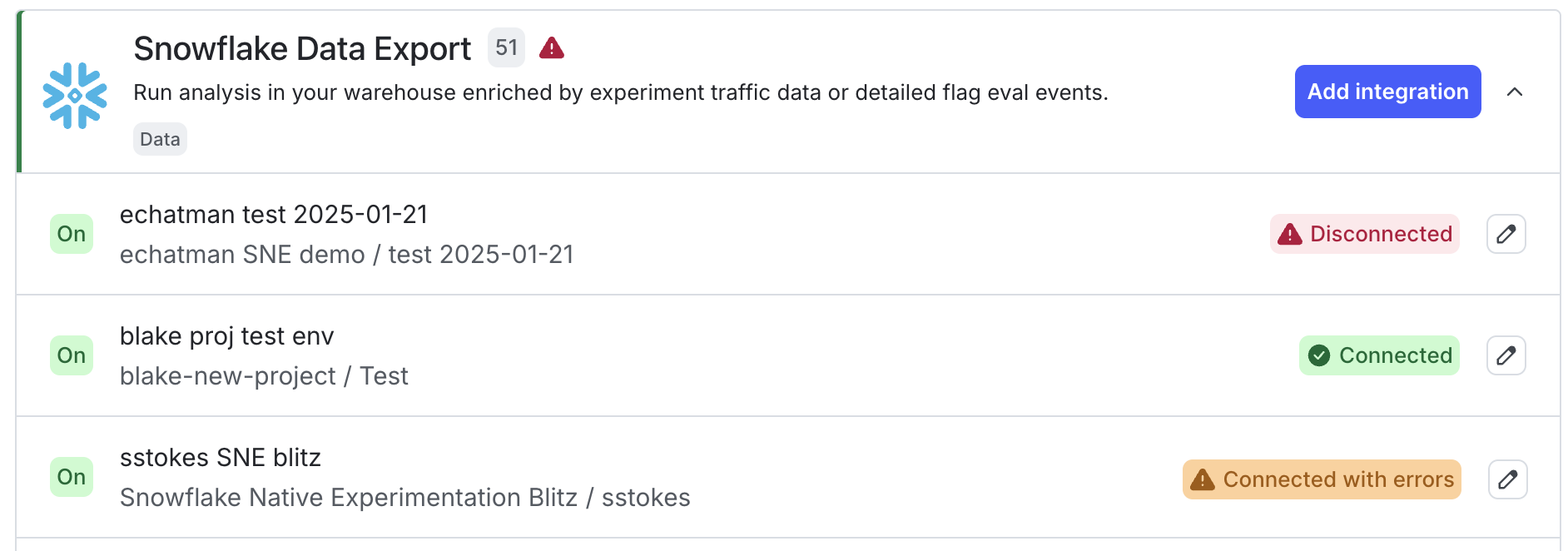
A connection warning for a Snowflake Data Export integration.
View connection status
To view the connection status for an integration:- Click the gear icon in the left sidenav to open Organization settings.
- Click Integrations.
- Find your warehouse Data Export integration section and click the down arrow next to “Add integration.” A list of existing destinations displays.
- Connected: The integration is enabled and operating normally.
- Connected with errors: The integration is enabled but LaunchDarkly detected a problem, such as data delivery errors.
- Disconnected: The integration is not connected. You may need to update your credentials or complete setup for the integration. To view more information about a connection error, click the pencil icon next to the error to open the integration configuration panel. A warning message displays with information about the error:
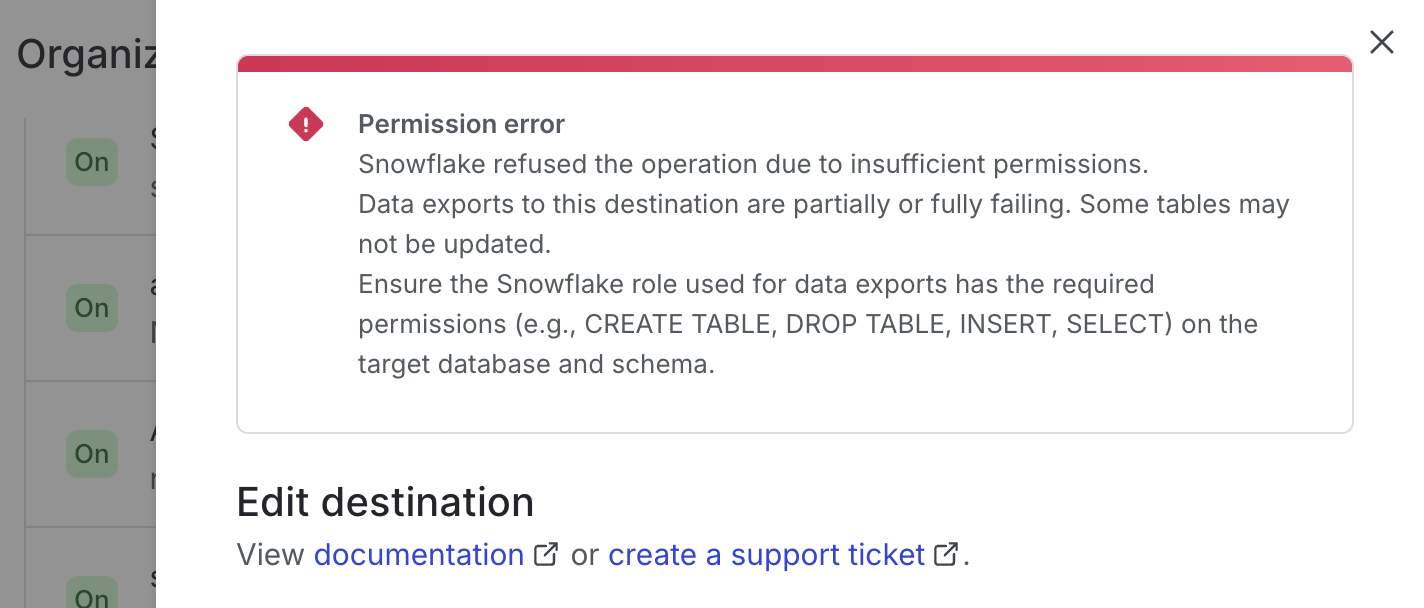
A permission error warning at the top of an integration configuration panel.