

Overview
This guide describes how to use the LaunchDarkly CLI to perform local testing and development. LaunchDarkly provides a command line interface (CLI), which includes adev-server command that you can use to start a local server and retrieve flag values from a LaunchDarkly source environment. This development server supports a single variation value for each flag, which you can override as needed. This means you can test your code locally, and you do not need to coordinate with other developers in your organization who are using the same LaunchDarkly source environment.
Prerequisites
First, install the LaunchDarkly CLI. To use thedev-server command in the LaunchDarkly CLI, you must have a minimum version of 1.4.0.
Expand for installation and upgrade instructions
Expand for installation and upgrade instructions
To install the LaunchDarkly CLI:To update to the latest version of the LaunchDarkly CLI:
Expand for authentication instructions
Expand for authentication instructions
To authenticate yourself in the LaunchDarkly CLI:If you want to use the
dev-server command in a preview environment, there’s no one to log in. As a result, you need to set up a service token that you add to your secrets store, and then configure your preview environment to use that token.To learn more about service tokens, read Creating API access tokens.To learn more about authentication in the LaunchDarkly CLI, read Authentication.Start the Launch
Darkly CLI development serverNext, start the LaunchDarkly CLI dev-server and keep it running in the background:- your project key, which you can copy from the Projects list in the LaunchDarkly UI. To learn how, read Project keys.
- your environment key, which you can copy from the Environments list in the LaunchDarkly UI. To learn how, read Environment keys. Here’s how:
--project to subsequent dev-server commands.
Here’s how:
http://localhost:8765/ui/:
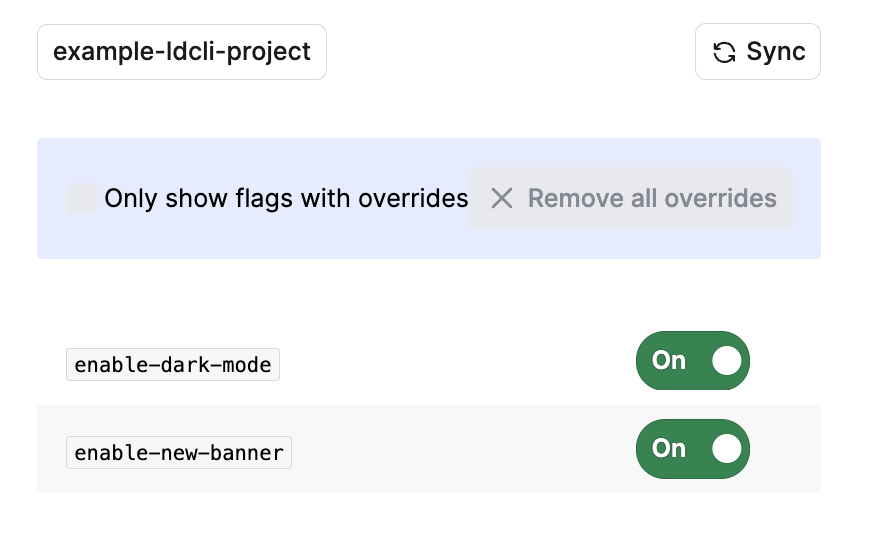
The user interface for the LaunchDarkly CLI dev-server, connected to project "example-ldcli-project."
Configure your SDK for testing
Next, configure your SDK to connect to the dev-server:- Set the SDK credentials to the project key of a project you have added to the dev-server. Do not use the SDK key, mobile key, or client-side ID.
- Set the SDK service endpoints to
http://localhost:8765, where the dev-server is running.
http://localhost:8765.After you configure your SDK, create an appropriate evaluation context for your testing. You can define one that you want to test with manually in your application. Alternatively, you can copy an existing context instance from the context details page in the LaunchDarkly UI.The context that you define does not need to match what your application might encounter in production, because the dev-server always provides a single variation value for each flag. The dev-server does not connect to LaunchDarkly, and it does not evaluate targeting rules, so every context receives the same flag value. You can override the flag value locally to test alternate paths through your code.
Here are a few examples of contexts you could test with:
Set and evaluate flags locally
Now that your SDK is configured to check the local dev-server for flag values, rather than connecting to LaunchDarkly, you can run your application and test it with these local flag values. The dev-server retrieves flag values from your project and environment only when you explicitly sync with LaunchDarkly. As you perform local development and testing, you can override any flag values that you like. These flag values are served to all contexts. You can use the dev-server UI athttp://localhost:8765/ui/:
- To sync flag values from LaunchDarkly, click Sync
- To override the value of a particular flag, toggle it Off or OnYou can also use the LaunchDarkly CLI:
--project argument is optional if you have set a default project using ldcli config.Use ldcli dev-server --help to explore additional commands.