

Overview
This guide explains the differences between LaunchDarkly’s SDKs and LaunchDarkly’s REST API and associated client libraries, and when you should use each.Comparing SDK keys and REST API access tokens
LaunchDarkly uses different credentials for integrating your application (SDK keys) and for managing your account and resources programmatically (REST API access tokens). Use an SDK key (or mobile key, or client-side ID) when you initialize a LaunchDarkly SDK in your application to evaluate feature flags and send analytics. Use an API access token when you call the LaunchDarkly REST API (for example, to create or update flags, manage members, or build integrations).SDK keys and API access tokens are separate and are not interchangeable. You cannot use an SDK key to authenticate to the REST API, and you cannot use an API access token to configure an SDK.The following table compares SDK keys and REST API access tokens: | Topic | LaunchDarkly SDKs and SDK keys
| ---
| --- |
| Definition
| A software development kit (SDK) that you embed in your application. To configure it, you use a key that identifies your project and environment. The key type depends on the SDK: SDK key (server-side), mobile key (mobile SDKs), or client-side ID (client-side SDKs). You provide the key when you initialize the SDK in your application.
| A REST API for managing LaunchDarkly resources (flags, members, projects, environments, and more) over HTTP. To authenticate requests, you use an API access token (personal or service token) in the
Authorization header. |
| Primary purpose
| Evaluate feature flags in your application and send evaluation and analytics events to LaunchDarkly. The SDK handles caching, streaming of flag updates, and efficient evaluation.
| Perform account and feature management programmatically. Create or update flags, manage members, query data, build integrations, and automate tasks that you could otherwise do in the LaunchDarkly user interface (UI). |
| Where you find it
| In the LaunchDarkly UI: go to Project settings and then Environments , and use the three-dot overflow menu for the environment to copy the SDK key, Mobile key, or Client-side ID.
| In the LaunchDarkly UI: go to Organization settings , then Authorization . Create a personal access token or a service token. You can filter the list by the “Created by” field to locate tokens. |
| Scope of access
| One key per project and environment. Each environment (for example, production , test ) has its own SDK key, mobile key, and client-side ID.
| Tokens are organization-wide. You assign a role (Reader, Writer, Admin, Owner) or a custom role when creating the token, which defines what the token can do across the account. |
| Common use cases
|
- Initialize the SDK in your backend, frontend, or mobile app
- Evaluate flags for a context
- Send events
- Scripts
- CI/CD
- Terraform
- Custom dashboards
- Integrations
- Other automation
- Managing flags, segments, members, and projects outside the LaunchDarkly UI.
Using the Launch
Darkly SDKAs a LaunchDarkly customer, you must set up an SDK to integrate LaunchDarkly with your code. When your application starts up, your code should initialize the LaunchDarkly SDK you’re working with. When a customer encounters a feature flag in your application, your code should use the SDK to evaluate the feature flag and retrieve the appropriate flag variation for that customer. We provide client-side, server-side, mobile, edge, and AI SDKs in a variety of languages to support your use case and tech stack. The SDKs are specialized for the tasks of evaluating feature flags in your application and generating analytics events based on those evaluations. Constraining the SDKs to these use cases lets us keep them relatively small and easy to embed in your application. To get started, read Setting up an SDK. To determine which type of SDK to use, read Choosing an SDK type. When you’re ready to begin your implementation, read Implementation guidelines for LaunchDarkly SDKs.Access and documentation for the Launch
Darkly SDKTo configure a LaunchDarkly SDK, you need either an SDK key, a mobile key, or client-side ID for your SDK. These keys provide access to retrieve the flag data needed for evaluations, and to send analytics events. Which type of SDK you use in your application determines which key you need when you configure the SDK.The keys are specific to each project and environment. You can copy them from an environment’s overflow menu from the Environments list. To copy an environment’s key:- Click the project dropdown. The project menu appears:
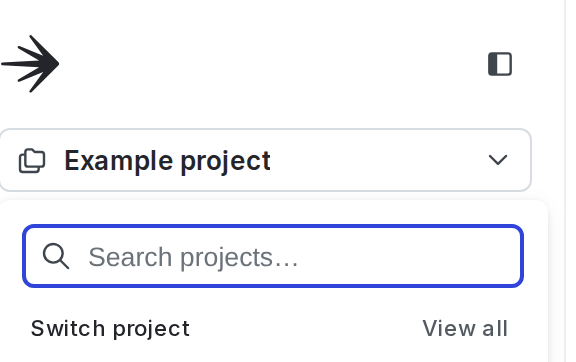
The project menu.
- Select Project settings.
- Select Environments. The Environments list appears.
- Click the overflow menu for the environment you want to copy the key for.
- Click SDK key, Mobile key, or Client-side ID to copy the key to your clipboard. The key is copied to your clipboard.
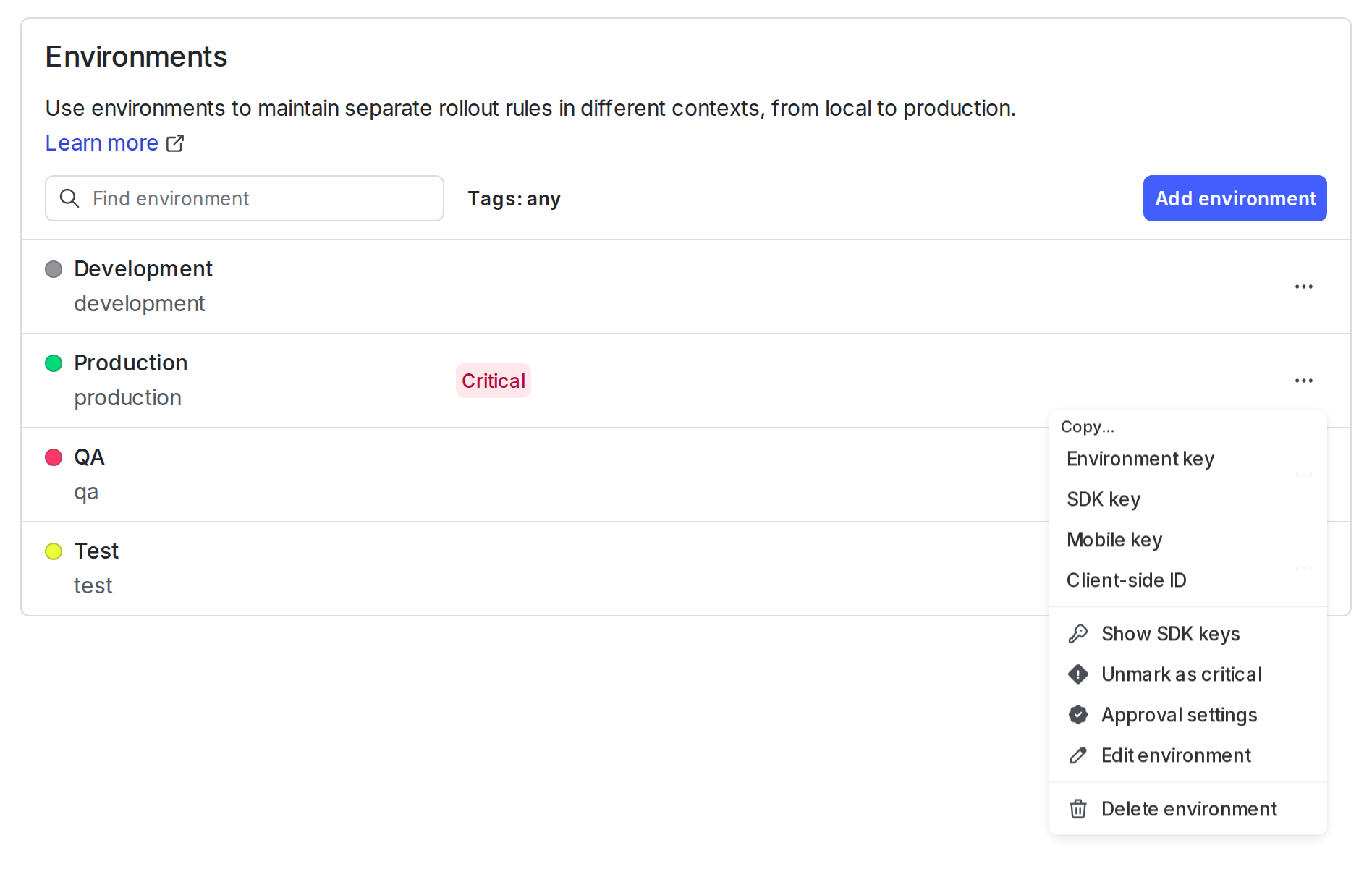
A list of environments within a project, with the overflow menu visible.
Using the Launch
Darkly REST APIAs a LaunchDarkly customer, you’re never required to use the REST API or its associated client libraries. If you want to, you can perform all of the functions available in the REST API through the LaunchDarkly user interface (UI). However, you may find it convenient to perform your feature management programmatically, rather than through the UI. For example, with the LaunchDarkly REST API you can perform the following:- Create, update, and search for account members, teams, projects, environments, and feature flags
- Toggle feature flags
- Query data about contexts that have evaluated feature flags in your application
- Build custom integrations
- Export raw data to destinations outside of LaunchDarklyTo get started, read The LaunchDarkly API.
We do not recommend using the REST API to evaluate feature flags in your application’s code. For that, use the LaunchDarkly SDKs. The SDKs include features like caching of flag values and streaming of updates that you won’t receive automatically when using the REST API to evaluate flag values. To learn more, read Getting started with SDKs and Comparing LaunchDarkly’s SDKs and REST API.
Access and documentation for the Launch
Darkly REST APITo use the REST API, you need an API access token. You can generate access tokens in the Organization settings, from the Authorization page. Depending on your use case, you may prefer a personal access token or a service token. To authenticate to the LaunchDarkly API, add anAuthorization header with your access token to your requests. To learn more, read API access tokens.
The LaunchDarkly REST API is updated frequently, to support the latest features in the LaunchDarkly product. If breaking changes to the API are required, we release a new version. To set the API version for each request, add an LD-API-Version header to the request. To learn more, read Versioning.
To get started using the LaunchDarkly API, read the tutorial Using the LaunchDarkly REST API. To learn more, read the API documentation.
Client libraries
Periodically, we auto-generate client libraries in several common languages based on the OpenAPI specification of our REST API. The client libraries allow you to make calls to the LaunchDarkly REST API endpoints directly from the language you’re already working in. To learn more, read OpenAPI and client libraries. To access the client libraries directly, visit the collection of client libraries on GitHub.Using other Launch
Darkly public APIsOutside of the official LaunchDarkly REST API, we occasionally provide supplemental API endpoints. These API endpoints:- are still in beta
- are not yet incorporated into our REST API framework or client libraries, although they may be in the future
- correspond to features that are not yet available through the LaunchDarkly user interface (UI)To learn more about the currently available supplemental public APIs, read:
- Importing metric events