

Part 4: Monitoring and verifying data
LaunchDarkly provides monitoring for AI Configs. Next, ensure your data flows correctly. To learn more about monitoring capabilities, read Monitor AI Configs.Step 4.1: Understanding AI metrics
LaunchDarkly AI SDKs provide comprehensive metrics tracking to help you monitor and optimize your AI model performance. The SDK includes both individualtrack* methods and provider-specific convenience methods for recording metrics.
Available metrics include:
- Duration: Time taken for AI model generation, including network latency
- Token Usage: Input, output, and total tokens consumed (critical for cost management)
- Generation Success: Successful completion of AI generation
- Generation Error: Failed generations with error tracking
- Time to First Token: Latency until the first response token (important for streaming)
- Output Satisfaction: User feedback (positive/negative ratings)
Tracking Methods
The AI SDKs provide two approaches to recording metrics:- Provider-Specific Methods: Convenience methods like
track_openai_metrics()ortrack_duration_of()that automatically record duration, token usage, and success/error in one call - Individual Track Methods: Granular methods like
track_duration(),track_tokens(),track_success(),track_error(), andtrack_feedback()for manual metric recording
tracker object is returned from your completion_config() call and is specific to that AI Config variation. Always call config() again each time you generate content to ensure metrics are correctly associated with the right variation.
For delayed feedback, such as user ratings that arrive after generation, use tracker.get_track_data() to persist the tracking metadata. Then, send feedback events later using ldclient.track() with the original context and metadata.
To learn more about tracking AI metrics, read Tracking AI metrics.
Step 4.2: Add comprehensive tracking
Create a file calledsimple_chatbot_with_targeting_and_tracking.py:
Click to expand the complete `simple_chatbot_with_targeting_and_tracking.py` code
Click to expand the complete `simple_chatbot_with_targeting_and_tracking.py` code
"""
Simple AI Chatbot with LaunchDarkly AI Config
Complete LaunchDarkly integration with targeting and metrics
Tracks token usage, response times, and success rates
"""
import os
import logging
import time
from typing import Dict, List, Any, Tuple, Optional
from abc import ABC, abstractmethod
import dotenv
# LaunchDarkly imports
import ldclient
from ldclient import Context
from ldclient.config import Config
from ldai.client import LDAIClient
from ldai.models import AICompletionConfig, ModelConfig, LDMessage, ProviderConfig
# AI Provider imports
import anthropic
import openai
import google.genai as genai
# Set up logging
logging.basicConfig(
level=logging.INFO,
format='%(asctime)s - %(levelname)s - %(message)s'
)
logger = logging.getLogger(__name__)
# Suppress HTTP request logs from libraries
logging.getLogger("httpx").setLevel(logging.WARNING)
logging.getLogger("httpcore").setLevel(logging.WARNING)
logging.getLogger("openai").setLevel(logging.WARNING)
logging.getLogger("anthropic").setLevel(logging.WARNING)
# Load environment variables
dotenv.load_dotenv()
class LaunchDarklyAIClient:
"""Manages LaunchDarkly AI configuration"""
def __init__(self, sdk_key: str, agent_config_key: str):
"""Initialize LaunchDarkly client"""
self.sdk_key = sdk_key
self.agent_config_key = agent_config_key
self.ld_client = None
self.ai_client = None
# Only initialize if we have a valid SDK key
if sdk_key and sdk_key != "your-launchdarkly-sdk-key" and not sdk_key.startswith("your-"):
try:
ldclient.set_config(Config(sdk_key))
self.ld_client = ldclient.get()
self.ai_client = LDAIClient(self.ld_client)
# Check if client initialized successfully
if not self.ld_client.is_initialized():
logger.info("LaunchDarkly client not initialized, will use fallback configuration")
self.ld_client = None
self.ai_client = None
except Exception as e:
logger.info(f"LaunchDarkly initialization skipped: {e}")
self.ld_client = None
self.ai_client = None
else:
logger.info("No valid LaunchDarkly SDK key provided, using fallback configuration")
def get_ai_config(self, user_context: Context, variables: Dict[str, Any] = None) -> AICompletionConfig:
"""Get AI configuration for a specific user context"""
fallback_config = self._get_fallback_config()
if not self.ai_client:
return fallback_config
config = self.ai_client.completion_config(
self.agent_config_key,
user_context,
fallback_config,
variables or {}
)
return config
def _get_fallback_config(self) -> AICompletionConfig:
"""Fallback configuration when LaunchDarkly is unavailable"""
# Detect which provider is available
provider_name = "anthropic" # default
model_name = "claude-3-haiku-20240307"
if os.getenv("ANTHROPIC_API_KEY"):
provider_name = "anthropic"
model_name = "claude-3.5-haiku-20241022"
elif os.getenv("OPENAI_API_KEY"):
provider_name = "openai"
model_name = "chatgpt-4o-latest"
elif os.getenv("GEMINI_API_KEY"):
provider_name = "google"
model_name = "gemini-2.5-flash-lite"
else:
logger.warning("No AI provider API keys found for fallback configuration")
return AICompletionConfig(
key=self.agent_config_key,
enabled=True,
model=ModelConfig(
name=model_name,
parameters={"temperature": 0.7, "max_tokens": 500}
),
messages=[LDMessage(
role="system",
content="You are a helpful AI assistant. Provide clear, concise, and friendly responses."
)],
provider=ProviderConfig(name=provider_name)
)
class BaseAIProvider(ABC):
"""Base class for AI providers"""
def __init__(self, api_key: Optional[str] = None):
self.api_key = api_key
self.client = self._initialize_client() if api_key else None
@abstractmethod
def _initialize_client(self):
"""Initialize the provider's client"""
pass
@abstractmethod
def send_message(self, model: str, messages: List[Dict], system_prompt: str, params: Dict, tracker=None) -> str:
"""Send message to the AI provider"""
pass
def format_messages(self, messages: List[Dict], system_prompt: str) -> List[Dict]:
"""Default message formatting (can be overridden by providers)"""
formatted = [{"role": "system", "content": system_prompt}] if system_prompt else []
formatted.extend([{"role": msg["role"], "content": msg["content"]} for msg in messages])
return formatted
def extract_params(self, params: Dict) -> Dict:
"""Extract common parameters"""
return {
"temperature": params.get("temperature", 0.7),
"max_tokens": params.get("max_tokens", 500)
}
class AnthropicProvider(BaseAIProvider):
"""Anthropic Claude provider"""
def _initialize_client(self):
return anthropic.Anthropic(api_key=self.api_key)
def send_message(self, model: str, messages: List[Dict], system_prompt: str, params: Dict, tracker=None) -> str:
if not self.client:
raise ValueError("Anthropic API key not configured")
extracted_params = self.extract_params(params)
if tracker:
# Track API call duration and response metrics
response = tracker.track_duration_of(
lambda: self.client.messages.create(
model=model,
max_tokens=extracted_params["max_tokens"],
temperature=extracted_params["temperature"],
system=system_prompt,
messages=messages
)
)
# Track token usage if available
if hasattr(response, 'usage'):
from ldai.tracker import TokenUsage
token_usage = TokenUsage(
input=response.usage.input_tokens,
output=response.usage.output_tokens,
total=response.usage.input_tokens + response.usage.output_tokens
)
tracker.track_tokens(token_usage)
tracker.track_success()
else:
response = self.client.messages.create(
model=model,
max_tokens=extracted_params["max_tokens"],
temperature=extracted_params["temperature"],
system=system_prompt,
messages=messages
)
return response.content[0].text
class OpenAIProvider(BaseAIProvider):
"""OpenAI GPT provider"""
def _initialize_client(self):
return openai.OpenAI(api_key=self.api_key)
def send_message(self, model: str, messages: List[Dict], system_prompt: str, params: Dict, tracker=None) -> str:
if not self.client:
raise ValueError("OpenAI API key not configured")
formatted_messages = self.format_messages(messages, system_prompt)
extracted_params = self.extract_params(params)
if tracker:
# Use built-in OpenAI metrics tracking
response = tracker.track_openai_metrics(
lambda: self.client.chat.completions.create(
model=model,
messages=formatted_messages,
**extracted_params
)
)
else:
response = self.client.chat.completions.create(
model=model,
messages=formatted_messages,
**extracted_params
)
return response.choices[0].message.content
class GoogleProvider(BaseAIProvider):
"""Google Gemini provider"""
def _initialize_client(self):
# New SDK uses client instantiation with API key
# The environment variable GEMINI_API_KEY is automatically picked up
if self.api_key:
import os
os.environ['GEMINI_API_KEY'] = self.api_key
return genai.Client()
def send_message(self, model: str, messages: List[Dict], system_prompt: str, params: Dict, tracker=None) -> str:
if not self.client:
raise ValueError("Google API key not configured")
extracted_params = self.extract_params(params)
# Format conversation with system prompt
contents = []
# Add system prompt as context
if system_prompt:
contents.append(f"{system_prompt}\n")
# Add conversation history
for msg in messages:
role = "User" if msg["role"] == "user" else "Assistant"
contents.append(f"{role}: {msg['content']}")
full_prompt = "\n".join(contents)
# Manual metrics tracking for Google Gemini
start_time = time.time()
# Use the new client API
response = self.client.models.generate_content(
model=model,
contents=full_prompt,
config={
"temperature": extracted_params["temperature"],
"max_output_tokens": extracted_params["max_tokens"],
}
)
duration = time.time() - start_time
if tracker:
# Track duration and success
tracker.track_duration(duration)
tracker.track_success()
return response.text
class AIProviderRegistry:
"""Registry for AI providers with automatic initialization"""
def __init__(self):
self.providers = {
"anthropic": AnthropicProvider(os.getenv("ANTHROPIC_API_KEY")),
"openai": OpenAIProvider(os.getenv("OPENAI_API_KEY")),
"google": GoogleProvider(os.getenv("GEMINI_API_KEY"))
}
def send_message(self, provider: str, model_id: str, messages: List[Dict],
system_prompt: str, parameters: Dict, tracker=None) -> str:
"""Route message to appropriate provider"""
provider_name = provider.lower()
if provider_name not in self.providers:
raise ValueError(f"Unsupported provider: {provider}")
provider_instance = self.providers[provider_name]
return provider_instance.send_message(model_id, messages, system_prompt, parameters, tracker)
def get_available_providers(self) -> List[str]:
"""Get list of configured providers"""
return [name for name, provider in self.providers.items() if provider.api_key]
def create_user_context(user_id: str, attributes: Dict[str, Any] = None) -> Context:
"""Create a LaunchDarkly context for a user"""
builder = Context.builder(user_id)
if attributes:
for key, value in attributes.items():
builder.set(key, value)
return builder.build()
def run_chatbot():
"""Main chatbot loop with full tracking"""
print("=" * 70)
print(" Simple AI Chatbot with LaunchDarkly AI Config")
print("=" * 70)
print("\nSupporting: Anthropic Claude, OpenAI GPT, Google Gemini")
print("Type 'exit' or 'quit' to end the conversation\n")
# Initialize clients
try:
ld_ai_client = LaunchDarklyAIClient(
sdk_key=os.getenv("LD_SDK_KEY", ""),
agent_config_key=os.getenv("LAUNCHDARKLY_AGENT_CONFIG_KEY", "default-config")
)
ai_registry = AIProviderRegistry()
available = ai_registry.get_available_providers()
logger.info(f"✓ Clients initialized. Available providers: {', '.join(available)}")
except Exception as e:
logger.error(f"Failed to initialize clients: {e}")
return
# Create user context
user_context = create_user_context(
user_id="demo-user-001",
attributes={"name": "Demo User", "environment": "development"}
)
# Get initial config to show provider/model
config = ld_ai_client.get_ai_config(user_context)
logger.info(f"✓ Using {config.provider.name} with model {config.model.name}")
conversation_history = []
# Main chat loop
while True:
try:
user_input = input("You: ").strip()
if user_input.lower() in ['exit', 'quit', 'q']:
print("\nGoodbye! Thanks for chatting.")
break
if not user_input:
continue
# Fetch fresh config from LaunchDarkly for each message
config = ld_ai_client.get_ai_config(user_context)
# Extract configuration
provider = config.provider.name
model_id = config.model.name
system_prompt = config.messages[0].content if config.messages else "You are a helpful assistant."
tracker = config.tracker if hasattr(config, 'tracker') else None
# Get model parameters
model_params = config.model.parameters if hasattr(config.model, 'parameters') and config.model.parameters else {}
parameters = {
"temperature": model_params.get("temperature", 0.7),
"max_tokens": model_params.get("max_tokens", 500)
}
# Add user message to history
conversation_history.append({"role": "user", "content": user_input})
# Send to AI provider
print("\nAssistant: ", end="", flush=True)
response = ai_registry.send_message(
provider=provider,
model_id=model_id,
messages=conversation_history,
system_prompt=system_prompt,
parameters=parameters,
tracker=tracker
)
print(response)
# Add assistant response to history
conversation_history.append({"role": "assistant", "content": response})
except KeyboardInterrupt:
print("\n\nInterrupted. Goodbye!")
break
except Exception as e:
logger.error(f"Error in chat loop: {e}")
print(f"\nError: {e}")
# Provide helpful guidance for common errors
if "API key not valid" in str(e) and "googleapis.com" in str(e):
print("\n💡 Tip: For Google Gemini, you need an API key from Google AI Studio:")
print(" 1. Go to https://aistudio.google.com/app/apikey")
print(" 2. Click 'Get API Key' and create a new key")
print(" 3. Add it to your .env file as GEMINI_API_KEY=your-key-here")
elif "API key" in str(e).lower():
print("\n💡 Tip: Check that your API key is correct and has the necessary permissions.")
def run_chatbot_with_persona(persona: str = "business"):
"""
Run chatbot with a specific persona context
Args:
persona: The persona to use (business, creative, or default)
"""
print("=" * 70)
print(f" AI Chatbot - Persona: {persona.upper()}")
print("=" * 70)
print("\nType 'exit' to quit, 'switch' to change persona\n")
# Initialize clients
try:
ld_ai_client = LaunchDarklyAIClient(
sdk_key=os.getenv("LD_SDK_KEY", ""),
agent_config_key=os.getenv("LAUNCHDARKLY_AGENT_CONFIG_KEY", "default-config")
)
ai_registry = AIProviderRegistry()
available = ai_registry.get_available_providers()
logger.info(f"✓ Clients initialized. Available providers: {', '.join(available)}")
except Exception as e:
logger.error(f"Failed to initialize clients: {e}")
return False
# Create user context with persona attribute
user_context = create_user_context(
user_id=f"{persona}-user-001",
attributes={
"persona": persona,
"name": f"{persona.title()} User"
}
)
# Conversation loop
conversation_history = []
while True:
try:
user_input = input("You: ").strip()
if user_input.lower() in ['exit', 'quit']:
print("\n👋 Goodbye!\n")
break
if user_input.lower() == 'switch':
print("\n🔄 Switching persona...\n")
return True
if not user_input:
continue
# Fetch fresh config from LaunchDarkly for each message
config = ld_ai_client.get_ai_config(user_context)
# Extract configuration
provider = config.provider.name
model_id = config.model.name
system_prompt = config.messages[0].content if config.messages else "You are a helpful assistant."
tracker = config.tracker if hasattr(config, 'tracker') else None
# Get model parameters
model_params = config.model.parameters if hasattr(config.model, 'parameters') and config.model.parameters else {}
parameters = {
"temperature": model_params.get("temperature", 0.7),
"max_tokens": model_params.get("max_tokens", 500)
}
# Add user message to history
conversation_history.append({"role": "user", "content": user_input})
# Send to AI provider
print("\nAssistant: ", end="", flush=True)
response = ai_registry.send_message(
provider=provider,
model_id=model_id,
messages=conversation_history,
system_prompt=system_prompt,
parameters=parameters,
tracker=tracker
)
print(response + "\n")
# Add assistant response to history
conversation_history.append({"role": "assistant", "content": response})
except KeyboardInterrupt:
print("\n\n👋 Goodbye!\n")
break
except Exception as e:
logger.error(f"Error in chat loop: {e}")
print(f"\n❌ Error: {e}\n")
return False
def main_with_personas():
"""Main entry point with persona selection"""
print("\n" + "=" * 70)
print(" LaunchDarkly AI Config - Persona Demo")
print("=" * 70)
personas = {
"1": "business",
"2": "creative",
"3": None # Default
}
while True:
print("\nSelect a persona:")
print(" 1. Business (professional and concise)")
print(" 2. Creative (imaginative and engaging)")
print(" 3. Default (friendly and helpful)")
print(" q. Quit")
choice = input("\nYour choice (1-3, q): ").strip()
if choice.lower() == 'q':
print("\n👋 Goodbye!\n")
break
if choice not in personas:
print("❌ Invalid choice. Please select 1-3 or q.")
continue
persona = personas[choice]
# Run with selected persona or default
if persona:
should_switch = run_chatbot_with_persona(persona)
if not should_switch:
break
# If should_switch is True, loop continues to persona selection
else:
run_chatbot() # Run default chatbot (no persona context)
break # Default mode exits after session ends
if __name__ == "__main__":
import sys
# Check for LaunchDarkly configuration (optional - will use fallback if not provided)
sdk_key = os.getenv("LD_SDK_KEY")
config_key = os.getenv("LAUNCHDARKLY_AGENT_CONFIG_KEY", "default-config")
if not sdk_key or sdk_key == "your-launchdarkly-sdk-key":
logger.info("No LaunchDarkly SDK key found - using fallback configuration")
logger.info("To use LaunchDarkly features, add LD_SDK_KEY to your .env file")
# Check for at least one AI provider key
provider_keys = ["ANTHROPIC_API_KEY", "OPENAI_API_KEY", "GEMINI_API_KEY"]
if not any(os.getenv(key) for key in provider_keys):
logger.error("No AI provider API keys found. Please add at least one:")
for key in provider_keys:
logger.error(f" - {key}")
exit(1)
# Check if persona mode is requested
if len(sys.argv) > 1 and sys.argv[1] == "--personas":
main_with_personas()
else:
# Default behavior - run original chatbot
run_chatbot()
Step 4.3: Testing complete monitoring flow
To test the monitoring flow: python simple_chatbot_with_targeting_and_tracking.py
Step 4.4: Verify data in Launch
Darkly After running the monitored chatbot:- Navigate to AI Configs.
- Select
simple-chatbot-config. - View the Monitoring tab.
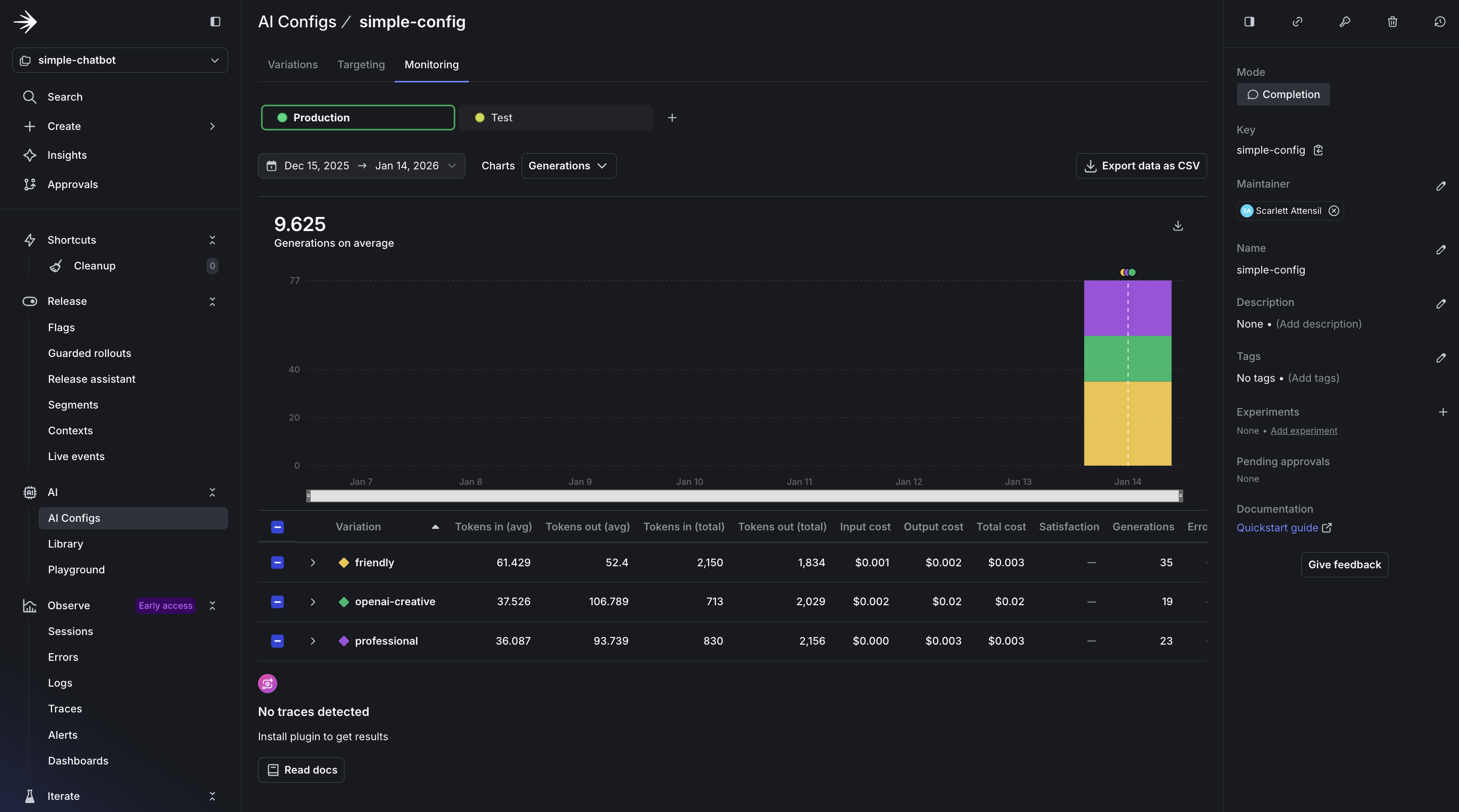
AI Config monitoring dashboard overview
- Usage Overview: Displays the total number of requests served by your AI Config, broken down by variation. This helps you understand which configurations are used most frequently.
- Performance Metrics: Shows response times and success rates for each interaction. A healthy AI Config should maintain high success rates (typically 95%+) and consistent response times.
- Cost Analysis: Tracks token usage across different models and providers, helping you optimize spending. Token tracking is essential for cost management and performance optimization. You can see both input and output token counts, which directly correlate to your AI provider costs.
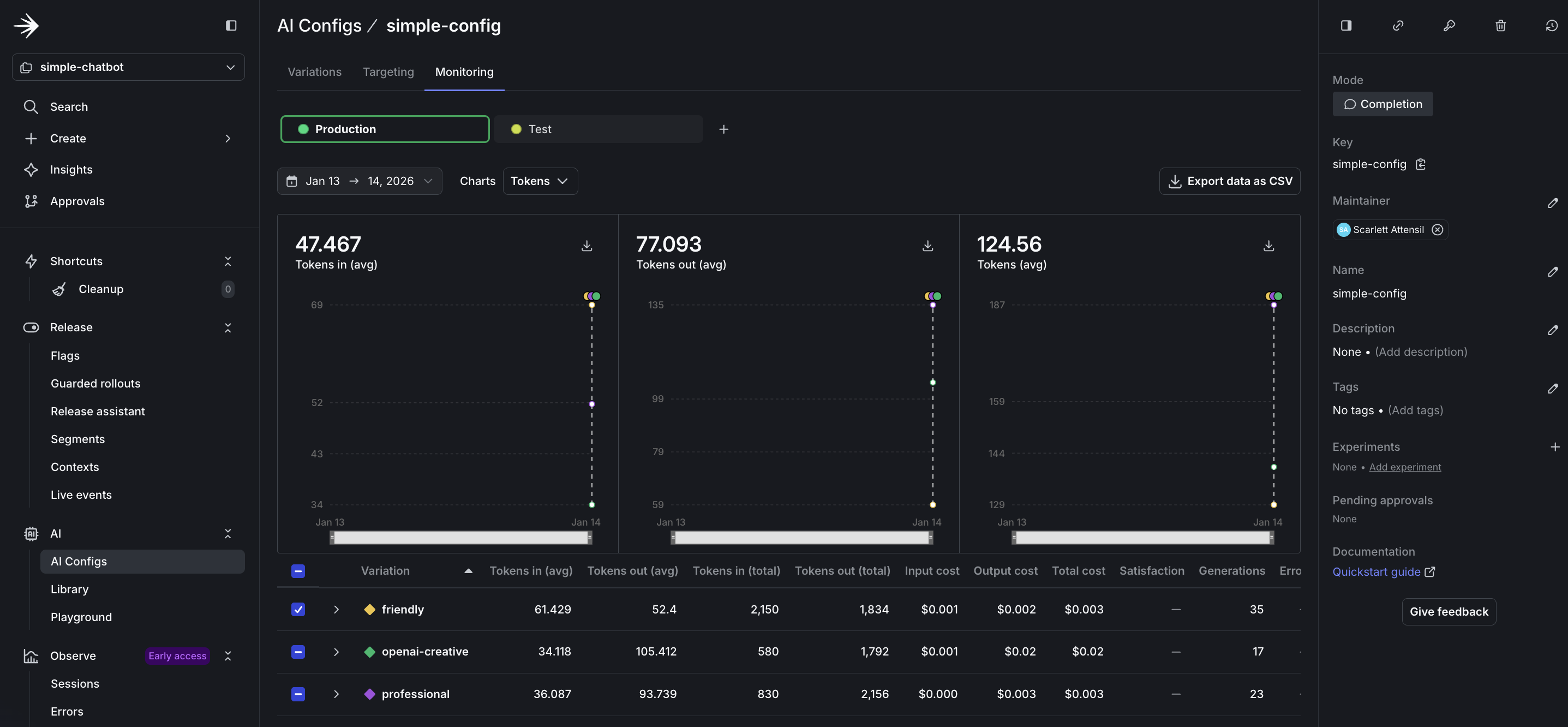
Detailed token usage and cost tracking metrics
- Input Tokens: The number of tokens sent to the model, including prompt and context. Longer conversations accumulate more input tokens as history grows.
- Output Tokens: The number of tokens generated by the model in responses. This varies based on your
max_tokensparameter and the model’s verbosity. - Total Token Usage: Combined input and output tokens, which determines your provider billing. Monitor this to predict costs and identify optimization opportunities.
- Tokens by Variation: Compare token usage across different variations to identify which configurations are most efficient for your use case.