

Version 4 of the Flutter SDK is implemented in Flutter and supports development on all Flutter platforms. To learn more about upgrading, read Flutter SDK 3.x to 4.0 migration guide.
Version 3 of the Flutter SDK introduces optional automatic collection of environment attributes. To learn more about upgrading, read Flutter SDK 2.x to 3.0 migration guide.
Overview
This topic documents how to get started with the Flutter SDK, and links to reference information on all of the supported features.LaunchDarkly’s SDKs are open source. In addition to this reference guide, we provide source, API reference documentation, and a sample application:
The LaunchDarkly Flutter SDK version 4 is compatible with Android SDK versions 19 and higher and with iOS version 12 and higher. It also supports all other Flutter platforms.The LaunchDarkly Flutter SDK version 3 is compatible with Android SDK versions 21 and higher and with iOS version 11 and higher. Version 3 does not support other Flutter platforms.
Get started
After you complete the Get started process, follow these instructions to start using the LaunchDarkly SDK in your Flutter application.Install the SDK
First, declare a dependency on the LaunchDarkly Flutter SDK:The Flutter SDK version 4 uses either a mobile key or a client-side ID, depending on the platform that you build for.If you are building for Windows, Mac, Linux, Android, or iOS, you must use a mobile key. If you are building for a web browser, you must use a client-side ID.Your environment’s mobile key and client-side ID are specific to each project and environment. They are both available from the Environments list for each project. To learn more about key types, read Keys.The Flutter SDK version 3 and earlier requires a mobile key, as it only works on mobile platforms.
LAUNCHDARKLY_MOBILE_KEY and LAUNCHDARKLY_CLIENT_SIDE_ID environment variables, and then use the CredentialSource helper to select your credential and provide it to your configuration. CredentialSource expects one of the two environment variables to be set, but not both. You can set them in your IDE, like this:
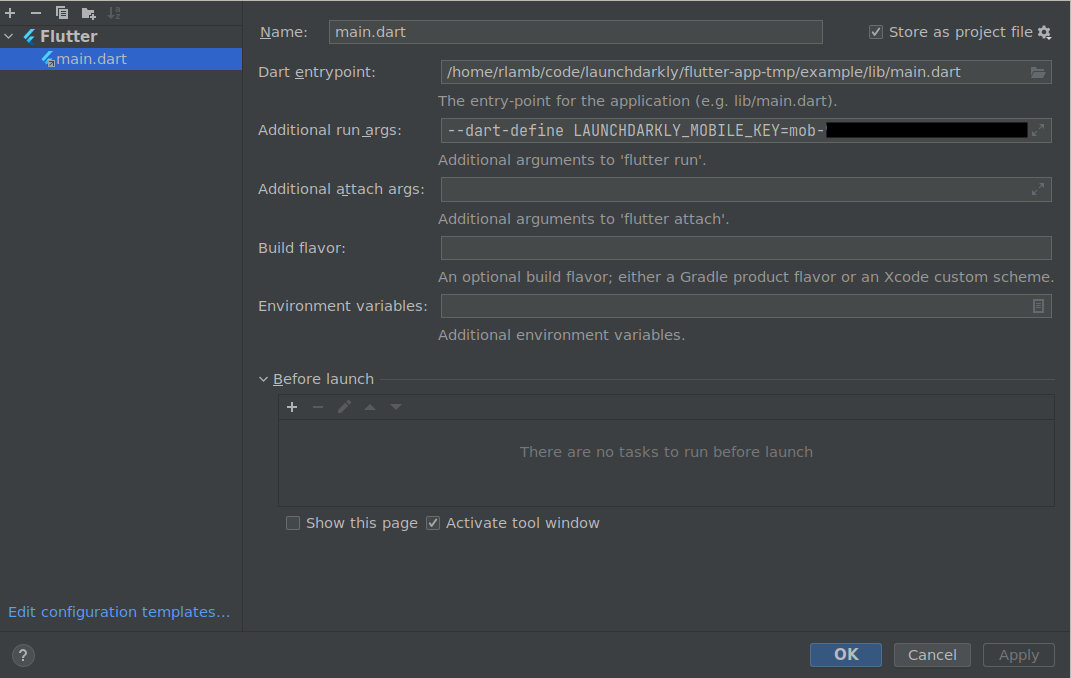
Setting the "LAUNCHDARKLY_MOBILE_KEY" credential in your IDE.
CredentialSource helper when creating your configuration object:
Initialize the client
After you install the SDK, create a client instance. You need your environment’s credential, either a mobile key or client-side ID, and the context for which you want to evaluate flags. This authorizes your application to connect to a particular environment within LaunchDarkly. The following example shows the simplest way to create a client:start function can take an indeterminate amount of time to complete. For example, if the SDK is started while a device is in airplane mode, then start may not complete until the device leaves airplane mode. However, if the SDK has been started before, with the same context, then it may have cached values and start will return once those cached values are loaded. Because of these possibilities, we recommend that you use a timeout when waiting for initialization.
Here’s how:
startFuture function that blocked until the SDK received the most recent feature flag values.
Expand example of startFuture function
Expand example of startFuture function
In the Flutter SDK version 3 and earlier, to block until the SDK receives the most recent feature flag values, you can use the If you have configured the SDK not to make network requests, or if the device does not have a network connection,
startFuture method with await and an optional timeLimit:startFuture returns a Future that will complete immediately to avoid blocking the application indefinitely.LDConfig.
Evaluate a flag
You can use the client to check which variation a particular context will receive for a feature flag. Here’s how:Background fetch
If you are using the Flutter SDK version 4 on desktop or on the web, by default your application will continue to get updates. For example, if the end user minimizes your Windows app or moves to a different tab in their web browser, the SDK will continue to fetch flags in the background. You can change this behavior in your client configuration. If you are using the Flutter SDK version 4 in a power-constrained situation, such as in a mobile application on iOS or Android, the SDK will not receive real-time events when backgrounded.In the Flutter SDK version 3, the SDK did receive real-time events through background fetch on Android platforms, but not on iOS platforms. In version 4 of the SDK, this behavior has been standardized. Mobile applications do not receive real-time events when backgrounded.
Shut down the client
Shut down the client when your application terminates. To learn more, read Shutting down.Data collection
To learn more about data collection within this SDK and implications on submissions to the Apple App Store, read the Apple App Store data collection policy.Supported features
This SDK supports the following features:- Anonymous contexts and users
- Automatic environment attributes
- Configuration, including
- Context configuration
- Evaluating flags
- Flag evaluation reasons
- Flushing events
- Getting all flags
- Identifying and changing contexts
- Logging configuration
- Monitoring SDK status
- Offline mode
- Private attributes
- Relay Proxy configuration, using proxy mode
- Sending custom events
- Shutting down
- Subscribing to flag changes