

The Sentry integration is only available to customers on select plans. To learn more, read about our pricing. To upgrade your plan, contact Sales.
Overview
This topic explains how to use the LaunchDarkly Sentry integration. Sentry is an application performance monitoring and error tracking tool. You can connect Sentry error events to LaunchDarkly to use with LaunchDarkly metrics.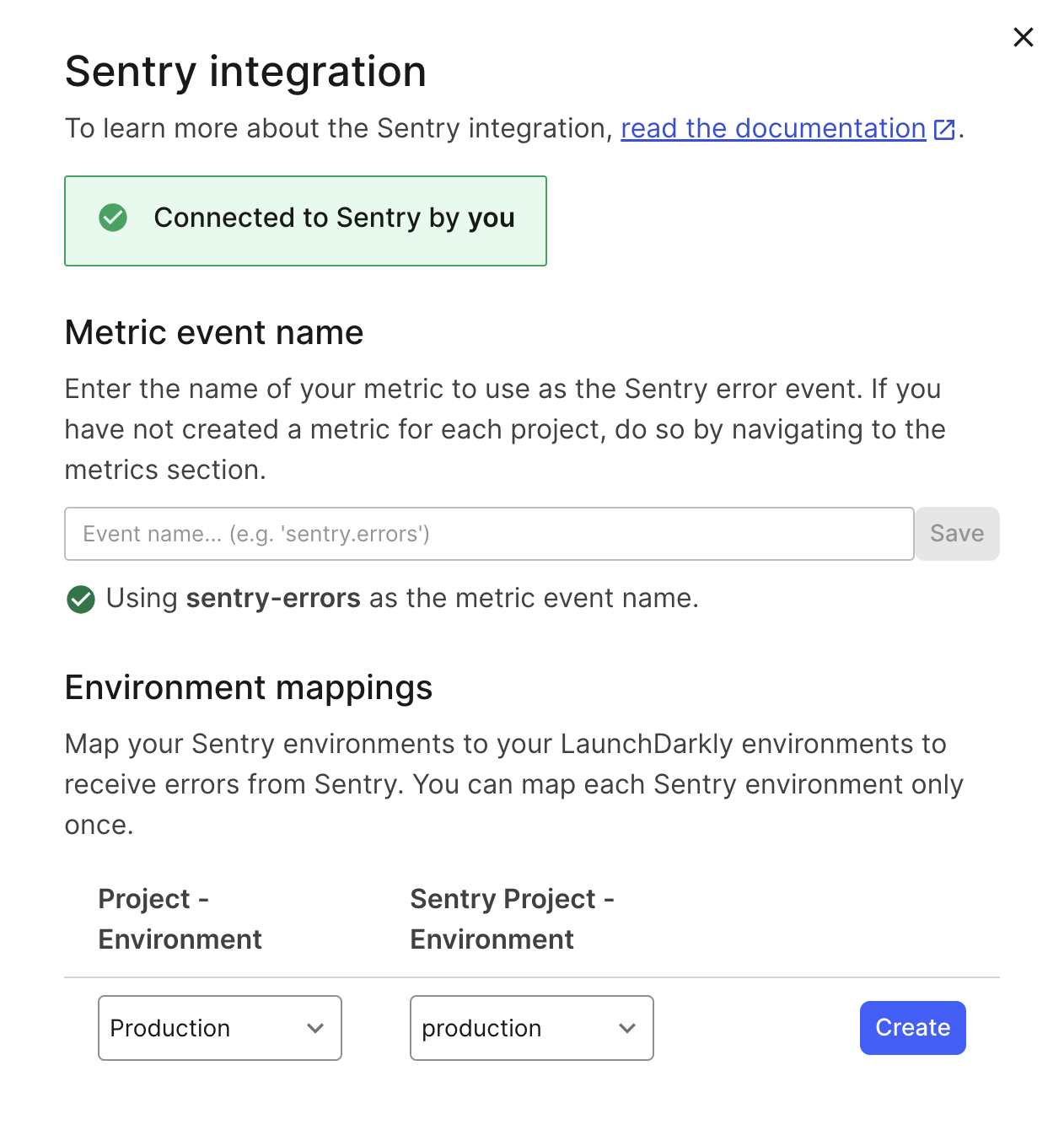
An installed Sentry integration.
- Install Sentry
- Configure the integration
- Create a LaunchDarkly metric
- Attach LaunchDarkly contexts to Sentry error events
Install Sentry
To install the Sentry integration:- Log in to LaunchDarkly.
- Navigate to the public integrations directory in Sentry’s application.
- Click Install.You are redirected to the Sentry integration panel in LaunchDarkly.
Configure the integration
There are two pieces of configuration required for the Sentry integration to work:- setting the event key, and
- mapping the environments.
Set the event key
Sentry uses the event key to aggregate events. We recommend using a Metric event key ofsentry-errors or similar, but you can use any event key you like.
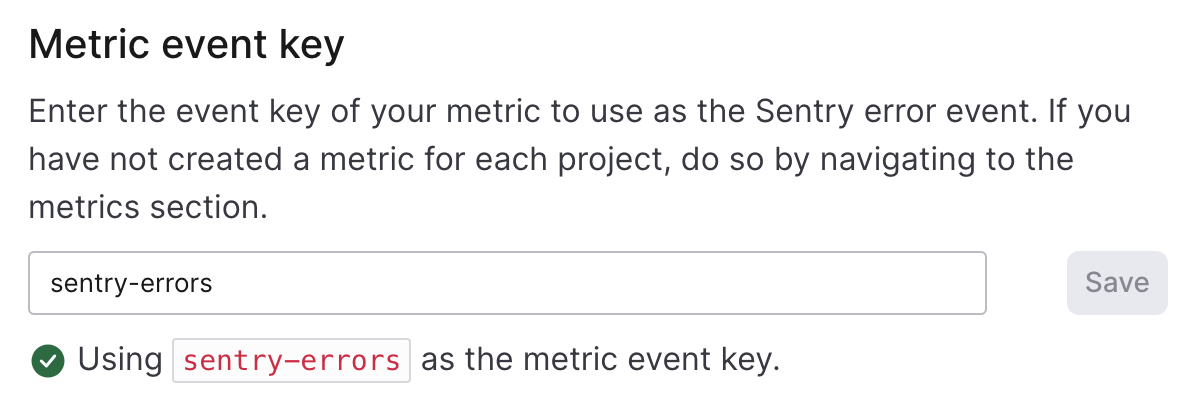
The "Metric event key" section of the integration panel.
Map environments
Events are specific to one LaunchDarkly environment. The Sentry integration requires you to map Sentry environments to LaunchDarkly environments. This lets you send Sentry errors to different LaunchDarkly environments. For example, you can send errors from your production Sentry environment to your production LaunchDarkly environment, and errors from your staging Sentry environment to your staging LaunchDarkly environment. To map Sentry environments to LaunchDarkly environments:- Navigate to the Integrations page in LaunchDarkly.
- Open the Sentry integration panel.
- In the “Environment mappings” section, choose a LaunchDarkly project and environment from the Project - Environment menu.
- Choose a Sentry project and environment from the Sentry Project - Environment menu.
- Click Create.The sets of projects and environments are now mapped to each other.
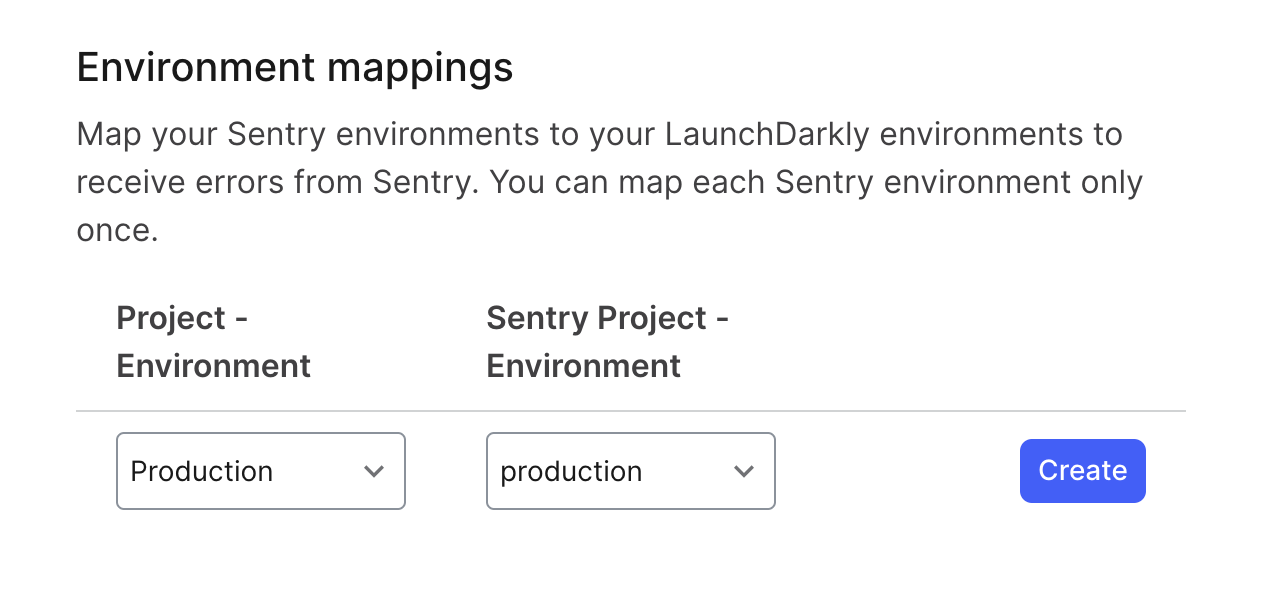
Sentry environment mappings.
Create a Launch
Darkly metricTo create a LaunchDarkly metric, follow the procedure at Custom conversion binary metrics or Custom conversion count metrics, depending on your needs. Here are two example metrics we recommend.Percentage of end users that experienced an error
To track the percentage of end users that experienced an error, create a custom conversion binary metric by selecting the following options:- Event kind: Custom
-
Event key:
sentry-errors - What do you want to measure?: OccurrenceWith the metric definition options:
- Percentage of User units that sent the event,
- where Lower is betterHere is what the metric setup looks like:
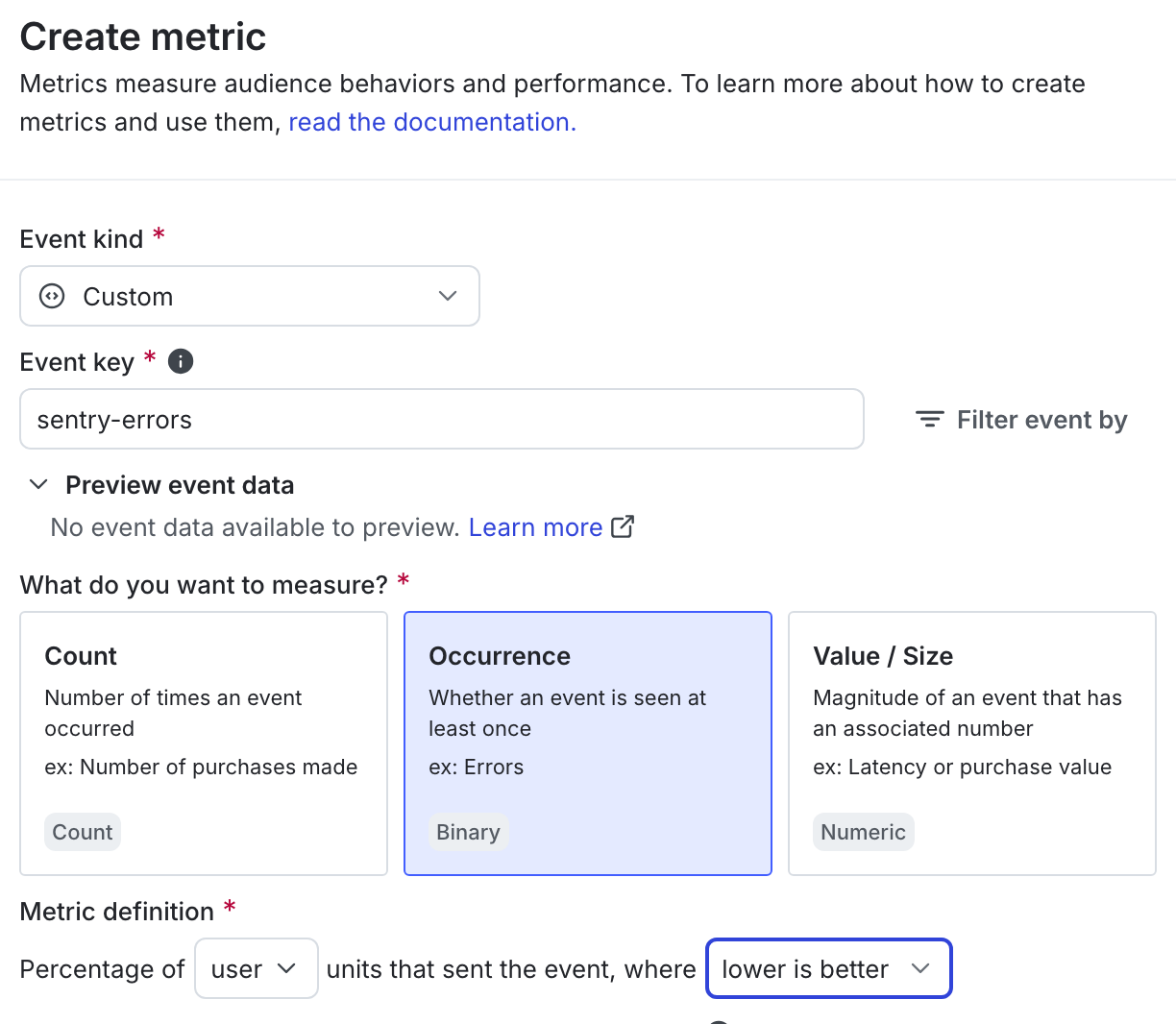
The metric creation dialog.
Average number of errors per request
To track the average number of errors per request, create a custom conversion count metric by selecting the following options:- Event kind: Custom
-
Event key:
sentry-errors - What do you want to measure?: CountWith the metric definition options:
-
Average of event
count - per Request,
- where Lower is betterHere is what the metric setup looks like:
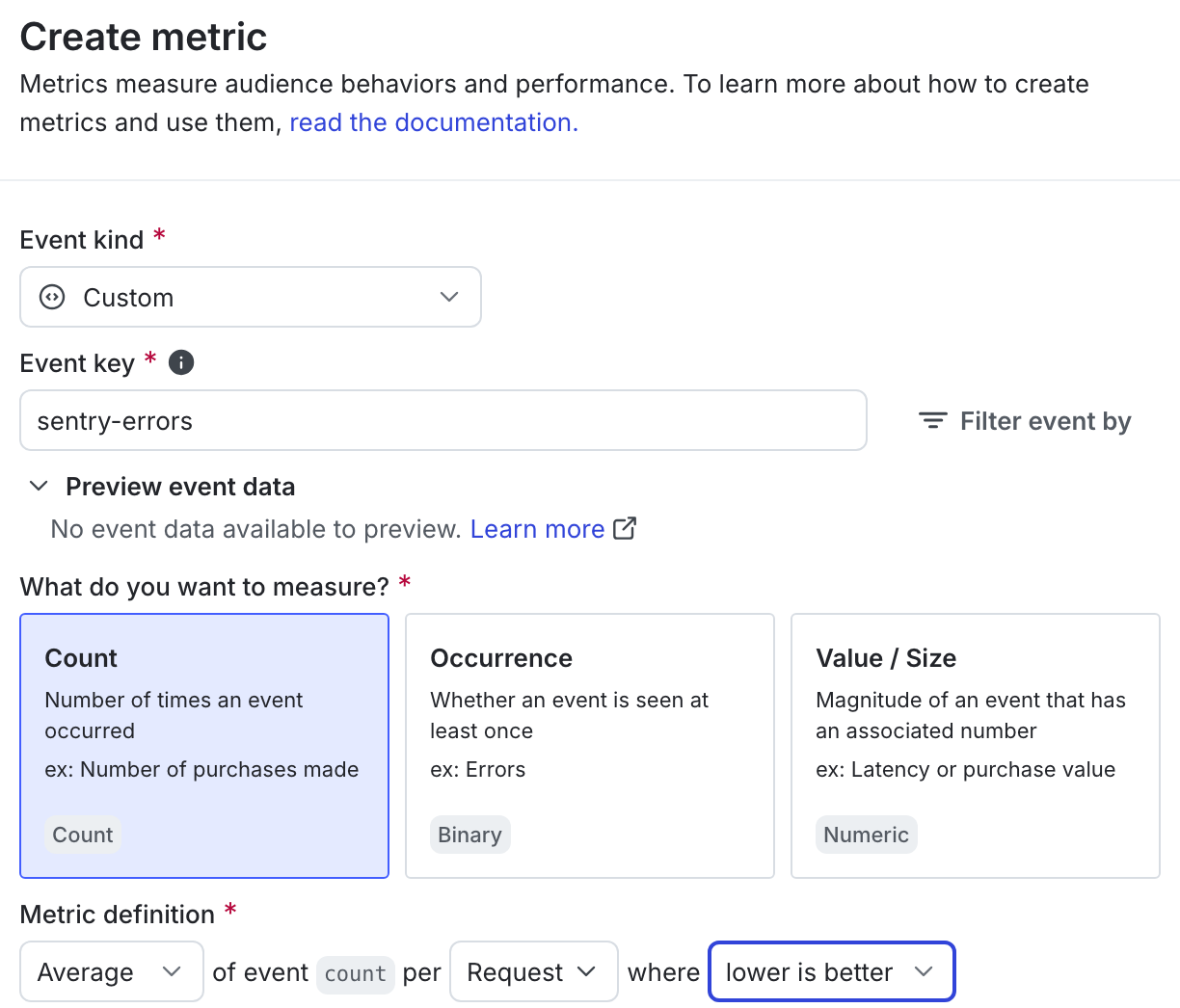
The metric creation dialog.
Attach Launch
Darkly contexts to Sentry error eventsSentry provides functionality called “custom contexts.” These are distinct from LaunchDarkly’s custom contexts. In this section, “custom contexts” refers to the Sentry functionality.
launchdarklyContext and then attach LaunchDarkly contexts to error events. To learn how, read Sentry’s Context docs.