

The Zendesk integration is only available to customers on select plans. To learn more, read about our pricing. To upgrade your plan, contact Sales.
Overview
This topic explains how to set up and use the LaunchDarkly Zendesk integration. The LaunchDarkly Zendesk app gives you a read-only view of your feature flags. You can view the flag variations LaunchDarkly serves to your customers without leaving Zendesk. This is useful for customer success and support teams working with customers to debug issues or access new features.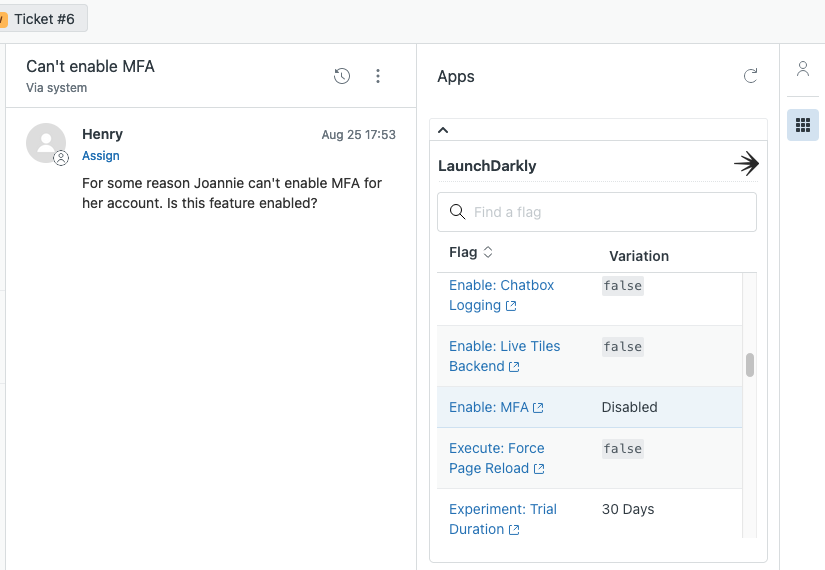
The Zendesk ticket page with the LaunchDarkly integration enabled.
Prerequisites
In order to install and configure the LaunchDarkly Zendesk integration, you must have the following prerequisites:- A LaunchDarkly Enterprise plan
- A Zendesk account with “admin” role privileges
Set up the Launch
Darkly Zendesk integrationInstall the Launch
Darkly application from Zendesk Marketplace- Navigate to the LaunchDarkly listing on the Zendesk Marketplace.
- Click Install. A popup appears.
- Select the Zendesk account you would like to install the LaunchDarkly integration to and click Install.
Configure the context key and context kind fields
You can configure Zendesk custom User Fields and custom Organization Fields to correspond to LaunchDarkly context keys and kinds.Zendesk only supports displaying variations for contexts with one context kind. To learn more about single and multi-contexts, read Contexts.
- Click the Admin gear icon.
- Under “Manage,” select User Fields:
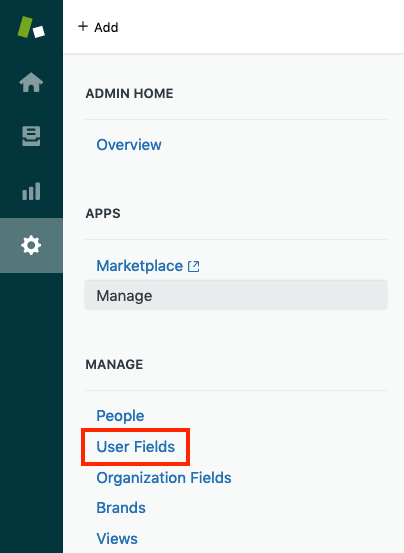
The Admin screen with the User Fields menu item out.
- Select the Text custom field type on the right and drag it to the active fields area. Alternatively, click the plus icon ( + ) beside the “Text” field type, then drag and drop the field into the order you would like it to appear in each User profile.
- Enter a “Field title” shown to agents and a “Field key” in the “Properties” panel. These can be anything you want, but they should be descriptive enough for your agents to recognize them as LaunchDarkly context keys or context kinds. For example, as a field title you might use:
- “LaunchDarkly user key”
- “user ID”
- “member ID”Save the field key for the next section.
- Click Create field. The field now shows on all Zendesk user profiles.
- Click the Admin gear icon.
- Under “Manage,” select Organization Fields.
- Select the Text custom field type on the right and drag it to the active fields area. Alternatively, click the plus icon ( + ) beside the “Text” field type, then drag and drop the field into the order you would like it to appear in each Organization profile.
- Enter a “Field title” shown to agents and a “Field key” in the “Properties” panel. These can be anything you want, but they should be descriptive enough for your agents to recognize them as LaunchDarkly context keys or context kinds. For example, as a field title you might use:
- “LaunchDarkly organization key”
- “account ID”
- “organization ID”Save the field key for the next section.
- Click Create field. The field now shows on all Zendesk organization profiles.
Configure your Launch
Darkly application- From your Zendesk account, click the Admin gear icon.
- Under “Apps,” select Manage.
- Select the LaunchDarkly application:

The LaunchDarkly application configuration page in Zendesk, configured with sample settings.
- Enter the LaunchDarkly project and environment keys that you want to view customers’ flag variations for.
- Add any optional tags you would like to use to filter the feature flags displayed.
- If you added the LaunchDarkly context key as a custom Organization field, check the box next to “LaunchDarkly user key is an Organization field.” Otherwise, leave it blank.
- Enter the field key you defined in step 4 of the previous section into the LaunchDarkly context key field.
- Select whether or not you would like to enable role or group restrictions.
- Under “OAuth Authentication,” click Authorize with LaunchDarkly. A new tab appears.
- Click Authorize. You are returned to the integration configuration page.
- Click Update to save your settings.