

Overview
This topic explains how to subscribe to notifications in Slack channels. You can receive notifications when resources are created, updated, deleted, or are ready for removal. It can be useful to let an entire channel know when a flag changes or is ready to remove. You can receive notifications when someone toggles a flag’s targeting on or off, when someone creates new resources in a certain environment, and when flags are ready for removal from your codebase.Subscribe to notifications
You can subscribe to updates for flags, metrics, projects, or environments. When someone updates a resource or when an alert is triggered, either directly in LaunchDarkly or through the Slack app, LaunchDarkly sends a notification to all channels subscribed to updates for that resource. Subscriptions must have a project, and can optionally include parameters like a specific environment, flag name, status, or tag that will filter the notifications you receive. There are two ways to create a subscription to flag notifications: the Slack modal workflow or the/launchdarkly subscribe command. Subscriptions created through the modal must specify a project and environment.
Subscribe using the modal
To subscribe using the modal:- Open the Slack channel you want notifications in.
- After you set up the Slack app, you can subscribe to notifications in any public Slack channel.
- If you want notifications in a private Slack channel, you must add the Slack app to the channel explicitly. Click the Integrations tab in the private channel. Then select Add app.
- Type
/launchdarkly subscribein your Slack client’s text bar and press Enter. The “Create subscription” dialog appears.
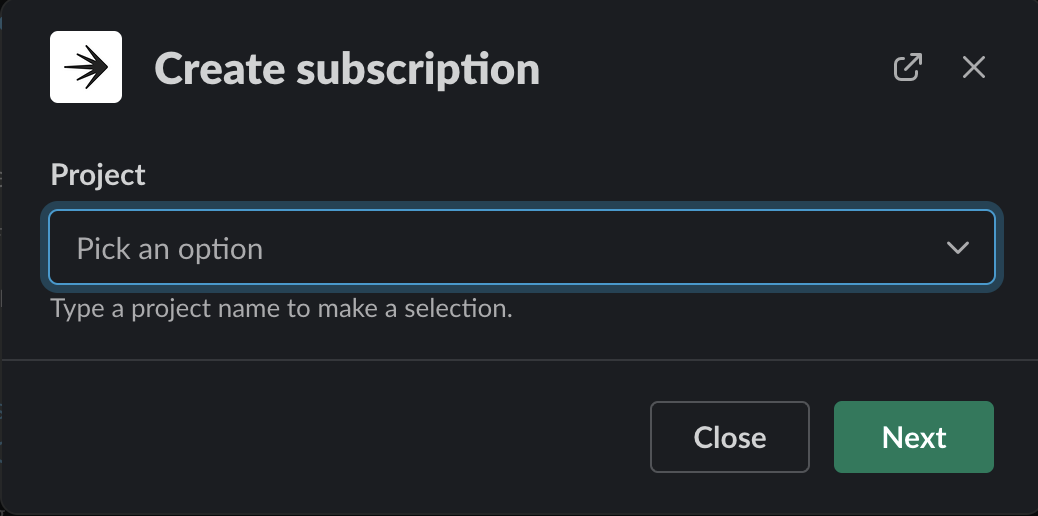
The create subscription dialog.
- Select the project and environment you’d like to receive notifications for.
- (Optional) You can further refine your subscription defining specific flag, status, action, or tag. You can use
*as a wildcard in your flag key. You’ll only receive updates for flags that match these parameters.
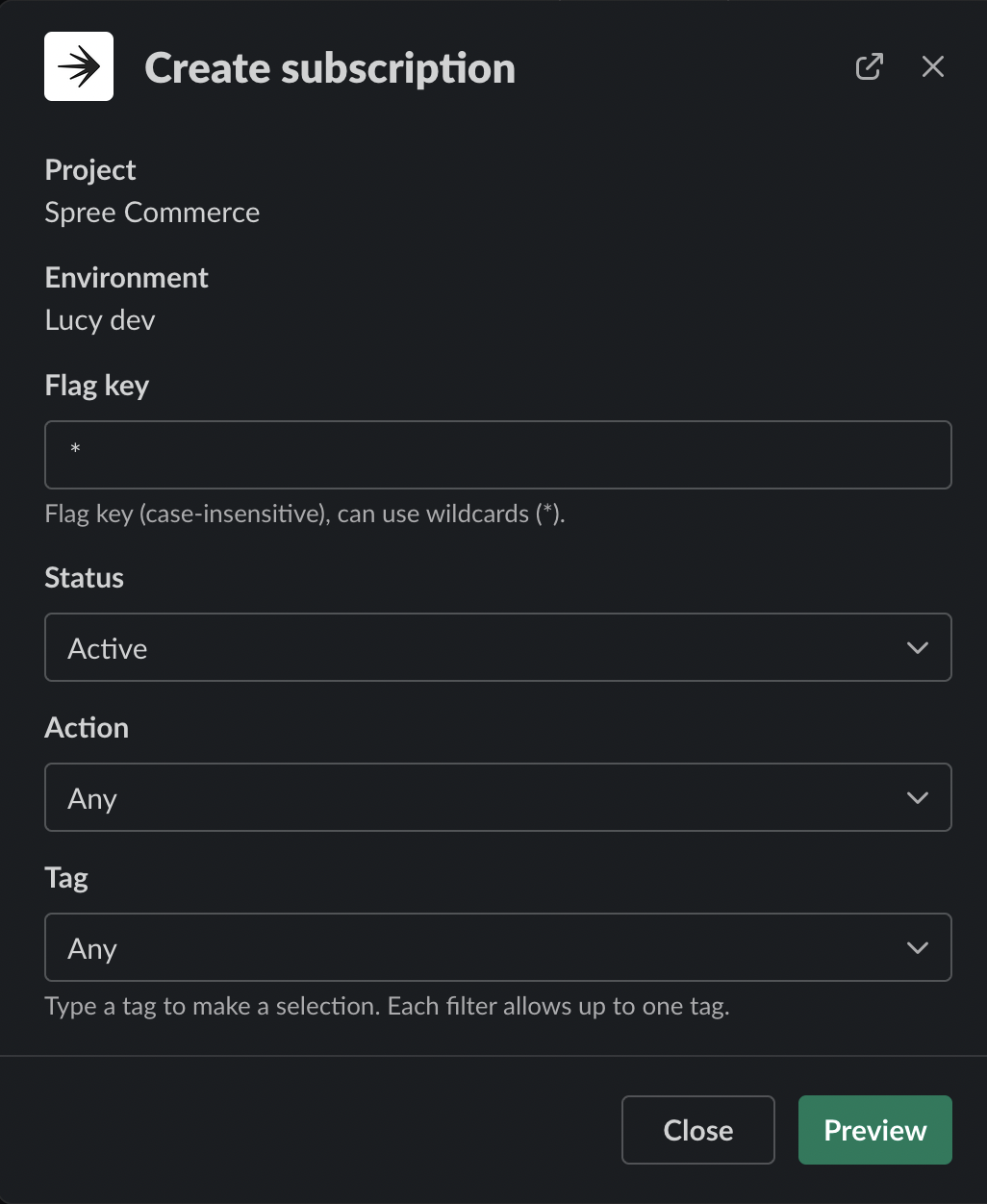
The modal to select subscription parameters.
- Click Preview to view the list of flags that your parameters include.
- Click Create subscription to subscribe the channel to flag notifications. A confirmation message appears in the channel after you close the dialog.
Subscribe using the command
There are two ways to subscribe to updates using the command: with keyword arguments (recommended), or with positional arguments. To view more information and examples of the subscribe command, run/launchdarkly help subscribe in a channel that the LaunchDarkly bot is in.
Subscribe with keyword arguments
You can use keyword arguments to create a subscription with any combination of parameters. At least one parameter is required. Here’s how:- Open the Slack channel you want notifications in.
- After you set up the Slack app, you can subscribe to notifications in any public Slack channel.
- If you want notifications in a private Slack channel, you must add the Slack app to the channel explicitly. Click the Integrations tab in the private channel. Then select Add app.
- Run
/launchdarkly subscribeand pass in any combination of the following arguments:-por--project=-eor--environment=-for--flag_key=-sor--status=-aor--action=-tor--tag=
- Press Enter.For example, the following command creates a subscription for all flags in the
qaenvironment of thechatbotproject, with statusactiveand tagproduction:
Subscribe with positional arguments
You can use positional arguments to create a subscription for a single flag. You must provide all three arguments. Here’s how:- Open the Slack channel you want notifications in.
- After you set up the Slack app, you can subscribe to notifications in any public Slack channel.
- If you want notifications in a private Slack channel, you must add the Slack app to the channel explicitly. Click the Integrations tab in the private channel. Then select Add app.
- Run
/launchdarkly subscribeand provide in order the project, environment, and flag key of the flag you would like to subscribe to. - Press Enter.For example, the following command creates a subscription for the
chat-responseflag in theqaenvironment of thechatbotproject:
Manage subscriptions
You can view and remove subscriptions in a Slack channel using the/launchdarkly list command:
- Open the Slack channel where you would like to remove notifications.
- Type
/launchdarkly listand press Enter. A list of subscriptions for the channel appears. - Locate the subscription you wish to remove from the channel.
- Click Remove.

The output of the /launchdarkly list command.
Notification information
Flag notifications include the following information:- The name of the person who made the change
- The name of the flag
- The environment, project, and key of the flag
- A comment about the change, if applicableTo display additional information about the flag change, click View details.The table below explains the different subscription parameters:
| ---
| --- |
| Project
| Required
| All subscriptions must include a project and environment to get flag notifications for. |
| Environment
| Optional, but required in modal creation
| All subscriptions must include a project and environment to get flag notifications for. |
| Flag key
| Optional
| A flag key to get notifications for, which can begin or end with a wildcard * to include all matching flag keys. |
| Status
| Optional
| Filter by flag status. Available statuses are:
- Any
- Active
- Inactive
- Archived
- Launched
- New
- Any
- Created
- Updated
- Deleted
- Ready for removal
- New
Receive approval request notifications
Approvals are only available to customers on select plans. To learn more, read about our pricing. To upgrade your plan, contact Sales.Requiring approvals by environment is available only to customers on an Enterprise plan. To learn more, read Configuring approvals for an environment.