

Overview
This topic explains how to set up the LaunchDarkly Microsoft Teams integration.Set up the Launch
Darkly app in Microsoft TeamsTo add LaunchDarkly to a Teams workspace, add the LaunchDarkly app from within Microsoft Teams. Then, authenticate the app with your LaunchDarkly account. To authenticate the Microsoft Teams app:- Navigate to the LaunchDarkly Microsoft AppSource listing.
- Click Get it now. After installing the LaunchDarkly Microsoft Teams app, you are prompted to connect your LaunchDarkly account.
- Click Sign in to connect your account to Microsoft Teams. You are redirected to the LaunchDarkly login page.
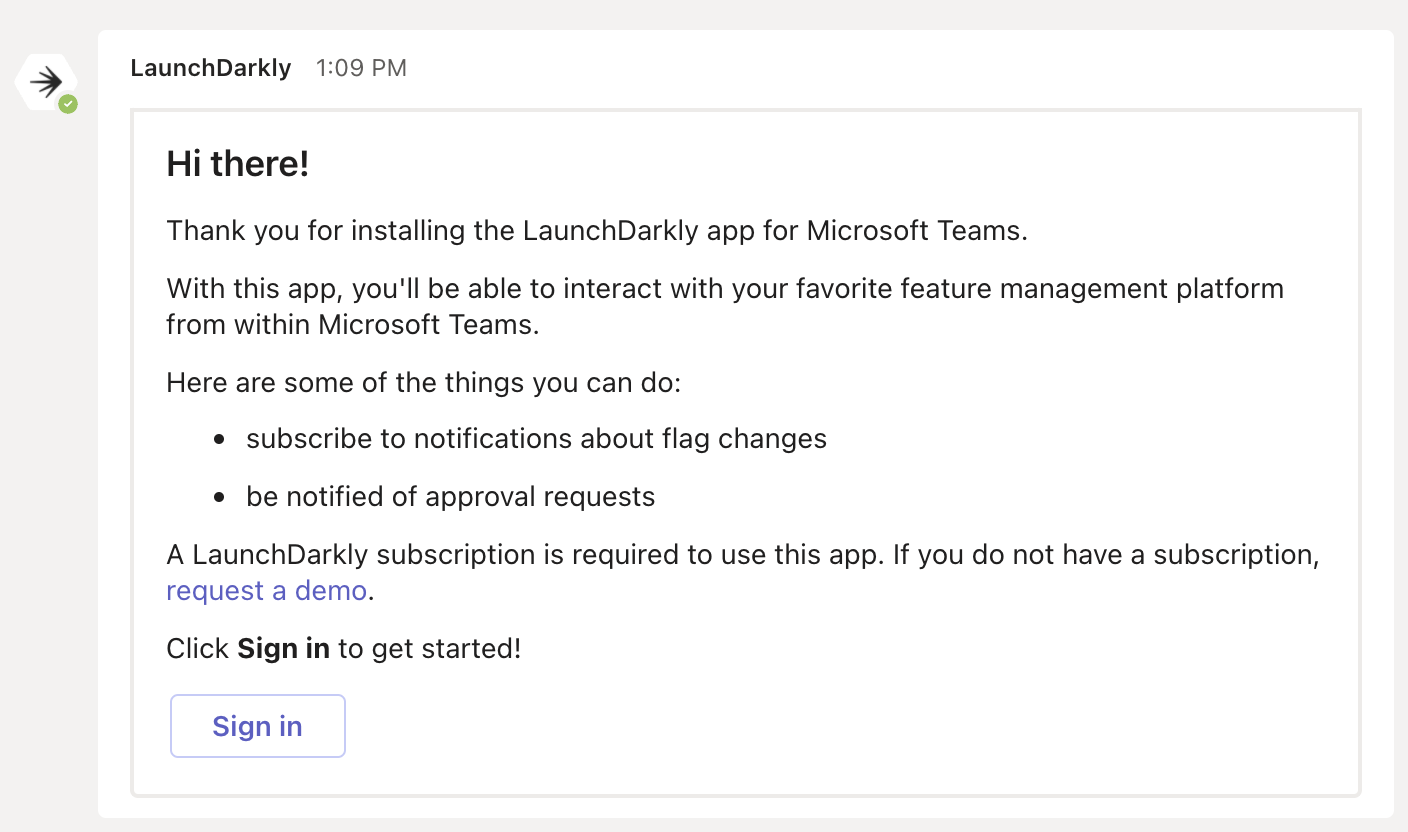
The LaunchDarkly app sign-in screen in Microsoft Teams.
- Log in with your LaunchDarkly credentials. LaunchDarkly displays a message that the Microsoft Teams app would like permission to access your LaunchDarkly account.
- Click Authorize. LaunchDarkly displays an authentication code.
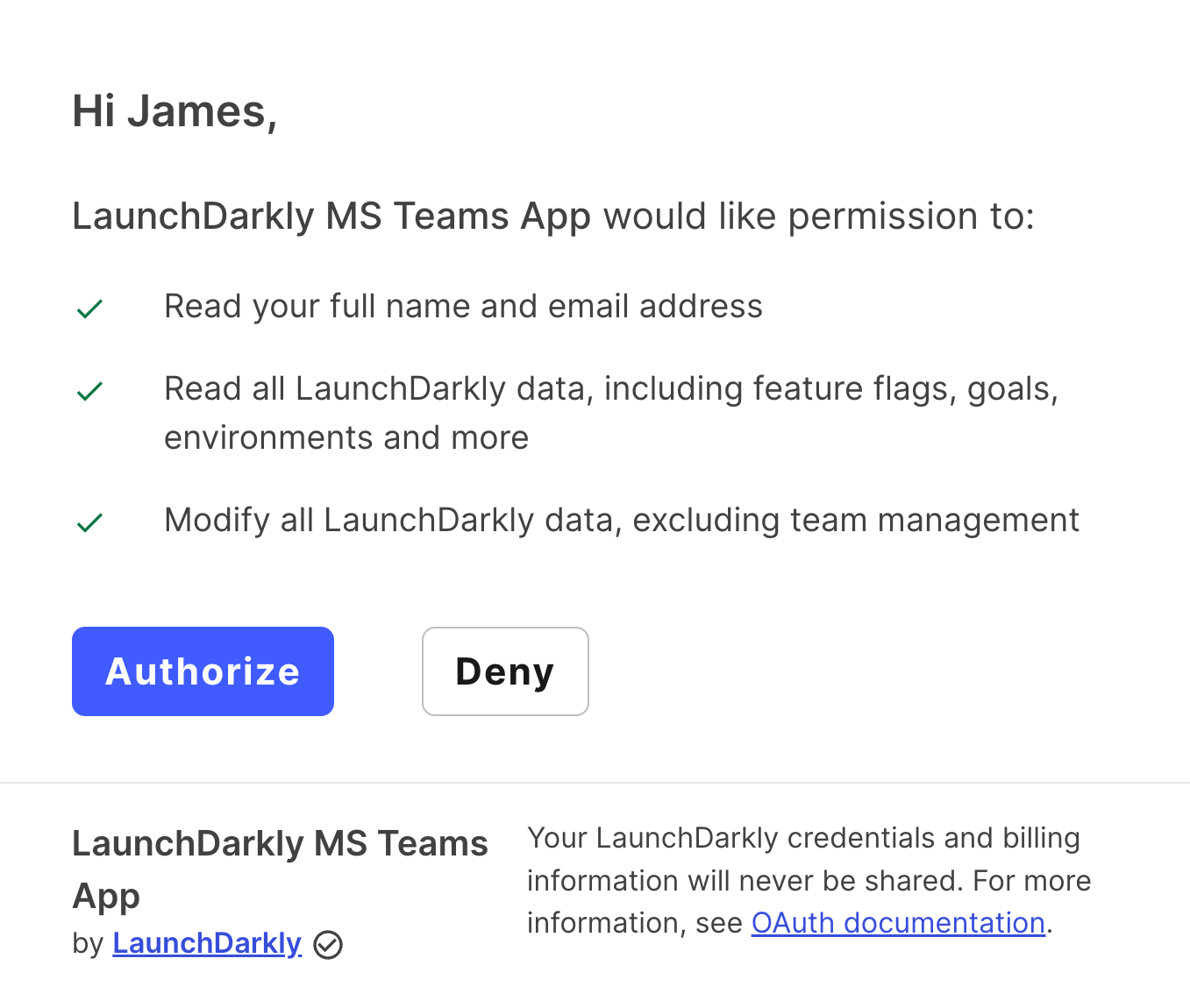
The permissions authorization dialog in the Microsoft Teams app.
- Type the provided authentication code into Microsoft Teams in a chat window with LaunchDarkly.
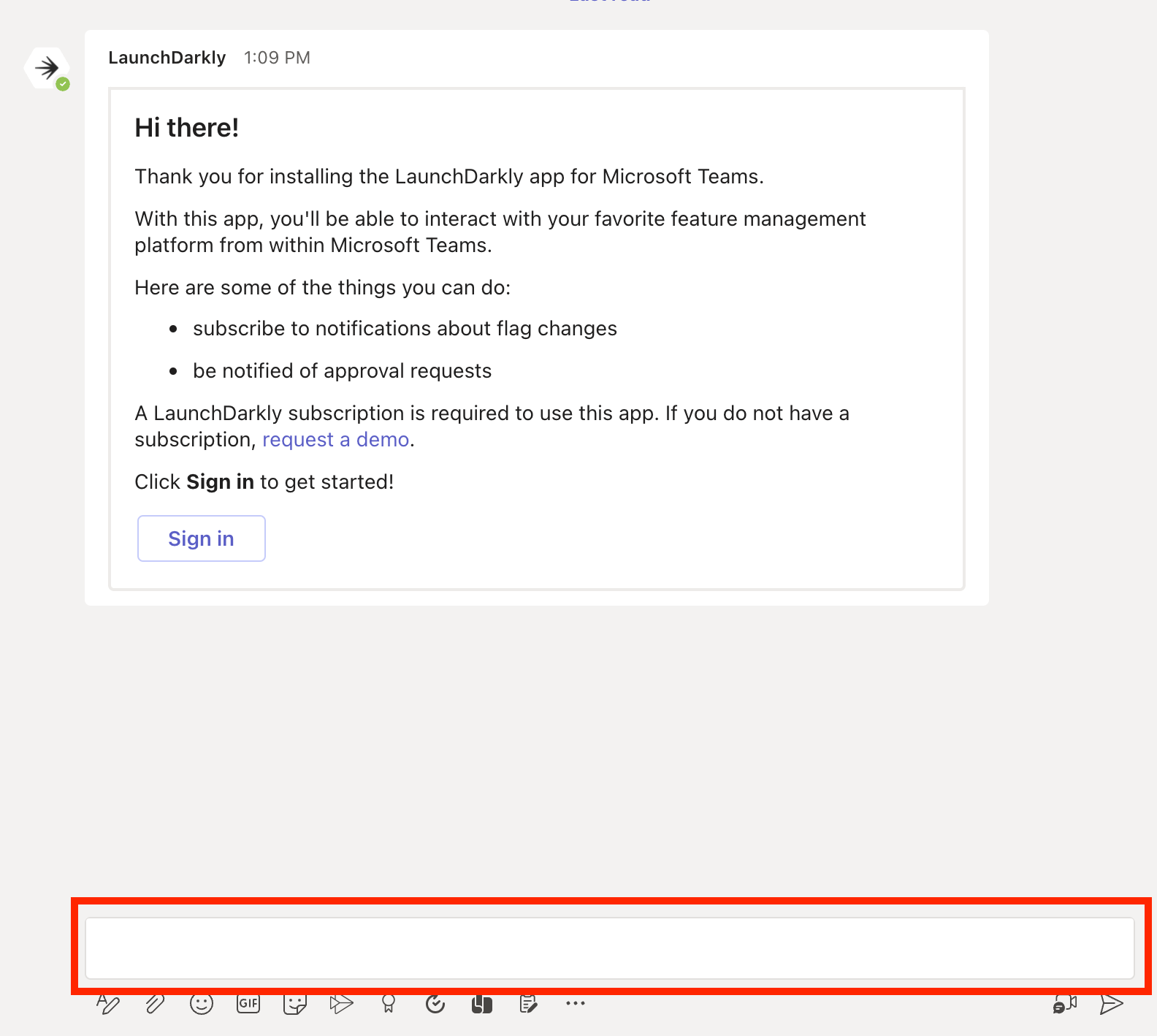
The authentication code screen in Microsoft Teams with the code input box called out.
- Press Enter.The LaunchDarkly app displays a success message. You can now use the LaunchDarkly app in Microsoft Teams.

A success message from LaunchDarkly.
Disconnect your Launch
Darkly account from Microsoft TeamsTo disconnect your LaunchDarkly account from Microsoft Teams:- In Microsoft teams, open a chat window with LaunchDarkly.
- Enter “account” in the text box and press Enter.
- LaunchDarkly displays a message that you are currently connected to your LaunchDarkly account. Click Logout to disconnect your LaunchDarkly account from Microsoft Teams.
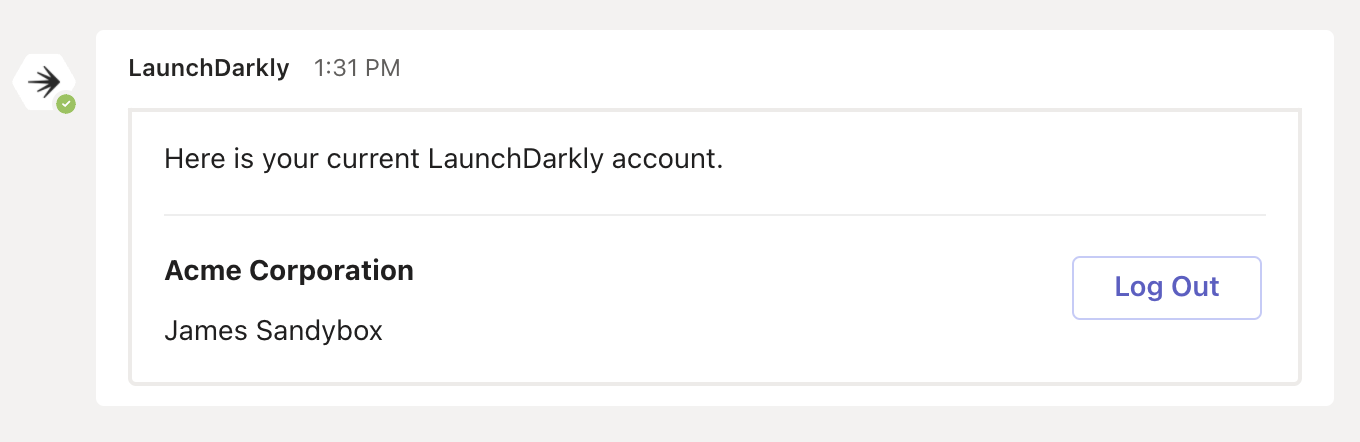
The log out screen in Microsoft Teams.