

Overview
This topic explains how LaunchDarkly’s Jira Cloud integration allows you to link your feature flags to your team’s Jira issues. When you connect a feature flag to a Jira issue, LaunchDarkly automatically adds a Jira flag link to the flag. When a feature flag is turned on or off or has its targeting rules updated, its associated Jira issue pages display the flag’s current status.Prerequisites
To complete this procedure, you must have the following prerequisites:- A personal or service API access token. To learn more, read API access tokens .
Set up the Jira integration
To set up the Jira integration, you must complete the following steps:- Give your API access token the required permissions:
- Configure the LaunchDarkly integration in Jira with the API access token.
Give your API access token the required permissions
You can create a role with appropriate permissions, then add the role to a personal or service access token, or you can add the Writer base role to your personal access token.Create a role and add it to an API access token
Expand Create a role and add it to an API access token
Expand Create a role and add it to an API access token
Service tokens and creating your own roles are only available to customers on select plans. To learn more, read about our pricing. To upgrade your plan, contact Sales.
- Click the gear icon in the left sidenav to view Organization settings. The General settings page appears.
- Click Roles.
- Click New role. The “New role” page appears.
- Enter a human-readable Name for the role.
- Enter a Key for the role.
- (Optional) Enter a Description to explain what the role does.
- In the “Edit policy” section, click View JSON to open the advanced editor.
- Enter this policy in the “Editor” field:
- Click Create role.
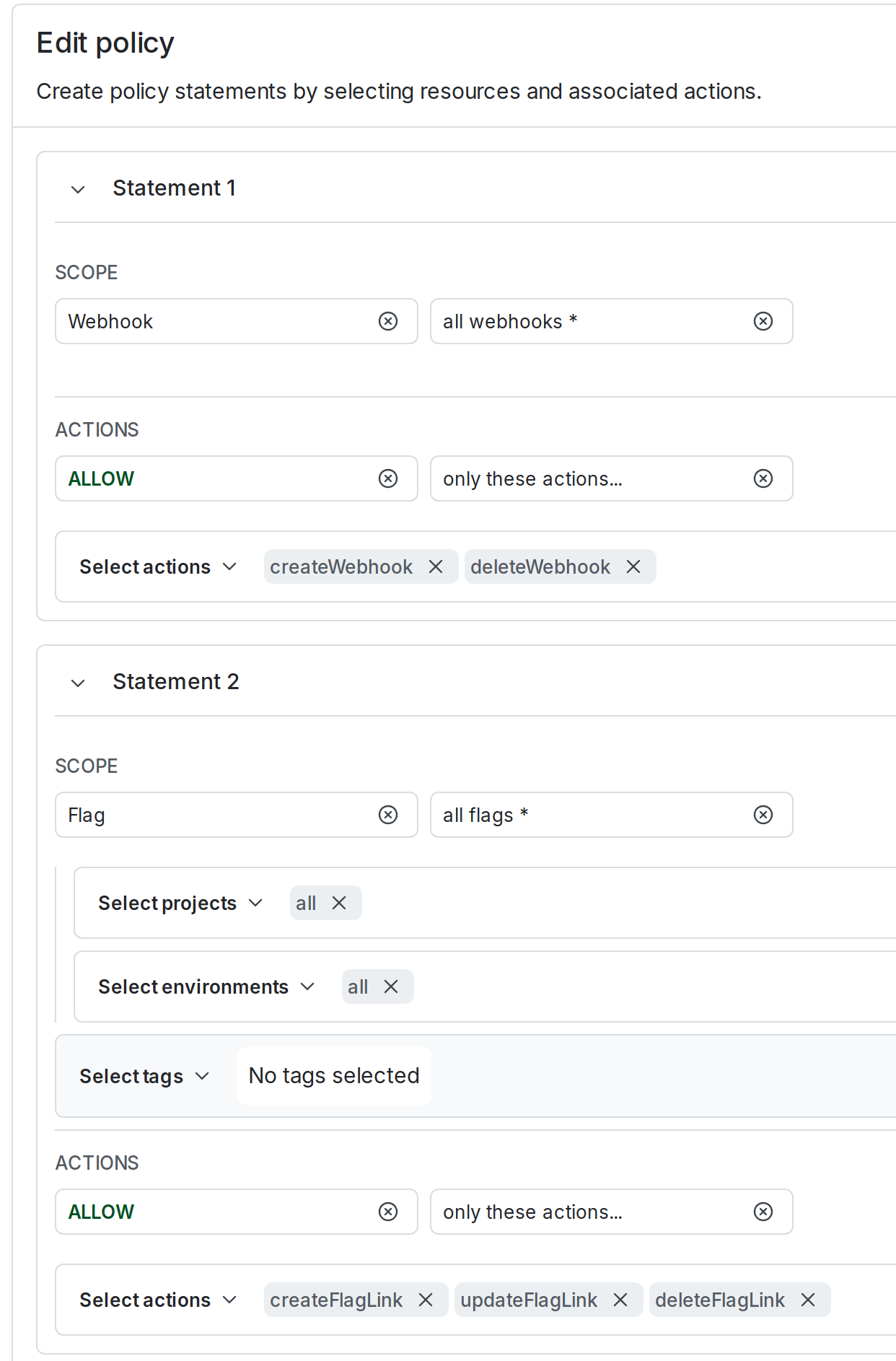
An access token's role configured to grant access to webhooks and flag links.
This means that the Jira integration will only be able to do the following:
- Create webhooks: this is needed because the Jira integration creates a webhook to push change events from LaunchDarkly to Jira
- Delete webhooks: this is used when the Jira integration is uninstalled
- Create/Update/Delete flag links: the Jira integration can update the links section of the feature flag to provide a helpful link back to the Jira issue
- Click the gear icon in the left sidenav to view Organization settings. The General settings page appears.
- Click Authorization.
- Find the API access token you want to add permissions to and select “Edit token” from its overflow menu. The “Edit” dialog appears.
- In the Role menu, select “Custom.”
- Check the checkbox next to the role you just created.
- Click Save token.
Add the Writer role to your personal access token
Expand Add the Writer role to your personal access token
Expand Add the Writer role to your personal access token
To add the Writer base role to a personal access token:
- Click the gear icon in the left sidenav to view Organization settings. The General settings page appears.
- Click Authorization.
- Find the personal access token you want to add permissions to and select “Edit token” from its overflow menu. The “Edit” dialog appears.
- In the Role menu, select “Writer.”
- Click Save token.
Configure the Launch
Darkly integration in JiraUse your access token to configure the Jira integration for your LaunchDarkly account.- Navigate to your Jira instance’s app management page, and click the Configuration button for the LaunchDarkly app. The “Configure LaunchDarkly Integration” screen appears.
- Set your API access token.
- Select which environments the app will track for each of your LaunchDarkly projects. By default, the app will track your critical environments.
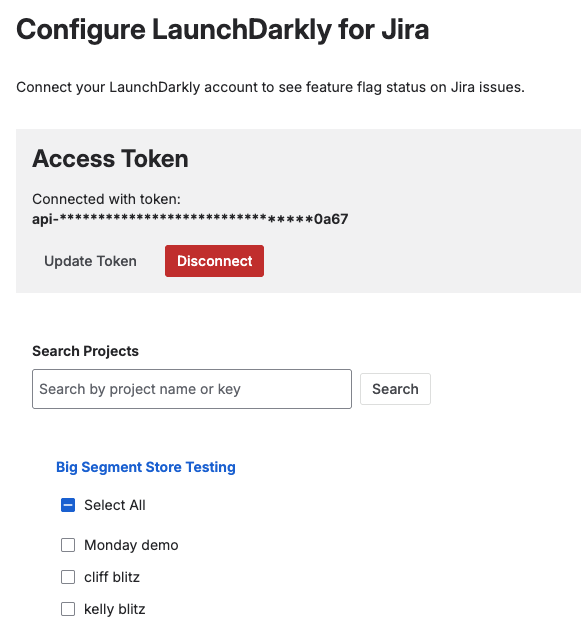
The Jira configuration screen.
The Jira issue view, which contains the release panel, is a per-user setting. If it is off, the release panel does not appear. To learn more, read Jira’s documentation.
Create a new feature flag from a Jira issue
To create a new flag with Jira issues:- Navigate to your Jira issue’s feature flag panel.
- In the “Details” section, click Add feature flag.
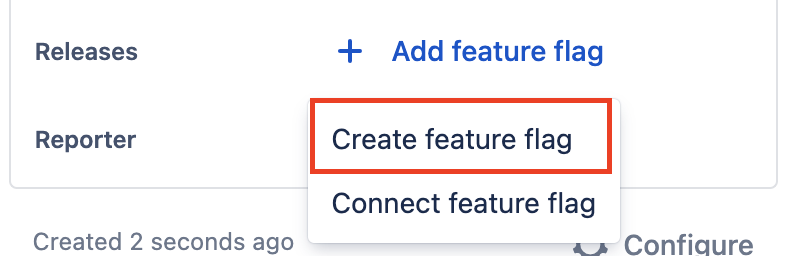
The "Releases" menu with the "Create feature flag" option called out.
- Select “Create feature flag.” The LaunchDarkly “Create a feature flag” panel appears with the Jira issue pre-populated.
- Finish configuring your flag and click Save flag.When you toggle the flag on or off or make any targeting rule changes, those changes will appear in your Jira issue.
Connect an existing feature flag to a Jira issue from Launch
DarklyIf you have already created a feature flag for your Jira issue, you can add a Jira issue to your existing flag by creating a custom property for your flag. To create a custom property:- Navigate to the Flags list and open the flag you wish to add a custom property to.
- Click the three-dot overflow menu in the right sidebar.
- Select Add custom property.
- Select “Jira issues” as the Type.
- Enter a list of Jira issue keys in the Values field. You can list multiple issues if applicable.
- Click Save.
View a flag’s status in a Jira issue
To view a flag’s status in a Jira issue:- Navigate to your Jira issue’s feature flag panel.
- In the “Details” section, click on the name of the feature flag. A dialog with a Feature flags tab appears:
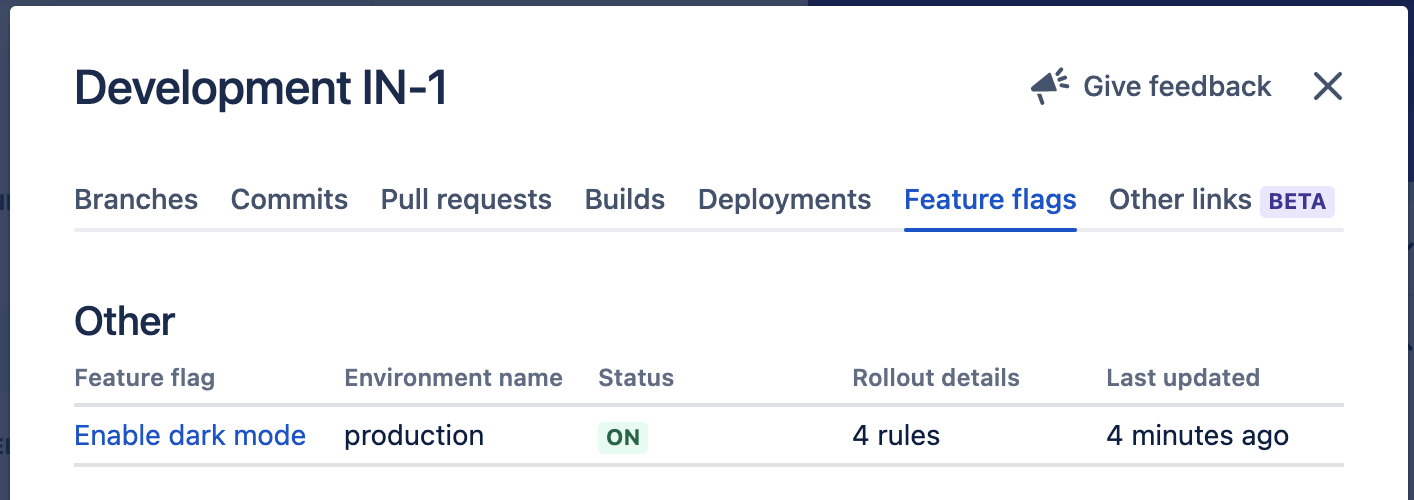
The "Feature flags" tab of a Jira issue displaying the flag's information and status.
Using JQL to search for Jira issues with feature flags
You can use JQL to query for Jira issues that are connected to feature flags. To learn more about JQL, read Atlassian’s documentation.Remove a feature flag from a Jira issue
To remove a flag from a Jira issue:- Navigate to the Flags list and open the flag you wish to remove an issue from.
- In the “Jira issues” section of the right sidebar, click the x on the Jira issue custom property you want to remove.
- Click Save.