
Documentation Index

Fetch the complete documentation index at: https://launchdarkly-preview.mintlify.app/llms.txt

Use this file to discover all available pages before exploring further.

Overview

This topic explains how to use the Find Code References in Pull Request (PR) GitHub Actions integration. The integration lets you determine if you modified any feature flags in a PR as a step in your GitHub workflow jobs and use those values in later steps. The action will post a comment to the PR that lists the flags found in the diff:
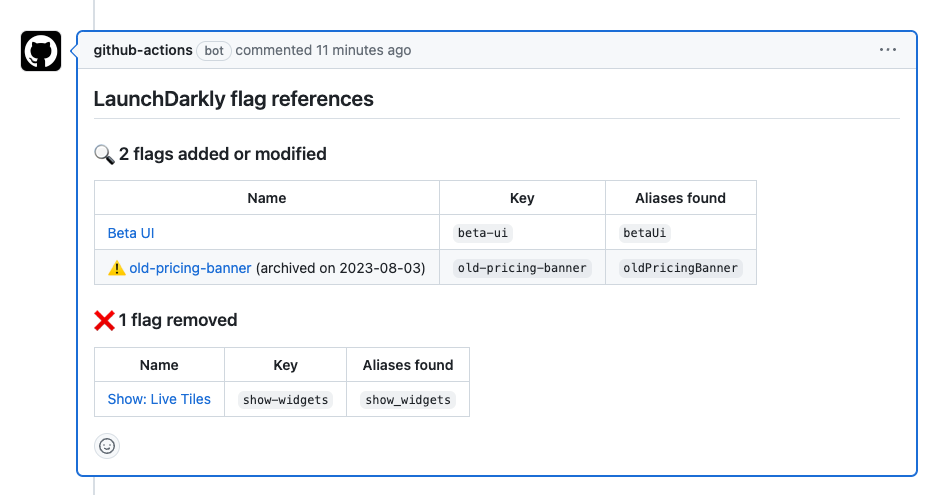
A PR comment listing LaunchDarkly flag references.
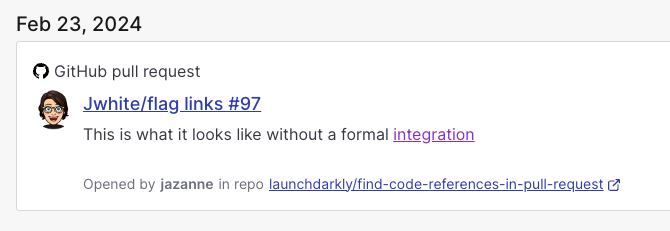
The action will optionally create a GitHub pull request flag link for any modified flags. To learn more, read Flag links.
A GitHub flag link.

Prerequisites

To complete this procedure, you must have the following prerequisites: This action requires a LaunchDarkly access token with:
  • Read access for the designated project-key
  • (Optional) the createFlagLink action, if you have set the create-flag-links input to true

Set up Find Code References in Pull Request

To set up the Find Code References in Pull Request GitHub Action:
  1. Navigate to your GitHub repo.
  2. Navigate to Settings, then Secrets.
  3. Click Add a new secret.
  4. Enter your access token into the field.
  5. Click Save secret.
  6. Return to your GitHub repository to create a new Actions workflow.
If you already have a workflow file that runs on pull_request you can add the new find flags job to that file. If you don’t already have a workflow file, create a new file titled pull_request.yml in the .github/workflows directory of your repository. Paste the find-flags job declaration below into the Edit file section.
    on: pull_request

    jobs:
      find-flags:
        runs-on: ubuntu-latest
        name: Find LaunchDarkly feature flags in diff
        steps:
          - name: Checkout
            uses: actions/checkout@v4
          - name: Find flags
            uses: launchdarkly/find-code-references-in-pull-request@v2
            id: find-flags
            with:
              project-key: default
              environment-key: production
              access-token: ${{ secrets.LD_ACCESS_TOKEN }}
              repo-token: ${{ secrets.GITHUB_TOKEN }}
We strongly recommend that you update the uses attribute value to reference the most recent tag in the launchdarkly/find-code-references-in-pull-request repository. This pins your workflow to a particular version of the launchdarkly/find-code-references-in-pull-request action.
  1. Commit this file to the default branch of your repository.

Use output in subsequent steps

In addition to posting a comment on the PR, the action will output details about how many and which flags were identified in the diff. GitHub Actions cast all value types to string in the output. Read more about Find Code References in Pull Request outputs.
    on: pull_request

    jobs:
      find-feature-flags:
        runs-on: ubuntu-latest
        name: Find LaunchDarkly feature flags in diff
        steps:
          - name: Checkout
            uses: actions/checkout@v4
          - name: Find flags
            uses: launchdarkly/find-code-references-in-pull-request@v2
            id: find-flags
            with:
              project-key: default
              environment-key: production
              access-token: ${{ secrets.LD_ACCESS_TOKEN }}
              repo-token: ${{ secrets.GITHUB_TOKEN }}

          # Add or remove labels on PRs if any flags have changed
          - name: Add label
            if: steps.find-flags.outputs.any-changed == 'true'
            run: gh pr edit $PR_NUMBER --add-label ld-flags
            env:
              GITHUB_TOKEN: ${{ secrets.GITHUB_TOKEN }}
              PR_NUMBER: ${{ github.event.pull_request.number }}
          - name: Remove label
            if: steps.find-flags.outputs.any-changed == 'false'
            run: gh pr edit $PR_NUMBER --remove-label ld-flags
            env:
              GITHUB_TOKEN: ${{ secrets.GITHUB_TOKEN }}
              PR_NUMBER: ${{ github.event.pull_request.number }}

Troubleshooting

After you create the workflow, you can confirm that it’s working correctly by pushing an empty commit and verifying that the newly created action succeeds. If the action fails, there may be a problem with your configuration. To investigate, review the action’s logs to view any error messages.