> ## Documentation Index
> Fetch the complete documentation index at: https://launchdarkly-preview.mintlify.site/llms.txt
> Use this file to discover all available pages before exploring further.
# Vercel
> This topic explains how to use LaunchDarkly's Vercel integration.
> For the complete documentation index, see [llms.txt](/llms.txt). For the full documentation snapshot, see [llms-full.txt](/llms-full.txt).
The Vercel integration is only available to customers on Enterprise and Guardian plans. To learn more, [read about our pricing](https://launchdarkly.com/pricing/). To upgrade your plan, [contact Sales](https://launchdarkly.com/contact-sales/).
## Overview
This topic explains how to use LaunchDarkly's Vercel integration. This integration enables flag evaluation within Vercel Edge Workers or Vercel Edge Middleware. The integration writes the latest flag data from the configured environment directly to a Vercel Edge Config in your account. It also sends any change to a flag or segment configuration in your selected environment to your Vercel Edge Config, ensuring your Edge Config is always up to date.
Vercel enforces size limits on Edge Config values. Additionally, Vercel charges customers for Edge Config writes. Each feature flag or segment change in an environment where the integration is installed will incur an Edge Config write. Based on these limits, Vercel Enterprise customers and Vercel Pro customers with moderately-sized environments are likely to benefit the most from this integration. To learn more, read Vercel's documentation on [Edge Config Limits and pricing](https://vercel.com/docs/storage/edge-config/edge-config-limits#limits).
You must install and configure the Vercel SDK to use this integration. To learn more, read [Vercel SDK reference](/sdk/edge/vercel).
You can use the Vercel integration to bootstrap your application with the latest client-side feature flags. This eliminates the initial remote call to LaunchDarkly, providing zero-latency client-side feature flags with no flash of original content or shift in content layout. The Vercel integration also enables flag evaluations within Vercel Edge Middleware and Vercel Edge Workers. This means you can use your LaunchDarkly flags without an added latency from network requests.
## Install a Vercel integration
For the Vercel integration to work, you need a Vercel account with at least one project.
You can install a Vercel integration on the [LaunchDarkly](https://vercel.com/integrations/launchdarkly) page in the Vercel integrations marketplace.
Vercel Edge Configs enforce size limits that might be smaller than your LaunchDarkly flag data in a given environment. We recommend using a dedicated Edge Config for LaunchDarkly environments.
To learn more, read about [Edge Config limits and pricing](https://vercel.com/docs/storage/edge-config/edge-config-limits#).
To install a Vercel integration for your environment:
1. Navigate to [Vercel's **Integrations** page for LaunchDarkly](https://vercel.com/integrations/launchdarkly).
2. Click **Add Integration**.
3. Select the Vercel account that you would like to connect to LaunchDarkly.
4. Choose the projects within that account that you would like LaunchDarkly to have access to.
5. Click **Continue**.
6. Review the permissions that this integration requires. Then click **Add Integration**. A LaunchDarkly configuration screen appears:
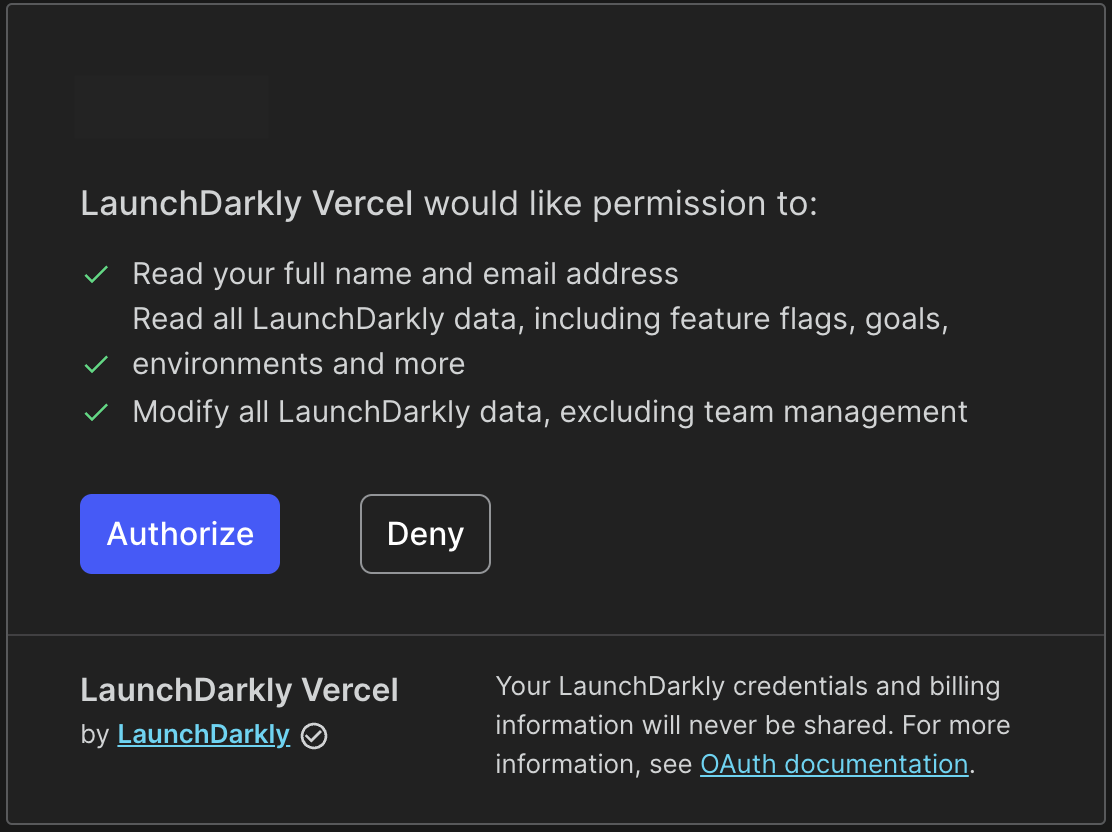
7. Click **Authorize** to grant access to the LaunchDarkly integration.
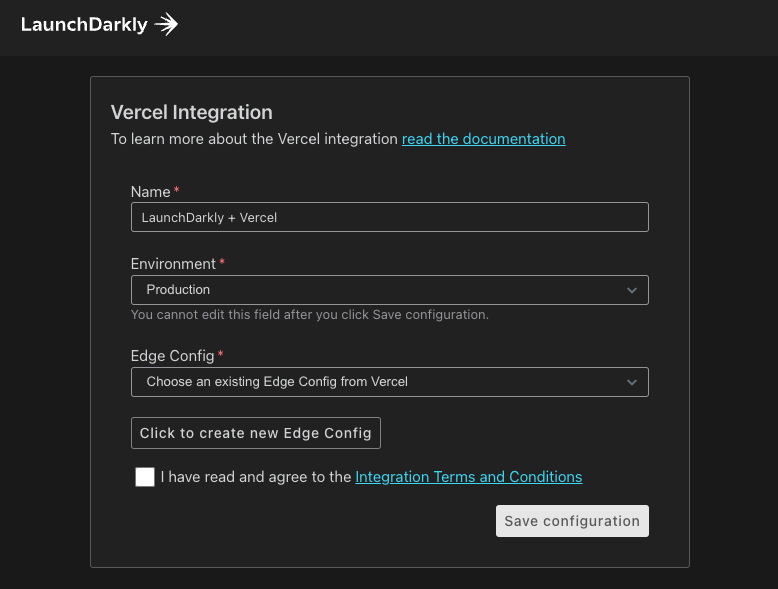
8. Enter a **Name** for the integration. This integration is specific to this combination of your LaunchDarkly environment and the Vercel edge config ID.
9. Choose an environment from the **Environment** menu. Your data will appear in your Edge Config under the key `LD-Env-{{environment client-side ID}}`.
10. Choose an Edge Config from the **Edge Config** menu. Alternatively, click **Click to create new edge config** to create a new edge config.
11. Click **Save configuration**.
## Configure the Launch
Darkly Vercel integrationYou can manage Vercel integrations on the [LaunchDarkly](https://vercel.com/integrations/launchdarkly) page in the Vercel integrations marketplace.
To manage an existing Vercel integration:
1. In Vercel, navigate to the **Integrations** dashboard.
2. Find your LaunchDarkly integration and click **Manage**.
3. Click **Configure**. A LaunchDarkly configuration panel appears.
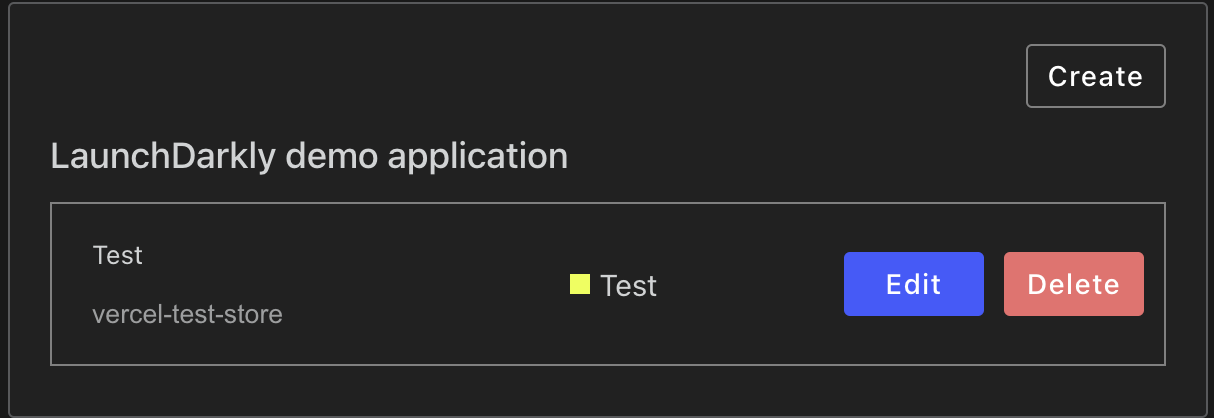
4. Click **Edit** to modify the integration. You can change the configuration name or select another Edge Config destination to export to.
5. Click **Save** to save your changes.
## Uninstall the Launch
Darkly Vercel integrationTo uninstall an existing Vercel integration:
1. In Vercel, navigate to the **Integrations** dashboard.
2. Find your LaunchDarkly integration and click **Manage**.
3. Click **Configure**. A LaunchDarkly configuration panel appears.

4. Click **Delete** to delete each integration configuration.
5. Return to the Vercel integration dashboard.
6. Click **Remove Integration**.
Removing the integration from your Vercel account will not remove any existing integration configurations. Follow the steps above to delete them as part of the removal process. If you have forgotten to do so, you can still delete configurations from the LaunchDarkly **Integrations** page.