> ## Documentation Index
> Fetch the complete documentation index at: https://launchdarkly-preview.mintlify.site/llms.txt
> Use this file to discover all available pages before exploring further.
# Managing approvals in Slack
> This topic explains how to manage approvals for flag and segment changes using the Slack app.
> For the complete documentation index, see [llms.txt](/llms.txt). For the full documentation snapshot, see [llms-full.txt](/llms-full.txt).
## Overview
This topic explains how to manage approvals for flag and segment changes using the Slack app. Approvals let you request review for changes make to a flag or segment. You can view and act on approval requests from within the LaunchDarkly Slack app.
To use this feature, you must have installed and configured the LaunchDarkly Slack app. To learn more, read [Set up the Slack app](/integrations/slack/setting-up#set-up-the-slack-app).
To learn more about approvals, read [Approvals](/home/releases/approvals).
## View approvals in Slack
Here's how to create approval requests and view them with the Slack app:
1. In LaunchDarkly, navigate to the feature flag or segment that you wish to change and make your needed changes to the flag targeting, status, or variations.
2. Request approval for your changes by clicking **Review and save**, clicking the **person** icon, then adding a reviewer in the **Reviewer(s)** field. For more details, read [Requesting approvals](/home/releases/approval-requests).
3. In Slack, click the new notification the LaunchDarkly app creates. The notification contains a link to the approval request.
Any reviewers that you added to the approval request also receive a Slack notification if they have authorized the LaunchDarkly app.
## Review approvals in Slack
Here's how to manage approval requests that ask for your review:
1. Click the Slack notification that you receive from the LaunchDarkly app.
2. Click **Review** to create your review on the request.
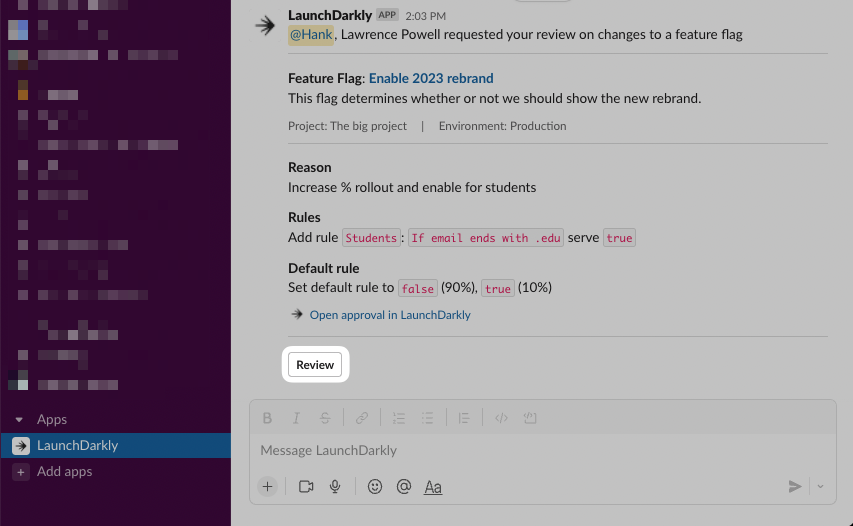
3. Review the targeting changes, and then choose an action for your review.
* **Approve and apply changes**: Approve the changes and apply them immediately.
* **Approve changes**: Approve the changes without applying them. The original requester, or any account member with an appropriate role can apply the changes you approved.
* **Decline changes**: Deny the changes.
* **Comment only**: Leave a comment on the requested changes.

4. (Optional) Add a comment if you want to include a comment with your review.
5. Click **Submit** to submit your review.
## View replies on approval requests in Slack
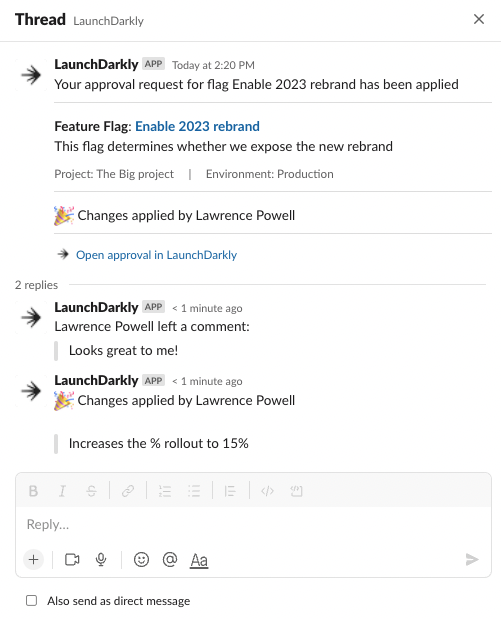
You receive threaded replies to the original approval request for each review others submit.
Here's how to view updates to the approval request:
1. Go to the LaunchDarkly app in your Slack account.
2. Click into a thread to view comments, approvals, and declines on the approval request.