> ## Documentation Index
> Fetch the complete documentation index at: https://launchdarkly-preview.mintlify.site/llms.txt
> Use this file to discover all available pages before exploring further.
# Setting up the Microsoft Teams integration
> This topic explains how to set up the LaunchDarkly Microsoft Teams integration.
> For the complete documentation index, see [llms.txt](/llms.txt). For the full documentation snapshot, see [llms-full.txt](/llms-full.txt).
## Overview
This topic explains how to set up the LaunchDarkly Microsoft Teams integration.
## Set up the Launch
Darkly app in Microsoft TeamsTo add LaunchDarkly to a Teams workspace, add the LaunchDarkly app from within Microsoft Teams. Then, authenticate the app with your LaunchDarkly account.
To authenticate the Microsoft Teams app:
1. Navigate to the [LaunchDarkly Microsoft AppSource listing](https://appsource.microsoft.com/en-us/product/office/WA200005047).
2. Click **Get it now**. After installing the LaunchDarkly Microsoft Teams app, you are prompted to connect your LaunchDarkly account.
3. Click **Sign in** to connect your account to Microsoft Teams. You are redirected to the LaunchDarkly login page.
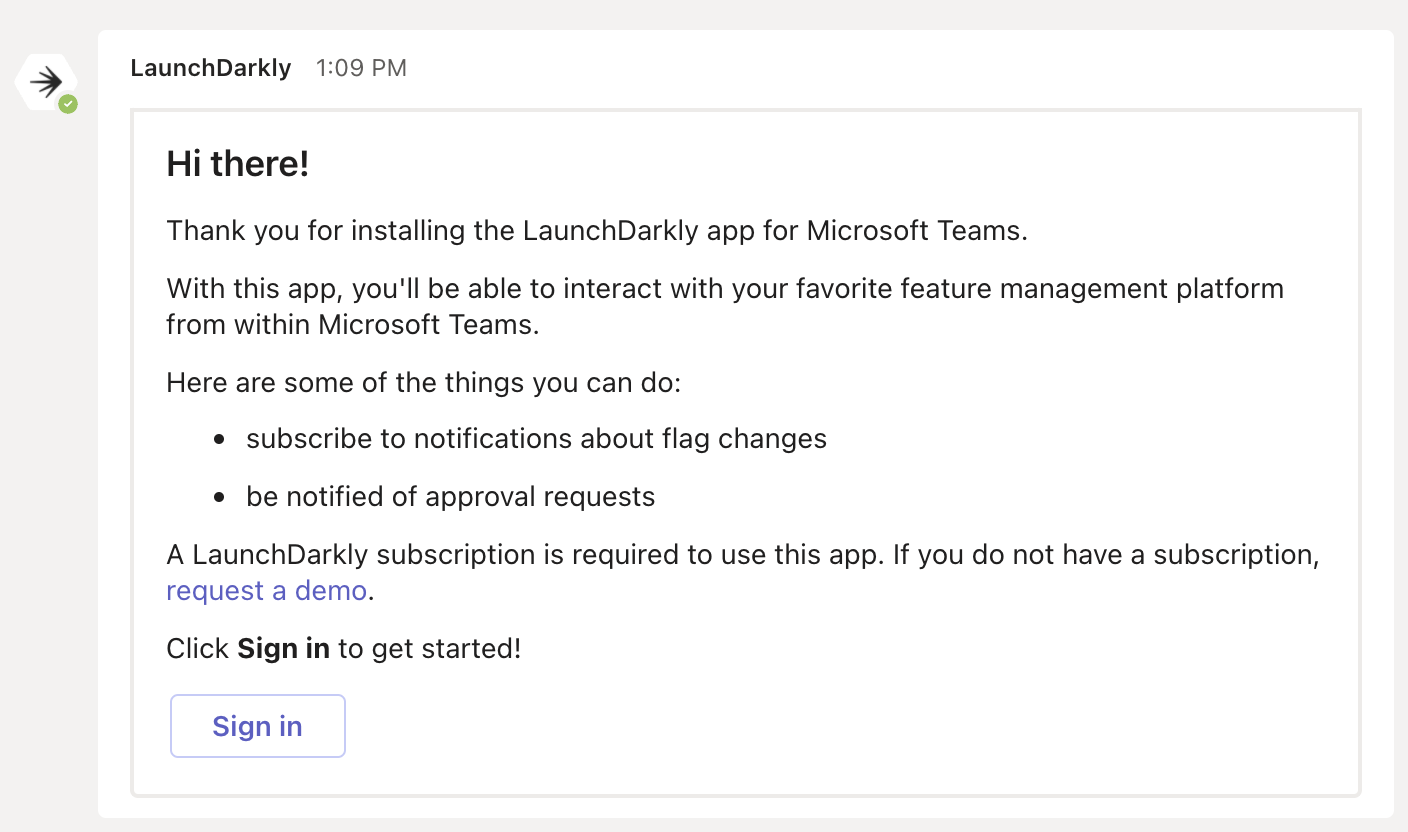
4. Log in with your LaunchDarkly credentials. LaunchDarkly displays a message that the Microsoft Teams app would like permission to access your LaunchDarkly account.
5. Click **Authorize**. LaunchDarkly displays an authentication code.
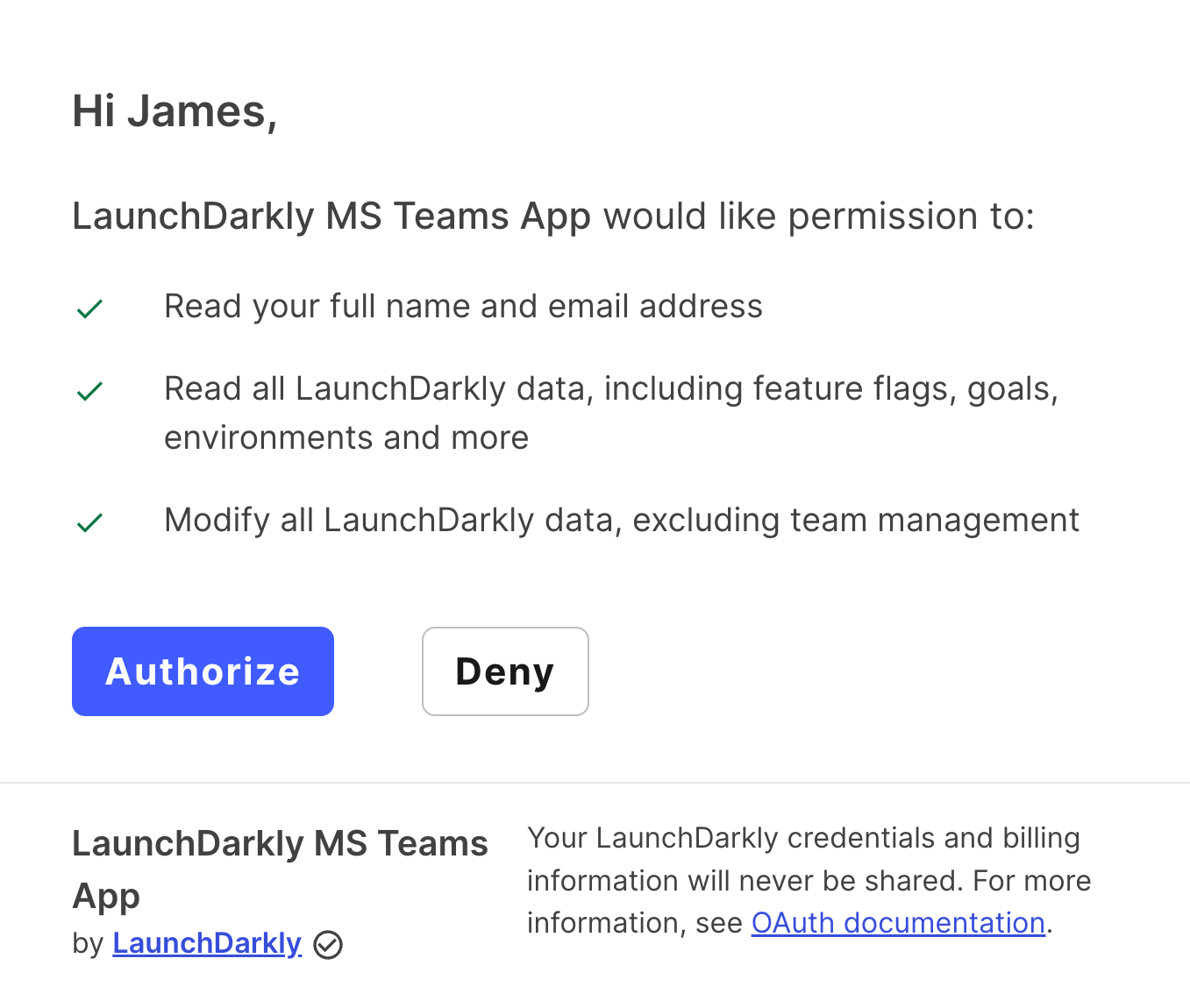
6. Type the provided authentication code into Microsoft Teams in a chat window with LaunchDarkly.
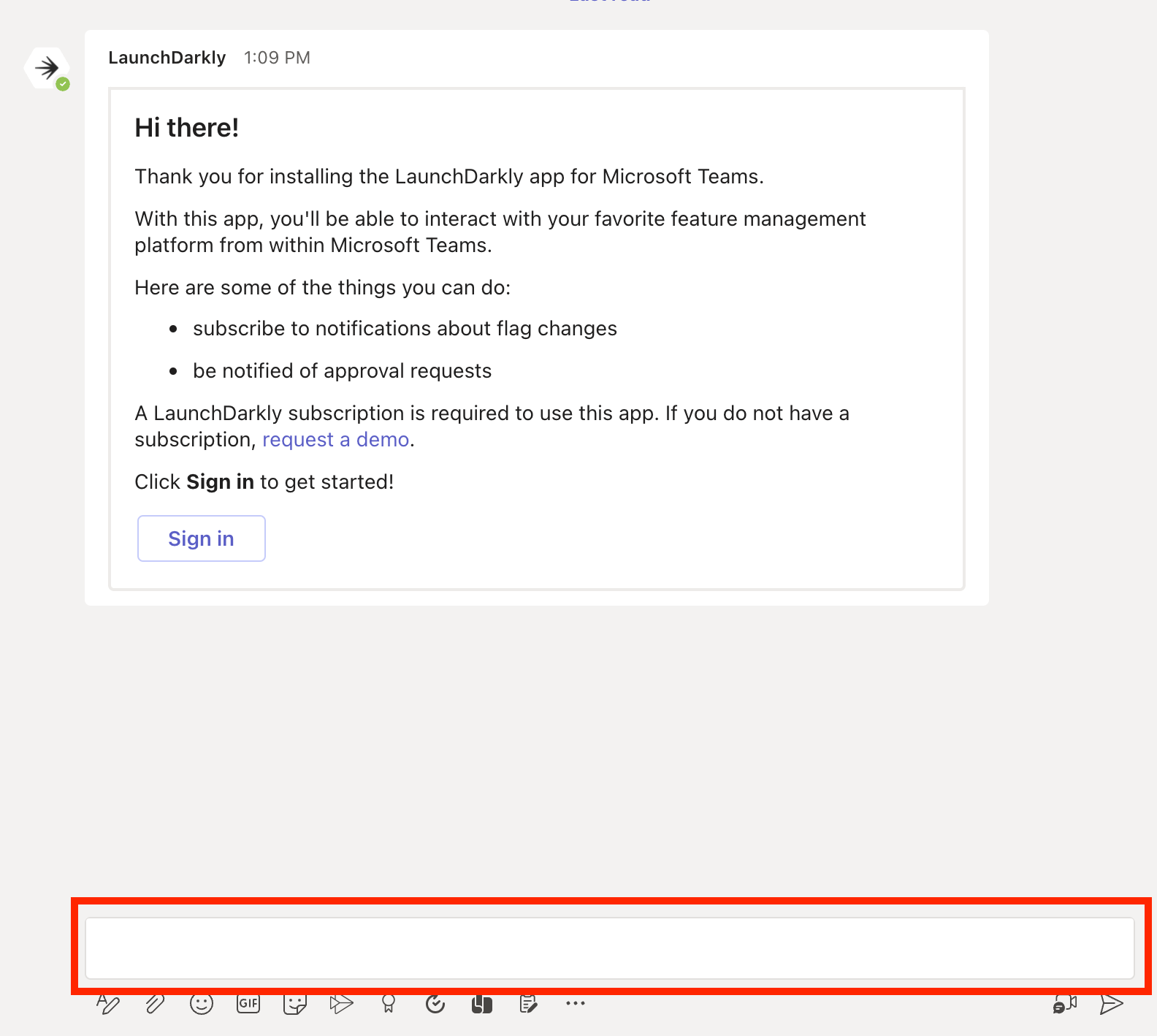
7. Press **Enter**.The LaunchDarkly app displays a success message. You can now use the LaunchDarkly app in Microsoft Teams.
To learn how to troubleshoot connection errors, read [Unable to connect LaunchDarkly account to Microsoft Teams](https://support.launchdarkly.com/hc/en-us/articles/14849824071323-Unable-to-connect-LaunchDarkly-account-to-Microsoft-Teams).

## Disconnect your Launch
Darkly account from Microsoft TeamsTo disconnect your LaunchDarkly account from Microsoft Teams:
1. In Microsoft teams, open a chat window with LaunchDarkly.
2. Enter "account" in the text box and press **Enter**.
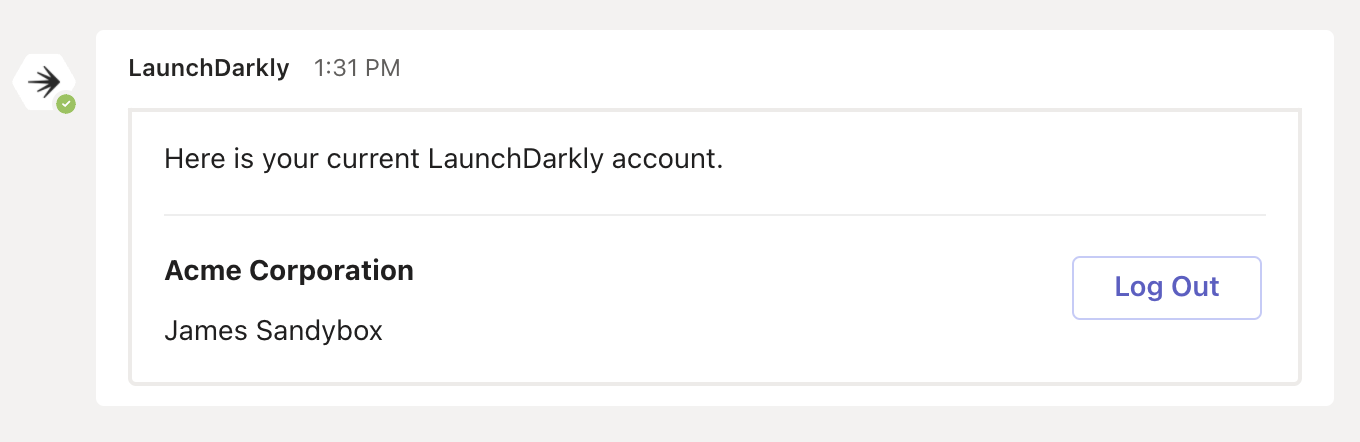
3. LaunchDarkly displays a message that you are currently connected to your LaunchDarkly account. Click **Logout** to disconnect your LaunchDarkly account from Microsoft Teams.