> ## Documentation Index
> Fetch the complete documentation index at: https://launchdarkly-preview.mintlify.site/llms.txt
> Use this file to discover all available pages before exploring further.
# Receiving flag change notifications in Microsoft Teams
> This topic explains how to receive notifications in Microsoft Teams when someone changes a feature flag that you have subscribed to notifications for.
> For the complete documentation index, see [llms.txt](/llms.txt). For the full documentation snapshot, see [llms-full.txt](/llms-full.txt).
## Overview
This topic explains how to receive notifications in Microsoft Teams when someone changes a feature flag that you have subscribed to notifications for.
To use this feature, you must have installed and configured the LaunchDarkly Microsoft Teams app. To learn more, read [Setting up the Microsoft Teams app](/integrations/microsoft-teams/setting-up).
## Subscribe to flag notifications
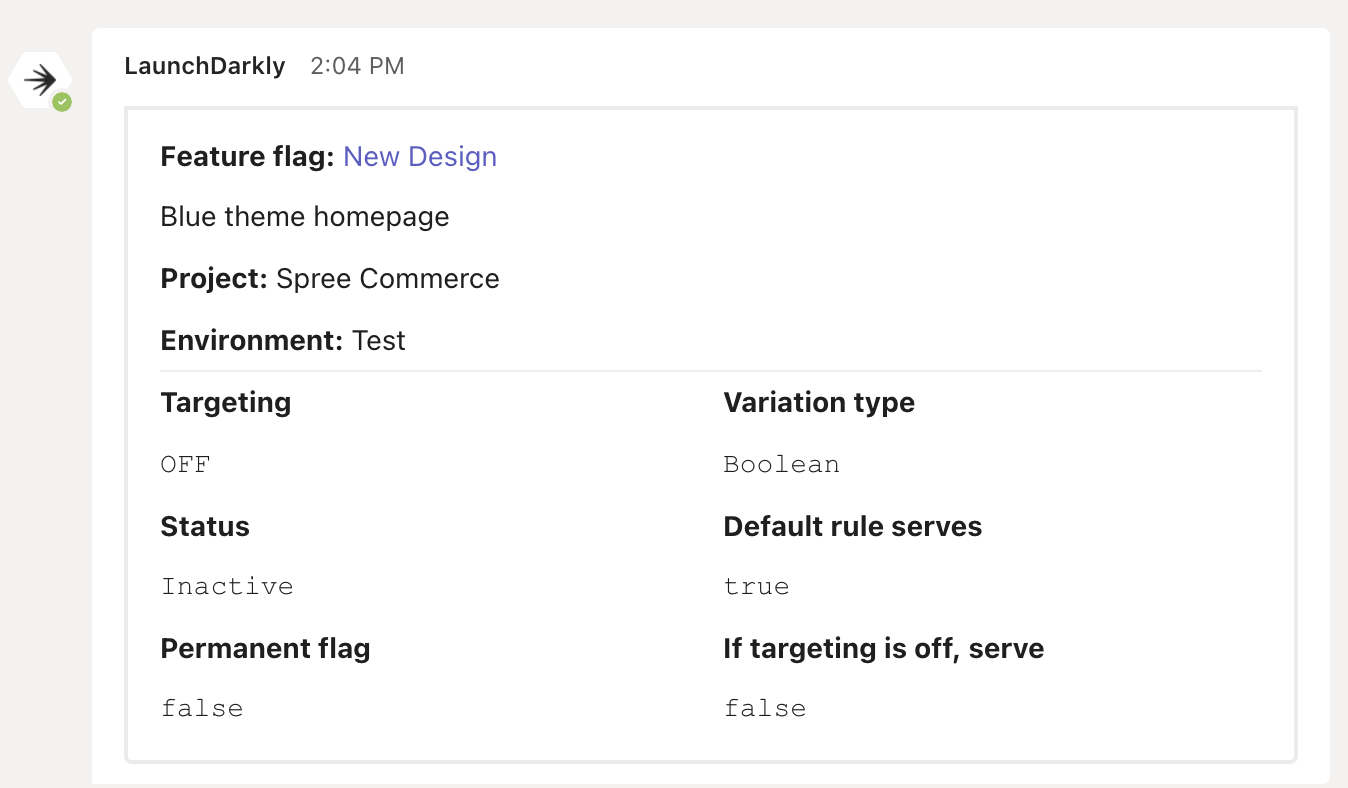
You can subscribe to updates for flags, segments, metrics, projects, or environments. When someone updates a resource LaunchDarkly sends a notification of the change to all channels subscribed to updates for that resource.
There are two ways to subscribe to flag notifications:
* Follow a specific flag in LaunchDarkly. To learn more, read [Follow flags](/home/flags/list#follow-flags).
* Create a subscription in Microsoft Teams.
### Create a subscription in Microsoft Teams
You can create a subscription using the `subscribe` command with keyword arguments, or using the `subscribe` command with positional arguments. We recommend using keyword arguments. To view more information and examples of the subscribe command, run `@launchdarkly help subscribe` in a channel or direct message that the LaunchDarkly bot is in.
#### Subscribe with keyword arguments
You can use keyword arguments to create a subscription with any combination of parameters. At least one parameter is required.
Here's how:
1. Open the Microsoft Teams channel you want notifications in.
2. Run `@launchdarkly subscribe` and pass in any combination of the following arguments:
* `-p` or `--project=`
* `-e` or `--environment=`
* `-f` or `--flag_key=`
* `-s` or `--status=`
* `-a` or `--action=`
* `-t` or `--tag=`
3. Press **Enter**.For example, the following command creates a subscription for all flags in the `qa` environment of the `chatbot` project, with status `active` and tag `production`:
```bash title="Example subscription with keyword arguments" theme={null}
@launchdarkly subscribe -p chatbot -e qa -s active -t production
```
### Subscribe with positional arguments
You can use positional arguments to create a subscription for a single flag. You must provide all three arguments.
Here's how:
1. Open the Microsoft Teams channel you want notifications in.
2. Run `@launchdarkly subscribe` and provide in order the project, environment, and flag key of the flag you would like to subscribe to.
3. Press **Enter**.For example, the following command creates a subscription for the `chat-response` flag in the `qa` environment of the `chatbot` project:
```bash title="Example subscription with positional arguments" theme={null}
@launchdarkly subscribe chatbot qa chat-response
```
## Manage subscriptions
You can view and remove subscriptions in a Teams channel using the `@launchdarkly list` command:
1. Open the Teams channel where you would like to remove notifications.
2. Type `@launchdarkly list` and press **Enter**. A list of subscriptions for the channel appears.
3. Locate the subscription you wish to remove from the channel.
4. Click **Delete**.
## View flag change notifications in Microsoft Teams
Flag change notifications appear in the Microsoft Teams app.
Here's how to view them:
1. In Microsoft Teams, open a chat window with LaunchDarkly.
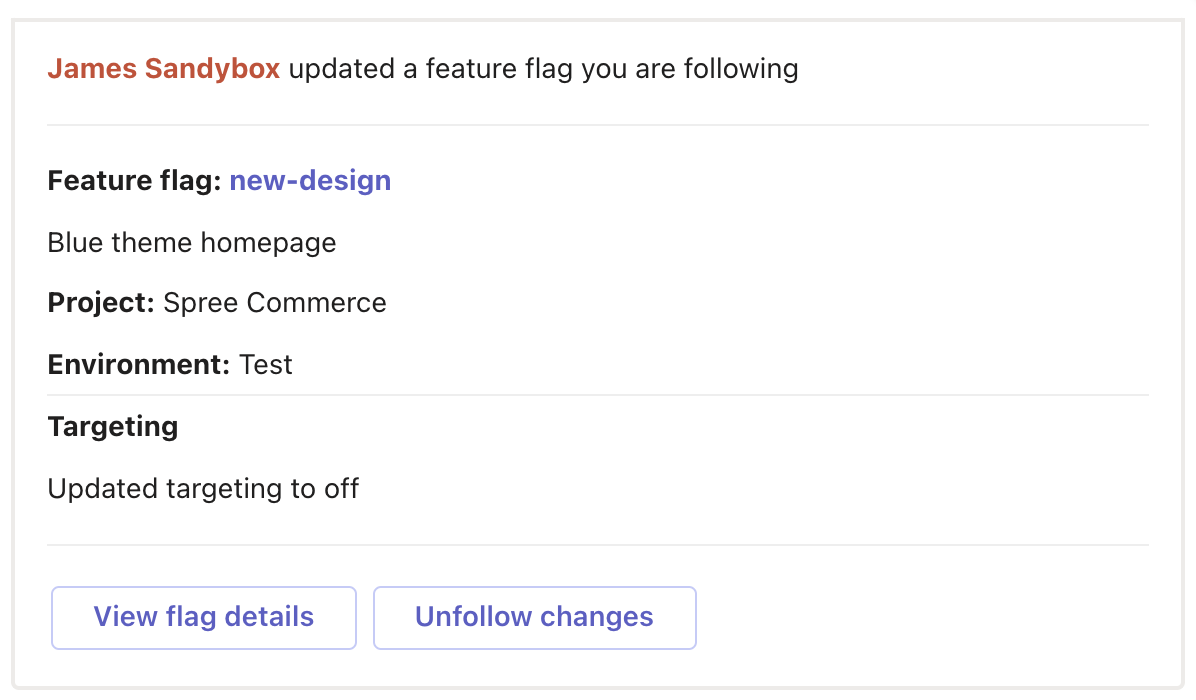
* Click the flag name after "Feature flag:" to open the flag in LaunchDarkly.
* Click **View flag details** to view more information about the flag.
* Click **Unfollow changes** to stop receiving notifications for the flag. This will also unfollow the flag in LaunchDarkly.