> ## Documentation Index
> Fetch the complete documentation index at: https://launchdarkly-preview.mintlify.site/llms.txt
> Use this file to discover all available pages before exploring further.
# Unfurling and linking flags in Microsoft Teams
> This topic explains how flag links work in Microsoft Teams.
> For the complete documentation index, see [llms.txt](/llms.txt). For the full documentation snapshot, see [llms-full.txt](/llms-full.txt).
## Overview
This topic explains how flag links work in Microsoft Teams. A flag link being shared in any conversation can be unfurled to display a preview of the flag. Flag links being shared in public channels will also be automatically registered within LaunchDarkly. The LaunchDarkly app can also be used to manually link conversations in public channels to a flag.
To use this feature, you must have installed and configured the LaunchDarkly Microsoft Teams app. To learn more, read [Setting up the Microsoft Teams app](/integrations/microsoft-teams/setting-up).
## Unfurl flag and segment links
When a flag or segment link is pasted in a public channel, the LaunchDarkly app unfurls the link to display a preview of the resource:
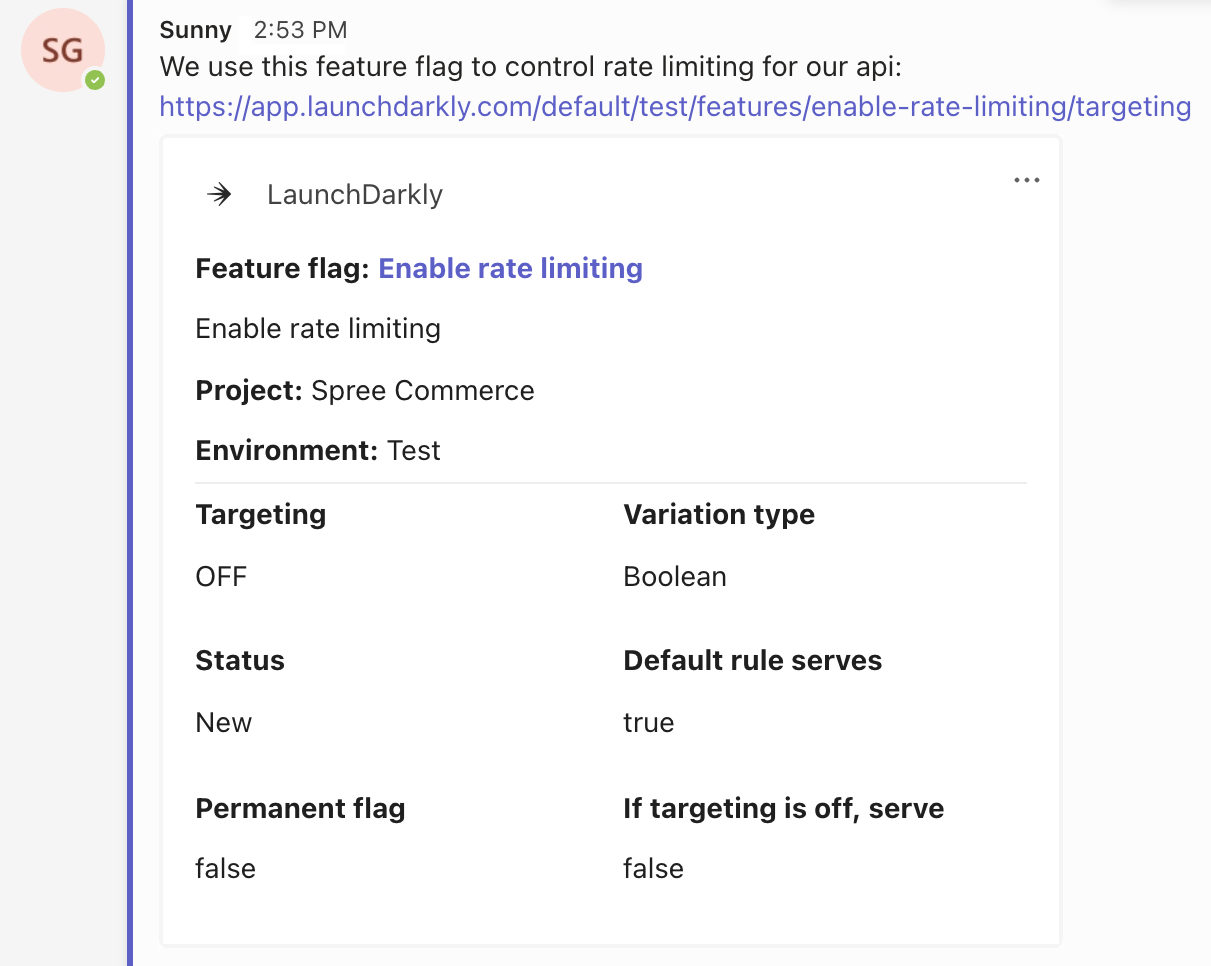
When a flag link is unfurled in Microsoft Teams, LaunchDarkly saves the message on the flag's **Links** tab. This helps track conversations about flags and provide up-to-date information on the flag's usage. To learn more, read [Flag links](/home/flags/links).
## Manually link chat messages to a flag
Feature flags can be manually linked to a chat message in a public channel.
To manually link a chat message to a flag:
1. In Microsoft Teams, navigate to a public channel.
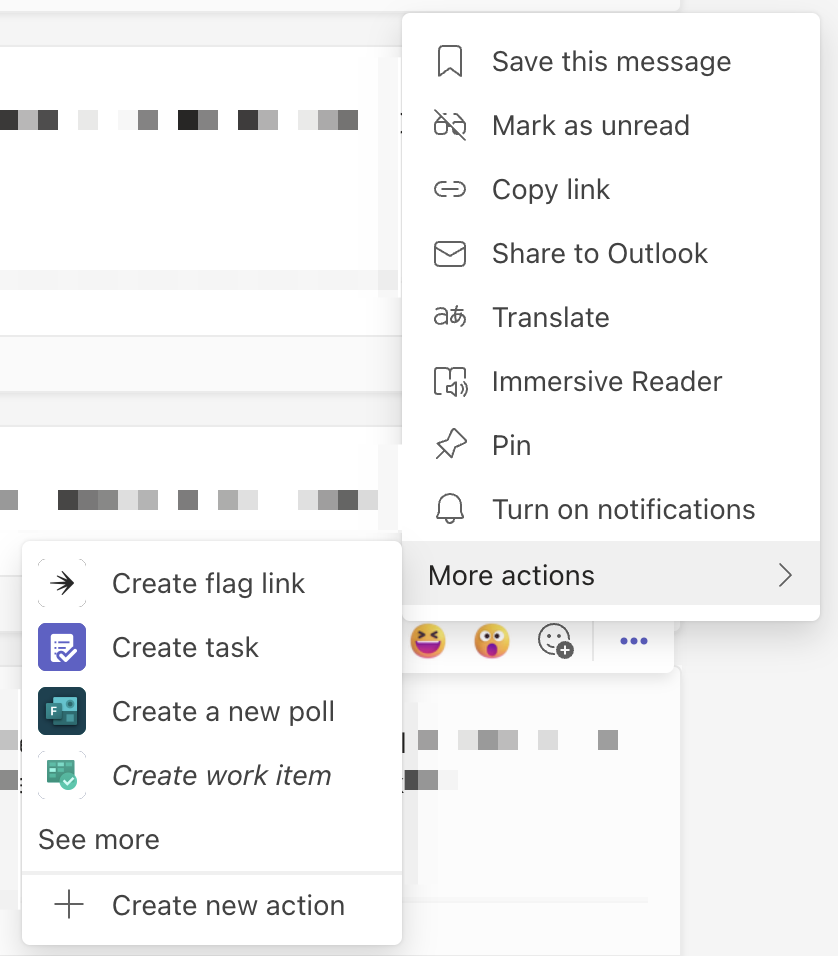
2. Click the **three-dot** expand icon next to a message and choose **More actions**.
3. Click **Create flag link**.
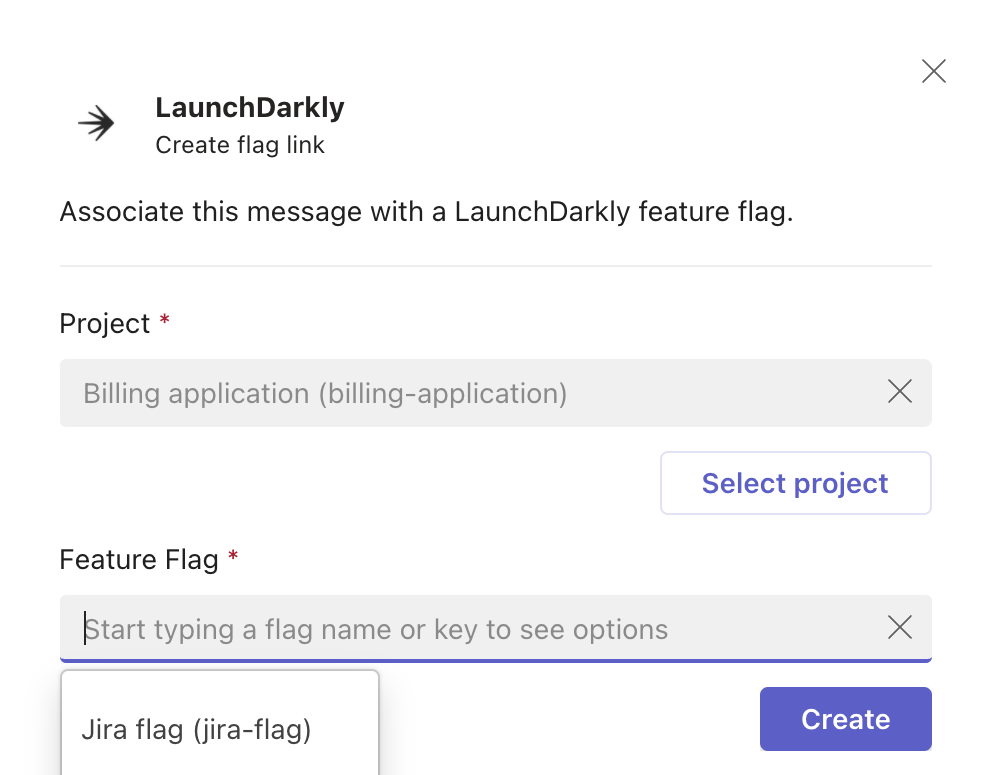
4. A modal appears. Select a project by typing the project name into the "Project" field. Click **Select project**.
5. Select a flag by typing the flag name into the "Feature Flag" field.
6. Click **Create**.